






TL;DR: Google PageSpeed Insights (PSI) evaluates website performance using real-user field data from Chrome UX Report (CrUX) and simulated lab data from Lighthouse. It helps identify Core Web Vitals issues, loading delays, and responsiveness problems so website owners can prioritize performance improvements. PSI scores are diagnostic measurements, not direct Google ranking factors.
Google PageSpeed Insights shows whether your website truly performs or simply looks good. Website performance influences how visitors experience a page, particularly when loading delays, unresponsive interactions, or unexpected layout shifts occur.
Although page experience is one consideration in Google’s broader ranking systems, website speed alone does not determine search rankings. PageSpeed Insights helps identify performance problems and provides recommendations for improving the experience across mobile and desktop devices.
Google PageSpeed Insights goes beyond basic speed testing. Using real user data and Lighthouse audits, it highlights performance issues and provides clear recommendations to improve load time, Core Web Vitals, and rankings for websites.
This guide helps you understand Google PageSpeed Insights, its key metrics, and how to fix speed issues effectively.
Google PageSpeed Insights: Quick Overview
| Question | Quick Answer |
|---|---|
| What is Google PageSpeed Insights? | A free Google tool that analyzes website performance and Core Web Vitals. |
| Is it free? | Yes |
| Does PageSpeed Insights directly affect SEO? | Yes, via Chrome UX Report (CrUX). |
| What score is good? | 90+ is considered good, but passing Core Web Vitals matters more. |
| Mobile or Desktop? | Analyze both. Pay particular attention to mobile usability and performance, but do not ignore desktop visitors. |
| Best use | Finding and fixing website performance issues. |
What is Google PageSpeed Insights?
Google PageSpeed Insights (PSI) is a free performance analysis tool by Google that measures how fast and stable your web pages load on mobile and desktop devices. It evaluates real user experience data from Chrome users and combines it with Lighthouse-based lab testing to deliver actionable website speed optimization recommendations.
Unlike basic speed testing tools, PSI provides:
- Performance scores
- Core Web Vitals evaluation
- Real user data (field data)
- Lab-based diagnostics
- Actionable optimization recommendations
PSI combines:
- Chrome User Experience Report (CrUX) → real users
- Lighthouse audits → simulated testing
This dual data model makes PSI one of the most reliable website performance tools for SEO and UX optimization.
PageSpeed Insights analyzes each URL separately for both mobile and desktop, helping you identify performance issues specific to each device.
PageSpeed Insights vs Other Website Speed Testing Tools
Before analyzing your website, it’s helpful to understand how Google PageSpeed Insights compares with other popular performance testing tools.
| Tool | Main purpose | Field data | Lab testing | Best use |
|---|---|---|---|---|
| Google PageSpeed Insights | Real-user experience and performance diagnostics | Yes, CrUX when available | Yes, Lighthouse | Checking Core Web Vitals and identifying performance issues |
| Lighthouse | Detailed website audits | No, not in its standard lab report | Yes | Debugging performance, accessibility, SEO, and best practices |
| GTmetrix | Performance testing and waterfall analysis | Availability depends on its plan and features | Yes | Investigating resource loading and page performance |
| Pingdom Website Speed Test | Page load time and resource analysis | No in its standard test | Yes | Checking load time, page size, and individual resource requests |
These tools serve different purposes, so their results should not be treated as interchangeable. Google PageSpeed Insights is useful for comparing real-user experience with controlled Lighthouse results. Lighthouse provides detailed diagnostics for individual pages, while GTmetrix and Pingdom help investigate loading behavior and resource requests. Use PSI to understand Core Web Vitals, then use the other tools when you need additional technical detail.
Unlike most website speed testing tools, Google PageSpeed Insights combines simulated Lighthouse audits with real-user Chrome UX Report (CrUX) data whenever enough traffic is available. This gives you a more complete picture of both technical performance and real-world user experience.
This combination helps you understand both how your website performs under test conditions and how actual users experience it, making PSI one of the most reliable tools for improving Core Web Vitals and SEO.
Why Does Page Speed Matter for SEO and Core Web Vitals?
You can have flawless design and high-quality content, but if your website loads slowly, users may leave before they get a chance to engage with it. Page speed affects user experience, website engagement, and conversions. It is also relevant to SEO because Google considers Core Web Vitals as part of its broader page experience signals. These factors explain why website speed matters:
- Multiple industry studies have shown that slower pages are associated with lower conversion rates, although the exact impact varies by industry, device, and audience.
- Over 60% of global traffic now comes from mobile devices
- Large eCommerce companies like Amazon have consistently reported revenue losses from even small performance delays.
- Users expect pages to load in under 2–3 seconds
Slow page speed can affect different aspects of website performance, such as:
1. SEO Rankings
Page speed contributes to SEO through page experience and Core Web Vitals, but it is only one part of Google’s ranking systems. Google considers Core Web Vitals as part of its broader page experience considerations. While speed alone will not make low-quality content rank, it can contribute to a better page experience.
Google uses mobile-first indexing, which means it primarily uses the mobile version of a website’s content when crawling, indexing, and ranking pages. This makes it important to ensure that mobile visitors and Googlebot can access the same essential content and resources.
However, mobile-first indexing does not mean Google gives a separate ranking boost to websites with higher mobile PageSpeed Insights scores. Website performance and Core Web Vitals are separate considerations within Google’s broader page experience and ranking systems. A good mobile experience matters for both usability and performance, but a high PSI score does not guarantee better rankings.
2. User Engagement
A slow-loading website creates a poor first impression and increases the likelihood that visitors will leave before engaging with your content. Faster websites can make browsing feel more responsive and encourage visitors to explore additional pages. A website that loads and responds consistently also provides a more comfortable browsing experience.
3. Conversion Rate
Every second of delay can increase the likelihood that users will abandon your website before completing a purchase or enquiry. Delays during key actions such as browsing or checkout can discourage users from completing their intended actions. These performance issues can affect your conversion rate.
4. Mobile Experience
Mobile users often browse through different network conditions and devices, making website performance particularly important for their experience. Mobile users are more likely to leave a site if it takes more than 3 seconds. Fast loading and responsive interactions make browsing smoother and help visitors navigate your website more easily.
This can also be seen in real-world website performance improvements. For example, HopeStage’s homepage recorded a 23-point increase in its mobile PageSpeed Insights score after using Website Speedy for performance optimization. Its desktop score also improved by 26 points, as shown in the HopeStage case study.


How to Use Google PageSpeed Insights For Your Website?
Google PageSpeed Insights is simple to use, but understanding each step helps you read the report correctly and take the right actions. Follow these steps to use Google PageSpeed Insight and analyze your website performance accurately.
Step 1: First, go to the Google PageSpeed Insights website on the search engine or simply click the URL https://pagespeed.web.dev/.

Step 2: Enter your page’s or website’s URL that you want to test in the search bar and hit “Analyze.”
You can analyze your homepage, blog posts, landing pages, product pages, or any publicly accessible URL individually, since PageSpeed Insights evaluates one page at a time rather than your entire website.
PSI will generate a detailed report, showing:
- Performance score for both mobile and desktop.
- Core Web Vitals metrics analytics.
- Areas of opportunity and strategies for optimization.
- The Lighthouse performance report with actionable recommendations.
Pro tip: Always focus on mobile speed score first. Google uses mobile-first indexing, so your mobile performance heavily influences your ranking.
Google PageSpeed Insights Report Explained
The PSI report has different sections, which are as follows:
1. Performance Score
This section gives you the overall performance and speed score of your website. The performance on mobile devices and desktops is different due to device limitations. Thus, this report separately shows performance scores for mobile and desktop. You can switch between mobile and desktop scores as shown below:
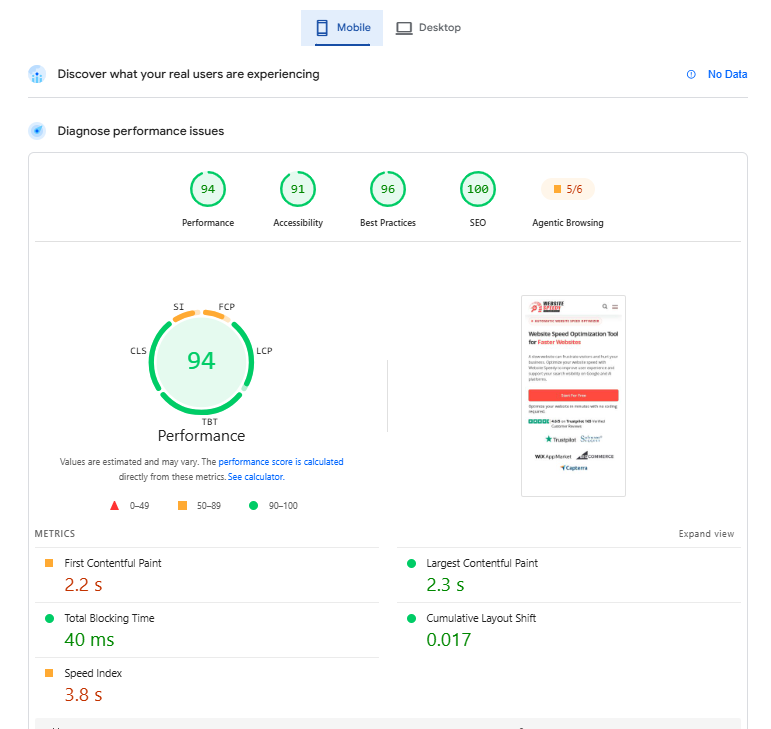
2. Field Data
PageSpeed Insights field data reports real-user measurements from the Chrome User Experience Report (CrUX). These include:
- Largest Contentful Paint (LCP): Loading performance.
- Interaction to Next Paint (INP): Responsiveness.
- Cumulative Layout Shift (CLS): Visual stability.
- First Contentful Paint (FCP): When the first visible content appears.
PSI can also report Time to First Byte (TTFB) as an additional diagnostic metric. Field data reflects aggregated experiences from real Chrome users rather than a single simulated test.
3. Lab Data
Lab Data in PageSpeed Insights is generated through Lighthouse under a simulated device and network environment. Unlike Field Data, it represents a controlled test rather than aggregated experiences from actual visitors.
The Lighthouse Performance report includes these five metrics:
- Largest Contentful Paint (LCP): Measures when the largest visible content element renders.
- First Contentful Paint (FCP): Measures when the first text or image appears.
- Total Blocking Time (TBT): Measures how long the main thread is blocked by long tasks.
- Speed Index: Measures how quickly visible page content is displayed.
- Cumulative Layout Shift (CLS): Measures unexpected visual movement during loading.
INP is not included in the standard Lighthouse lab Performance score because Lighthouse’s standard page-load audit does not reproduce real-user interactions needed to calculate INP. TBT is used as a lab diagnostic for responsiveness, but it is not the same metric as INP.
4. Opportunities
This is the golden section for you, as it provides the suggestions and areas of opportunity in your website. PSI gives suggestions like image optimization for increased speed and eliminating render-blocking resources. Each recommendation comes with the estimated loading time saved in each action.
5. Diagnostics
This section will provide deep insights into scripts, CSS, and other technical areas, which you can fix for deeper optimization. Basically, it’s the diagnostic center of your website, which you can consider when you are done with first aid (basic optimization methods like image optimization).
6. Passed Audits
In this section, you can review the areas in which your website is performing well.
How Google Calculates the PageSpeed Insights Performance Score
Google PageSpeed Insights uses Lighthouse to calculate your website’s Performance Score. According to Google’s Lighthouse Performance Scoring documentation, the Performance score is calculated using five lab-based metrics. Each metric contributes a different percentage to the overall score.
| Lighthouse Performance metric | Weight |
|---|---|
| First Contentful Paint (FCP) | 10% |
| Speed Index | 10% |
| Largest Contentful Paint (LCP) | 25% |
| Total Blocking Time (TBT) | 30% |
| Cumulative Layout Shift (CLS) | 25% |
| Total | 100% |
Important: Interaction to Next Paint (INP) is not included in this Lighthouse Performance score. INP is a Core Web Vital measured using real-user field data. Lighthouse uses Total Blocking Time (TBT) as a lab-based responsiveness diagnostic, but TBT and INP measure different things.
The Lighthouse Performance score is calculated from the weighted metric scores, not by directly averaging the raw metric values. A change in one metric can therefore have a different effect on the overall score depending on its weighting
Google PageSpeed Insights Performance Metrics Explained

PSI measures the score based on the following Core Web Vitals metrics:
Google PageSpeed Insights reports several performance metrics across its Field Data and Lab Data sections. These include the three Core Web Vitals (LCP, INP, and CLS), along with additional metrics such as FCP, TBT, and Speed Index. Each metric measures a different aspect of website performance and helps identify specific loading, responsiveness, or visual stability problems.
Interaction to Next Paint (INP)
Interaction to Next Paint (INP) measures how quickly a webpage responds visually after a visitor interacts with it, such as clicking a button, opening a menu, or selecting an option.
Unlike Total Blocking Time (TBT), INP is a real-user metric reported through Field Data when sufficient CrUX data is available. It evaluates responsiveness throughout a user’s visit rather than focusing only on the initial page load.
Good INP Score: 200 milliseconds or less.
Needs improvement: More than 200 ms and up to 500 ms.
Poor INP: More than 500 ms.
Common causes: Long-running JavaScript tasks, excessive main-thread work, and slow event handlers.
First Contentful Paint (FCP)
It measures the speed and time it takes to load the first piece of content. It plays an important role in improving your Google PageSpeed Insight performance score.
Good score: ≤ 1.8 seconds
Affected by: server response time, render-blocking CSS/JS, font loading, image optimization
Speed Index
Speed is another primary factor on which website performance is measured. It justifies the responsiveness of the website. It measures how quickly visible content is populated, not general responsiveness.
Good score: ≤ 3.4 seconds
Affected by: image size, above-the-fold content, JavaScript execution, critical rendering path
Total Blocking Time (TBT)
Total Blocking Time (TBT) measures blocking time between FCP and Time to Interactive in the Lighthouse lab test. Avoid presenting it as an INP measurement.
Good score: ≤ 200 ms
Affected by: heavy JavaScript, third-party scripts, unused code, long tasks (>50 ms)
Largest Contentful Paint (LCP)
LCP measures when the largest content element in the viewport becomes visible. Above the fold content is what you see first on a website without scrolling.
Good LCP score: ≤ 2.5 seconds
Affected by: images, hero banners, fonts, server speed
Cumulative Layout Shift (CLS)
It measures the unexpected layout shifts that occur in a site while it is loading. It measures the visual stability of a website.
Good CLS Score ≤ 0.1
Affected by: Images, ads, fonts, and dynamic content.
Field Data vs Lab Data: What’s the Difference?
One of the most confusing parts of Google PageSpeed Insights is the difference between Field Data and Lab Data.
PageSpeed Insights uses two different measurement systems to help website owners understand performance: Field Data and Lab Data.
Field Data (Real-user measurements)
Field Data comes from the Chrome User Experience Report (CrUX), which collects aggregated performance measurements from eligible real Chrome users. It reflects actual browsing conditions, including different devices, network connections, and user interactions.
PSI reports the following field metrics:
- Largest Contentful Paint (LCP)
- Interaction to Next Paint (INP)
- Cumulative Layout Shift (CLS)
- First Contentful Paint (FCP)
Lab Data (Simulated measurements)
Lab Data is generated by Lighthouse in a controlled testing environment. It helps developers reproduce performance problems, investigate their causes, and test improvements.
The Lighthouse Performance report includes:
- Largest Contentful Paint (LCP)
- First Contentful Paint (FCP)
- Total Blocking Time (TBT)
- Speed Index
- Cumulative Layout Shift (CLS)
Why can Field Data and Lab Data show different results?
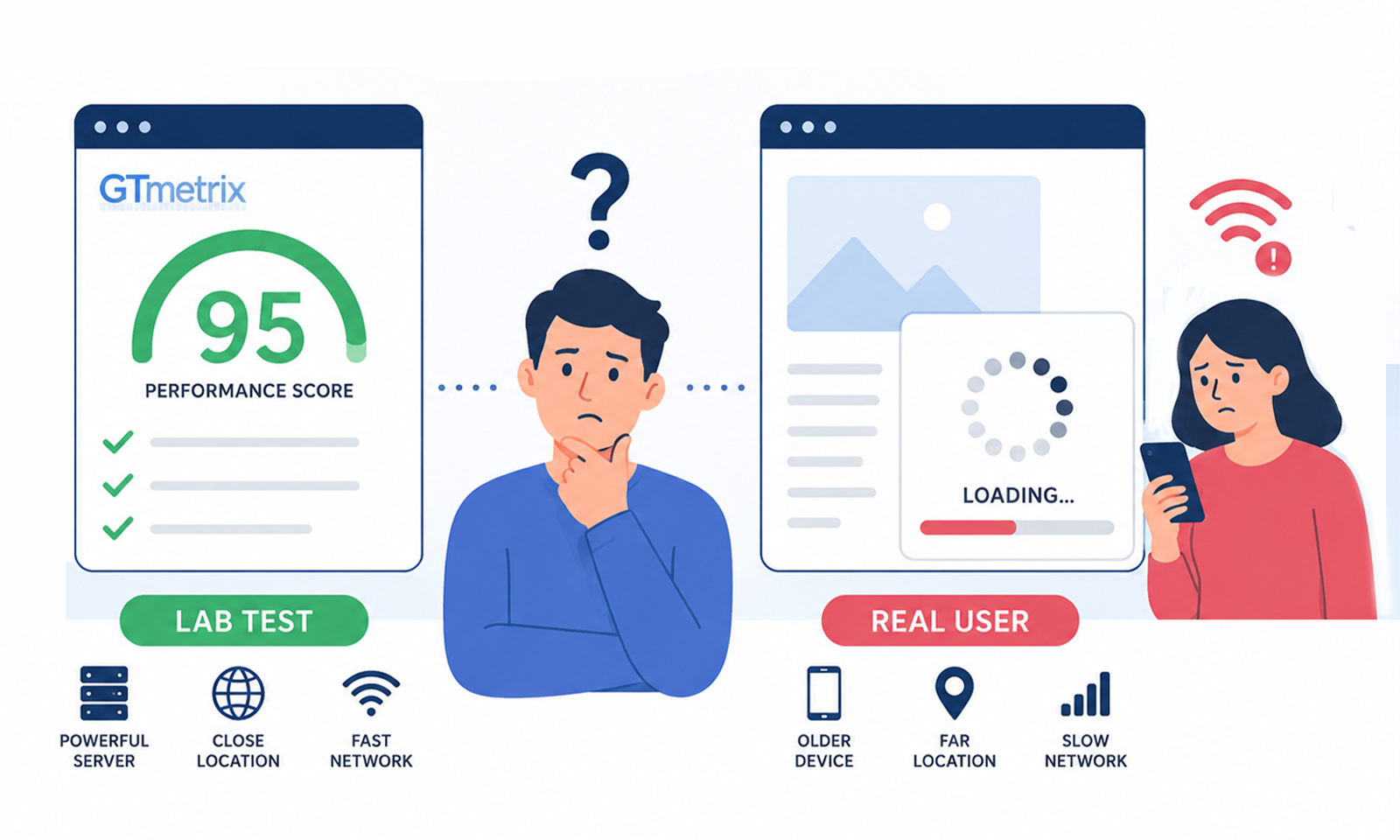
Field Data represents aggregated real-world experiences over a period of time, while Lab Data represents a controlled test using a particular device configuration and network simulation. Differences in devices, network conditions, caching, user interactions, and page content can cause the results to vary.
For example, a website may have a good Lighthouse LCP result during a controlled test but a poor field LCP because actual visitors experience slower server responses or heavier page content.
Use Field Data to understand how visitors experience your website. Use Lab Data to investigate technical problems and test possible solutions. Both are necessary for a complete performance assessment.
How Often Should You Test Google PageSpeed Insights?
It’s a good practice to test your most important pages whenever you make performance-related changes, such as updating your theme, installing new plugins, adding third-party scripts, or redesigning key sections.
Even if your website rarely changes, reviewing your PageSpeed Insights report monthly helps identify new performance issues before they affect user experience or search visibility.
Why Is My Mobile PageSpeed Insights Score Lower Than Desktop?
It’s completely normal for your mobile PageSpeed Insights score to be lower than your desktop score. Mobile devices typically have slower processors, less memory, and slower network connections, making it harder to load and render pages quickly.
Google uses mobile-first indexing, which means it primarily uses the mobile version of a website’s content for indexing and ranking. However, this does not mean mobile PageSpeed Insights scores receive a separate ranking advantage.
Mobile Lighthouse tests also use a different simulated device and network environment from desktop tests. This can result in lower mobile scores even when the same website is being tested. Instead of comparing the two scores directly, review the individual performance metrics and identify which issues affect mobile visitors most.
Why Does My PageSpeed Insights Score Change Every Time?
If you’ve tested your website multiple times, you’ve probably noticed that the score isn’t always identical. That’s expected.
Lab tests can vary because of network conditions, server response times, browser activity, and third-party resources loading differently during each test. Field Data also updates over time as Google collects new real-user data.
Instead of focusing on small score fluctuations, monitor long-term trends and prioritize passing Core Web Vitals consistently.
The Business Impact of Google PageSpeed Insights
Even small improvements in Core Web Vitals can result in measurable gains in engagement and conversions, especially on mobile. Google PageSpeed Insights helps businesses identify performance issues that directly affect search rankings, user experience, and revenue. A faster website leads to better visibility, higher engagement, and more conversions.
Key business benefits include:
- Improved SEO visibility: Optimizing the issues highlighted in PageSpeed Insights helps improve Core Web Vitals and overall search performance.
- Better user engagement: Faster pages encourage visitors to stay longer, interact with more content, and reduce bounce rates.
- Higher conversion rates: Improving loading speed creates a smoother user experience that can increase leads and sales.
- Faster mobile experience: Optimizing for mobile devices helps deliver a better experience for the majority of today’s web users.
This makes Google PageSpeed Insights a critical tool for driving measurable business growth through performance optimization.
Most Common Google PageSpeed Insights Issues (and Why They Matter)
Based on recurring website performance audits, these are the optimization issues that appear most frequently in Google PageSpeed Insights reports.
| Issue Found in PSI | How Often We See It | Typical Impact |
|---|---|---|
| Render-blocking CSS & JavaScript | Very Common | Slower FCP and LCP |
| Oversized hero images | Extremely Common | Poor LCP |
| Third-party scripts | Common | High TBT and INP |
| Unoptimized fonts | Common | Slower FCP and CLS |
| Missing browser caching | Common | Slower repeat visits |
| Unused JavaScript | Common | High TBT |
| Large page weight | Common | Slower overall loading |
While every website is different, these are the issues we encounter most frequently during website performance audits. In many cases, resolving just a few of these high-impact problems can significantly improve Core Web Vitals, user experience, and PageSpeed Insights scores without requiring a complete website rebuild.
How to Troubleshoot Core Web Vitals and Performance Metrics
PageSpeed Insights identifies performance issues, but understanding which metric is affected helps you choose the right fix. Different metrics require different troubleshooting approaches.
1. How to Troubleshoot Poor LCP
If your LCP is above 2.5 seconds, identify which element is being reported as the Largest Contentful Paint element.
Open the LCP-related diagnostics in PageSpeed Insights and check whether the delay comes from server response time, resource loading, or element rendering.
What to investigate:
- Slow server response times (TTFB).
- Large hero images or above-the-fold content.
- Render-blocking CSS and JavaScript.
- Delayed loading of the main content element.
2. How to Troubleshoot Poor INP
If your INP exceeds 200 milliseconds, investigate how the page responds to user interactions. Look for slow event handlers, long-running JavaScript tasks, and unnecessary main-thread work.
What to investigate:
- JavaScript execution during clicks and taps.
- Heavy third-party scripts.
- Long tasks that block the browser’s main thread.
- Unnecessary event listeners and expensive rendering operations.
Use real-user monitoring or Chrome DevTools performance recordings to identify the specific interactions causing delays.
3. How to Troubleshoot Poor CLS
If your CLS exceeds 0.1, identify the elements that move unexpectedly while the page loads or during user interaction.
What to investigate:
- Images or videos without reserved dimensions.
- Advertisements and embedded content that load dynamically.
- Web fonts that cause text to reflow.
- Content inserted above existing page elements.
Reserve space for media and dynamically loaded elements wherever possible to prevent unexpected layout shifts.
4. How to Troubleshoot High TBT
If your Lighthouse TBT is above 200 milliseconds, investigate JavaScript tasks that keep the main thread occupied for extended periods.
What to investigate:
- Large JavaScript bundles.
- Unnecessary third-party scripts.
- Unused JavaScript.
- Long-running functions and heavy execution tasks.
Use Chrome DevTools to identify long tasks and determine which scripts are responsible.
5. How to Troubleshoot Poor FCP
If your FCP is above 1.8 seconds, check how quickly the browser can begin displaying visible content.
What to investigate:
- Slow server response time.
- Render-blocking CSS and JavaScript.
- Delayed font loading.
- Resources that prevent the initial page render.
Prioritize the resources needed to display the first visible content and defer non-critical resources where appropriate.
Remember that improving one metric does not automatically fix every other performance issue. Test the page again after making changes and compare the individual metrics rather than relying only on the overall Performance score.
Why Doesn’t My Website Have Field Data?
Google PageSpeed Insights displays Field Data when sufficient eligible real-user Chrome data is available through the Chrome User Experience Report (CrUX).
New websites, low-traffic pages, or URLs without enough eligible Chrome usage may display a message such as “Not enough data to display real-user experience.”
This does not automatically mean that your website has a performance problem.
What should you do when Field Data is unavailable?
1. Check the Lab Data report: Review Lighthouse metrics such as LCP, FCP, TBT, Speed Index, and CLS to identify potential performance problems.
2. Test important URLs individually: Check your homepage, landing pages, product pages, and other important URLs rather than testing only the homepage.
3. Use Chrome DevTools: Investigate slow resources, long JavaScript tasks, and layout shifts.
4. Collect your own real-user measurements: Use a Real User Monitoring (RUM) solution or appropriate web-vitals instrumentation to understand actual visitor experiences.
5. Retest after optimization: Compare results across multiple tests to identify consistent improvements.
Remember that Lab Data and Field Data measure different conditions. A good Lighthouse score is useful, but it does not guarantee that real visitors will experience the same performance.
Continue monitoring your website as more eligible real-user data becomes available.
Is Google PageSpeed Insights Good for SEO?
Google PageSpeed Insights is useful for SEO because it helps website owners identify performance problems and evaluate Core Web Vitals.
However, PageSpeed Insights itself is not a Google ranking factor, and its Performance score does not directly determine search rankings. Core Web Vitals are part of Google’s broader page experience considerations and ranking systems, alongside content relevance, quality, and other signals.
Improving LCP, INP, and CLS can help deliver a better user experience, but passing Core Web Vitals does not guarantee higher rankings. Website owners should use PSI as a diagnostic tool to identify performance issues rather than treating a score of 90 or 100 as an SEO target.
Common Myths About Google PageSpeed Insights
1. My site must score 100 to rank on Google
False. Speed is a ranking factor, but it’s one of many. Content quality and relevance matter just as much. So, it is good to focus on the betterment of your website rather than chasing the 100 out of 100.
2. Desktop speed score is more important than the mobile speed score
False. Neither mobile nor desktop PageSpeed Insights scores should be treated as a direct ranking target. Google uses mobile-first indexing, meaning it primarily uses the mobile version of website content for indexing and ranking. However, this does not mean mobile PSI scores receive a separate ranking boost. Test both versions and prioritize performance improvements based on real-user experience and the issues identified in each report.
3. A single PSI test is enough!
False. Test multiple pages and monitor consistently, as performance can vary by device, network, or location. It is good to test your website after optimization, so you can compare your progress.
4. Google PageSpeed Insights and Lighthouse always produce identical results
False. PageSpeed Insights uses Lighthouse to generate its lab performance report, but it also provides real-user Field Data from the Chrome User Experience Report (CrUX), when available. Lighthouse’s standard lab report does not provide the same aggregated real-user measurements. Therefore, the two should not be treated as identical reports.
What Should You Fix First in Google PageSpeed Insights?
If your PageSpeed Insights report shows dozens of recommendations, don’t try to fix everything at once. Prioritize the issues that have the biggest impact on Core Web Vitals and real user experience. Start in this order:
- Improve Largest Contentful Paint (LCP) by optimizing hero images and server response times.
- Remove render-blocking CSS and JavaScript.
- Reduce heavy third-party scripts.
- Fix layout shifts (CLS).
- Optimize fonts and browser caching.
- Remove unused CSS and JavaScript.
Key Takeaways
Google PageSpeed Insights is a diagnostic tool for understanding website performance through real-user Field Data and simulated Lighthouse Lab Data. It helps website owners identify loading delays, responsiveness problems, layout shifts, and other technical issues.
Rather than chasing a perfect Performance score, focus on improving LCP, INP, and CLS, investigating Lighthouse diagnostics, and providing a consistent experience across mobile and desktop devices. Remember that PageSpeed Insights scores are not direct Google ranking factors, and passing Core Web Vitals does not guarantee higher search rankings.
A perfect PageSpeed Insights score isn’t the goal. The real objective is building a fast, stable website that passes Core Web Vitals, provides an excellent user experience, and supports better search visibility. Use PageSpeed Insights as an ongoing optimization tool, not a one-time test to continuously improve your site’s performance.
FAQs
Q1. What does the Google PageSpeed Insights tool do?
Google PageSpeed Insights looks at how well your website works on both mobile and desktop. It gives you scores and suggestions for how to speed up loading times, enhance Core Web Vitals, and make the overall user experience better.
Q2. Is PageSpeed Insights beneficial for people who are new to it?
Yes, PageSpeed Insights is easy to use for beginners because it provides you with a straightforward score from 0 to 100 and shows you clear fixes with color-coded suggestions (red, orange, green). Beginners can find places that need to be optimized even if they don't know much about technology.
Q3. Is it free to use PageSpeed Insights?
Yes, there is no cost to use Google PageSpeed Insights. Anyone can type in a website URL and obtain extensive information about how it works and how to make it better right away.
Q4. What metrics does PageSpeed Insights measure?
Google PageSpeed Insights reports several performance metrics through Field Data and Lab Data.
The three current Core Web Vitals are:
- Largest Contentful Paint (LCP): Loading performance.
- Interaction to Next Paint (INP): Responsiveness.
- Cumulative Layout Shift (CLS): Visual stability.
Other reported metrics include First Contentful Paint (FCP), Total Blocking Time (TBT), Speed Index, and Time to First Byte (TTFB).
INP is measured through real-user Field Data, while TBT is a Lighthouse lab metric used to diagnose main-thread blocking.
Q5. Why is Google PageSpeed Insights significant for search engine optimization?
In Google Search, the speed of a website and its Core Web Vitals are two of the things that affect its ranking. A higher PageSpeed Insights score makes the user experience better, lowers bounce rates, and can help your search engine rankings.
Q6. How high should a PageSpeed Insights score be to be good?
A score of 90 or higher is great, 50–89 is average and requires work, and anything below 50 means bad performance that could impact SEO and conversions.
About the Author