






TL;DR: If you’re wondering why your Squarespace website is slow despite minimal content, the issue is often not the number of pages on your site. Factors such as large images, third-party scripts, custom fonts, animations, and template design can significantly impact performance. In this post, you’ll learn the most common reasons behind a slow Squarespace website, even with minimal content, and the practical fixes for it.
If your Squarespace website is slow despite minimal content, you’re not alone. Many website owners assume that fewer pages automatically mean better performance, but that’s not always true. For example, a 5-page website with 15MB hero images can be slower than a 100-page blog.
Website speed depends on how much work a browser must do to load each page. Large images, third-party scripts, custom fonts, animations, and other elements can slow down a Squarespace site on a few pages.
In this post, we’ll break down the most common reasons a Squarespace website loads slowly, how to detect them, and show you actionable ways to improve page speed, Core Web Vitals, and overall user experience.
Common Reasons a Squarespace Website Is Slow and How to Fix Them
If your Squarespace website is slow despite minimal content, the problem is usually not the number of pages on your site. More often, slow loading is caused by oversized images, third-party scripts, custom fonts, animations, video backgrounds, or poorly optimized page layouts.
To improve Squarespace speed:
- Optimize and compress images before uploading
- Reduce unnecessary third-party scripts and integrations
- Limit custom fonts and font weights
- Simplify page layouts and animations
- Avoid heavy background videos where possible
- Monitor Core Web Vitals and PageSpeed Insights regularly
Identifying and fixing these elements can significantly improve loading times, user experience, and search performance.
How Google Evaluates Squarespace Website Speed
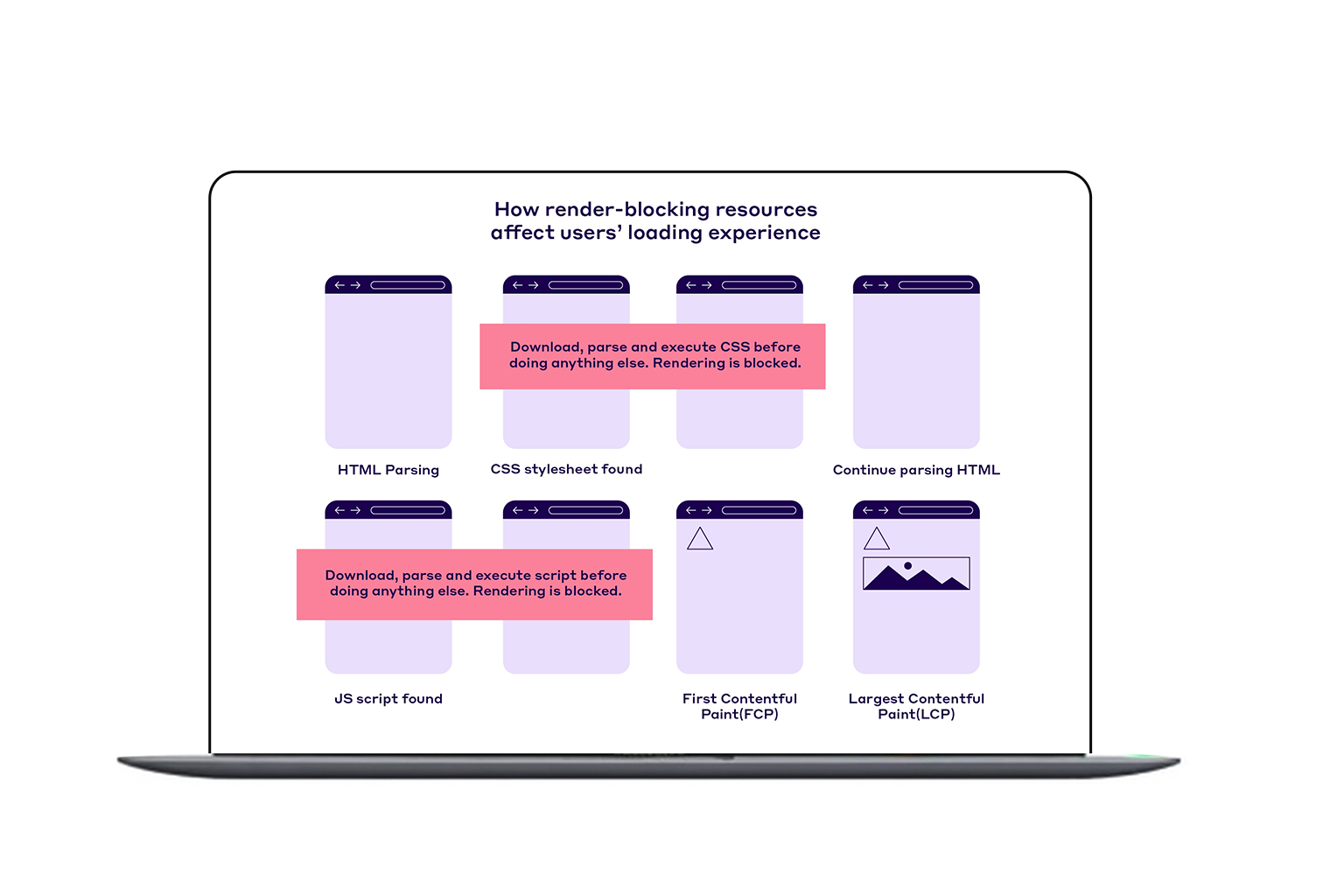
When diagnosing Squarespace page speed issues, it’s important to focus on Core Web Vitals rather than just the overall PageSpeed score. Google evaluates user experience primarily through:
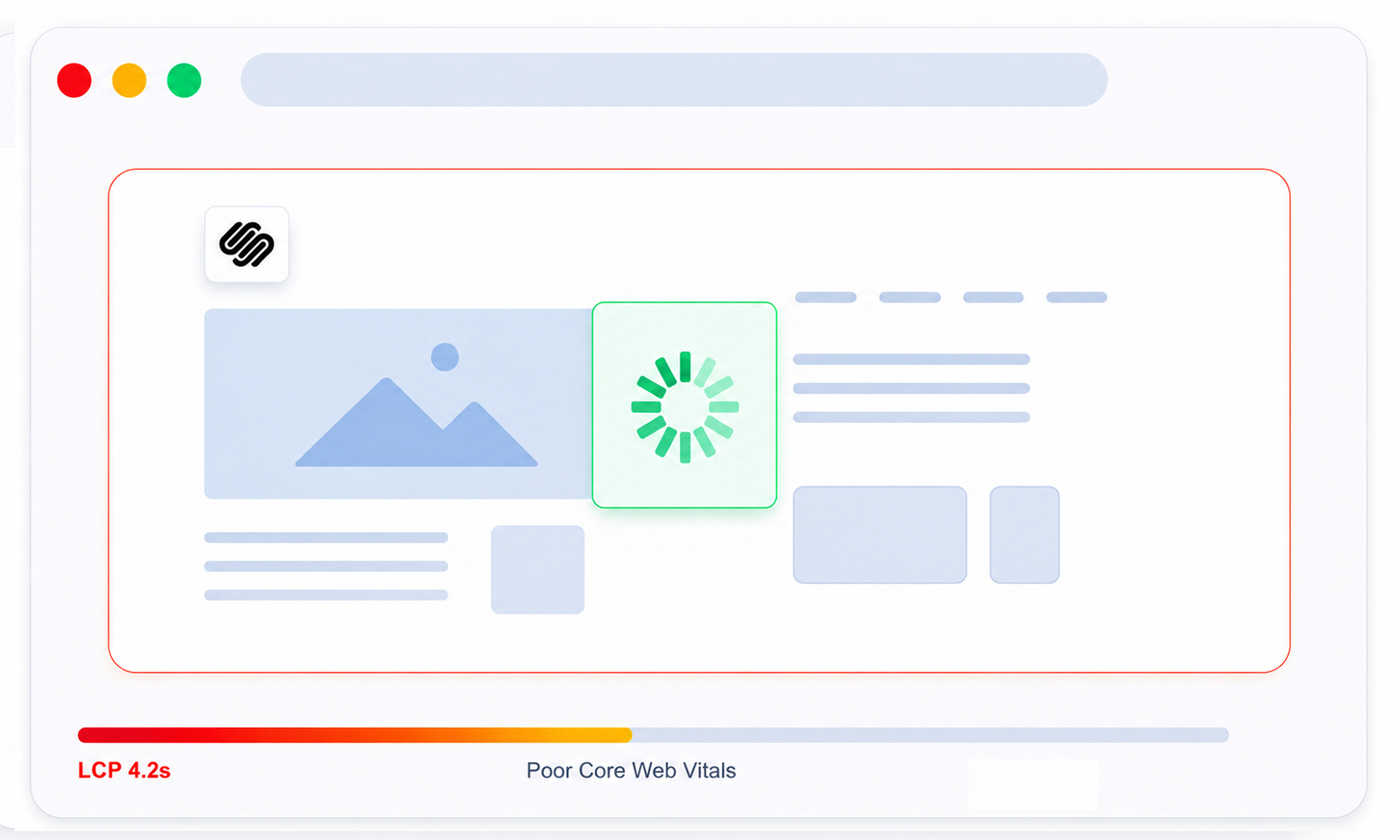
Google uses these performance metrics as part of its page experience evaluation. A website can have very little content yet still fail Core Web Vitals.
Pay Special Attention To:
When reviewing PageSpeed Insights, focus on:
- Largest Contentful Paint (LCP)
- Interaction to Next Paint (INP)
- Cumulative Layout Shift (CLS)
- Image optimization warnings
- Unused JavaScript
- Third-party code impact
These diagnostics often reveal the underlying reasons behind Squarespace page speed issues and help you prioritize the fixes that will have the greatest impact.
Is Squarespace Itself Making Your Website Slow?
Squarespace handles hosting, CDN delivery, caching, and many performance optimizations automatically. However, website speed is still heavily influenced by the content, media, fonts, integrations, and design choices added to the site.
In most cases, performance issues are caused by what is added to the website rather than the Squarespace platform itself.
That said, some performance limitations can be platform-related. Squarespace loads certain built-in resources and functionality across websites to support design features, templates, and core platform capabilities. While website owners cannot directly control these assets, optimizing images, scripts, fonts, and page layouts can still significantly improve overall performance.
For example, a small business website may have only five pages, but if the homepage includes large hero images, multiple animations, a scheduling widget, and several tracking scripts, it can still load slowly despite having minimal content.
Why Your Squarespace Website Is Slow Despite Minimal Content
Even if your site only has a few pages, several behind-the-scenes factors can affect performance. Below are the most common reasons for a slow Squarespace website that can lead to longer load times, poor Core Web Vitals, and a frustrating user experience.
Large Images Are Usually the Biggest Culprit
Images remain the most common reason for Squarespace slow-loading complaints. Squarespace recommends keeping image file sizes optimized and generally under 500KB whenever possible.
Many website owners upload:
- 4000px-wide images
- DSLR photographs
- Uncompressed PNG files
- Full-resolution hero banners
Although Squarespace automatically creates multiple image sizes and delivers WebP versions for performance, oversized source images can still create unnecessary load time. Image optimization is one of the most effective ways to improve Squarespace performance.
Compressing large images before uploading them can significantly reduce page load times without noticeably affecting visual quality.
Example
Bad:
- Hero image: 5MB
- Width: 6000px
Better:
- Hero image: 150–300KB
- Width: 1500–2500px
If your homepage loads several large images simultaneously, that alone can explain why your Squarespace website is loading slowly.
Third-Party Scripts Add Hidden Weight
A surprisingly common cause of Squarespace performance issues is third-party JavaScript.
Examples include:
- Google Analytics add-ons
- Facebook Pixel
- LinkedIn Insight Tag
- Live chat widgets
- Scheduling tools
- Popup software
- Heatmap tracking tools
Each script creates additional network requests and processing overhead. A website may appear visually simple while loading dozens of external resources behind the scenes. This is one of the most overlooked slow Squarespace website causes.
Embedded content can have a similar impact. YouTube videos, Google Maps, Instagram feeds, scheduling tools, and other embedded elements often load additional scripts and external resources that can increase page load times, particularly on mobile devices.
Custom Fonts Can Hurt Performance
Many designers focus heavily on typography and branding. However, every custom font file adds additional requests before text can fully render.
Squarespace supports custom font uploads, including WOFF and WOFF2 formats. While they can enhance branding, loading multiple font families, weights, and styles can negatively impact page speed. A common scenario looks like this:
If you’re experiencing Squarespace speed problems, custom fonts should be one of the first things you audit.
Heavy Templates and Visual Effects
Not all Squarespace designs perform equally. Modern templates often include:
- Scroll animations
- Fade-in effects
- Image transitions
- Parallax sections
- Video backgrounds
These features improve aesthetics but increase rendering work. The result is often a Squarespace site slow with few pages, even though the content itself is minimal. A website that looks simple can still be technically demanding.
Background Videos and Autoplay Media
Background videos are particularly problematic for mobile users. Even short clips can:
- Increase Largest Contentful Paint (LCP)
- Consume bandwidth
- Delay page rendering
- Hurt mobile performance
Many website owners assume a 10-second looping video is harmless. In practice, it can become the primary reason behind Squarespace page speed issues.
Many website owners assume a 10-second looping video is harmless. In practice, it can become the primary reason behind Squarespace page speed issues.
Too Many Sections on One Page
A website may only have three pages, but it may contain:
- 25 homepage sections
- Multiple galleries
- Testimonials
- Maps
- Forms
- Embedded content
The browser loads everything on that page regardless of how many total pages exist on the site. This makes Squarespace slow despite minimal content issues often occurring on homepage-heavy websites.
How to Identify What’s Actually Slowing Your Squarespace Site
Before making changes, it’s important to diagnose the problem first. Here is how:
Step 1: Run PageSpeed Insights
Use Google’s official tool: PageSpeed Insights
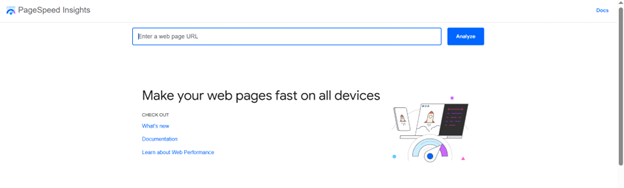
Look for:
- Largest Contentful Paint
- Unused JavaScript
- Render-blocking resources
- Large image warnings
Google combines both lab data and real-world Chrome User Experience Report data.
Step 2: Test Individual Pages
Don’t only test the homepage. Check:
- Service pages
- Blog posts
- Portfolio pages
- Landing pages
Often, one page creates the majority of performance problems.
Step 3: Audit Third-Party Integrations
Ask yourself:
- Do I still need this widget?
- Is this script generating business value?
- Can I remove unused tracking tools?
Many websites can remove multiple scripts without affecting functionality.
Practical Ways to Speed Up Your Squarespace Website
If your Squarespace website is slow despite minimal content, the good news is that most performance issues can be improved with a few targeted optimizations. The following strategies focus on the areas that typically have the biggest impact on Squarespace speed and Core Web Vitals.
Optimize Images Before Uploading
Images are often the biggest contributor to a Squarespace website loading slowly. While Squarespace automatically creates responsive image sizes and serves WebP versions when supported, uploading oversized images still increases the amount of data that needs to be processed and delivered.
For best results:
- Use JPEG for photographs
- Use SVG for logos and simple graphics where possible
- Keep image widths between 1500–2500px for most website layouts
- Compress images before uploading
A well-optimized image can look identical to the original while loading significantly faster.
Reduce Font Variations
Custom fonts can enhance your site’s design, but loading multiple font families and weights increases the number of files a visitor’s browser must download.
Instead of using many font families and weights, consider limiting your site to 1–2 font families and 2–3 font weights. This simple adjustment can improve text rendering speed and reduce overall page load time, especially on mobile devices.
Remove Unnecessary Scripts
Third-party scripts are one of the most overlooked causes of Squarespace speed problems. Every external tool adds additional requests and processing time.
Review whether you still need integrations such as:
- Chat widgets
- Marketing and tracking tools
- Social media feeds
- Scheduling software
- Popups and heatmap tools
If a script isn’t providing clear value, removing it can have an immediate positive impact on performance.
Simplify Page Layouts
A homepage packed with galleries, testimonials, animations, forms, and embedded content may look impressive, but it also requires more resources to load.
If you’re experiencing Squarespace performance issues, consider:
- Splitting lengthy pages into separate sections or pages
- Reducing unnecessary animations
- Removing duplicate or outdated content blocks
- Limiting the number of media-heavy elements on a single page
Cleaner layouts generally create a faster and smoother user experience.
Monitor Core Web Vitals Regularly
Website performance isn’t something you optimize once and forget. New images, integrations, design changes, and content updates can gradually introduce new Squarespace page speed issues over time.
Make it a habit to review your Core Web Vitals and PageSpeed Insights reports regularly. A quick monthly audit can help you identify problems early and maintain a fast, responsive website as your site grows.
Conclusion
If you’re wondering why your Squarespace is slow despite minimal content, the answer is usually hidden beneath the surface. Page count rarely causes performance issues. Instead, the most common culprits are oversized images, custom fonts, third-party scripts, heavy layouts, animations, and media-rich sections.
The key is to stop focusing on how many pages your site has and start focusing on what each page loads. In most cases, optimizing images, reducing unnecessary scripts, limiting custom fonts, and simplifying page layouts will have a much greater impact on speed than reducing content. By addressing these areas, you can improve loading times, Core Web Vitals, and the overall user experience.
FAQs
Q1. Can a small Squarespace website fail Core Web Vitals?
Q2. Do Squarespace templates affect website speed?
Q3. How do I find out what is slowing down my Squarespace website?
Q4. Does Squarespace automatically optimize website speed?
Q5. Can custom fonts affect Squarespace performance?
Q6. Do background videos slow down Squarespace websites?
Q7. How often should I check Squarespace performance?
About the Author