






TL;DR: To improve your PageSpeed Insights score on Wix, optimize large images, simplify above-the-fold content, remove unnecessary apps and third-party scripts, and fix layout shifts. Test your mobile pages with PageSpeed Insights and monitor real-user performance through Wix’s Site Speed dashboard.
A low PageSpeed Insights score on Wix often points to issues such as large images, unnecessary scripts, or slow-loading page elements. To improve your score and mobile Core Web Vitals, start by testing your website with Google PageSpeed Insights, then optimize large images, simplify above-the-fold content, remove unnecessary apps and third-party scripts, and fix layout shifts.
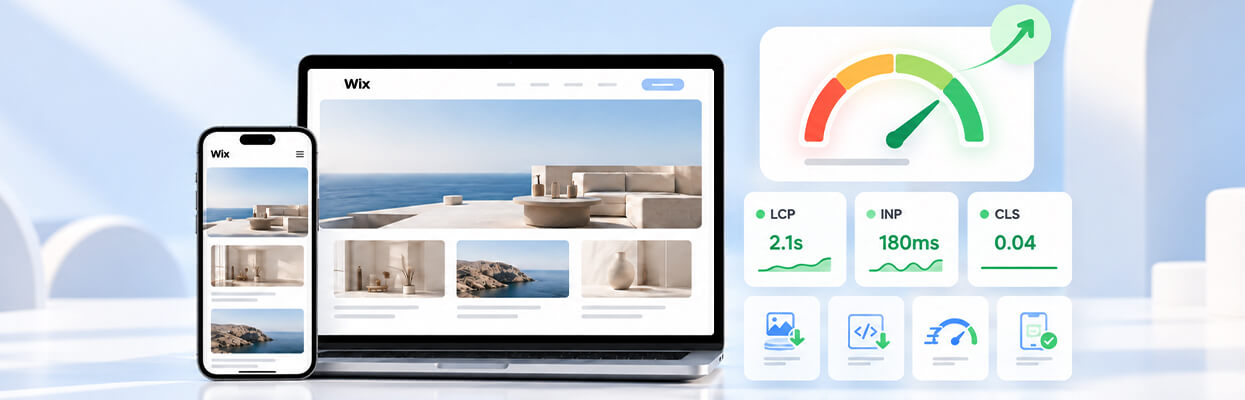
Focus on improving LCP (loading performance), INP (responsiveness), and CLS (visual stability) based on the issues identified in your report. The right fixes depend on your Wix site’s setup and the metrics that need improvement.
Quick Checklist to Improve Wix PageSpeed and Core Web Vitals
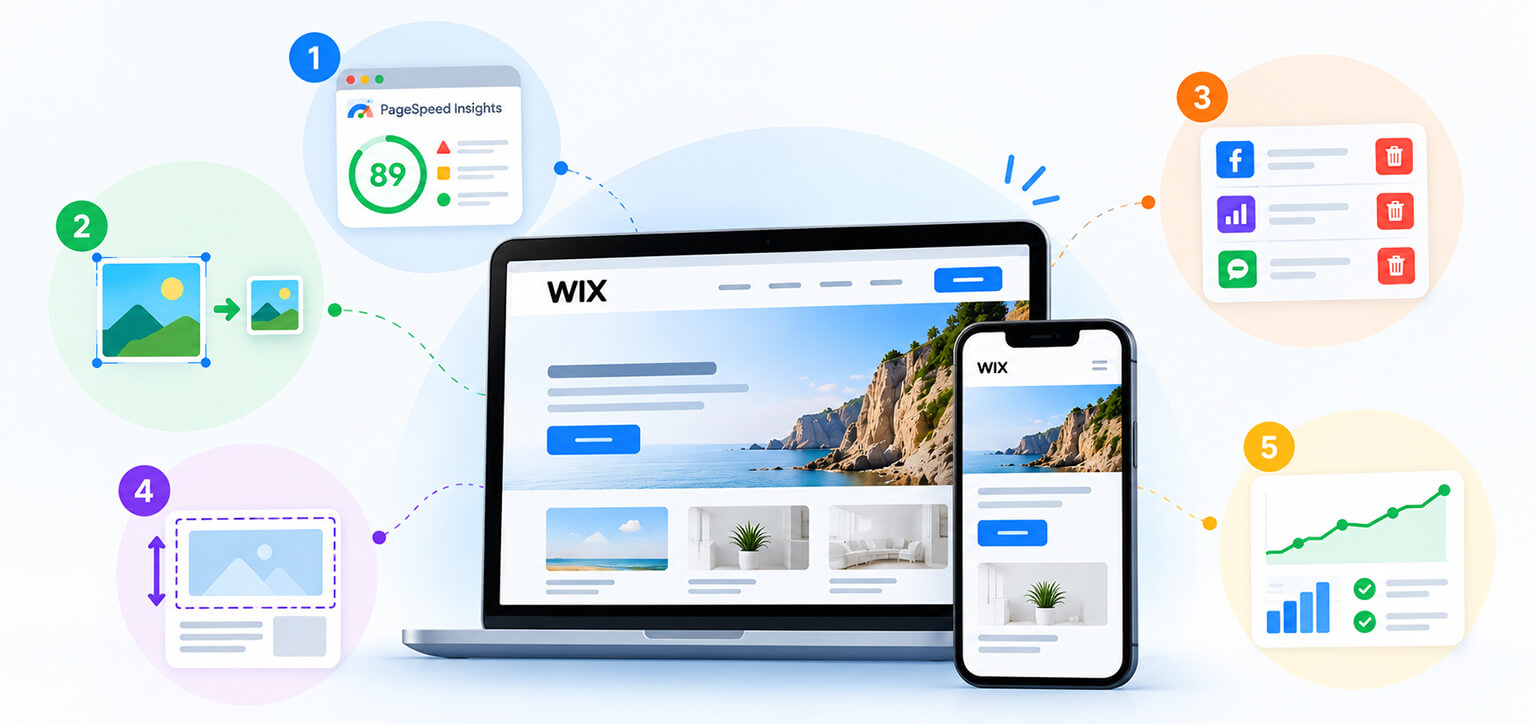
To improve Wix mobile performance, identify the biggest issues in your PageSpeed Insights report first. Prioritize large above-the-fold images, unnecessary third-party scripts, slow interactions, and unexpected layout shifts. Retest each page after making changes.
- Test performance: Run your important Wix pages through Google PageSpeed Insights and review mobile-specific issues.
- Optimize loading: Resize large images, improve the main above-the-fold content, and avoid lazy-loading the main LCP image.
- Improve responsiveness: Remove unnecessary third-party apps, scripts, and widgets where possible.
- Prevent layout shifts: Reserve space for images, banners, and embedded content to reduce unexpected movement.
- Monitor results: Retest your pages and compare Lighthouse results with real-user Core Web Vitals data when available.
How to Improve Your Wix PageSpeed Score and Mobile Core Web Vitals
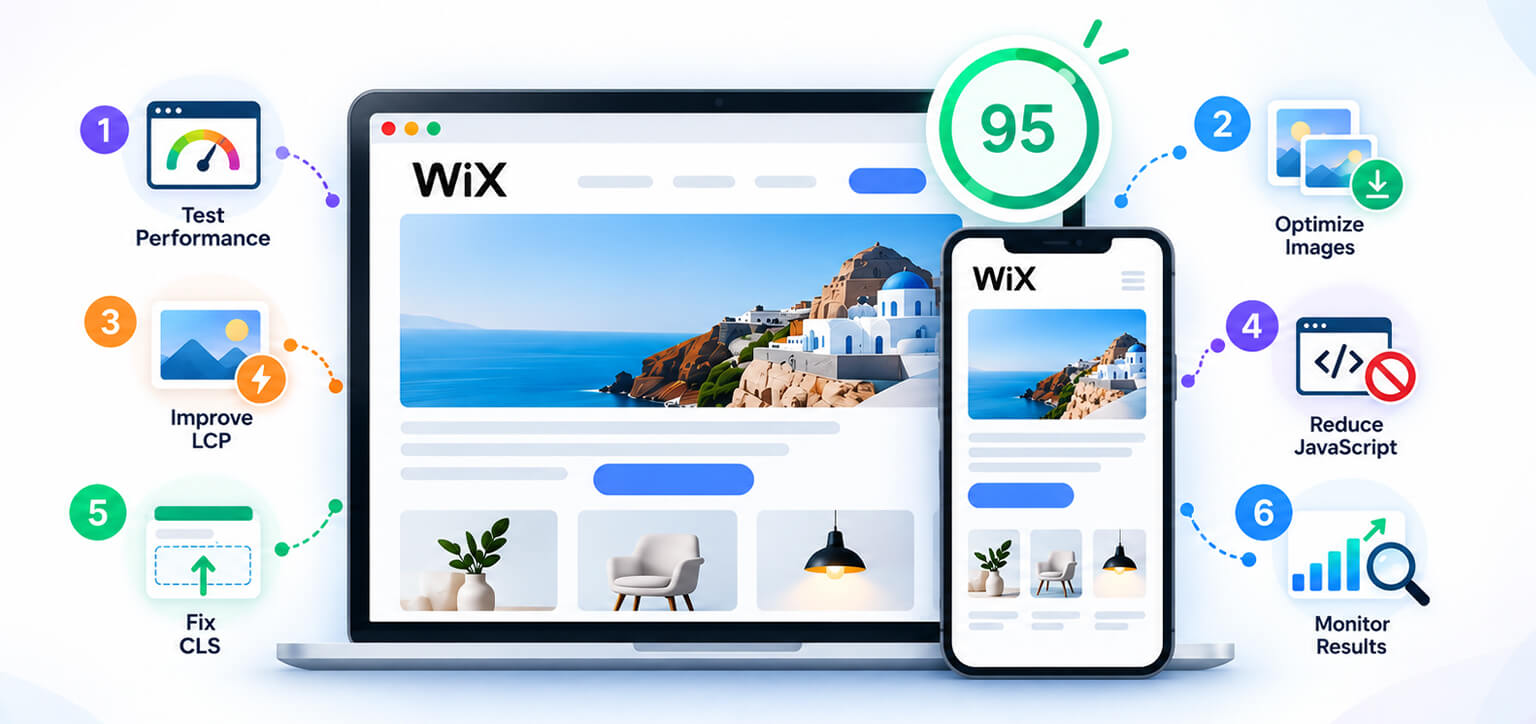
Improving your Wix PageSpeed score and mobile Core Web Vitals starts with identifying what slows down your pages. Follow these six steps to optimize images, reduce script delays, fix layout shifts, and measure performance improvements.
1. Test Your Website with Google PageSpeed Insights
Start by entering your Wix page URL into Google PageSpeed Insights and reviewing the mobile report. Test your homepage and important landing pages individually because different pages can have different performance issues.
Check the performance score, Core Web Vitals assessment, and recommendations under Diagnostics and Opportunities. Note which metrics are failing and which elements are identified as potential causes.
PageSpeed Insights combines Lighthouse lab tests with real-user data from the Chrome User Experience Report (CrUX), when sufficient data is available. The lab score helps identify possible problems, while field data shows how eligible real visitors experience your website.
Also check Wix’s Site Speed dashboard and Google Search Console’s Core Web Vitals report. These can help you understand whether performance issues affect real visitors and groups of pages.
What if PageSpeed Insights shows no Core Web Vitals data?
PageSpeed Insights may show a Lighthouse performance score without a real-user Core Web Vitals assessment if Google does not have enough eligible visitor data. In some cases, it can use origin-level data for the website instead of data for the individual URL. If neither has sufficient data, use Wix’s Site Speed dashboard to review available real-visitor metrics and use Lighthouse recommendations to identify potential issues. Real-user data may take time to reflect recent changes.
2. Optimize Large Images and Above-the-Fold Content
Large images and complex page sections can delay the display of important content on mobile devices. Start with your hero image, banners, product images, and other elements visible when the page first opens.
To optimize images on a Wix website, use dimensions appropriate for the displayed area and compress images using efficient formats such as JPEG or WebP where suitable. Avoid uploading unnecessarily large files when a smaller version provides the same visual quality. Although Wix automatically optimizes images for delivery on live sites, additional compression can help when image files remain larger than necessary.
Wix already handles some image optimization and delivery automatically, so inspect your PageSpeed diagnostics before adding another optimization tool.
Next, simplify the first screen of your page. Reduce unnecessary animations, avoid oversized video backgrounds, and move nonessential galleries or widgets below the fold. Visitors should be able to see the main heading and important content without waiting for decorative elements to load.
3. Improve Largest Contentful Paint (LCP)
Largest Contentful Paint measures how quickly the largest visible content element appears. Google considers an LCP of 2.5 seconds or less good when measured at the 75th percentile of real-user visits.
For Wix LCP optimization, identify the element responsible for the delay in your PageSpeed report. It may be a hero image, a large banner, or a prominent block of text.
If the LCP element is an image, check its file size, dimensions, and loading priority. Avoid lazy-loading the main image when it is the element visitors need to see first. Lazy loading is generally more suitable for images farther down the page.
If the main content is text, simplify the top section and review unnecessary font variations or animations that delay its appearance. The aim is to make the most important content visible as early as possible.
4. Reduce JavaScript and Third-Party Scripts to Improve INP
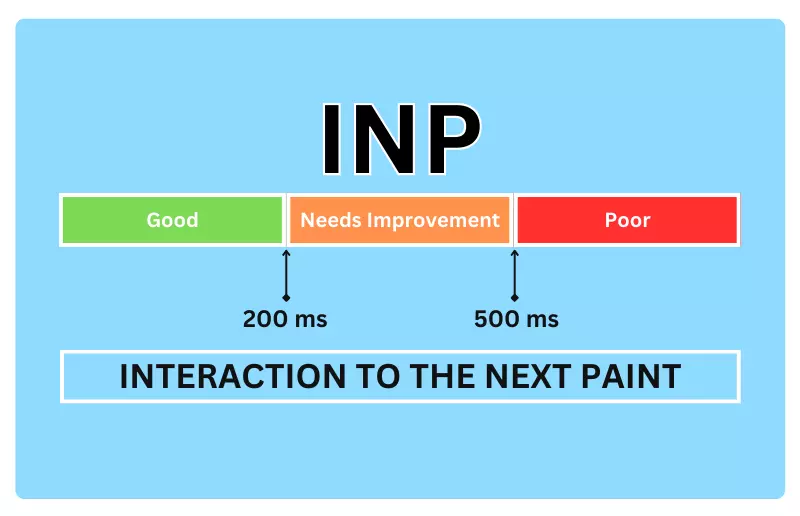
Interaction to Next Paint (INP) measures how quickly a page responds to user interactions, such as tapping a menu, opening a filter, or submitting a form. A good INP is 200 milliseconds or less at the 75th percentile of real-user visits.
If your Wix website loads quickly but feels slow when visitors interact with it, review installed apps, tracking tags, chat widgets, marketing integrations, and custom code. These can add JavaScript execution and other browser work.
Remove integrations that are no longer needed and avoid using multiple tools that perform the same function. Where possible, limit nonessential widgets to the pages that actually require them.
If PageSpeed Insights reports render-blocking resources, inspect the affected CSS and JavaScript before making changes. Some resources are necessary for a page to display and function correctly.
Wix manages much of its underlying platform code, so not every flagged resource can be changed directly. Focus on custom code and third-party integrations you control.
In your Wix dashboard, review the Site Speed recommendations and check whether installed apps, custom code, or embedded widgets contribute to the reported issues. Remove integrations you no longer need, but avoid changing essential platform resources you cannot control directly. Prioritize fixes that address measured problems rather than trying to eliminate every warning.
5. Fix Cumulative Layout Shift (CLS) Issues
Cumulative Layout Shift measures unexpected movement of visible content while a page loads. Google considers a CLS of 0.1 or less good at the 75th percentile of real-user visits.
To fix Wix CLS issues, make sure images have consistent dimensions and reserve space for embedded content wherever possible. Check whether promotional banners, cookie notices, or dynamically loaded widgets push other content down after the page appears.
Pay particular attention to buttons, navigation menus, and forms. If these elements move while visitors are trying to interact with them, the experience becomes frustrating even if the page eventually loads quickly.
Retest the page after making changes to confirm that layout movement has decreased.
6. Retest Your Website and Monitor Core Web Vitals
After making changes, test the same URLs again using PageSpeed Insights. Compare the mobile score, metric values, and diagnostics with your original results.
Use Wix’s Site Speed dashboard and Google Search Console to monitor real-user performance where data is available.
Lab scores can reflect changes when you rerun PageSpeed Insights, but real-user metrics take longer to update. Google PageSpeed Insights uses a rolling 28-day field-data period, while Wix’s Site Speed dashboard reports real-visitor performance over its own 30-day period.
Wix recommends allowing at least three weeks to see meaningful improvements in real-user metrics after making changes. Compare lab results separately from field data, and avoid judging an optimization solely by a single test score.
Website Speedy is one example of a website performance optimization tool. When considering a tool for Wix, check whether its features support your site’s setup and address the specific issues identified in your tests. No optimization tool can guarantee a particular PageSpeed score or a passing Core Web Vitals assessment.
A Wix customer shared their experience with Website Speedy, reporting that several pages of their Wix store began passing Core Web Vitals after activation:
“With speedy, for the first time few pages of Wix shop already passing core web vitals.”
The customer also described activation as a one-click process and said they tried the service for 15 days before subscribing to a paid plan. This is one customer’s reported experience; results vary by website. Test your own Wix pages before and after optimization to measure changes in PageSpeed Insights scores and Core Web Vitals.
Do Core Web Vitals Affect Wix SEO?
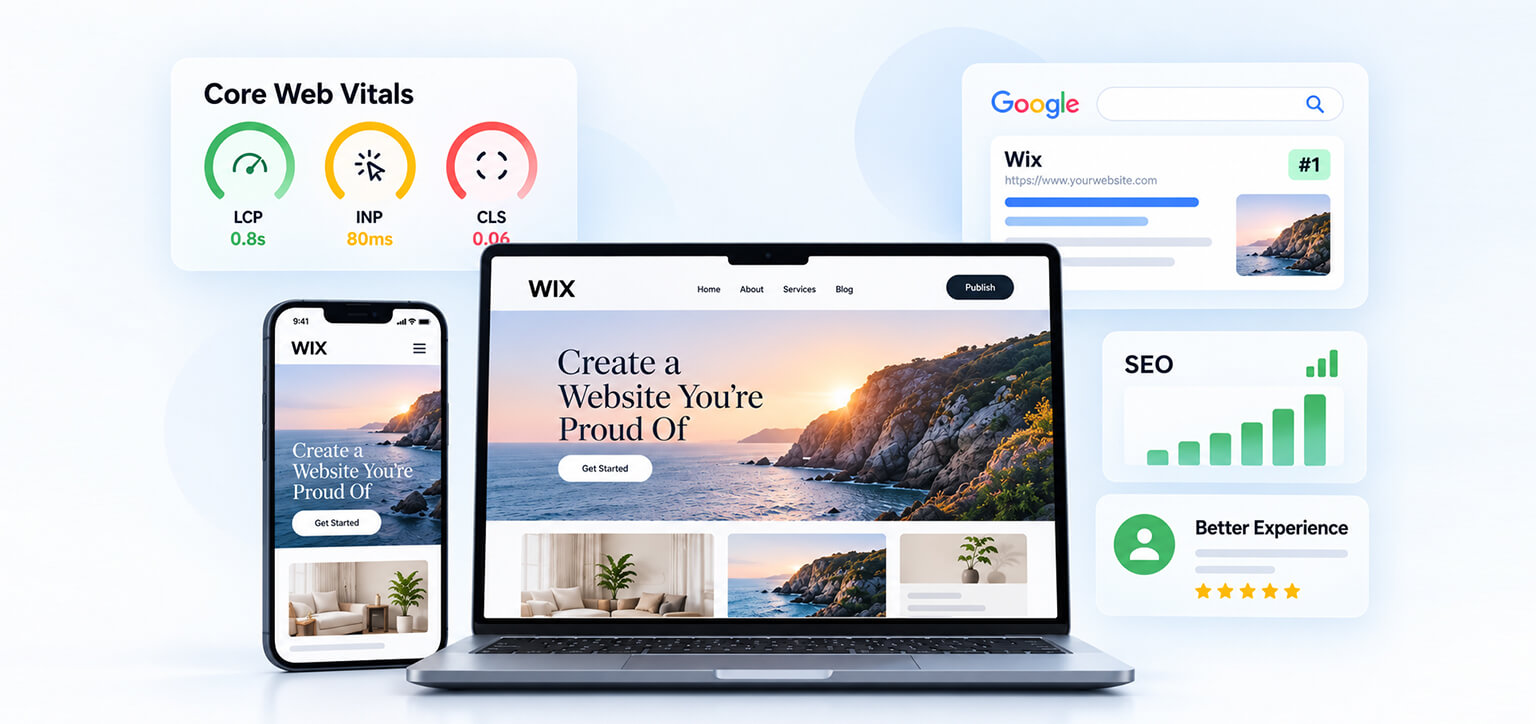
Yes. Core Web Vitals are part of Google’s page experience signals, but they are not the only factors that influence rankings. Passing the assessment does not guarantee higher rankings, and a high PageSpeed Insights score does not guarantee better SEO.
Relevant content, search intent, and other ranking factors remain important. Improving Wix mobile performance can still help by reducing frustrating delays and making pages easier for visitors to use.
Conclusion
To improve your PageSpeed Insights score and mobile Core Web Vitals on Wix, start with the problems identified in your mobile report. Optimize large images, simplify above-the-fold content, reduce unnecessary scripts, and prevent layout shifts. Retest your pages and monitor real-user data to determine whether the changes have improved performance. Focus on a faster, more responsive website rather than chasing a score alone.
Frequently Asked Questions
1. Why is my Wix PageSpeed score low on mobile?
2. Why is my Wix website fast on desktop but slow on mobile?
3. How do I pass Google's Core Web Vitals assessment on Wix?
4. How do I test Wix website speed on mobile?
5. Can I fix render-blocking resources on a Wix website?
6. Can a website speed optimization tool improve Wix PageSpeed scores?
About the Author