






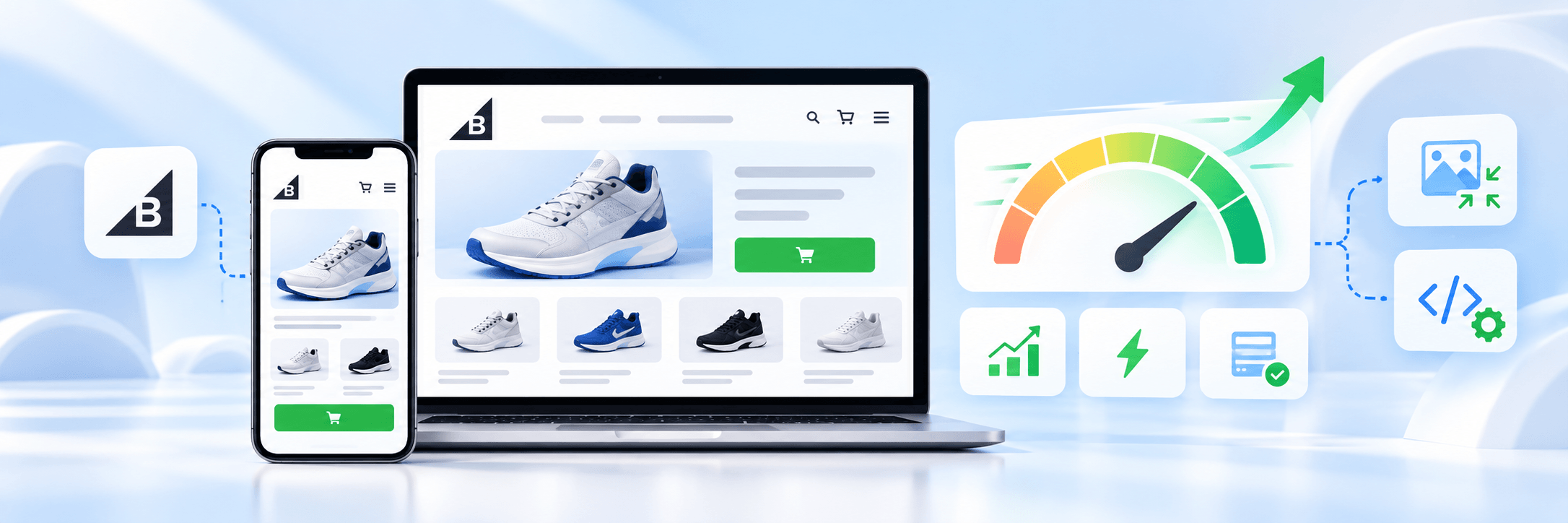
TL;DR: The quickest way to improve your BigCommerce store speed is to optimize oversized product images, remove unnecessary third-party scripts, simplify heavy homepage sections, and prioritize the content shoppers see first. Start by testing your homepage and product pages to identify what is slowing them down, then make one change at a time and measure the results. These improvements can help you improve storefront performance without immediately investing in a complete redesign or additional tools.
A slow online store can frustrate shoppers before they even see your products. Large product images, unnecessary third-party scripts, heavy homepage sections, and poorly optimized theme code can all delay your BigCommerce storefront.
The good news is that you don’t always need a new theme, an expensive optimization app, or a complete website redesign to improve loading speed.
In this guide, we’ll explain how to speed up your BigCommerce store instantly with practical changes you can start making today. Whether you run a small ecommerce business or manage a large product catalog, these tips will help you identify performance issues and create a smoother shopping experience.
The right fix depends on whether the delay comes from image loading, JavaScript execution, layout rendering, or another part of your storefront.
BigCommerce Speed Optimization: Which Fix Should You Choose?
Not every store needs the same solution. Use this comparison to decide where to begin.
| Problem | First action | When to consider technical help |
|---|---|---|
| Homepage loads slowly | Optimize the banner and reduce heavy sections | The main content still loads late |
| Product pages feel sluggish | Compress product images and review widgets | Product interactions remain delayed |
| Mobile performance is poor | Reduce image sizes and unnecessary scripts | Mobile JavaScript execution remains high |
| Speed worsened after an app installation | Test the app’s scripts and impact | The app cannot be safely disabled or replaced |
| Page layout jumps during loading | Reserve space for images and dynamic content | The theme needs layout changes |
| Store is slow across multiple page types | Test representative pages and review shared scripts | A theme or platform-level investigation is needed |
The best approach is to fix the most visible problem first, then move to deeper technical changes only when necessary.
10 Ways to Speed Up Your BigCommerce Store Speed
Improving BigCommerce store speed starts with identifying what delays page rendering or shopper interactions, then applying targeted fixes based on your test results. The following 10 ways cover key performance areas to help your storefront load faster and respond more smoothly across desktop and mobile devices.
1. Check Your BigCommerce Store Speed First
Before making changes, measure your store’s current performance. Without an initial test, you won’t know whether an optimization has actually helped.
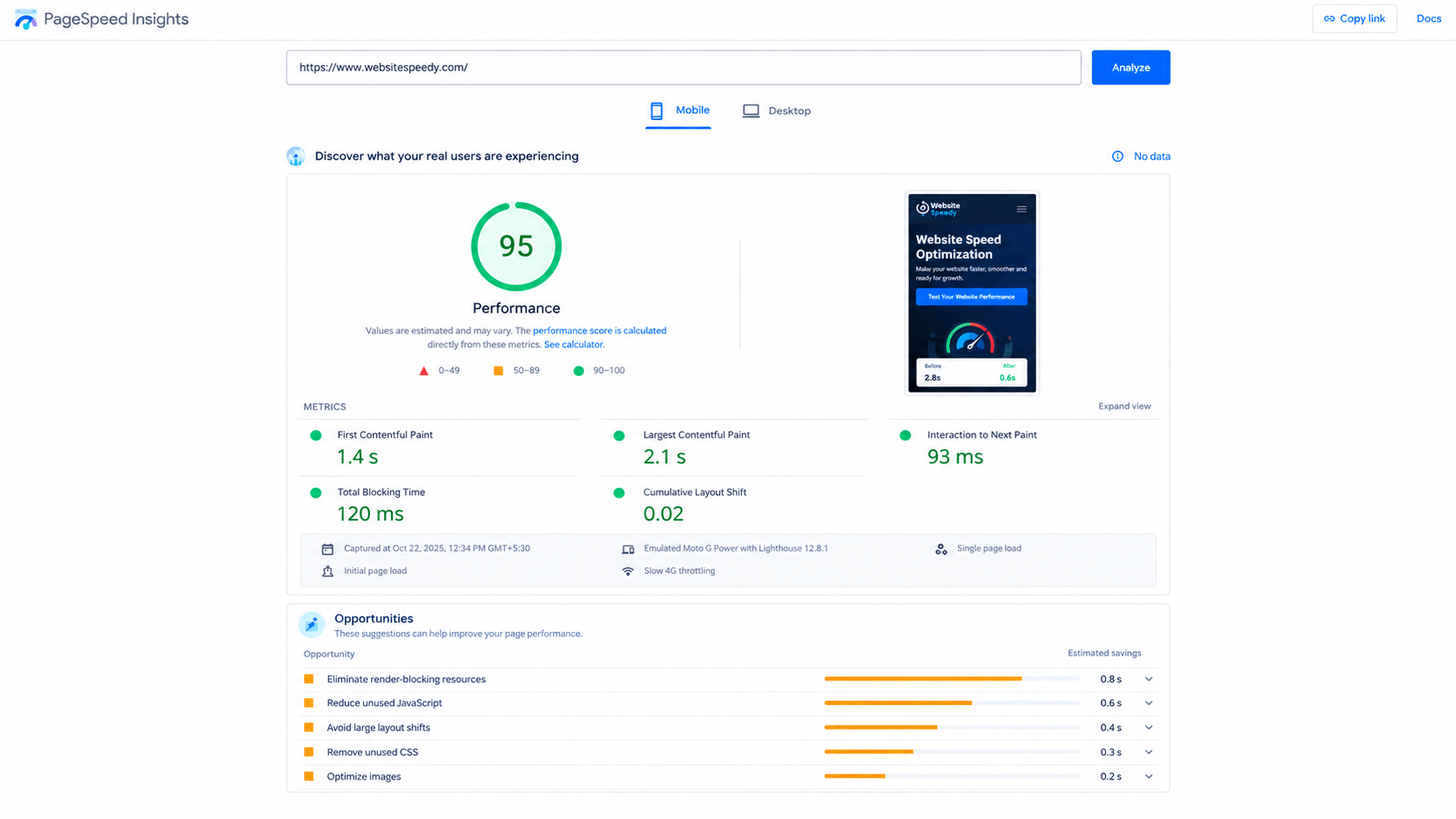
Use Google PageSpeed Insights to test your live storefront. Enter your homepage URL, review the mobile report, and repeat the test for a representative product page and category page.
PageSpeed Insights provides two useful types of information:
- Lab data: A controlled test that helps identify specific loading and rendering problems.
- Field data: Real-user performance information collected over time, when enough eligible data is available.
Field data reflects a rolling 28-day period, so it may not immediately reflect changes you made a few minutes ago. Lab results can help you evaluate changes sooner.
For reference, Google’s PageSpeed Insights documentation explains how lab results and real-user data are collected. BigCommerce also provides a Stencil performance optimization guide with recommendations for improving storefront performance.
Core Web Vitals targets
| Metric | What it measures | Good target |
|---|---|---|
| Largest Contentful Paint (LCP) | How quickly the main content appears | 2.5 seconds or less |
| Interaction to Next Paint (INP) | How quickly the page responds to user interactions | 200 milliseconds or less |
| Cumulative Layout Shift (CLS) | How stable the page layout remains | 0.1 or less |
These are Google’s recommended Core Web Vitals thresholds. To assess real-user performance, evaluate the 75th percentile of page visits, separately for mobile and desktop. A page meets the Core Web Vitals assessment when all three metrics meet their good thresholds, provided sufficient field data is available.
For example, if your BigCommerce homepage has a slow LCP but responsive interactions, investigate the main banner image, its loading priority, and resources that delay its display first. If interactions are slow despite fast initial loading, inspect JavaScript execution and third-party scripts instead.
2. Optimize Product Images and Homepage Banners
Large images are among the first things to investigate when a BigCommerce store loads slowly.
High-resolution product photos are important for ecommerce, but images should be sized appropriately for their display area. A huge source image used in a small product thumbnail wastes bandwidth and can delay other page content.
How to optimize BigCommerce images
- Identify oversized images on the homepage, product pages, and category pages.
- Resize each image to suit its actual display dimensions.
- Compress images while preserving enough detail for customers to inspect the product.
- Use WebP where your image workflow and storefront support it.
- Use responsive images so mobile devices can download appropriately sized files. Prioritize the main above-the-fold image, especially if it is the Largest Contentful Paint (LCP) element, and avoid lazy-loading it.
- Keep the main above-the-fold image available early in the loading process.
Which images should you optimize first?
| Image type | Recommended action | Priority |
|---|---|---|
| Homepage hero banner | Resize and compress | Very high |
| Main product image | Optimize without losing useful detail | Very high |
| Category thumbnails | Resize for the grid | High |
| Below-the-fold product images | Compress and lazy-load where appropriate | High |
| Decorative background images | Reduce size or remove if unnecessary | Medium |
Important: Do not lazy-load the main image that customers see immediately if it is the page’s Largest Contentful Paint element. Delaying that image can make the page appear slower. Reserve lazy loading for images that are initially off-screen.
3. Remove Unnecessary Apps and Third-Party Scripts
Every additional app can introduce scripts, network requests, or other work that affects storefront performance. Common examples include chat widgets, review displays, pop-ups, heatmaps, advertising pixels, and marketing tools.
The issue isn’t that all apps are slow. Unnecessary or poorly loaded scripts can compete with the resources needed to display your products and respond to shoppers.
A simple app and script audit
- List the apps installed on your BigCommerce store.
- Identify apps you no longer use.
- Check for duplicate analytics or advertising tags.
- Review scripts added through Script Manager and other integrations.
- Compare page performance before and after carefully removing or disabling a nonessential script.
- Check product pages, cart behavior, consent controls, and checkout-related functions after each change.
Avoid deleting scripts simply because they appear in a performance report. Some may be necessary for analytics consent, accessibility, product options, or essential store functionality.
4. Simplify Your Homepage Design
A visually attractive homepage can still be slow if it contains too many large sections, animations, or interactive components.
For example, a homepage might include an autoplay video, several rotating banners, multiple product carousels, promotional pop-ups, and embedded social media content. Each element can increase the amount of content or code the browser must process.
What to change
- Replace multiple rotating banners with one focused hero section.
- Display a smaller selection of relevant featured products.
- Remove autoplay background videos when they do not add meaningful value.
- Avoid loading multiple pop-ups at the same time.
- Keep navigation simple and mobile-friendly.
- Move secondary promotional content further down the page.
You don’t need to remove every visual element. Keep the content that helps shoppers discover products and make purchasing decisions.
The goal is to make the first screen useful and responsive while allowing secondary content to load when needed.
5. Improve Mobile Performance
Mobile speed deserves particular attention because shoppers may browse on slower connections and less powerful devices.
A storefront that feels quick on a desktop computer may take noticeably longer on a mobile phone, especially when large images and JavaScript-heavy components are involved.
Mobile optimization checklist
- Use a responsive BigCommerce theme.
- Reduce the size of the main banner and product images.
- Avoid loading unnecessary scripts before the main content appears.
- Check that navigation, filters, and product variants respond quickly.
- Prevent pop-ups from covering product or purchase controls.
- Reserve space for images and banners to prevent unexpected layout shifts.
- Test the cart and checkout experience on a real phone.
Google recommends evaluating loading speed, responsiveness, and layout stability through Core Web Vitals. Improving these measures can help create a better user experience, although good scores alone do not guarantee higher search rankings.
If manual optimization isn’t producing the expected results, Website Speedy is another option you can evaluate as part of your broader storefront performance strategy. Before using any optimization solution, check its compatibility with your BigCommerce setup and measure its effect on your actual storefront.
6. Review Your BigCommerce Theme Code
If image optimization and script cleanup do not improve performance enough, your theme may need a closer review.
For Stencil stores, developers can investigate JavaScript execution, CSS, image-loading behavior, DOM size, and the order in which critical content displays.
What a developer should check:
- Unused or duplicated JavaScript.
- Large CSS files and unnecessary styling.
- Third-party resources that delay rendering.
- Scripts that run before they are needed.
- Excessively complex homepage sections.
- Incorrect loading priorities for important images and fonts.
- Layout shifts caused by images, banners, or dynamically inserted components.
Tools like Website Speedy can be considered when exploring additional storefront optimization options, but it shouldn’t replace identifying the actual cause of slow loading. First, determine whether the issue comes from scripts, theme code, or another part of your storefront.
For Stencil stores, any optimization solution should work alongside the existing theme without breaking product functionality. If you’re considering an optimization solution, test its compatibility and review the before-and-after results before applying changes to your live store.
For Catalyst or a custom headless storefront, the implementation is different. Developers should review frontend rendering, API requests, caching, and route-level performance using the relevant architecture-specific approach.
Before editing theme files: Duplicate or back up your theme, test changes in a development environment, and verify the storefront on mobile and desktop before publishing.
7. Use Lazy Loading and Prioritize Critical Content
Lazy loading allows off-screen images to wait until they are closer to the user’s viewport. This can reduce the amount of content downloaded during the initial page load.
For a product category page with many images, loading every image immediately may create unnecessary work for the browser.
Recommended approach
| Resource | Recommended behavior |
|---|---|
| Main hero image | Load early; avoid unnecessary delays |
| Main product image | Prioritize if it is visible immediately |
| Images further down the page | Lazy-load when appropriate |
| Nonessential third-party widgets | Defer or load only when needed |
| Critical styles | Make available early |
| Noncritical JavaScript | Defer execution where safe |
Lazy loading is not a universal fix. If implemented incorrectly, it can delay visible content or interfere with image presentation. Test the actual page after implementation.
When comparing manual improvements with an optimization solution, focus on measurable results rather than assuming that adding another tool will automatically make your store faster. Check whether the solution improves your key performance metrics and preserves the storefront’s existing functionality.
8. Review Product and Category Page Performance
Your homepage is not the only page that matters. Product and category pages are often where customers compare items, choose options, and decide whether to add a product to their cart.
A category page with too many product cards, oversized thumbnails, or complicated filtering components may take longer to display and respond.
Product page improvements:
- Optimize the primary product image and gallery thumbnails.
- Avoid loading every review or recommendation component immediately when it is not needed.
- Keep product variant selectors responsive.
- Reduce unnecessary promotional widgets.
- Reserve space for ratings, shipping details, and other dynamic elements.
- Test add-to-cart behavior after any script or theme change.
Category page improvements
- Review the number of products displayed per page.
- Use appropriately sized thumbnails.
- Check the performance of filters, sorting, and product search.
- Avoid loading excessive content before shoppers need it.
- Ensure pagination and product links remain accessible to users and search engines.
An additional speed optimization solution may be worth assessing after reviewing these common issues. However, its suitability depends on your store’s implementation, and any claimed benefits should be verified through actual testing.
9. Understand What BigCommerce Already Handles
BigCommerce is a hosted ecommerce platform, so store owners do not have the same level of server control as owners of a self-managed website.
This matters because you should focus first on the parts of performance that you can actually change.
| Optimization area | What to focus on |
|---|---|
| Platform infrastructure | Investigate potential service issues if the problem affects the whole store |
| Theme | Reduce unnecessary code and improve rendering |
| Images | Resize, compress, and prioritize visible content |
| Apps and scripts | Remove unused integrations and improve loading behavior |
| Storefront content | Simplify heavy sections and unnecessary animations |
| Headless storefront | Review frontend rendering, caching, and API requests |
Avoid purchasing a separate hosting upgrade or installing several speed apps before identifying the problem. First establish whether the delay comes from your theme, content, scripts, or a platform-level issue.
If you decide to evaluate an optimization tool, check that its current features support your storefront architecture and that it doesn’t duplicate functionality already provided by BigCommerce or your existing theme.
10. Retest Your Store and Monitor the Results
After making changes, run Google PageSpeed Insights again to check whether your BigCommerce store’s performance has improved. Test the same URL on mobile and desktop to compare the results fairly.
Focus on Core Web Vitals: LCP (2.5 seconds or less), INP (200 milliseconds or less), and CLS (0.1 or less). These metrics help you understand loading speed, responsiveness, and layout stability. Run multiple tests if results vary, as network conditions can affect individual measurements.
Also, check that product pages, navigation, add-to-cart buttons, and checkout still work correctly after optimization. A faster store should maintain a smooth shopping experience.
If you’re using Website Speedy, compare your store’s performance before and after optimization using the same testing method. Continue monitoring after theme updates or app installations to identify new performance issues early.
How to Automate BigCommerce Speed Optimization
Manually optimizing website resources can take time. automates several performance improvements to help reduce loading delays and improve responsiveness without requiring manual code changes. Its optimization techniques include lazy loading for supported resources, render-blocking CSS and JavaScript optimization, and asynchronous loading to help browsers display important content without unnecessary delays.
These optimizations can also support mobile performance and help address issues related to Core Web Vitals, including loading speed, responsiveness, and layout stability. The actual impact depends on your storefront’s implementation and existing performance issues.
Website Speedy is one option to evaluate for BigCommerce speed optimization. Before using it on a BigCommerce store, verify compatibility with your storefront setup and test whether the optimizations improve performance without affecting product pages, navigation, cart functionality, or checkout.
A customer shared this experience on the BigCommerce App Marketplace:
“Have seen instant results in our web shop site speed and at the same time increased shoppers and time spent shopping on our BigCommerce web shop.”
This reflects one customer’s experience, not a guaranteed outcome. Measure your storefront’s performance before and after optimization to determine whether the changes improve loading speed and the shopping experience.
Conclusion
Speeding up your BigCommerce store does not always require a redesign or an expensive new tool. Start with the improvements you can make quickly: optimize large images, remove unused scripts, simplify heavy homepage sections, and prioritize content that shoppers need to see first.
If those changes aren’t enough, investigate your theme and evaluate additional optimization options based on your storefront’s needs. A speed optimization tool can be one option to assess, provided its compatibility and performance benefits are verified for your setup.
A practical strategy is simple: measure first, make one meaningful change at a time, verify that the store still works correctly, and keep monitoring the results.
Frequently Asked Questions
How can I speed up my BigCommerce store instantly?
What is a good page speed target for BigCommerce?
Do BigCommerce apps slow down a store?
Should I install a speed optimization app?
Does a higher PageSpeed score guarantee better Google rankings?
How long does BigCommerce speed optimization take?
About the Author