






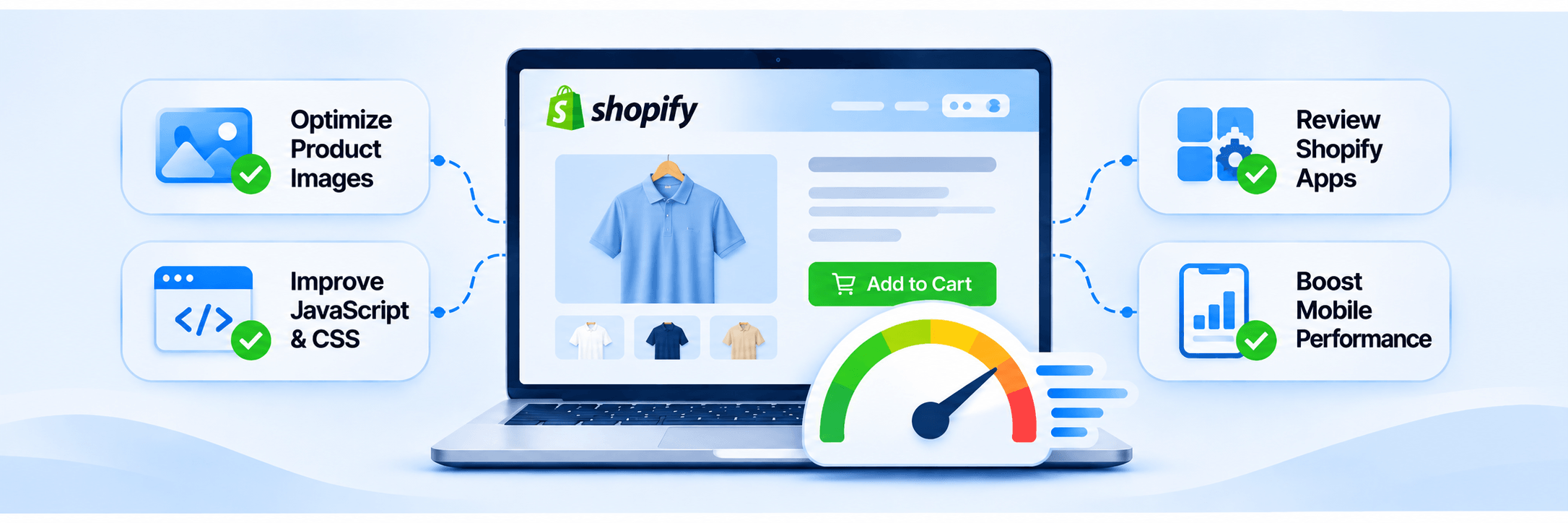
TL;DR: To make Shopify product pages load faster, optimize the main product image, reduce unnecessary app scripts, defer non-critical JavaScript, remove unused CSS, and simplify product page elements. Test mobile and desktop performance separately using PageSpeed Insights and Shopify’s Web Performance reports.
To make Shopify product pages load faster, optimize the main product image, reduce unnecessary app scripts, defer non-critical JavaScript, fix render-blocking CSS, and simplify heavy page elements. These changes help product content appear sooner and improve how quickly shoppers can interact with the page.
Slow product pages are often caused by large image galleries, app integrations, excessive JavaScript, and heavy theme sections. You can address many of these issues without removing useful features or replacing your theme.
This article explains how to identify performance problems, apply the right fixes, and test your Shopify product pages on mobile and desktop.
Quick Summary: Ways to Speed Up Shopify Product Pages
To make Shopify product pages load faster, focus on these key improvements:
- Optimize product images: Resize images appropriately and prioritize the main product image. Lazy-load images below the initial viewport.
- Review Shopify apps: Identify unnecessary app scripts, duplicate functionality, and unused integrations.
- Reduce JavaScript execution: Defer non-critical scripts and investigate long-running tasks that delay interactions.
- Fix render-blocking resources: Prioritize CSS and JavaScript needed to display the main product content.
- Simplify product layouts: Reduce unnecessary animations, carousels, videos, and widgets.
- Improve mobile performance: Test product pages separately on mobile and desktop, paying attention to LCP, INP, and CLS.
- Monitor improvements: Use PageSpeed Insights, Chrome DevTools, and Shopify Web Performance reports to measure changes.
Tools such as Website Speedy can also automate certain technical improvements, including asynchronous script handling and render-blocking resource optimization.
Why Are My Shopify Product Pages Loading Slowly?
Shopify product pages often load slowly because they contain more media, scripts, and interactive elements than simpler website pages. Product galleries, variant selectors, review widgets, recommendation sections, and app integrations can all add loading and processing work. The most common causes include:
Large Product Galleries
High-resolution product images and multiple gallery slides can increase the amount of data the browser needs to download. This is particularly noticeable on mobile connections.
Too Many App Integrations
Review apps, size guides, product recommendation tools, chat widgets, and upsell features may add their own CSS, JavaScript, and external requests.
Heavy Theme Sections
Product pages with animations, sliders, promotional banners, and dynamically loaded sections can require additional browser resources.
Excessive JavaScript
Product variants, image galleries, filters, and cart interactions depend on JavaScript. Too much code running simultaneously can delay both rendering and user interactions.
Render-Blocking Resources
Some stylesheets and scripts prevent the browser from displaying content until they have been downloaded and processed.
The important distinction is that a product page can have a fast initial server response but still appear slowly because the browser is processing too many resources. Identifying where the delay occurs helps you choose the right fix instead of making unnecessary theme changes.
Example: Diagnosing a Slow Shopify Product Page
Suppose a Shopify product page takes longer to display its main image, and the add-to-cart button responds slowly.
Start by testing the product URL in PageSpeed Insights. If the report identifies a delayed Largest Contentful Paint (LCP), inspect the main product image and the resources delaying its discovery. If interaction responsiveness is poor, use Chrome DevTools to investigate long JavaScript tasks and third-party scripts.
Address the two problems separately. Prioritize the main product image and critical rendering resources for LCP, then investigate unnecessary JavaScript affecting interactions.
Retest the same product URL after making changes to determine whether both issues have improved.
Most Effective Tips to Improve Shopify Page Speed
The most effective Shopify product page optimization tips focus on improving the loading priority of important content, reducing unnecessary browser work, and keeping non-essential elements from delaying the shopping experience.
Optimize Product Images and Videos
Product images are often among the largest elements on an ecommerce page. Optimizing them can improve the time shoppers wait to see the actual product.
Start by resizing images according to their displayed dimensions. For example, if your product gallery displays an image at approximately 700 pixels wide, uploading a 3,000-pixel-wide image may add unnecessary weight.
Shopify already uses an image CDN that automatically resizes and compresses images. You should still upload appropriately sized source images and use responsive image delivery through your theme.
Also, distinguish between images that appear immediately and those further down the page. The main product image, when responsible for LCP, should not be lazy-loaded. You can also use fetchpriority="high" to help the browser prioritize downloading this image. Images below the initial viewport can use lazy loading so they are requested when shoppers approach them.
For product videos, avoid loading every video file immediately. Use a poster image or thumbnail and load the video when a visitor chooses to play it.
Review Shopify Apps Without Removing Useful Functionality
Yes, Shopify apps can slow down product pages, particularly when they inject JavaScript and CSS into storefront pages.
For example, a review app might load scripts to display star ratings, customer photos, and review filters. A product recommendation app may request additional product data, while an upsell app might introduce scripts that run during add-to-cart interactions.
However, removing every app is not the answer. Instead, check which apps load resources on product pages, whether those resources are necessary immediately, and whether multiple apps provide overlapping functionality. Keep the apps that provide useful functionality for your store and justify the resources they add.
You can use Chrome DevTools to inspect network requests and identify scripts taking up processing time. Shopify also recommends auditing unused apps and third-party code.
If you uninstall an app, remember that some apps may leave code behind in your theme. Check the developer’s removal instructions before assuming the code has disappeared.
Reduce JavaScript Execution Time
JavaScript affects more than the initial loading experience. It also determines how quickly product selectors, image galleries, add-to-cart buttons, and other interactive elements respond.
To reduce JavaScript execution time on Shopify product pages, start by identifying long-running scripts through Chrome DevTools’ Performance panel.
Look for unnecessary event listeners, duplicate functionality, scripts that run on every page despite being needed only on product pages, and third-party code that performs work before shoppers interact with it.
Where appropriate, defer non-critical scripts or load functionality when a visitor needs it. For example, a review widget lower on the page may not need to execute before the main product information becomes visible.
Shopify’s theme development guidance also recommends using JavaScript selectively and keeping essential product content available through Liquid and HTML rather than waiting for client-side JavaScript to render it.
For a deeper technical explanation, the existing guide to reducing JavaScript execution time covers the underlying performance issues.
Fix Render-Blocking CSS and JavaScript
Render-blocking resources delay the browser from displaying content. This can make a product page appear blank or incomplete even when the main product information is relatively lightweight.
Start by checking PageSpeed Insights for render-blocking resource recommendations. Then inspect the affected files to determine whether they are required for the initial viewport.
Keep CSS needed for the visible product layout available early, but consider deferring non-critical styles and scripts. JavaScript that does not need to run immediately can often use defer, while independent scripts may use async.
Do not apply these attributes indiscriminately. Some scripts depend on a particular execution order, and changing that order can break product functionality. The objective is to prioritize the product title, price, main image, and purchase controls while allowing secondary elements to load afterward.
Simplify Product Page Layouts
A product page should provide enough information to support a purchase without overwhelming the browser or the shopper.
Review whether every carousel, animation, promotional banner, and recommendation section is necessary. Reduce unnecessary sections and avoid loading multiple widgets that perform similar functions.
For example, if your product page already displays customer reviews, a separate review carousel may not provide enough additional value to justify its resources.
Keep the first viewport focused on the product image, title, price, available variants, and primary purchase action. Secondary information can appear further down the page.
This improves the content hierarchy while reducing unnecessary work during the initial rendering process.
How Can I Improve Shopify Mobile Product Page Speed?
To improve Shopify mobile product page speed, prioritize the resources and interactions that mobile shoppers need first. Mobile devices can have less processing power and operate on slower or less consistent connections than desktop computers.
Start by testing a product URL using PageSpeed Insights with the mobile setting selected. Do not assume that a good desktop result means the mobile experience is equally fast.
Pay particular attention to the main product image, mobile navigation, variant selectors, sticky add-to-cart bars, and review widgets. These elements can create additional loading or interaction delays.
A few practical changes can help:
- Display appropriately sized product images for mobile screens.
- Avoid autoplaying large videos in the initial viewport.
- Keep mobile menus and variant selectors lightweight.
- Reduce unnecessary animations and pop-ups.
- Make sure buttons have adequate tap targets.
- Avoid loading desktop-only elements on mobile when they are not needed.
How Shopify Product Page Core Web Vitals Affect Performance
Shopify product page Core Web Vitals help you understand whether shoppers can see, interact with, and navigate a product page smoothly.
The three metrics measure different parts of the experience:
| Metric | What it measures | Good target |
|---|---|---|
| LCP | How quickly the largest visible element loads | 2.5 seconds or less |
| INP | How quickly the page responds to interactions | 200 milliseconds or less |
| CLS | How much the layout shifts unexpectedly | 0.1 or less |
These thresholds are assessed at the 75th percentile of real user visits, separately for mobile and desktop.
LCP (Largest Contentful Paint): On product pages, the main product image is often the LCP element. Oversized images, delayed image discovery, and render-blocking resources can increase its loading time.
INP (Interaction to Next Paint): This metric measures responsiveness when shoppers interact with the page. Slow variant selection, delayed add-to-cart responses, and excessive JavaScript can contribute to poor INP.
CLS (Cumulative Layout Shift): Product images without reserved dimensions, late-loading review widgets, and promotional banners can cause content to move unexpectedly.
Improving these metrics requires addressing their individual causes. Compressing images may help LCP, but it will not necessarily fix slow add-to-cart interactions caused by JavaScript.
A Real Shopify Example: Arosport’s Product Page Speed Improvement
Performance improvements are not limited to theoretical recommendations. Arosport, a Shopify store that used Website Speedy, documented measurable improvements in its product-page PageSpeed scores after optimization.
According to the Website Speedy case study, Arosport recorded a 9-point improvement in both mobile and desktop product-page PageSpeed scores. Its collection page also showed a 14-point improvement on mobile.
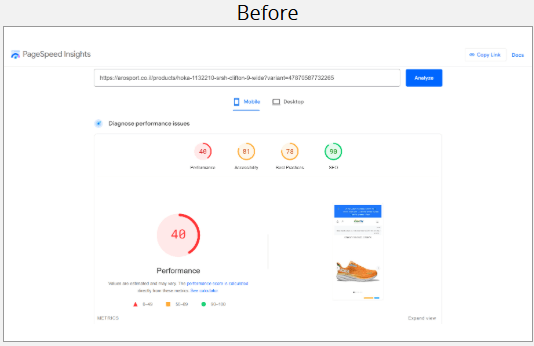
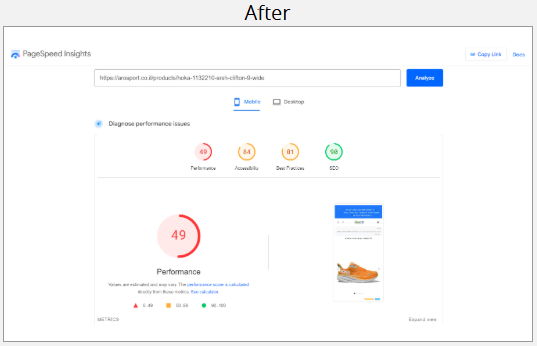
Website Speedy helped address render-blocking issues and improve the store’s mobile performance. These results illustrate how technical optimizations can improve performance across important Shopify store pages.
These are individual case-study results, not guaranteed improvements for every Shopify store. Actual results depend on the theme, apps, page content, and existing performance issues.
How to Reduce Shopify Product Page Load Time Without Removing Apps
You can reduce Shopify product page load time without removing useful apps by controlling when their scripts load and limiting where their functionality runs.
For example, a review widget may be important for purchase decisions, but its full functionality may not need to load before the product’s main content appears.
Consider these approaches:
- Load scripts only where needed: If an app is used exclusively on product pages, avoid loading its resources across the entire storefront.
- Delay non-essential functionality: Chat widgets, secondary recommendation sections, and other non-critical elements can often load after the initial content.
- Avoid duplicate integrations: If two apps provide similar tracking or customer engagement features, review whether both are necessary.
- Use asynchronous loading carefully: Independent scripts can use asynchronous loading, while scripts that depend on the document being parsed can often use deferred loading.
Website Speedy addresses some of these technical performance issues through resource-loading optimization, asynchronous script handling, render-blocking resource optimization, lazy-loading, and code-level improvements. Its dashboard also provides a way to monitor performance changes.
However, automated optimization cannot identify and remove every poorly implemented app integration. If a particular app script is responsible for excessive processing, you may still need to investigate its code or contact its developer.
How to Test and Monitor Shopify Product Page Speed
Testing individual product URLs is important because your homepage, collection pages, and product pages do not necessarily load the same resources. Use the following process to evaluate Shopify product page loading speed:
- Choose representative product URLs: Select products with different numbers of images, variants, reviews, and interactive features.
- Run PageSpeed Insights: Test each URL on mobile and desktop to review LCP, CLS, available real-user INP data, and performance optimization opportunities.
- Inspect Chrome DevTools: Use the Network panel to examine resource requests and the Performance panel to identify long JavaScript tasks.
- Check Shopify Web Performance reports: Review real-user Core Web Vitals data to understand how visitors experience your storefront.
- Make one set of changes at a time: This helps you understand which optimization actually improved performance.
- Retest the same URLs: Compare results under similar testing conditions and verify that product images, variant selection, reviews, and cart functionality still work.
How to Automate Shopify Product Page Script Optimization
Manually reviewing every script on a Shopify product page can take time, especially when multiple apps and integrations are involved. A website speed optimization tool like Website Speedy can automate certain technical improvements through asynchronous script handling, render-blocking resource optimization, and code-level changes.
A Shopify App Store review offers an example of a merchant’s experience. Posh Pants Club reported a 20-point improvement in its PageSpeed score after using Website Speedy and specifically mentioned asynchronous script loading and other optimizations.
This is an individual customer-reported result, not a guaranteed improvement for every store. Automated optimization can help address certain script-loading issues, but scripts causing excessive processing may still require separate investigation.
For your own store, test the same product page before and after making changes. Check both loading performance and whether important features, such as variant selection and add-to-cart functionality, continue to work correctly.
Conclusion
Improving Shopify product page speed starts with understanding what delays the product image, content, and shopping interactions. Focus on image loading priority, unnecessary app scripts, JavaScript execution, render-blocking resources, and mobile performance before making larger theme changes.
Test individual product URLs, monitor Core Web Vitals, and make changes incrementally. A faster product page should not just display content sooner. It should also allow shoppers to select variants, view product details, and add items to their carts without unnecessary delays.
Frequently Asked Questions
1. Why are my Shopify product pages slower than my homepage?
2. How can I speed up product pages on Shopify mobile?
3. Do Shopify apps slow down product pages?
4. Should I lazy-load all product images on Shopify?
5. Does Shopify automatically optimize product page images?
6. Does improving Shopify product page speed improve SEO?
About the Author