






TL;DR: A large DOM size forces browsers to process more HTML elements, increasing rendering time, memory usage, and JavaScript execution. By simplifying your website DOM, reducing unnecessary HTML nodes, and optimizing page structure, you can improve page speed, Core Web Vitals, and the overall user experience.
When people think about website performance, they usually focus on images, JavaScript, or hosting. While these are important, another often-overlooked factor can quietly slow down your website: DOM size.
Every webpage is built from HTML elements that browsers organize into a structure called the Document Object Model (DOM). The larger and more complex this structure becomes, the harder browsers have to work before a page becomes interactive.
A large DOM doesn’t just affect loading speed. It can increase memory usage, make DOM updates more expensive, delay rendering, and negatively impact Core Web Vitals. In PageSpeed Insights and Lighthouse, you may also see the “Optimize DOM size” insight when a large DOM contributes to expensive rendering work.
This guide explains what DOM size is, why it matters, how it affects website performance, and the best practices to optimize DOM size without sacrificing design or functionality.
Quick Overview: How DOM Size Affects Website Performance
- DOM size refers to the total number of HTML elements (DOM nodes) on a webpage.
- A large DOM increases browser rendering work, JavaScript processing, and memory consumption.
- PageSpeed Insights and Lighthouse can flag DOM-related performance issues when a large DOM contributes to expensive rendering or layout work.
- Simplifying your HTML, removing unnecessary nested elements, and limiting dynamically generated content can significantly improve page speed and Core Web Vitals.
- Regular DOM size optimization helps browsers render pages faster, especially on mobile devices with limited processing power.
What Is DOM Size?
The Document Object Model (DOM) is the browser’s representation of your webpage after it reads the HTML.
Think of it as a family tree where every HTML element becomes a DOM node. Headings, paragraphs, images, buttons, navigation menus, forms, and containers all become part of this tree.
For example:
<body>
  <main>
    <section>
      <h1>Welcome</h1>
      <p>This is a sample page.</p>
    </section>
  </main>
</body>
Each HTML element becomes part of the DOM tree. DOM size is commonly measured by the number of elements in that tree. As the DOM grows, the browser may have more elements to process during rendering, styling, layout, and updates.
Why Does a Large DOM Slow Down a Website?
A browser doesn’t simply download HTML and display it. It has to analyze every element, build the DOM tree, calculate styles, create layouts, and paint everything on the screen before users can interact with the page.
As the DOM size grows, each of these processes becomes more resource-intensive because the browser has more DOM nodes to process and update. This extra work can increase rendering time, slow JavaScript execution, and make your website feel less responsive, especially on mobile devices.
1. Large DOMs Increase Rendering and Layout Work
A larger DOM can increase the amount of work the browser needs to perform during rendering, styling, and layout.
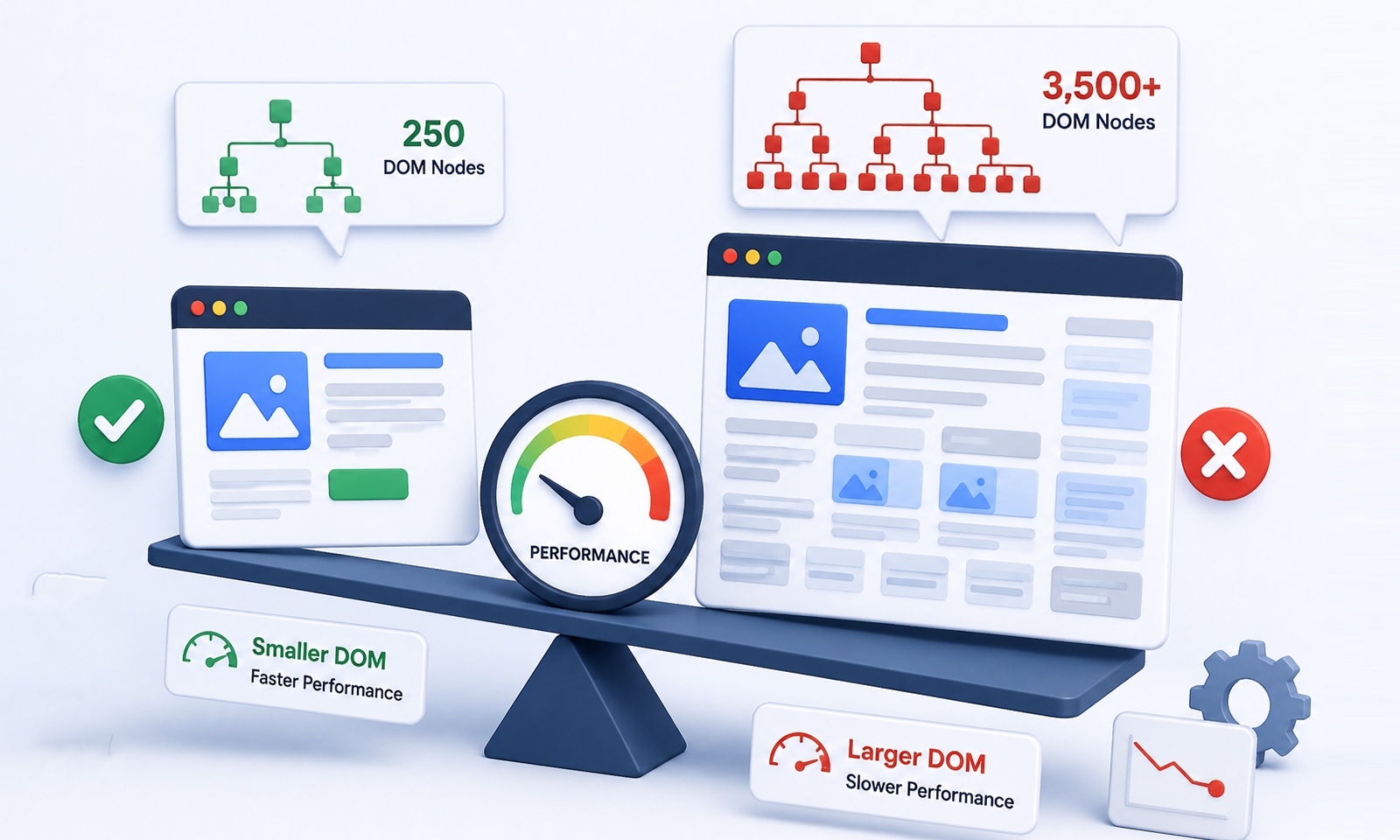
Imagine comparing:
- A page with 250 HTML elements
- A page with 3,500 HTML elements
The second page gives the browser more elements to work with. The actual performance impact depends on how those elements are styled, laid out, and updated, but unnecessary DOM elements can make rendering more expensive.
2. DOM Updates Can Make JavaScript Interactions More Expensive
Many JavaScript functions interact directly with the DOM. When scripts need to find, update, add, or remove a large number of elements, the browser may have more work to do. These changes can also trigger additional style and layout calculations.
This can lead to:
- Longer scripting and rendering tasks
- Slower user interactions
- Higher interaction latency
These delays can negatively influence Interaction to Next Paint (INP), one of Google’s Core Web Vitals.
3. Large DOMs Can Increase Style and Layout Work
When CSS changes or the DOM is updated, the browser may need to recalculate styles and update the layout. A larger DOM can increase the amount of work involved, especially when complex styles affect many elements. The result can include:
- Longer style recalculations
- More layout work
- Increased rendering delays
This connects the DOM to the actual browser work instead of implying that the browser recalculates everything every time. Chrome explains that style recalculation involves matching CSS rules and computing styles for elements, and long recalculations can contribute to presentation delays and INP.
4. Memory Usage Increases
The DOM also uses browser memory. Large pages containing thousands of HTML elements can require more memory, particularly on mobile devices where available resources may be more limited.
This may lead to:
- Slower scrolling
- Reduced responsiveness
- Occasional browser crashes on lower-end devices
These issues are often more noticeable on mobile devices because smartphones typically have less memory and slower processors than desktop computers. As a result, a large DOM can make mobile pages feel sluggish even when they load quickly on high-end desktops.
5. Core Web Vitals Can Be Affected
Although DOM size isn’t a Core Web Vital itself, it contributes to the processes behind them. An excessive DOM size can indirectly impact:
PageSpeed Insights and Lighthouse can surface DOM-related performance issues when a large DOM contributes to expensive rendering or layout work.
How Large Is Too Large for a DOM?
There isn’t a single DOM size that automatically makes a website slow. A page with more HTML elements isn’t necessarily slower than a page with fewer elements.
What matters is how much work the browser has to perform with those elements. A large DOM can become a problem when it contributes to expensive style calculations, layout work, or other rendering tasks.
Chrome’s current Optimize DOM size insight looks at factors such as the total number of elements, DOM depth, and the element with the most children. It also checks whether large layout or style recalculation tasks are taking significant time.
Instead of trying to reach a specific DOM element count, focus on removing unnecessary elements and measuring whether the DOM is contributing to actual performance problems.
What Does “Optimize DOM Size” Mean in PageSpeed Insights
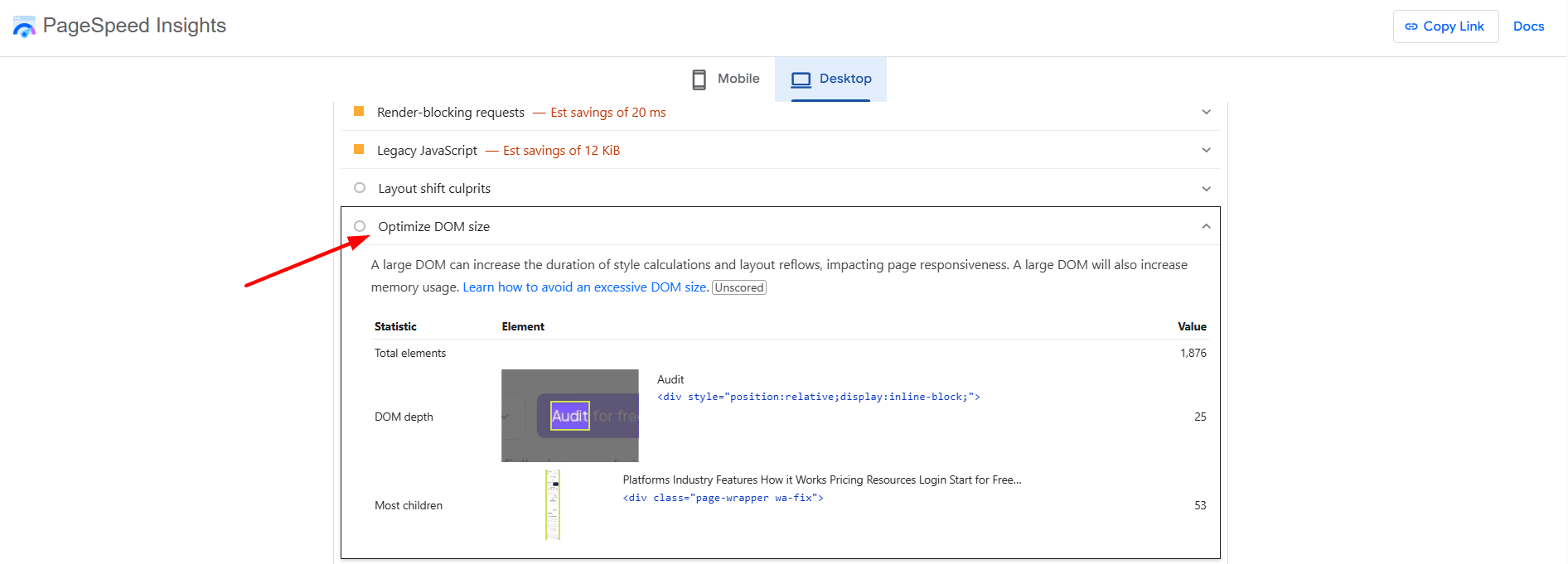
If PageSpeed Insights or Lighthouse shows the “Optimize DOM size Optimize DOM size” insight, it means your page’s DOM may be contributing to expensive rendering work. The insight looks at the number of elements, DOM depth, and other DOM characteristics while identifying large layout or style recalculation tasks.
It’s important to understand that this is not a Core Web Vital or a direct Google ranking factor. Instead, it’s a performance insight that points to DOM-related rendering work worth investigating.
A large DOM won’t automatically hurt your rankings, but reducing unnecessary DOM elements can lower browser workload, improve rendering performance, and contribute to better page speed and a smoother user experience.
Common Causes of a Large DOM
Many websites gradually accumulate unnecessary HTML without anyone noticing. Some common reasons include:
Deeply Nested HTML Elements
Using multiple wrapper <div> elements for styling often creates an unnecessarily deep DOM tree. Instead of six nested containers, two or three are often sufficient.
Page Builders
Visual builders sometimes generate significantly more HTML than hand-written code. Over time, pages created with multiple widgets and layout sections can dramatically increase DOM size.
Mega Menus
Large navigation systems containing hundreds of links create hundreds of DOM nodes before visitors even interact with them. Loading secondary menus only when needed can help.
Infinite Scroll and Large Product Listings
Ecommerce stores often render hundreds of products simultaneously. Rendering only visible products while loading others later reduces unnecessary DOM elements.
For example, an ecommerce category page displaying hundreds of products at once can quickly create thousands of DOM elements. If each product card contains an image, title, price, rating, badges, action buttons, and multiple wrapper elements, the page can become much larger than necessary before visitors even interact with it.
Third-Party Widgets
Chat plugins, review widgets, social feeds, and popups often inject hundreds of additional HTML nodes into your page, increasing your overall DOM size. Regularly auditing your third-party scripts and removing or delaying non-essential ones can help reduce unnecessary browser work and improve performance.
How to Reduce DOM Size
Improving DOM size optimization isn’t about deleting content. It’s about building pages more efficiently.
Simplify HTML Structure
Remove unnecessary wrapper elements wherever possible.
Cleaner HTML makes pages easier for browsers to process while also improving maintainability.
Reduce Nested Elements
Instead of repeatedly nesting containers for styling, use modern CSS features like Flexbox and Grid to achieve the same layouts with fewer HTML nodes.
Remove Unused Third-Party Scripts
Audit plugins regularly. If a widget provides little value while adding hundreds of HTML elements, removing it benefits both page speed optimization and user experience.
Load Content Only When Needed
Not every section needs to be created in the DOM immediately. For content that users may not need right away, such as some tabs, comments, or expandable sections, consider creating or inserting those elements only when they are needed.
Simply hiding an element with CSS does not remove it from the DOM, so the goal is to avoid creating unnecessary elements in the first place.
Limit the Number of Products Rendered at Once
Instead of rendering hundreds of products into the DOM at the same time, consider:
- Pagination
- Lazy rendering
- Virtualized lists
- Rendering only the items users currently need
The goal is to avoid creating a large number of DOM elements when they aren’t needed. For very large lists, virtualization can keep only the visible portion of the list in the DOM while the user scrolls.
Test Pages Regularly
Use tools like:
- Google PageSpeed Insights
- Lighthouse
- Chrome DevTools
These tools help identify pages with a large DOM, measure DOM depth, and highlight rendering or layout work that may be affected by the size of the DOM.
How to Check Your Website’s DOM Size
You can check your website’s DOM using tools such as PageSpeed Insights, Lighthouse, and Chrome DevTools.
In Chrome DevTools, you can also use the Console to get a quick count of the elements on a page:
document.querySelectorAll('*').lengthThis gives you the number of HTML elements in the document. For a deeper performance check, use the Performance panel to look for long style recalculations and layout work. A high element count by itself doesn’t tell you whether the DOM is causing a performance problem, so it’s important to look at the actual rendering work as well.
Does DOM Size Affect SEO?
Reducing DOM size is not a direct Google ranking factor. However, if a large DOM is contributing to slower rendering or poor responsiveness, reducing unnecessary elements can improve the page’s performance and user experience.
A cleaner website DOM often results in:
- Faster rendering
- Better mobile responsiveness
- Improved user experience
- Better Core Web Vitals
- Reduced browser workload
All of these factors contribute to a better user experience.
Conclusion
Your DOM size plays an important role in how efficiently browsers render and interact with your website. A large, complex DOM can slow rendering, increase browser workload, and affect the overall user experience.
If you’ve encountered the “Avoid an excessive DOM size” warning in PageSpeed Insights, focus on simplifying your HTML, reducing unnecessary DOM nodes, and keeping your page structure efficient. Even small improvements can lead to faster rendering, smoother interactions, and better website performance.
Q1: Does DOM size affect SEO?
Q2: How can I check my DOM size?
Q3: What is considered a large DOM?
Q4: Does reducing DOM size improve Core Web Vitals?
Q5: Are page builders responsible for large DOM sizes?
Q6: Is a large DOM always a problem?
About the Author