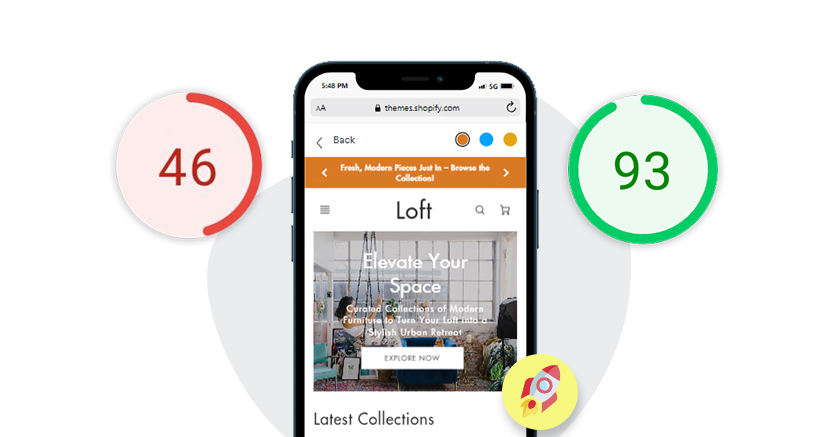







TL;DR: Shopify speed optimization can improve user experience, Core Web Vitals, and the overall performance of your store. Slow pages can make shoppers wait for products, images, and interactive elements to load, which can affect engagement and conversions. This guide covers practical Shopify speed optimization tips, including image optimization, lazy loading, app audits, JavaScript, Core Web Vitals, and page-specific performance improvements.
Shopify speed optimization is the process of reducing the time and browser work required to load and interact with your storefront. The biggest opportunities usually come from the theme, images, JavaScript, third-party apps, tracking scripts, and page complexity rather than Shopify’s underlying hosting infrastructure.
For most Shopify stores, the best place to start is real-user Core Web Vitals. Identify whether the problem is related to loading performance (LCP), interaction responsiveness (INP), or visual stability (CLS), then determine which page type and resource is contributing to the problem.
Common fixes include improving the loading priority of the LCP resource, optimizing images, reducing unnecessary JavaScript, auditing apps and third-party scripts, reserving space for dynamic content, and simplifying heavy theme sections.
This guide explains how to diagnose and fix Shopify performance problems across homepages, product pages, collection pages, carts, and landing pages, with practical steps for measuring performance before and after each change.
Wondering why your Shopify store is slow? Watch the video below to explore some tools that can help improve Shopify speed and identify practical ways to address storefront performance issues.
What Are the Most Effective Shopify Speed Optimization Tips?
The most effective Shopify speed improvements usually come from fixing the resources and functionality that delay loading, interaction, or visual stability. Start with real-user Core Web Vitals, then investigate the theme, LCP resource, JavaScript, apps, images, third-party scripts, and page-specific functionality.
| Problem | What to check | Typical Shopify fix |
|---|---|---|
| Slow LCP | Hero/product image, render-blocking CSS/JS, app scripts | Prioritize the LCP resource and reduce blocking work |
| Poor INP | Long JavaScript tasks, filters, menus, popups | Reduce or defer unnecessary JavaScript |
| High CLS | Images, banners, reviews, apps | Reserve space before dynamic content loads |
| Heavy homepage | Sections, sliders, apps, large media | Remove unnecessary sections and prioritize above-the-fold content |
| Slow product page | Reviews, recommendations, variants, media | Audit product-page apps and JavaScript |
| Slow collection page | Product grids, filters, badges | Reduce unnecessary elements and loaded resources |
| Performance after app installation | New scripts/assets | Compare before and after the app change |
Why Speed Optimization Matters for Your Shopify Store in 2026
Shopify speed optimization is crucial for conversions, search visibility, and customer experience. As user expectations and Google’s Core Web Vitals continue to evolve, site performance has become an important part of e-commerce growth. Below are the key reasons why speed optimization matters for your store’s success.
1. Direct Impact on Conversions
E-commerce is driven by speed. You want a shopper to check out without any hesitation when they put an item in their cart. A slow page can create friction at exactly the point where a shopper is deciding whether to continue browsing or buy.
Even faster stores have an advantage during high-traffic sales events like Black Friday and Cyber Monday, when more shoppers may be browsing and interacting with your store at the same time. That makes performance something worth monitoring before a major campaign, not something to fix only after problems appear.
2. Core Web Vitals and Search Performance
Core Web Vitals are part of Google’s page-experience signals and are used by its ranking systems. However, good Core Web Vitals do not guarantee higher search rankings. For Shopify stores, the practical goal is to provide a fast, stable, and responsive experience while maintaining strong content, technical SEO, and product relevance.
Improving storefront performance can also make it easier for visitors to browse products, interact with filters and menus, and complete purchases without unnecessary delays.
3. Better Landing-Page Experience
Page performance can affect how visitors interact with paid landing pages. Slow-loading product or landing pages can create friction before shoppers can view products or take action. Improving loading and responsiveness can therefore support a better overall landing-page experience, although it does not guarantee lower advertising costs or higher ad rankings.
4. Mobile Shopping Experience
Mobile shoppers may browse under slower networks and on devices with less processing power than desktop computers. That makes image size, JavaScript execution, layout stability, and interaction responsiveness particularly important.
Test your homepage, product pages, collection pages, and cart experience on mobile rather than assuming that good desktop performance means the store is fast for mobile shoppers.
Why Is My Shopify Store Slow?
A Shopify store is usually slow because the browser has too much work to do, important resources are discovered or loaded too late, or content changes after the page starts rendering. Common causes include large images, heavy theme code, third-party scripts, Shopify apps, excessive JavaScript, complex page sections, and inefficient Liquid code.
The cause also depends on the page type. A homepage may be slowed by large hero media and promotional sections, while a product page may be affected by reviews, recommendations, variant selectors, or personalization scripts.
| Factor | What can go wrong | What to investigate |
|---|---|---|
| Theme | Excessive sections, animations, CSS, or JavaScript | Theme assets, sections, templates, and custom code |
| Apps | Render-blocking resources or unnecessary scripts | App embeds, scripts, styles, and page coverage |
| Images | Oversized or incorrectly prioritized resources | Dimensions, responsive loading, compression, LCP status |
| JavaScript | Long tasks and expensive interactions | Main-thread work, event handlers, third-party scripts |
| Liquid | Expensive loops or rendering logic | Theme Inspector, loops, snippets, filters |
| Fonts | Delayed rendering or layout shifts | Font loading strategy and fallback metrics |
| Video | Large downloads and third-party players | Autoplay, embeds, loading behavior |
| Page complexity | Too many sections or interactive elements | Above-the-fold content and unnecessary functionality |
| Dynamic content | Content inserted after rendering | Reviews, banners, apps, recommendations, popups |
The number of Shopify apps installed is not enough to determine whether a store is slow. What matters is what those apps load, where they load, how much JavaScript they execute, and whether their functionality is needed on every page.
A common pattern in Shopify performance work is that the slowest resource is not always the largest resource. A relatively small third-party script can create a noticeable delay if it executes at the wrong time or competes with the browser’s main-thread work. Conversely, a large image below the fold may have little effect on the initial experience if it is appropriately sized and lazy-loaded.
This is why performance optimization should begin with measurement rather than a fixed checklist of changes.
Shopify Core Web Vitals and Performance Metrics
Core Web Vitals help measure the loading performance, responsiveness, and visual stability of your Shopify storefront. Use them alongside supporting metrics such as TTFB and FCP to understand where performance problems originate. The recommended good thresholds are:
| Metric | What it measures | Good target |
|---|---|---|
| LCP | Loading performance of the main content | ≤ 2.5 seconds |
| INP | Responsiveness to user interactions | ≤ 200 ms |
| CLS | Visual stability during loading | ≤ 0.1 |
These thresholds are evaluated using real-user data at the 75th percentile. Treat them as performance targets, not as a reason to chase a perfect lab score.
Largest Contentful Paint (LCP)
LCP measures how quickly the largest visible content element is rendered. On Shopify, this is often a hero image, product image, banner, or large text block.
A good LCP is 2.5 seconds or less.
How to Improve LCP on Shopify
A poor LCP does not always mean that an image is simply too large. First, identify which element is being measured as the LCP element, then check how quickly the browser discovers and loads it.
Common Shopify causes of poor LCP include:
- An oversized hero or product image
- The LCP image being lazy-loaded
- Render-blocking JavaScript or CSS
- App scripts delaying resource discovery
- Heavy theme sections above the fold
- Animations that hide or delay the LCP element
The LCP image should normally be loaded eagerly rather than lazy-loaded. Where appropriate, Shopify recommends giving the LCP image high fetch priority so the browser can request it early.
Cumulative Layout Shift (CLS)
CLS measures unexpected movement of visible content while a page loads. Sudden shifts caused by images, fonts, banners, or app content can make a store difficult to use.
A good CLS is 0.1 or less.
How to Fix CLS on Shopify
If elements move around while the page loads, first identify what is being inserted or resized after the initial page has rendered.
Common Shopify causes include:
- Images without reserved dimensions
- Review and rating widgets
- Promotional banners
- Cookie, chat, or popup elements
- Dynamic pricing or inventory content
- Fonts swapping after the page starts rendering
- App content being injected into the page
For app-powered content, reserve space for the element before the app finishes loading. This prevents the surrounding content from jumping when the widget appears.
Interaction to Next Paint (INP)
INP measures how responsive your store feels when shoppers interact with buttons, menus, filters, forms, and other interactive elements. Heavy JavaScript is a common cause of poor INP.
A good INP is 200 milliseconds or less.
How to Improve INP on Shopify
A Shopify store can have a good LCP score and still feel slow when shoppers click, tap, filter, or open menus. If INP is poor, look for JavaScript that keeps the browser busy during interactions.
Common sources include theme JavaScript, app scripts, analytics, chat widgets, filters, pop-ups, and other interactive features.
Use Chrome DevTools to identify long tasks and see which scripts are taking the most time. Start with the biggest offenders instead of trying to optimize every script on the page.
Reducing unnecessary JavaScript, delaying non-critical scripts, and simplifying expensive interactions can make the store feel much more responsive.
Time to First Byte (TTFB)
TTFB measures how long it takes for the browser to receive the first byte of a response. It is not a Core Web Vital, but it can help you understand where a slow page may be getting delayed.
On Shopify, TTFB can be affected by how quickly the storefront renders its Liquid code. Complex or deeply nested Liquid loops can increase server-side processing time, which delays the browser from receiving and rendering the page.
Use TTFB as a diagnostic clue rather than a score to chase. If TTFB is slow, investigate the theme and Liquid rendering before assuming that Shopify hosting is the problem.
How to Test Shopify Store Speed Accurately
Before applying any Shopify speed optimization tips, it’s essential to measure your store’s current performance using reliable tools. Speed optimization without testing often leads to unnecessary changes that don’t improve real-world performance.
Use these tools to test the Shopify store speed correctly:
1. Shopify Web Performance Data
Open Shopify Admin and review the Web Performance information available for your storefront.
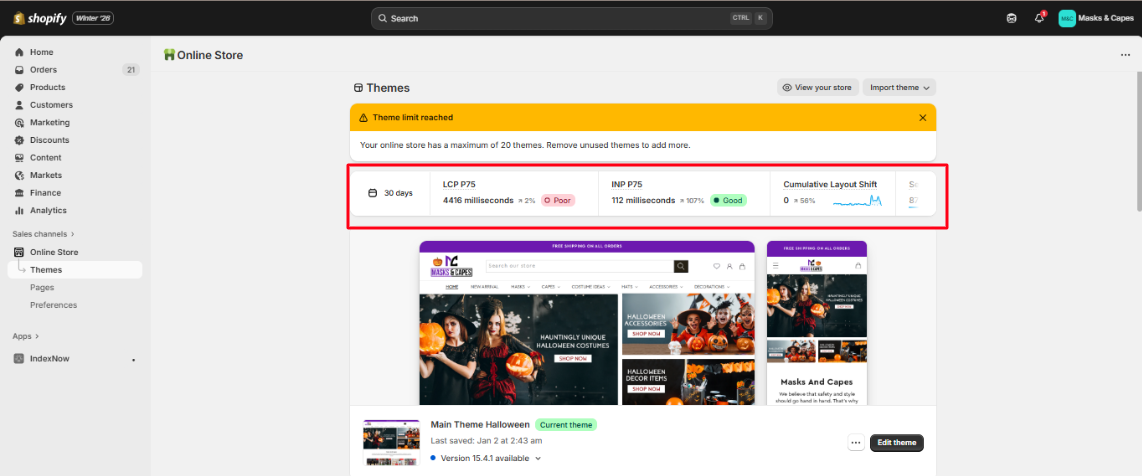
Do not look only at an overall score. Check which Core Web Vitals are failing and whether the problem is concentrated on a particular page type, device, or region.
For example, if product pages have poor INP while your homepage performs well, changing the entire theme may not be the right solution. The problem could be coming from product reviews, recommendation widgets, variant scripts, or other functionality loaded on the product template.
2. Google PageSpeed Insights
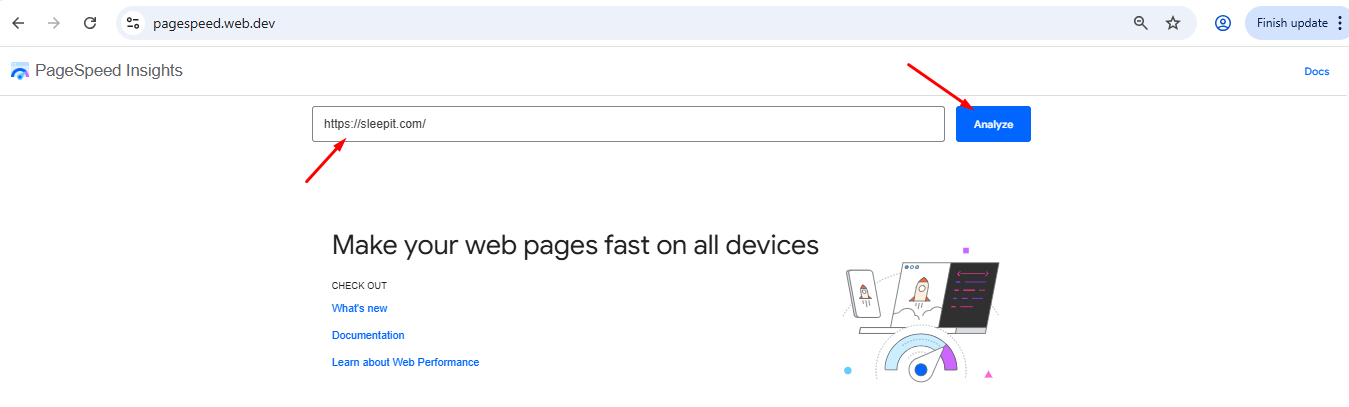
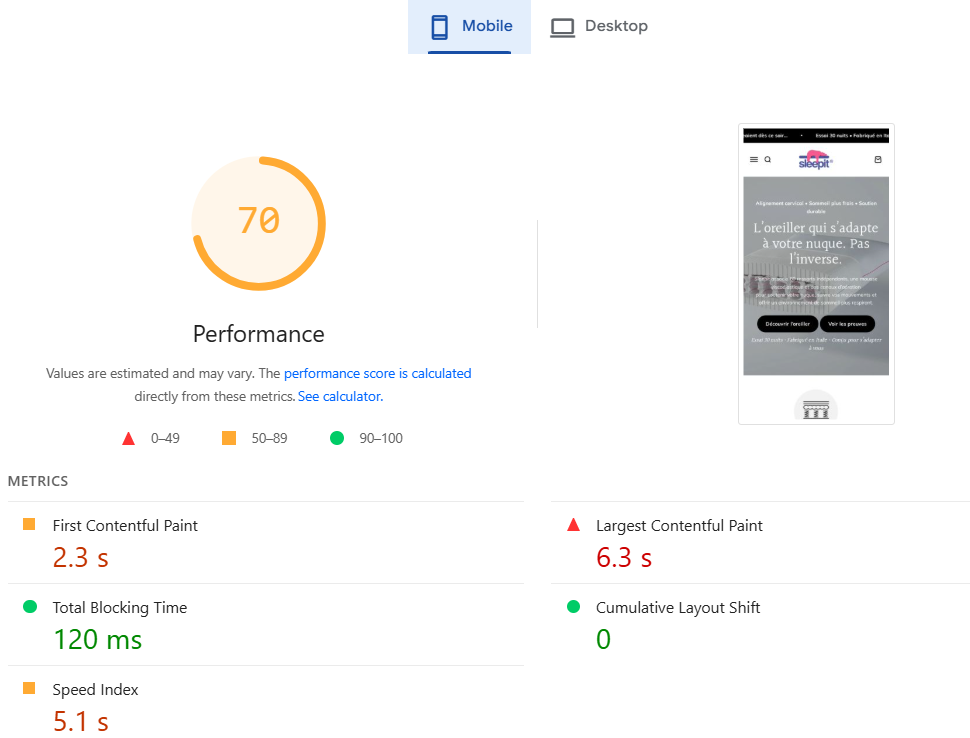
Google PageSpeed Insights is useful for investigating individual pages and finding potential performance problems. It provides lab data for controlled testing and may also show field data when enough real-user data is available. Use it alongside Shopify’s Web Performance data rather than treating the PageSpeed score as the main goal.
Step 1: Open Google PageSpeed Insights
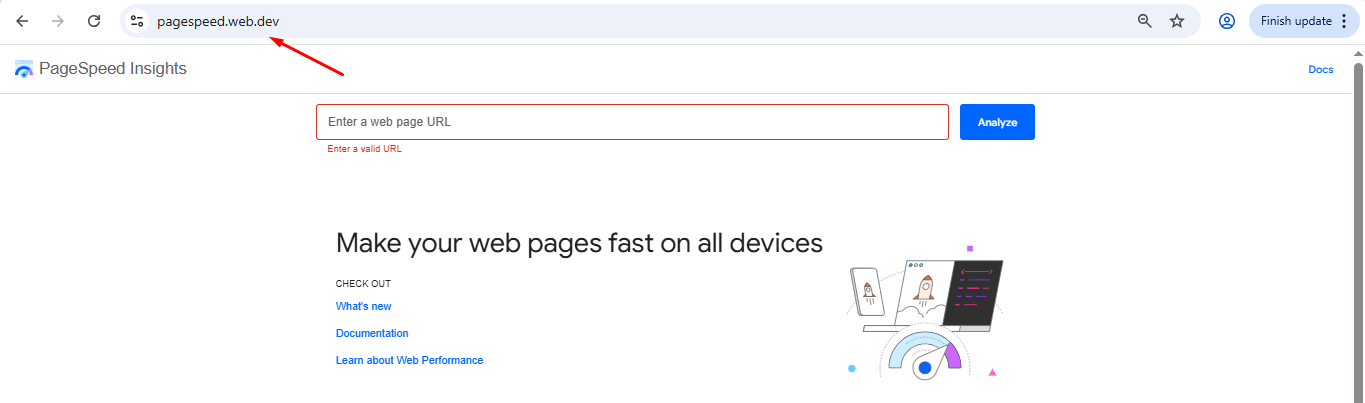
Step 2: Enter your Shopify store URL and click Analyze
Step 3: Review Mobile results and Core Web Vitals metrics
3. Chrome DevTools
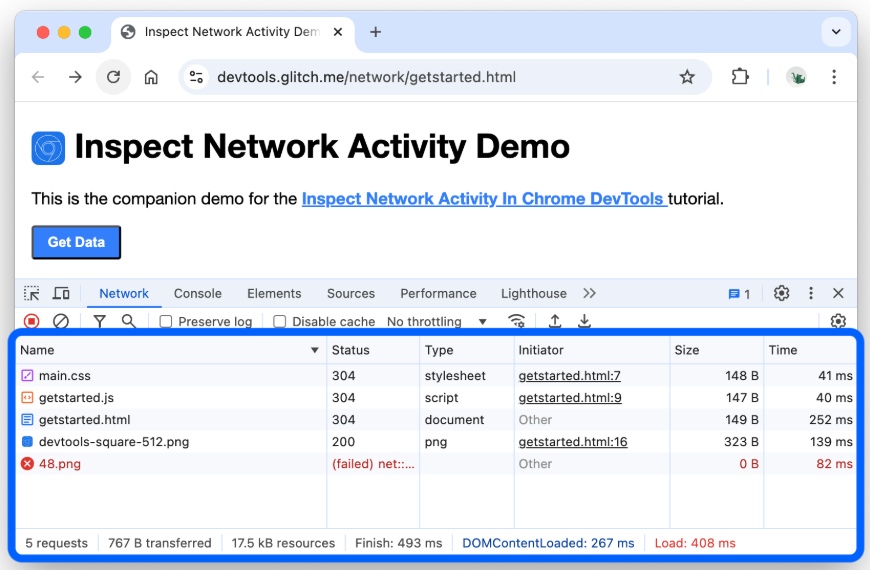
Chrome DevTools is useful when you need to investigate JavaScript execution, long tasks, network requests, rendering, and individual resources.
Use the Network panel to inspect the request waterfall and the Performance panel to investigate long tasks and browser work.
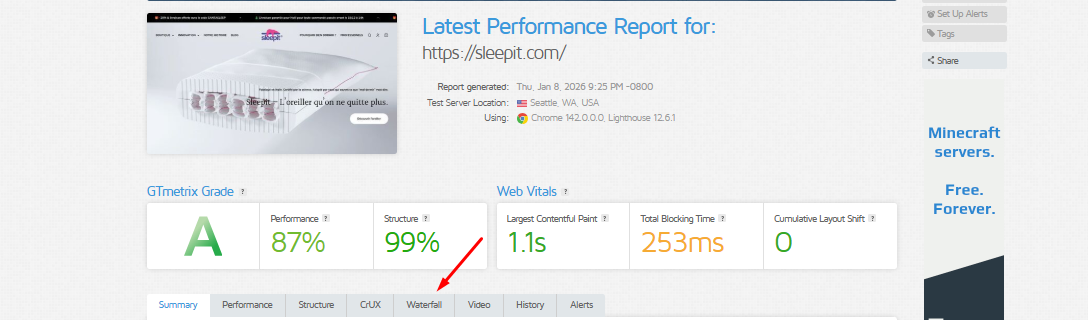
4. GTmetrix
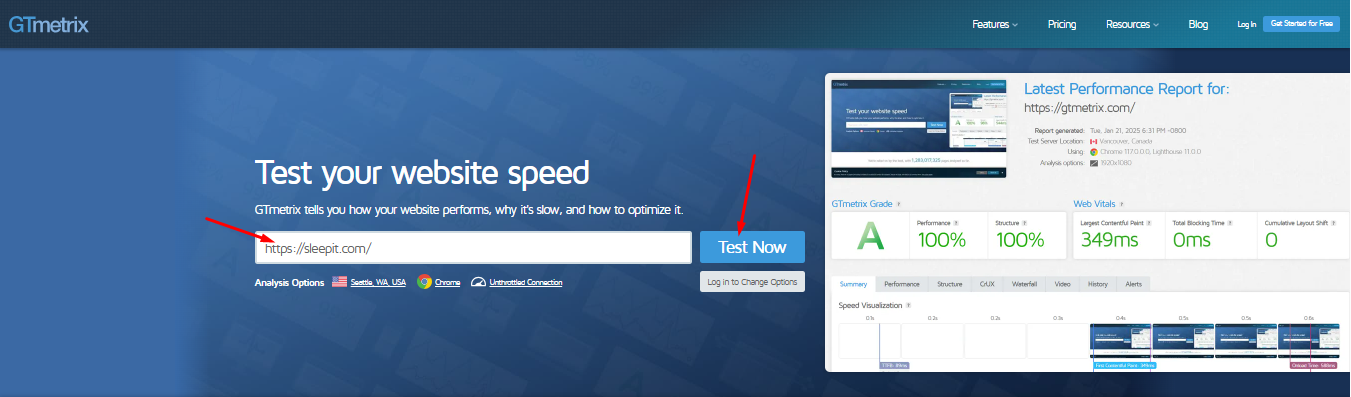
GTmetrix can help identify technical issues such as render-blocking scripts, unoptimized images, and excessive JavaScript. Its waterfall view is particularly useful when you need to see which resources are loading, how long they take, and which third-party domains are involved.
Step 1: Visit GTmetrix

Step 2: Enter your store URL and start the test
Step 3: Check the Waterfall tab for slow-loading files
5. Field Data vs. Lab Data
The simplest way to use both field data and lab data is:
Field data → identify the problem → lab data → diagnose the cause → make the fix → field data → verify the improvement.
This approach is more reliable than trying to achieve a perfect score from a single speed test. Shopify’s current performance guidance follows the same measurement approach.
This measure → diagnose → fix → retest approach is also useful when using automated Shopify speed optimization tools. For example, Website Speedy follows this type of ongoing performance workflow rather than treating speed optimization as a one-time score improvement.
We recommend starting with real-user data, isolating the affected page type and resource, making the smallest useful change, and then verifying the result with both lab and field data. This is more reliable than trying to achieve a perfect score from a single speed test.
How Can I Improve Shopify Store Speed
You can improve Shopify store speed by optimizing images, reducing unnecessary JavaScript and CSS, limiting resource-heavy apps, improving theme performance, and regularly monitoring Core Web Vitals and real-user performance.
1. Optimize the LCP Resource
Start with the element responsible for LCP rather than optimizing every image on the page.
If the LCP element is an image:
- Use an appropriately sized image.
- Avoid
loading="lazy"for the LCP image. - Load it eagerly.
- Use high fetch priority when appropriate.
- Avoid hiding it behind animations.
- Use Shopify’s image filters for responsive image delivery.
Shopify’s current theme-performance guidance specifically recommends not lazy-loading the LCP image and recommends fetchpriority="high" where appropriate.
2. Optimize Images Based on Where They Appear
Compress images and serve dimensions appropriate for the viewport instead of uploading unnecessarily large assets. Tools such as Image Optimizer Pro can optimize your images in proper dimensions and sizes
Above-the-fold images require different treatment from images below the fold. Lazy loading is useful for off-screen images, but it should not be applied blindly to the LCP resource.
Shopify’s image_tag and image_url filters can generate responsive image markup and appropriate dimensions while using Shopify’s CDN.
3. Reduce Unnecessary JavaScript and CSS
Minification can reduce the size of JavaScript and CSS files, but file size is only one part of storefront performance.
For Shopify stores, also look at:
- How much JavaScript executes during page load
- Whether scripts block rendering
- Whether scripts run on pages where they are not needed
- How much work occurs during user interactions
- Whether CSS creates unnecessary rendering or layout work
- Whether third-party scripts compete for the browser’s main thread
Use async or defer only when appropriate for the specific script. Changing a script’s loading attribute without understanding its dependencies can break functionality.
The goal is not simply to make files smaller. The goal is to reduce unnecessary browser work while keeping the storefront functional.
4. Audit Shopify Apps and Third-Party Resources
Review what each app loads, where it loads, and when its scripts execute. An app can affect performance if it adds render-blocking CSS or JavaScript, runs on pages where it is not needed, or creates significant browser work.
Shopify recommends identifying and optimizing or removing apps that introduce render-blocking resources. Check whether an app loads resources across the entire store or only where its functionality is required, then look for unnecessary JavaScript execution, network requests, and resources that affect interactions.
Customer results can vary by store. For example, one Shopify merchant reported a 20-point PageSpeed improvement after using Website Speedy, while another reported improvements in both mobile and desktop performance. These are individual results, not guaranteed outcomes, so measure performance on your own store before and after changes.
The goal is not to remove every app. Keep functionality that provides meaningful business value while limiting resources that add unnecessary performance costs.
5. Simplify Heavy Theme Sections
Sliders, autoplay video, animations, multiple promotional banners, product carousels, and decorative widgets can increase page complexity.
Keep the first viewport focused on the information and actions shoppers need most. Remove sections that add visual complexity without providing enough value to justify their performance cost.
6. Use Fonts Carefully
Web fonts can introduce additional requests and can affect both rendering and layout stability.
Use a sensible font-loading strategy and avoid loading multiple weights or styles that the storefront does not need.
7. Shopify’s CDN: What You Need to Optimize
Shopify already provides CDN infrastructure for storefront assets, so most merchants do not need to configure a separate CDN.
Shopify’s current platform documentation says its CDN uses global edge delivery, compression, HTTP/3, and other infrastructure-level optimizations. The more useful task for merchants is to make sure theme and image assets are being referenced through Shopify’s supported filters and asset system.
A CDN can improve the delivery of assets, but it does not solve every performance problem. JavaScript execution, Liquid rendering, third-party scripts, large resources, and page complexity can still make a storefront slow.
Bottom line: Don’t spend your optimization effort replacing infrastructure Shopify already provides. Focus on the theme, resources, apps, and browser work you can actually control.
8. Use Lazy Loading Selectively
Lazy loading is most useful for content that is not required during the initial viewport.
Do not use lazy loading on the LCP image simply because it is an image. Above-the-fold content should be available early, while off-screen media is a better candidate for deferred loading.
9. Optimize Liquid and Theme Rendering
Complex loops, repeated rendering, unnecessary filters, and inefficient theme logic can increase server-side work.
When investigating Liquid performance, use Shopify’s Theme Inspector and compare the actual rendering behavior before and after a change rather than assuming that every Liquid operation is expensive.
10. Use Lightweight Video Embeds
Video can add substantial network and browser work, particularly when a third-party player loads before the visitor chooses to watch.
Where appropriate, use a lightweight preview and load the full player only when the visitor interacts with it.
11. Reduce Unnecessary Page Elements
Popups, animations, widgets, decorative effects, and additional tracking elements should earn their place on the page.
If an element does not support the shopping journey and adds significant browser work, consider removing it or loading it later.
12. Optimize for Mobile Conditions
Mobile performance deserves separate testing because phones can have different CPU capabilities, network conditions, and interaction patterns from desktop devices.
Focus on the resources and functionality that matter most on mobile:
- Hero and product images
- JavaScript execution
- Navigation menus
- Filters
- Variant selectors
- Popups
- App-powered widgets
- Layout stability
Do not assume that a good desktop result means the mobile experience is equally fast. Use real-user data and controlled mobile testing to identify where the largest differences occur.
13. Do Not Chase a Perfect PageSpeed Score
A high Lighthouse or PageSpeed score can be useful, but it is not the same as proving that every real visitor has a fast experience.
Use real-user data to identify the problems that matter, then use lab testing to diagnose and validate individual changes. Shopify’s current testing guidance recommends this field → lab → field workflow.
How Should You Optimize Shopify Speed by Page Type?
Different Shopify templates can have very different performance problems. A fast homepage does not automatically mean that product, collection, cart, or landing pages are fast.
Homepage
Check the first viewport first. Identify the LCP element and review hero images, sliders, video, promotional banners, animations, app embeds, and third-party scripts.
Product Pages
Product pages can become heavy because of product galleries, reviews, recommendations, personalization, variant selectors, sticky purchase elements, and app-powered features.
If product pages are slower than the homepage, compare the two templates and identify which resources are unique to the product page.
Collection Pages
Collection pages can become expensive when they render many product cards, large images, filters, badges, reviews, and additional app functionality.
Focus on the resources required to help shoppers browse the collection and avoid loading unnecessary functionality with every product card.
Cart
Cart performance can be affected by upsell widgets, recommendations, tracking scripts, and dynamic cart functionality.
Test the cart separately, especially if shoppers experience delays when adding products, changing quantities, or opening the cart drawer.
Landing Pages
Landing pages often contain large hero media, animations, forms, tracking scripts, and page-builder elements.
Remove resources that do not contribute to the page’s conversion goal and ensure the primary content is available before non-essential scripts.
What Should You Not Do When Optimizing Shopify Speed?
Effective Shopify performance work is not about applying every available speed technique. Some common optimization tactics can create new problems or waste time when they are applied without measurement.
Don’t chase a perfect PageSpeed score
A lab score is useful for diagnosing performance, but it does not represent every real visitor. Use field data to understand real-world performance.
Don’t lazy-load every image
Images that contribute to the initial viewport, especially the LCP image, need to be available early. Lazy loading is better suited to content that is not immediately needed.
Don’t install multiple speed apps without testing them
A performance app can add functionality and resources of its own. Measure the store before and after installation instead of assuming that an app marketed as a speed optimizer will automatically improve every metric.
Don’t remove useful functionality simply because it adds JavaScript
Performance decisions should consider both technical cost and business value. First determine how much the functionality actually affects loading or interactions.
Don’t optimize only the homepage
Product and collection pages often contain different functionality and can have very different performance characteristics.
Don’t assume every slow result is a hosting problem
Shopify provides the underlying storefront infrastructure and CDN. Before looking for infrastructure changes, investigate the theme, Liquid rendering, images, apps, JavaScript, and third-party resources you actually control.
What Is the Best Shopify Speed Optimization Workflow?
The most reliable Shopify speed optimization process is:
measure → segment → diagnose → fix → retest → monitor
This prevents you from spending time on small improvements while a larger performance problem is affecting real visitors.
1. Measure
Start with real-user Core Web Vitals and establish a baseline.
2. Segment
Identify which page type, device category, or region is experiencing the problem.
3. Diagnose
Use lab tools such as PageSpeed Insights, Lighthouse, Chrome DevTools, or a waterfall tool to identify the likely cause.
4. Identify the resource
Determine whether the problem comes from an image, JavaScript, CSS, app, third-party service, theme code, Liquid rendering, or dynamic content.
5. Fix
Apply the smallest change that addresses the identified cause.
6. Retest
Run controlled tests before and after the change. When possible, compare multiple runs rather than relying on a single measurement.
7. Monitor
Return to real-user data after deployment and watch for regressions caused by future app installations, theme updates, content changes, or new marketing functionality.
This approach turns Shopify speed optimization into an ongoing process instead of a one-time checklist.
How Do I Monitor Shopify Performance After Optimization?
Shopify performance can change whenever the storefront changes. New apps, theme updates, tracking tags, marketing campaigns, images, sections, and interactive features can introduce new performance regressions.
After a major change, test the affected page and compare the result with your previous baseline.
Pay particular attention to:
- LCP on important landing and product pages
- INP on pages with significant interaction
- CLS where dynamic content is present
- Performance differences between mobile and desktop
- Changes affecting specific page types
- Regressions following app installations or theme changes
Do not consider an optimization successful simply because a Lighthouse score increased. Confirm that the metric you intended to improve actually improved, then use real-user data to verify the change after deployment.
Shopify recommends treating performance as an ongoing practice because new features, apps, design changes, and content can introduce regressions over time.
Conclusion
The best Shopify speed optimization strategy is not to apply every available performance technique. Start with real-user Core Web Vitals, identify the slowest page type and the resource contributing to the problem, then make the smallest useful change.
For most Shopify stores, this means reviewing theme code, images, JavaScript, apps, third-party scripts, Liquid rendering, and page-specific functionality. After each major change, retest the affected page and use field data to confirm whether the improvement reached real shoppers.
Performance should also be monitored over time. New apps, theme changes, campaigns, content, and interactive features can introduce regressions even after a store has been optimized.
Measure → diagnose → fix → retest → monitor. That process is more reliable than chasing a perfect PageSpeed score and makes Shopify performance easier to maintain as the store evolves.
FAQs
What Is a Good Shopify Speed Score?
There is no single PageSpeed score that defines a fast Shopify store. Use real-user Core Web Vitals to understand how visitors experience your store, then use PageSpeed Insights and other lab tools to investigate technical problems.
How Do I Check My Shopify Store Speed?
Start with Shopify's Web Performance data to understand real-user performance, then use PageSpeed Insights, Lighthouse, Chrome DevTools, or waterfall tools to investigate specific issues. Check the homepage, product pages, collections, and other important customer journeys separately.
Why Is My Shopify Store Slow Even With a Fast Theme?
A fast theme does not guarantee a fast storefront. Shopify apps, third-party scripts, large images, custom code, dynamic widgets, and page-specific functionality can add significant browser work even when the underlying theme is well optimized.
Can Shopify Apps Slow Down a Store?
Yes. Apps can add JavaScript, CSS, app embeds, network requests, and other browser work. The impact depends on what the app loads, where it loads, and when its code executes.
How Do I Find Which Shopify App Is Slowing My Store?
Compare performance before and after an app change, then use lab tools to identify new scripts, requests, and long tasks associated with the affected pages. Also check whether the app loads resources across the entire storefront or only on pages where its functionality is required.
Should I Lazy-Load the Hero Image on Shopify?
Usually not if the hero image is the LCP element. Shopify recommends loading the LCP image eagerly and using high fetch priority where appropriate. Lazy loading is better suited to images outside the initial viewport.
Why Is My Shopify Store Fast on Desktop but Slow on Mobile?
Mobile devices can have different CPU capabilities and network conditions, and JavaScript can be more expensive to execute on less powerful devices. Test mobile separately and investigate images, JavaScript execution, interactions, and layout stability.
Why Is My Shopify Homepage Fast but Product Pages Slow?
Different Shopify templates load different resources. Product pages may include product galleries, reviews, recommendations, variant selectors, personalization, and app-powered features that are not present on the homepage.
Does a Higher PageSpeed Score Mean My Shopify Store Is Faster?
Not necessarily. PageSpeed Insights and Lighthouse provide useful lab diagnostics, but real-user data provides a different view of performance. Use lab data to diagnose problems and field data to determine whether real visitors are experiencing the improvement.
Does Faster Shopify Speed Lower Advertising Costs?
Not automatically. Faster pages can reduce friction for visitors arriving from paid campaigns, but advertising costs and ad performance depend on many factors beyond page speed. Treat performance as one part of the overall landing-page experience rather than a guarantee of lower CPC.
About the Author