






TL;DR: To improve Core Web Vitals on Squarespace, optimize above-the-fold content, reduce unnecessary JavaScript, remove render-blocking resources, limit third-party scripts, prevent layout shifts, and test mobile performance regularly.
A well-designed Squarespace website doesn’t always perform as well as it looks. Large visual sections, custom styling, embedded content, and third-party integrations can affect loading speed and user interactions, particularly on mobile devices.
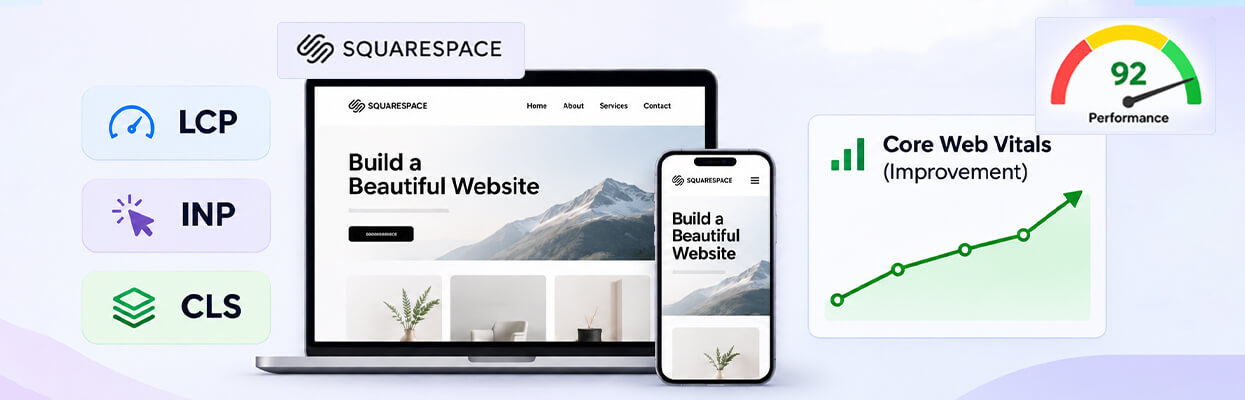
Google measures website experience through three Core Web Vitals metrics: Largest Contentful Paint (LCP), Interaction to Next Paint (INP), and Cumulative Layout Shift (CLS).
To improve Core Web Vitals on Squarespace, optimize above-the-fold content, reduce unnecessary JavaScript, remove render-blocking resources, limit third-party scripts, and prevent unexpected layout shifts. Use Google PageSpeed Insights to identify performance issues on mobile and desktop.
How to Improve Core Web Vitals on Squarespace
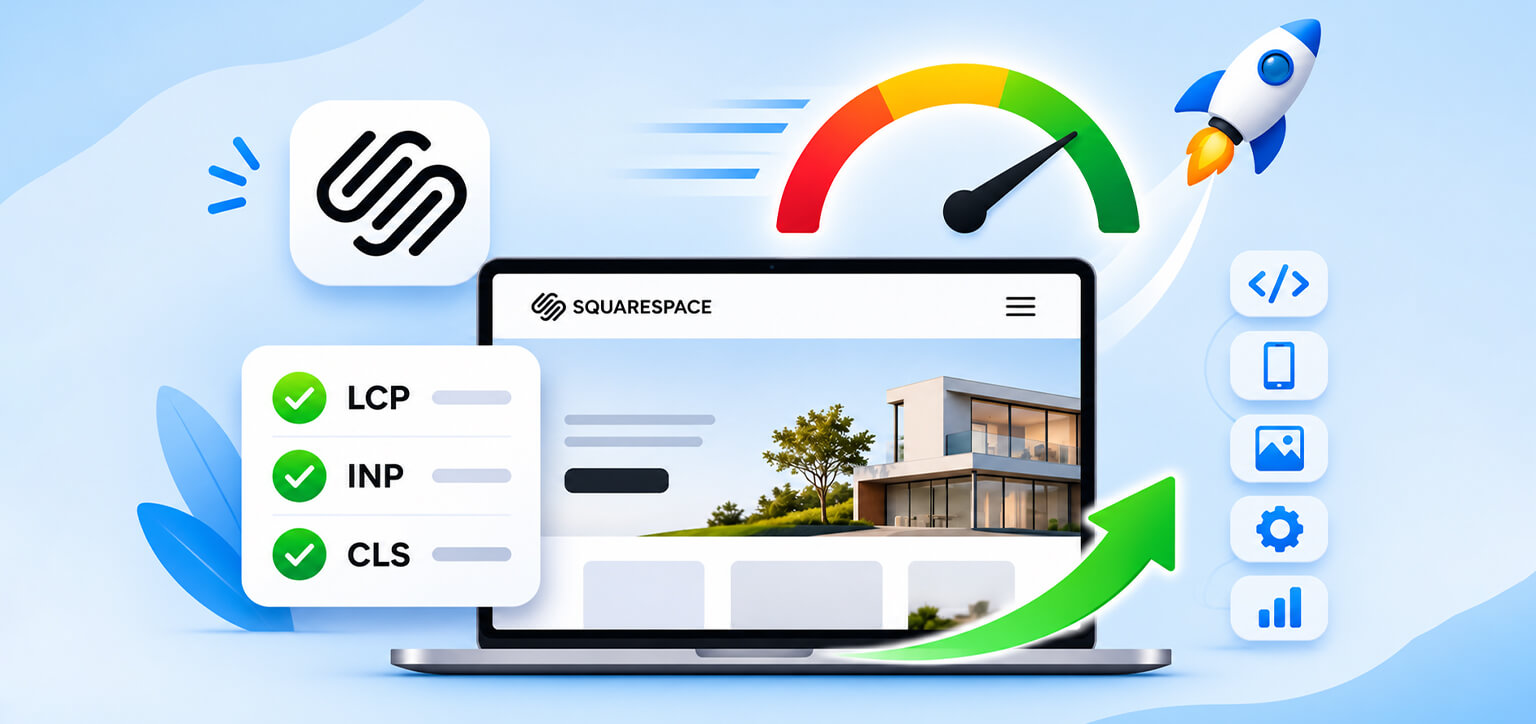
Here are the most important optimization steps:
- Improve LCP: Optimize the main visible content, reduce unnecessary animations, and prioritize important resources.
- Improve INP: Remove unnecessary JavaScript and reduce the workload caused by third-party scripts.
- Fix CLS: Prevent unexpected movement by maintaining consistent dimensions for images, embeds, and other page elements.
- Improve Mobile Performance: Simplify mobile layouts and avoid resource-heavy visual effects.
- Reduce Render-Blocking Resources: Review custom CSS and JavaScript that delay page rendering.
- Monitor Performance: Use Google PageSpeed Insights and Search Console to track changes in real-user performance.
What Are Core Web Vitals, and Why Do They Matter for Squarespace?
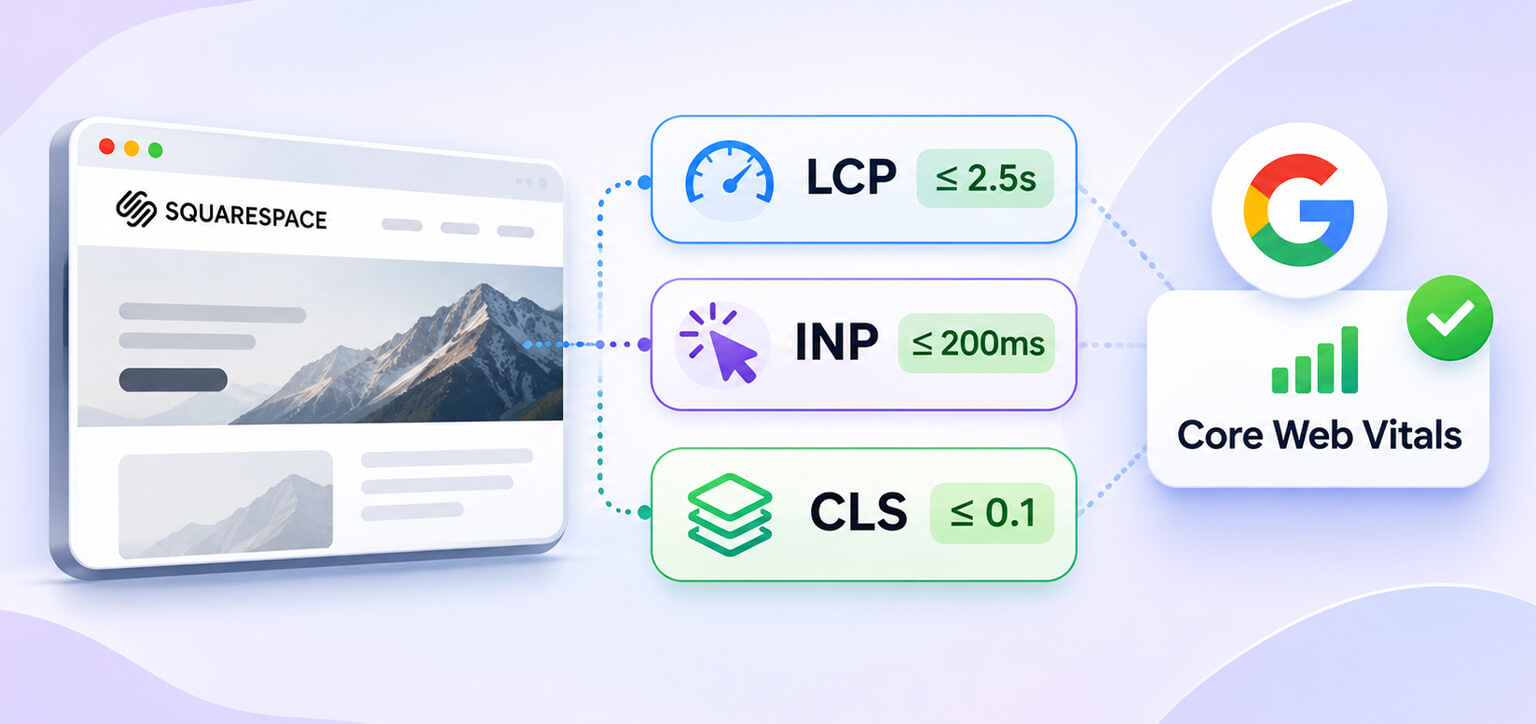
Core Web Vitals are Google’s measurements of three important aspects of website experience: loading speed, responsiveness, and visual stability. They help identify whether visitors can access and interact with your website without unnecessary delays.
The three metrics have specific performance thresholds:
| Metric | What it measures | Good score |
|---|---|---|
| LCP | How quickly the largest visible content loads | ≤ 2.5 seconds |
| INP | How quickly a page responds to user interactions | ≤ 200 milliseconds |
| CLS | How much the page layout unexpectedly shifts | ≤ 0.1 |
These thresholds are based on the 75th percentile of real-user experiences. Google recommends meeting these targets to provide a good page experience.
A Squarespace website might perform well in one metric but struggle with another. For example, your homepage may display quickly but respond slowly when someone opens a navigation menu or submits a form.
Therefore, successful Squarespace website speed optimization requires addressing all three metrics rather than focusing exclusively on the overall PageSpeed score.
How to Check Core Web Vitals on Your Squarespace Website
Before making changes, identify which metrics are causing problems. Otherwise, you might spend time removing design elements that aren’t responsible for the performance issues.
Start with Google PageSpeed Insights. Enter your Squarespace page URL and run separate mobile and desktop tests.
Pay attention to the Core Web Vitals assessment and diagnostic recommendations. For example, a report showing poor LCP alongside render-blocking resources suggests that important content may be waiting for CSS or JavaScript to finish loading.
Next, check the Core Web Vitals report in Google Search Console. It provides field data collected from actual visitors and groups similar URLs according to their performance.
Remember that PageSpeed Insights includes both lab and field data. Lab tests help diagnose problems under controlled conditions, while field data shows how real visitors experience your website. Some pages may not have sufficient traffic to display individual field data.
Why Does Your Squarespace Website Have Poor Core Web Vitals?

Squarespace provides a hosted website-building environment, but that doesn’t automatically mean every website built on it will perform well. Your design choices, custom code, external integrations, and page content can all influence performance.
For example, a photography portfolio might contain large hero images, multiple galleries, and background videos. An online store might load product widgets, customer reviews, tracking scripts, and other integrations.
Even when these elements are useful, loading too many resources at once can delay important content or increase browser processing time. The important thing is to identify which resources are creating measurable delays before removing or modifying them.
How to Improve Core Web Vitals on Squarespace
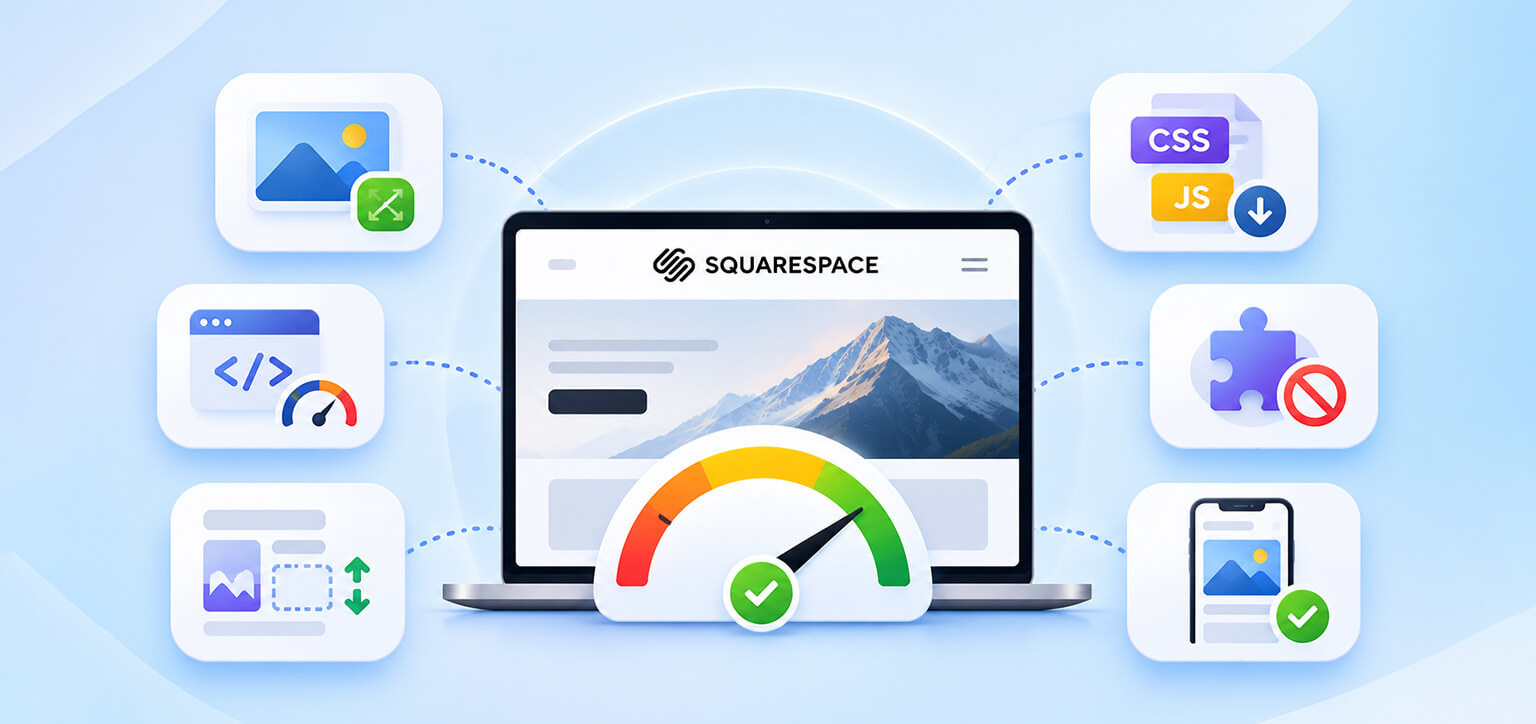
The most effective approach is to work on each metric separately, starting with the issue that has the greatest impact on visitors.
1. Improve LCP by Optimizing Above-the-Fold Content
Largest Contentful Paint measures how quickly the largest visible element appears on the screen. On Squarespace, this is often a hero image, banner, large heading, or background image.
If your homepage takes several seconds to display its main visual content, investigate what is delaying that element. Start by reviewing your hero section. Large background images, image sliders, autoplay videos, and unnecessary visual effects can increase the time required to display the main content.
Resize images according to their actual display dimensions before uploading them. Squarespace automatically compresses images and lazy-loads many below-the-fold images, but you should still avoid unnecessarily large source files.
Also, avoid lazy-loading the main LCP image. The browser should discover and prioritize this resource early rather than waiting until it approaches the viewport. Squarespace’s own performance guidance also recommends reviewing site-wide animations, particularly fade effects that delay the appearance of content.
If your homepage uses a large background video, consider replacing it with a static visual or a click-to-play video. These changes can make an important difference to Squarespace LCP optimization without requiring a complete redesign.
2. Reduce INP by Managing JavaScript and Third-Party Scripts
Interaction to Next Paint measures how quickly your website responds when visitors click, tap, or interact with elements.
For example, imagine someone clicks the navigation menu on your Squarespace website, but it takes noticeable time to open. This could indicate that JavaScript processing is delaying the interaction.
To improve responsiveness, review the scripts running across your website. Remove unused integrations, unnecessary tracking scripts, outdated widgets, and external features that no longer serve a purpose. Also, check whether multiple tools are performing similar functions.
Pay particular attention to forms, pop-ups, navigation menus, and interactive elements. These should respond quickly without triggering unnecessarily heavy scripts.
If your Squarespace INP optimization requires modifying custom scripts, consider moving non-critical JavaScript away from the initial loading process using appropriate defer or async attributes. Test these changes carefully because some scripts depend on a specific execution order.
3. Fix CLS Issues by Preventing Unexpected Layout Shifts
Cumulative Layout Shift measures unexpected movement of visible page elements while a website loads. Consider a visitor reading a product description when an image or embedded element suddenly loads above it, pushing the text downward. This creates a frustrating experience and contributes to CLS issues.
To fix CLS issues on Squarespace, pay attention to how much space your page elements occupy before they finish loading. For images and videos, maintain consistent dimensions or aspect ratios. This helps the browser reserve space before the actual media appears.
Also, review embedded forms, external widgets, announcement bars, and dynamically inserted content. If these elements appear after the rest of the page has loaded, they can move surrounding content.
Custom fonts can also contribute to layout shifts when replacement fonts have different dimensions. Use appropriate fallback fonts and review font-loading behavior.
Squarespace’s performance guidance recommends reserving space for media and dynamic elements and avoiding JavaScript that unexpectedly resizes or inserts content.
4. Reduce Render-Blocking CSS and JavaScript
When a browser encounters certain stylesheets and scripts, it may need to process them before displaying the page.
This can delay the appearance of important content, particularly when unnecessary resources are loaded early.
If you’re using custom CSS or JavaScript on Squarespace, review what is included in the header, footer, and individual code blocks.
Remove unused code and avoid loading scripts on pages where they aren’t needed. Keep custom CSS concise and load non-critical JavaScript asynchronously or defer it when appropriate.
Be careful when modifying Squarespace’s custom code. Some scripts depend on other resources, so changing their loading order can affect website functionality. Test every change before publishing it.
5. Review Third-Party Integrations and Embedded Content
Analytics platforms, chat widgets, advertising pixels, social media embeds, booking tools, and external forms can introduce additional network requests and JavaScript processing.
The problem isn’t necessarily the number of integrations. It’s how much work they create during the initial page load and subsequent interactions. For example, a website might have three different tracking tools, an embedded Instagram feed, and a live chat widget. Each can introduce additional resources that compete with important page elements.
Review each integration and ask whether it is necessary. Remove outdated tools and avoid loading resource-heavy embeds on every page. You can also use lightweight placeholders for embedded videos and load the actual content when visitors interact with them.
6. Improve Squarespace Mobile Performance
Mobile devices generally have less processing power, limited memory, and more variable network connections. Consequently, scripts and visual elements that work smoothly on desktop can create delays on mobile.
To improve mobile Core Web Vitals on Squarespace, start by testing your most important pages using PageSpeed Insights’ mobile mode. Review your mobile layout for oversized hero sections, unnecessary animations, autoplay videos, and complex interactive elements.
Check whether navigation menus, forms, buttons, and product sections respond properly on smaller screens. Also, avoid loading multiple large media elements above the fold.
A useful approach is to test your homepage, most visited landing page, and important conversion pages separately. A good desktop score doesn’t guarantee that mobile visitors will experience the same performance.
How to Monitor Squarespace Core Web Vitals Improvements
Optimization doesn’t end after making changes. You need to confirm whether those changes actually improve performance. Run PageSpeed Insights again using the same URLs and device settings. Compare LCP, INP, and CLS rather than relying only on the overall performance score.
For ongoing monitoring, use Google Search Console’s Core Web Vitals report to identify URL groups that still need improvement.
Keep a simple record of the changes you make, when you make them, and how the results change. If performance gets worse after adding a new integration or modifying custom code, you can investigate the change instead of starting another full audit.
Also remember that field data reflects real visitors over time, so improvements may not appear immediately in the Search Console.
Why Measuring Both Mobile and Desktop Performance Matters
A website’s performance can vary significantly between desktop and mobile, so it’s important to evaluate both rather than relying on a single speed test.
For example, Rick Mantheiy shared his experience in a Trustpilot review, reporting Google-verified loading times of 1.57 seconds on desktop and 2.42 seconds on mobile for a large-catalog website after using Website Speedy.
While this is an individual customer-reported result and doesn’t establish what every website can achieve, it highlights why mobile and desktop performance should be measured separately. The same optimization changes may not produce identical results across devices.
Conclusion
Improving Core Web Vitals on Squarespace requires more than making your website load quickly. You also need to ensure that visitors can interact with its elements smoothly and view content without unexpected layout shifts.
Start by identifying whether LCP, INP, or CLS is causing the biggest problem. Then review your main content, JavaScript, custom code, third-party integrations, and mobile layouts. Test each change and monitor real-user performance over time.
A consistent approach to Squarespace page speed optimization can help create a faster, more responsive, and more reliable website experience without compromising its design.
FAQs
1. How long does it take to improve Core Web Vitals on Squarespace?
2. Does Squarespace automatically optimize Core Web Vitals?
3. Can too many Squarespace plugins slow down my website?
4. Does improving Core Web Vitals help Squarespace SEO?
5. Should I prioritize mobile or desktop Core Web Vitals?
6. Can I improve Squarespace Core Web Vitals without coding?
About the Author