






TL;DR: A Shopify store can become slower after installing apps because they add JavaScript, CSS, external requests, and widgets that increase browser workload. Identify the apps affecting performance, remove unnecessary code, and optimize resource loading without removing essential store features.
Have you noticed your Shopify store loading more slowly after installing a new app? This can happen when an app adds extra scripts, stylesheets, or external requests that the browser needs to load and process.
When multiple apps add these resources to your storefront, they can affect page rendering, responsiveness, and overall website performance. As a result, even a small change, such as adding a review widget or live chat feature, may contribute to slower loading times.
The good news is that you don’t necessarily need to remove useful apps or change your store design to fix the problem. The first step is identifying which app resources are affecting performance.
Why Shopify Apps Slow Down Your Store: Quick Fixes
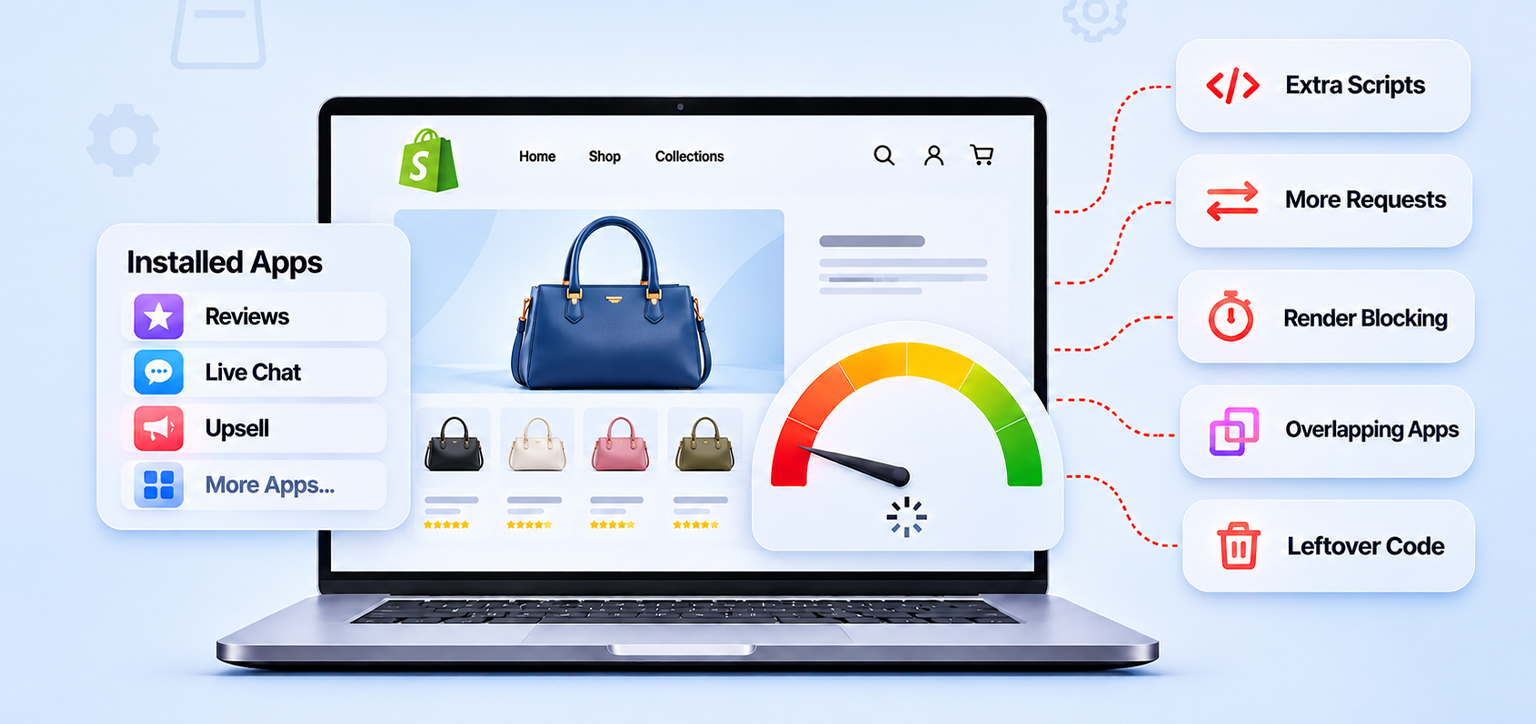
Shopify apps can slow down your store by adding extra scripts, increasing network requests, and delaying page rendering. The table below highlights common app-related performance issues and practical ways to fix them.
| Why Shopify apps slow down a store | How to fix it |
|---|---|
| Additional scripts: Apps add JavaScript and CSS that increase browser processing. | Review unnecessary scripts and delay non-critical resources where supported. |
| More network requests: Apps load external files, widgets, and API requests. | Identify redundant requests and remove unnecessary integrations. |
| Render-blocking resources: Some scripts and stylesheets delay page rendering. | Optimize resource loading and defer suitable non-critical scripts. |
| Overlapping functionality: Multiple apps may provide similar features and load duplicate resources. | Audit installed apps and remove redundant functionality. |
| Leftover app code: Uninstalled apps can leave scripts or code snippets in the theme. | Inspect theme files and safely remove confirmed unused code. |
| Poor loading performance: App-related changes can affect LCP, INP, and CLS. | Compare PageSpeed Insights results and Core Web Vitals before and after optimization. |
Why Does My Shopify Store Slow Down After Installing New Apps?
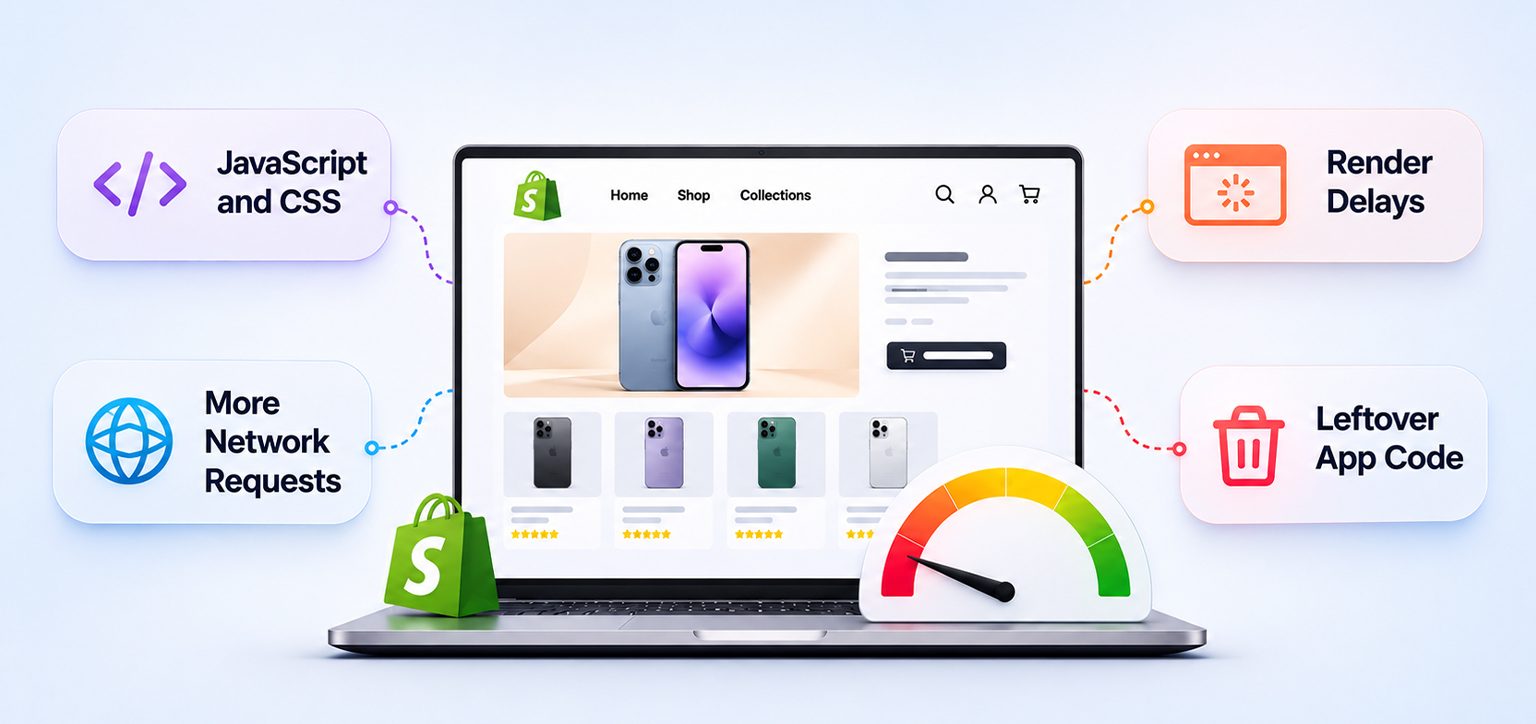
A Shopify store can become slower after installing new apps because they may introduce additional storefront resources that the browser needs to download and execute. The impact depends on the app’s implementation, functionality, and loading behavior.
Here are the main reasons behind these performance issues.
1. Apps Add JavaScript and CSS
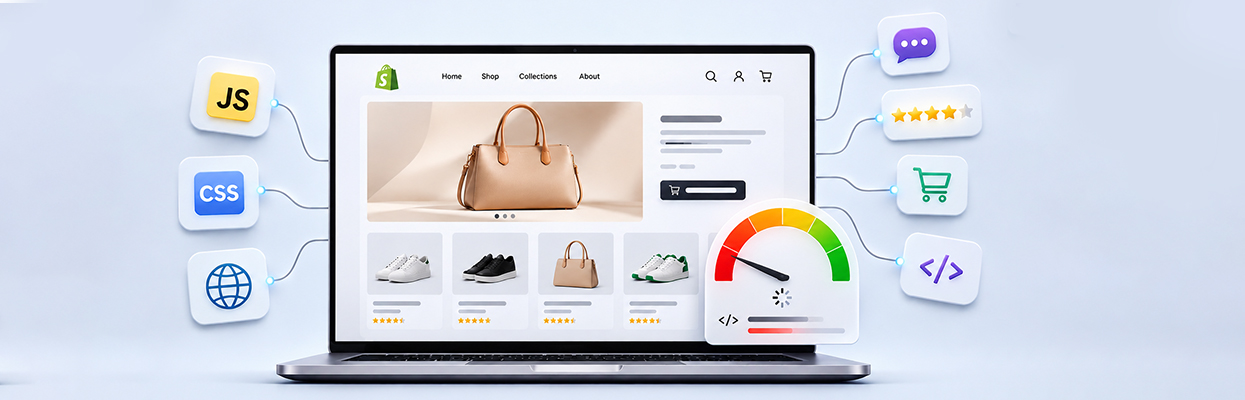
Many Shopify apps use JavaScript and CSS to display interactive features such as review widgets, live chat, product recommendations, and promotional pop-ups.
When an app adds these resources to your storefront, the browser has more code to download, process, and execute. If several apps load scripts at the same time, they can compete for browser processing resources.
For example, a store using separate apps for reviews, chat, and upselling may load multiple scripts on its product pages . Their combined resource requirements can affect loading speed and responsiveness.
2. Apps Increase Network Requests
Shopify apps can introduce additional requests for JavaScript files, stylesheets, fonts, widget assets, and external services.
For instance, a product review app might request review data and widget files, while a chat app loads its interface and connects to an external service.
These requests can increase page-loading activity, particularly when resources come from different servers. Their impact depends on file size, response time, and loading priority, not just the total number of requests.
3. Some App Scripts Delay Page Rendering
Certain app scripts and stylesheets can delay the browser from displaying important page content.
For example, a large script that loads early in the page-loading process may delay rendering or compete with resources needed to display the main product content.
This can affect metrics such as Largest Contentful Paint (LCP) and First Contentful Paint (FCP). Shopify recommends identifying and removing or optimizing apps that introduce render-blocking resources.
4. Uninstalled Apps Can Leave Behind Unused Code
Uninstalling an app does not always remove every script, stylesheet, or code snippet it previously added to your Shopify theme. Some apps clean up their integrations automatically, while others require merchants or developers to remove leftover code manually.
As a result, your store may continue loading unnecessary resources even after the associated app has been removed.
How to Find Which Shopify App Is Slowing Down Your Website
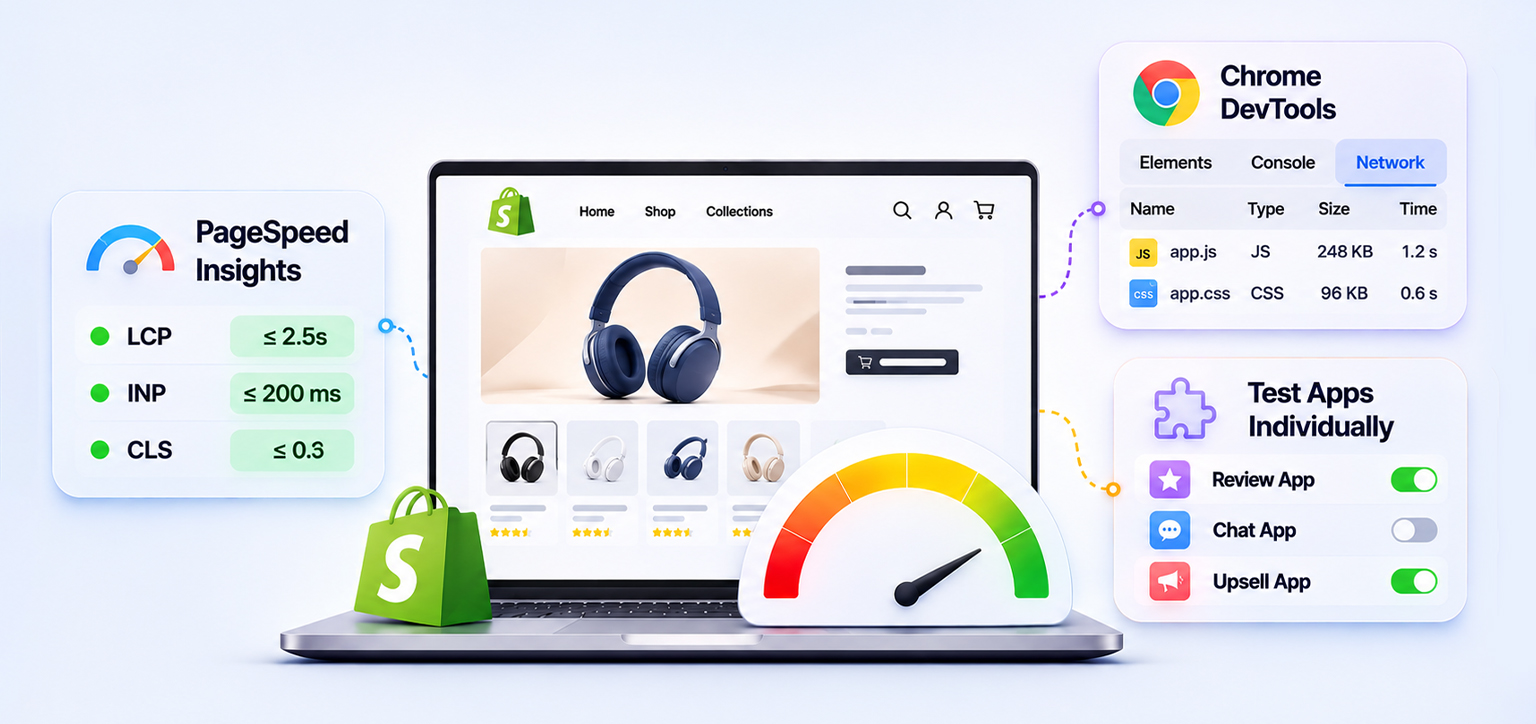
You can identify problematic apps by comparing performance reports, inspecting network requests, and checking JavaScript activity. Avoid uninstalling multiple apps at once because that makes it harder to identify the actual cause.
1. Compare Website Speed Before and After Installation
Start by comparing your store’s performance before and after installing a new app. Use Google PageSpeed Insights to test the same page under similar conditions.
Pay attention to these Core Web Vitals:
| Metric | Good threshold |
|---|---|
| LCP | 2.5 seconds or less |
| INP | 200 ms or less |
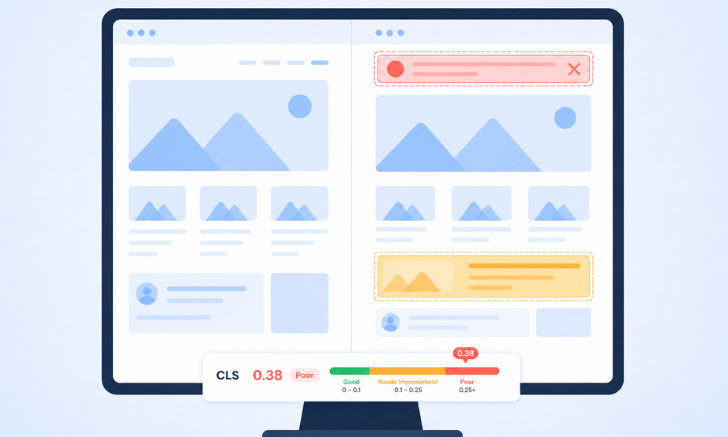
| CLS | 0.1 or less |
These metrics help identify whether the problem involves loading speed, responsiveness, or visual stability. You can also check Shopify’s Web Performance reports for real-user performance data. These reports can help you identify performance changes over time alongside events such as app installations, theme updates, and new code.
2. Inspect App Requests Using Chrome DevTools
Chrome DevTools can help you investigate the resources loaded by your Shopify storefront.
- Open your website in Google Chrome.
- Right-click and select Inspect.
- Open the Network tab.
- Reload the page.
- Filter requests by JS or CSS.
- Examine unfamiliar domains, file sizes, and loading times.
Look for resources that appeared after installing the app. However, a request’s domain alone may not identify its source, so compare results with the app’s documentation or installation details.
3. Test Newly Installed Apps Individually
If you installed several apps recently, investigate them one at a time.
For example, temporarily disable an app embed where supported and retest the same page. Check whether loading behavior changes and whether the associated network requests disappear.
This helps determine whether the app contributes to the slowdown without permanently removing its functionality.
How to Fix Shopify Store Performance Issues After Installing Apps
You can address many app-related performance problems by reviewing installed apps, removing unnecessary resources, and improving how essential scripts load.
1. Audit Recently Installed Apps
Review the apps installed shortly before your store becomes slower. Check whether they provide overlapping features or load resources on pages where their functionality is not required.
For example, if two apps display promotional pop-ups, consider whether both are necessary.
You don’t need to remove every app that affects performance. Instead, evaluate its business value against its performance impact.
2. Remove Unused Shopify App Code
Check your Shopify theme for scripts or stylesheets left behind by previously uninstalled apps. Depending on the integration, this leftover code may appear in Liquid files, JavaScript assets, CSS files, or custom snippets.
Before making changes, back up your theme and follow the app developer’s removal instructions. If you need to safely remove leftover Shopify app code, first confirm that the code is no longer required by another store feature. Avoid deleting unfamiliar scripts without checking their purpose, as doing so could affect essential functionality.
3. Optimize Non-Critical App Scripts
Some app features do not need to load immediately when a visitor opens your website.
For example, a chat widget or promotional pop-up may not need to initialize before the main product information becomes visible.
Where supported, consider delaying non-essential scripts or loading certain features only when visitors need them. Developers may use async or defer for suitable scripts, but these attributes should not be applied blindly because some apps depend on a specific execution order.
4. Review Third-Party Integrations
Marketing pixels, analytics tools, advertising integrations, and chat services often load third-party scripts that generate additional storefront requests.
Check whether these integrations are necessary and whether multiple tools perform similar functions. Removing redundant integrations can reduce unnecessary resource loading and improve page performance.
5. Retest Your Store After Optimization
After making changes, test the same pages again using consistent conditions. Compare LCP, INP, CLS, network requests, and JavaScript activity. Also check that product reviews, cart functionality, navigation, and other essential features still work correctly.
If JavaScript execution remains a concern, identify further optimization opportunities to reduce JavaScript execution time.
Can You Speed Up Your Shopify Store Without Removing Essential Apps?
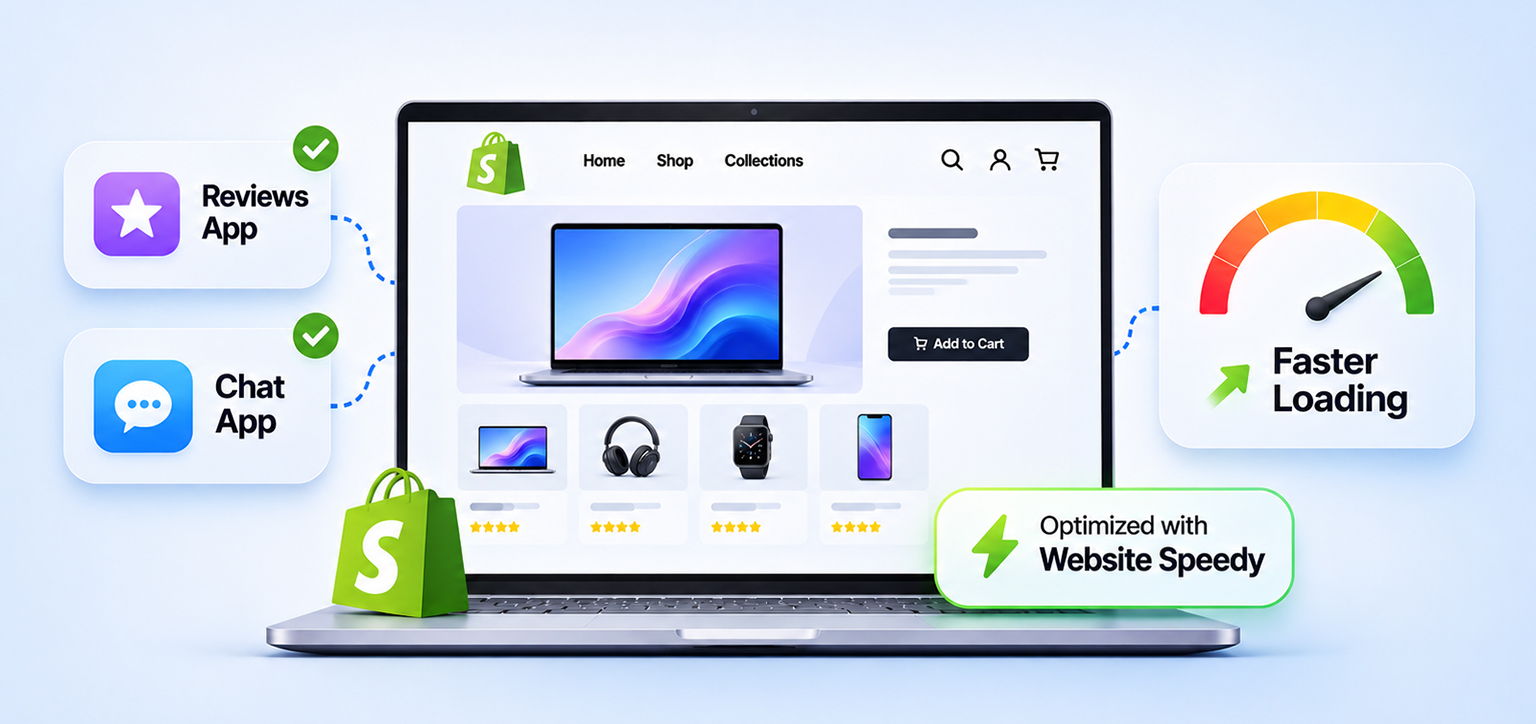
Yes. You can often improve Shopify website loading speed without removing essential apps by optimizing resource loading, reducing duplicate requests, and limiting unnecessary script execution.
For example, a review app may be important for customer trust, but its resources may not need to load on every page. Similarly, a chat widget can remain available without necessarily initializing before the main content appears.
A Shopify speed optimization tool can also automate certain technical and resource-loading improvements. Website Speedy is one example that handles areas such as render-blocking resources and JavaScript loading.
However, automated optimization cannot always identify and remove a particular problematic app script. Some issues require separate investigation or changes by the app developer.
A Website Speedy customer reported reducing Total Blocking Time (TBT) from 250 ms to 110 ms, while noting that further improvements required changes to internal scripts. This illustrates why automated optimization and app-specific investigation can complement each other.
Conclusion
A Shopify store becoming slower after installing new apps is often related to additional scripts, external requests, and browser processing requirements. However, removing useful apps is not always necessary.
Start by identifying which resources are affecting performance, review how they load, and remove unnecessary code where appropriate. Regular testing and careful app management can help maintain a responsive Shopify storefront as your business grows.
Frequently Asked Questions
1. Do Shopify apps affect website loading speed?
2. Can too many Shopify apps slow down a store even when they are not actively used?
3. How do I find which Shopify app is slowing down my website?
4. Do uninstalled Shopify apps leave behind code?
5. How can I speed up Shopify without removing apps?
6. Does installing more Shopify apps always make a store slower?
About the Author