






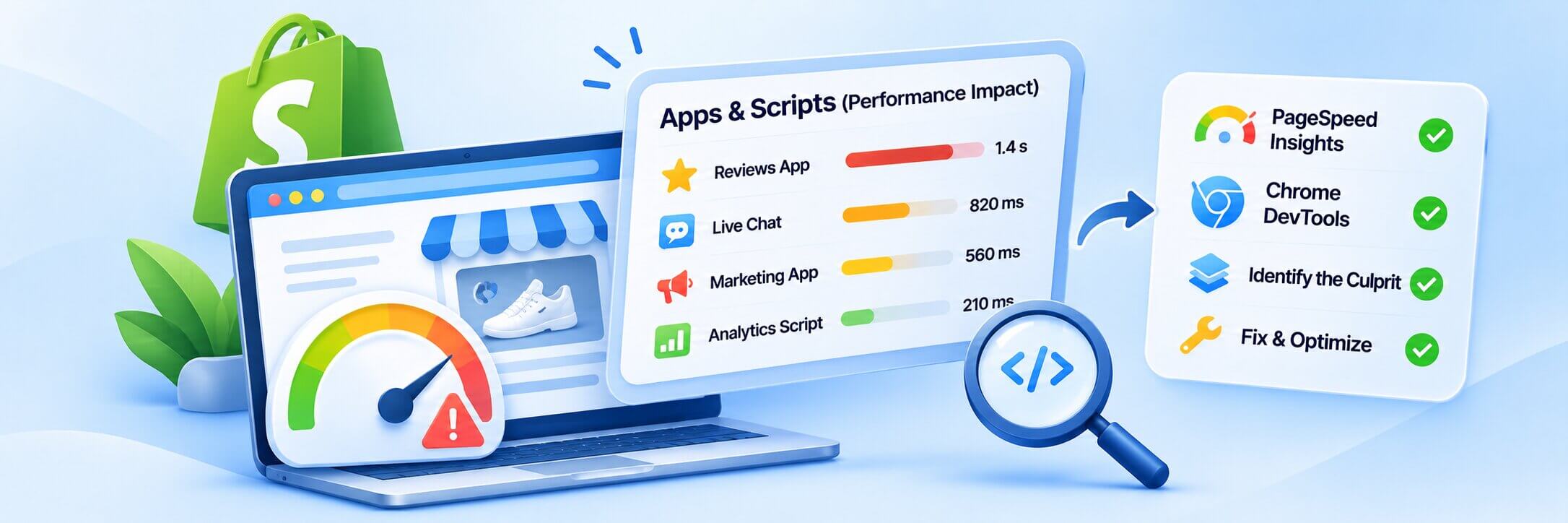
TL;DR: Shopify apps can affect store speed by adding unnecessary JavaScript, external requests, and render-blocking resources. Audit installed apps, trace their scripts to specific providers, check their effect on Core Web Vitals, and prioritize fixes based on measurable performance impact rather than removing essential apps.
To find out which apps or scripts are slowing down your Shopify store, use Google PageSpeed Insights and Chrome DevTools to identify third-party requests, unused JavaScript, and scripts that take too long to execute. Then, match these resources with your installed apps and test them individually in a duplicated theme to measure their actual impact.
Shopify apps add useful features such as product reviews, live chat, analytics, and marketing automation. However, some introduce additional JavaScript, CSS, and external requests that increase loading time or delay customer interactions. The impact depends on how each app loads its resources and how much processing it requires.
Rather than uninstalling applications randomly, identify which ones contribute to performance issues and optimize their loading behavior while keeping the features your store needs.
How to Identify Shopify Apps Slowing Down Your Store
There are several ways to identify Shopify apps that may be affecting your store’s speed:
- Run a speed test: Test your homepage, product pages, and collection pages using Google PageSpeed Insights.
- Inspect third-party scripts: Use Chrome DevTools Network and Performance panels to identify scripts from external domains.
- Match scripts to apps: Compare script URLs and domains with your installed Shopify apps, tracking integrations, and marketing services.
- Check unused JavaScript: Use Chrome DevTools Coverage to find JavaScript that downloads but isn’t used during the tested page load.
- Test individual apps: Disable one app embed or script at a time in a duplicated theme and compare results.
- Fix the actual problem: Remove unnecessary integrations, limit scripts to relevant pages, or ask app developers about loading improvements.
The goal is not to remove as many apps as possible. It is to identify which resources create measurable performance problems and address them without affecting important store functionality.
Why Do Shopify Apps Slow Down Your Store?
Shopify apps can slow down a storefront when they add excessive JavaScript, render-blocking CSS, third-party requests, or background processing. The impact depends on how an app is developed, what resources it loads, and whether those resources are needed on every page.
For example, consider a Shopify store using five different applications:
- A product review app displaying customer ratings.
- A live chat app providing customer support.
- An email marketing app displaying subscription pop-ups.
- An analytics app tracking visitor activity.
- A product recommendation app suggesting related products.
Each application may load its own scripts, stylesheets, tracking requests, or external resources. Some might load only when their features are needed, while others may load assets across the entire storefront.
The combined effect can increase the amount of JavaScript the browser must download, parse, and execute.
How Shopify apps affect website loading?
There are several ways Shopify apps slowing down website performance can become a problem.
Additional JavaScript execution: Apps often introduce JavaScript to display widgets, process customer interactions, and communicate with external services. Too much JavaScript can keep the browser’s main thread busy.
Render-blocking resources: Some scripts and stylesheets prevent the browser from displaying page content until they have been downloaded and processed. This can delay First Contentful Paint (FCP) and Largest Contentful Paint (LCP).
Additional network requests: Every external resource requires a network request. Multiple apps can introduce requests to different servers, increasing page loading work.
Background processing: Analytics, tracking pixels, chat widgets, and marketing scripts can continue executing after the initial page content appears. This can affect how quickly the page responds to customer interactions.
Shopify’s developer documentation explains that third-party apps can introduce render-blocking JavaScript and CSS, delaying the browser’s initial rendering.
How to Find Out Which Shopify Apps Are Slowing Down Your Store
You can identify problematic Shopify apps by combining speed testing, script inspection, and individual app testing. No single tool automatically identifies every app responsible for poor performance, so compare evidence from multiple sources.
Here are six practical steps to investigate Shopify app impact on store speed.
1. Start With Google PageSpeed Insights
Google PageSpeed Insights is a useful starting point because it shows performance metrics and diagnostics for individual URLs.
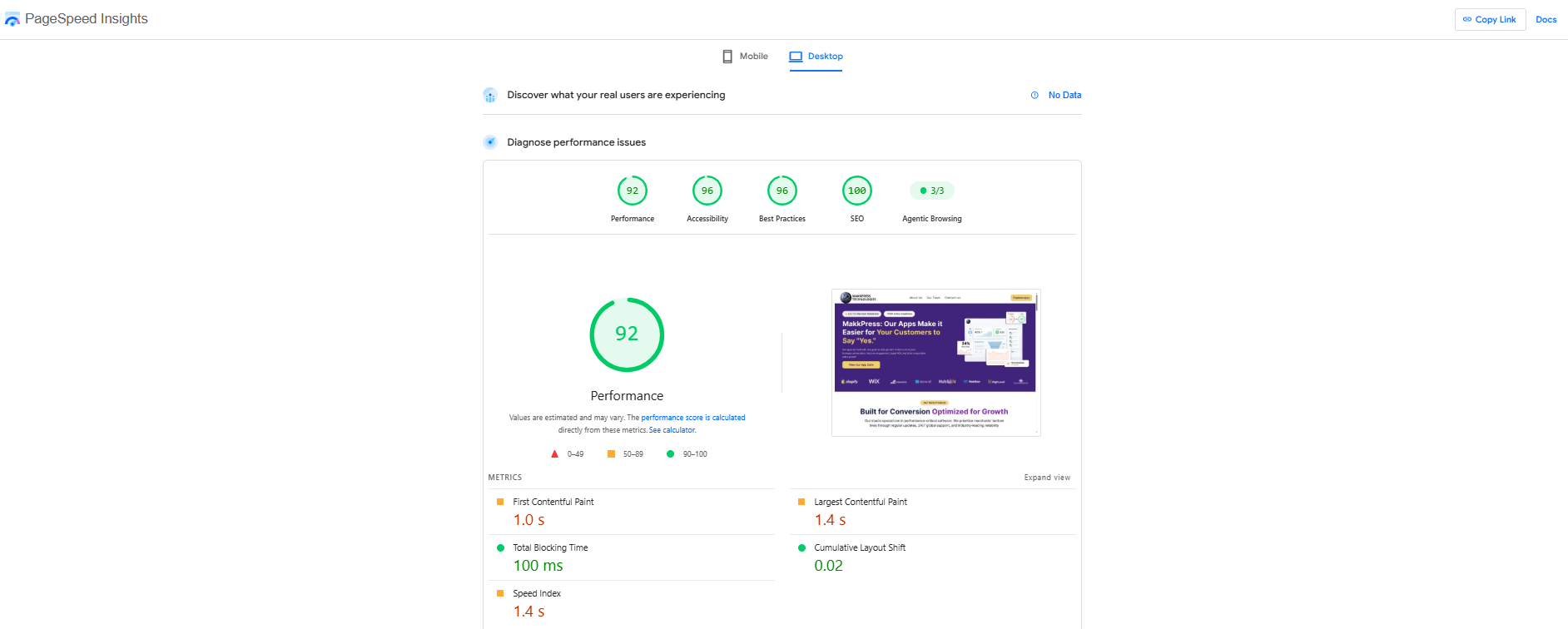
Visit Google PageSpeed Insights and enter your Shopify store URL. Start with your homepage, then test at least one product page and one collection page.
Pay particular attention to these diagnostics:
| Diagnostic | What it helps identify |
|---|---|
| Reduce unused JavaScript | JavaScript downloaded but not used during the test |
| Reduce JavaScript execution time | Excessive time spent processing JavaScript |
| Eliminate render-blocking resources | Scripts and stylesheets delaying initial rendering |
| Third-party usage | Resources loaded from external services |
| Avoid long main-thread tasks | JavaScript work that can delay browser responsiveness |
For example, suppose your product page reports significant unused JavaScript and identifies several third-party domains. One domain may belong to your review application, another to your email marketing integration, and another to an analytics service.
This gives you a starting point for investigating which integrations contribute to the problem.
However, PageSpeed Insights does not always identify the exact Shopify app behind a script. You need to match the resource URL with the application or service that loads it.
Important: A PageSpeed Insights score is not an app performance ranking. A resource appearing in a diagnostic does not automatically mean its associated app is responsible for the entire performance problem.
2. Use Chrome DevTools to Identify Third-Party Scripts
Chrome DevTools helps you inspect the actual resources your Shopify storefront loads.
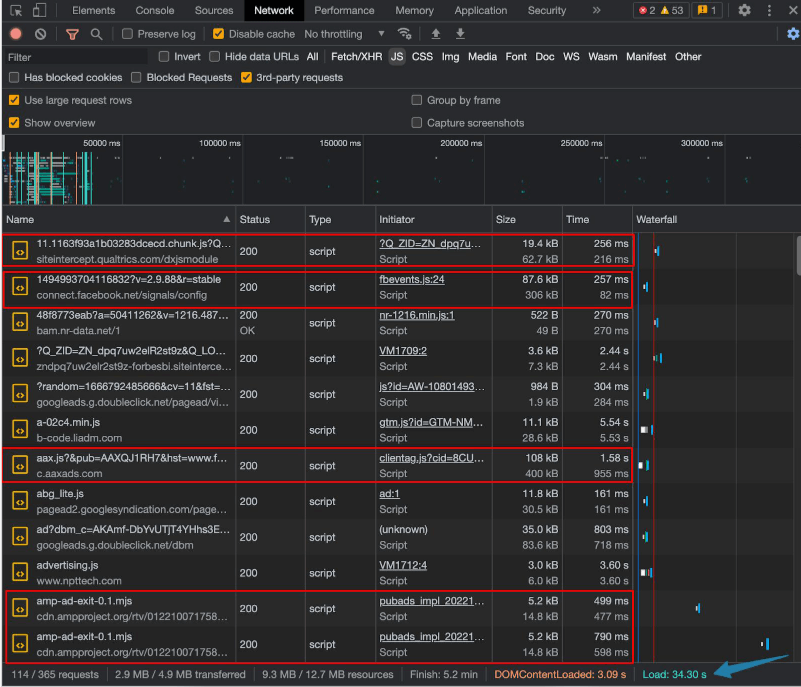
If you want to know how to find third-party scripts affecting Shopify page speed, the Network panel is one of the most useful places to start.
Follow these steps:
- Open your Shopify storefront in Google Chrome.
- Right-click anywhere on the page and select Inspect.
- Open the Network tab.
- Enable the Disable cache option while DevTools is open.
- Reload the page.
- Select the JS filter to display JavaScript requests.
- Examine the Domain, Name, Size, and Waterfall columns.
Look for scripts loaded from external domains rather than your store’s own domain. For example, you might discover requests associated with:
- Customer review services.
- Email marketing platforms.
- Live chat providers.
- Analytics and advertising platforms.
- Product recommendation services.
Record the external domains and compare them with your installed apps and integrations. Keep in mind that multiple applications may use shared external services, so a domain alone may not identify the exact app responsible. If you are unsure, inspect the request’s Initiator information in Chrome DevTools to see which script triggered it, then check the corresponding app documentation or theme code.
What should you look for?
A script that downloads a large amount of JavaScript, takes a long time to load, or executes repeatedly deserves further investigation. However, file size alone does not establish how much a script affects performance. A small script can also cause problems if it performs expensive operations on the main thread.
3. Check JavaScript Execution With Chrome DevTools Performance
The Network panel shows which scripts load, but it does not tell the whole story about how much processing they require. To investigate Shopify JavaScript performance more closely, use the Performance panel.
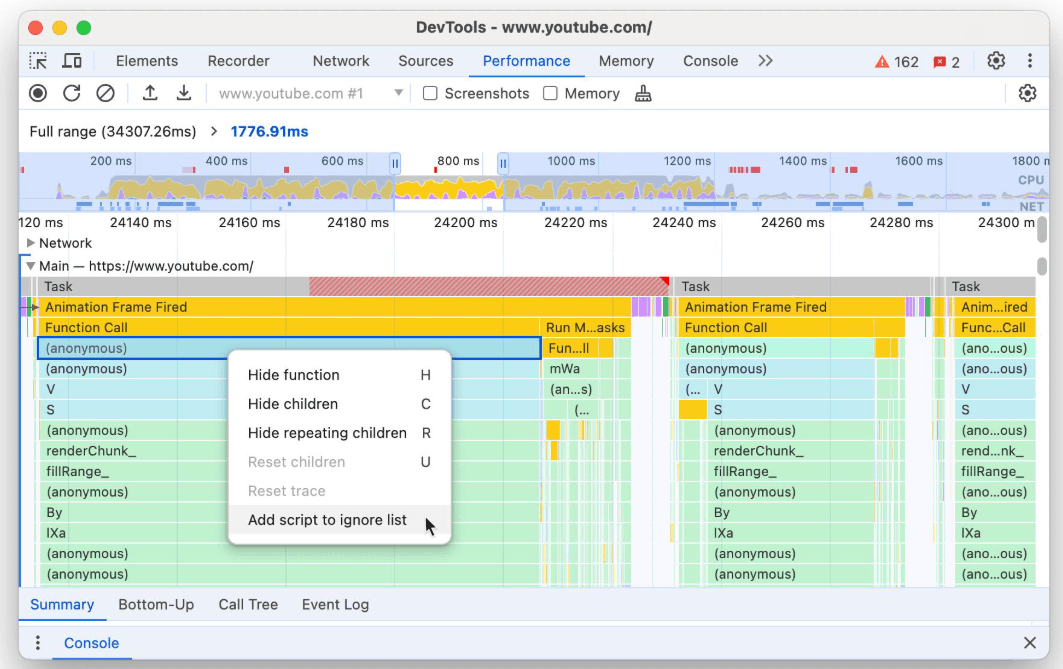
Here’s how:
- Open Chrome DevTools.
- Select the Performance tab.
- Start a recording.
- Reload your Shopify storefront.
- Wait for the page to load and complete a few interactions.
- Stop the recording.
- Examine the Main thread activity and scripting events.
Look for long tasks, repeated script execution, and extensive JavaScript processing. You can also inspect the Bottom-Up and Call Tree views to understand which functions and scripts consume the most processing time.
For instance, a live chat script might download relatively quickly but perform substantial initialization work after loading. A marketing script might repeatedly execute during page interactions.
These findings help distinguish between scripts that are slow to download and scripts that are expensive to execute.
This distinction matters because improving network loading alone will not necessarily resolve JavaScript execution problems.
4. Use Chrome DevTools Coverage to Find Unused JavaScript
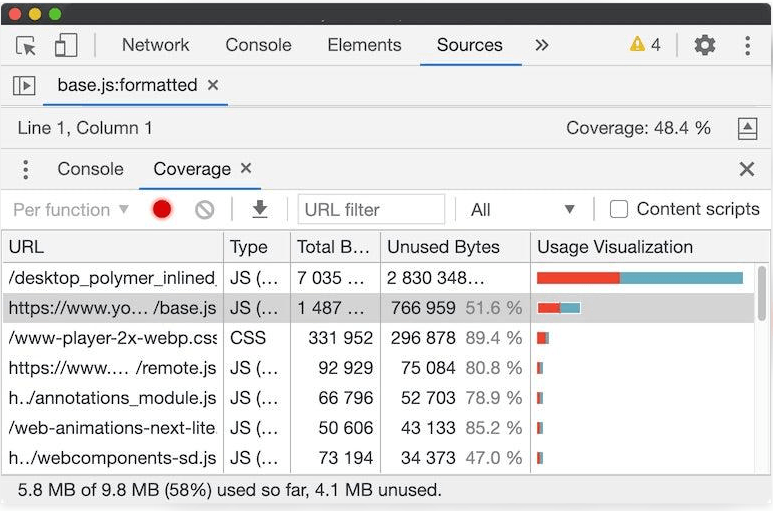
Unused JavaScript is another possible reason behind Shopify store speed issues. Some apps load scripts across multiple pages even when their features are only displayed on a particular page. For example, a review widget might be needed on product pages, but its JavaScript may also load on the homepage.
Chrome DevTools Coverage can help identify this situation.
To use it:
- Open Chrome DevTools.
- Open the command menu with
Ctrl + Shift + Pon Windows orCmd + Shift + Pon Mac. - Search for Show Coverage.
- Open the Coverage panel.
- Click Start Instrumenting Coverage and Reload Page.
- Review the JavaScript files and their used and unused bytes.
The panel highlights the proportion of each resource used during the recorded activity. If a large script has a high unused-byte percentage, investigate whether the associated app loads more code than the page needs.
Remember that unused code during one test does not necessarily mean the entire file is unnecessary. Some JavaScript may execute only after a customer clicks a button, opens a chat window, or interacts with a product widget. Test relevant interactions before deciding to remove anything.
5. Compare App Performance by Disabling One Integration at a Time
The most reliable way to establish whether a particular app contributes to a performance issue is to compare results before and after changing its loading behavior. However, do not start by uninstalling several applications from your live Shopify store.
Instead, use a duplicated theme. Follow this process:
- Open Shopify Admin and navigate to Online Store → Themes.
- Duplicate your current published theme.
- Open the duplicated theme in the theme editor.
- Navigate to Theme Settings → App embeds.
- Identify the app embed you want to test.
- Disable one embed at a time in the duplicated theme.
- Preview the same page and run another performance test.
- Record the changes before moving to another app.
For apps that use app blocks, custom Liquid code, or external integrations, you may need additional testing or developer assistance.
Keep the test conditions consistent. Use the same URL, device profile, network conditions, and testing tool. Run multiple tests because performance measurements naturally vary.
For example:
| Test | LCP | Total Blocking Time |
|---|---|---|
| Original theme | 4.1 seconds | 420 ms |
| After disabling app A | 3.8 seconds | 330 ms |
| After disabling app B | 4.0 seconds | 400 ms |
Illustrative figures only, not measured results from an actual Shopify store. In this example, disabling app A produced a larger improvement in both measurements than disabling app B.
That makes app A a stronger candidate for further investigation. It does not prove that the app alone caused the original problem, but it gives you measurable evidence.
6. Check for Leftover Code From Uninstalled Apps
Uninstalling an application does not always remove every script or code snippet it previously added to your Shopify theme. This is particularly relevant for older apps that modify theme files directly.
Shopify explains that some applications leave theme code behind after uninstalling, and additional cleanup may be required.
To investigate:
- Open Shopify Admin.
- Navigate to Online Store → Themes.
- Duplicate your published theme before making changes.
- Open Edit Code on the duplicate.
- Review files such as
theme.liquid, snippets, and relevant theme assets. - Look for references to applications or external domains you no longer use.
For example, you might find an old script reference associated with a previously installed review or pop-up application.
Do not delete unfamiliar code simply because its name resembles an old app. Confirm that it is no longer required and check with the app developer before removing it.
Shopify’s documentation on uninstalling apps explains why additional cleanup may be necessary.
How Do Third-Party Scripts Affect Shopify Core Web Vitals?
Third-party scripts can affect all three Core Web Vitals, depending on what they load, when they execute, and how they interact with the storefront.
The most noticeable effects usually involve Largest Contentful Paint (LCP) and Interaction to Next Paint (INP), although scripts can also contribute to Cumulative Layout Shift (CLS).
| Core Web Vital | How third-party scripts can affect it | What to investigate |
|---|---|---|
| LCP | Render-blocking scripts or delayed resource discovery can postpone the main content. | Scripts and CSS delaying the largest visible element |
| INP | Heavy JavaScript execution can keep the main thread busy during customer interactions. | Long tasks, event handlers, and background processing |
| CLS | Dynamically injected widgets, banners, and pop-ups can move existing content. | Elements added without reserved space |
LCP: A script that delays rendering can postpone the appearance of the largest visible element, such as a product image or banner.
INP: Analytics, marketing, and chat scripts can consume main-thread processing time, delaying interactions such as opening menus or adding products to the cart.
CLS: Pop-ups, review widgets, and promotional banners can shift existing content if space is not reserved for them.
Do Inactive Shopify Apps Still Slow Down a Shopify Store?
Yes, an inactive or uninstalled Shopify app can sometimes leave behind code that continues loading on your storefront. However, simply having an installed app that is not actively used does not automatically mean it affects page speed.
There are two situations to understand.
Inactive but installed apps: An app that is installed but has its app embed disabled and does not inject storefront resources may have little or no direct impact on page loading. However, an enabled embed or integration may continue loading scripts even when you are not actively using its features.
Uninstalled apps with leftover code: Older applications may modify theme files by inserting JavaScript, CSS, or Liquid snippets. Uninstalling the app does not necessarily remove these changes.
Shopify’s Theme App Extensions provide a more controlled way for applications to integrate through app blocks and app embeds. However, older integrations may still require manual cleanup. If you suspect leftover code, check your theme files and identify the associated app before removing anything.
How Can You Reduce JavaScript Execution Time Without Removing Essential Apps?
You do not have to remove every application to improve Shopify store speed. The better approach is to reduce unnecessary script execution while keeping the features that customers and your business actually need. Here are some practical ways to do that.
Load Scripts Only Where They Are Needed
Some applications load their JavaScript across the entire website, even when their features appear on only one type of page.
For example, a product review application may only need to display its widget on product pages. Loading all its resources on the homepage and collection pages may create unnecessary work.
Ask the app developer whether scripts can be restricted to specific templates or loaded only when the associated feature is required.
Defer or Delay Non-Essential JavaScript
Not every script needs to execute before the main page content appears. Scripts that are not essential for the initial rendering can sometimes use defer or async, depending on their dependencies and functionality. For example:
The defer attribute allows the browser to download the script while parsing the HTML and execute it after the document has been parsed.
However, do not apply these attributes blindly to every app script. Some scripts depend on execution order or need to initialize before customers interact with particular features. Changing their loading behavior without testing can break functionality.
Remove Duplicate Tracking Integrations
Shopify stores sometimes have the same tracking functionality configured through multiple sources, such as an app, Google Tag Manager, and manually added theme code.
This can create duplicate requests and unnecessary JavaScript processing. Review your analytics and advertising integrations to determine whether multiple scripts are collecting the same information. Remove duplicates only after confirming that the required tracking and reporting still work.
Replace Unnecessary Apps With Native Functionality
Before installing another application, check whether your Shopify theme or existing integrations already provide the required feature.
For example, if your theme already supports a particular product display feature, installing another app to perform the same task may introduce unnecessary code.
Reducing overlapping functionality can help control the number of scripts your storefront needs.
Audit Third-Party Scripts Regularly
Apps and integrations change over time. A script that was useful when you installed an application may no longer be necessary.
Review your third-party scripts periodically, especially after uninstalling apps, changing marketing tools, or updating your theme.
How Can You Improve Shopify Store Speed After Identifying Problematic Apps?
Once you identify the applications or scripts contributing to slow performance, prioritize fixes based on their actual impact and business importance.
Do not remove an application simply because it appears in PageSpeed Insights or loads several JavaScript files. First establish whether its functionality is necessary and whether its resources are affecting important performance metrics.
A practical approach is to categorize the findings:
| Finding | Recommended action |
|---|---|
| Unused app scripts | Remove unnecessary integrations after verification |
| Heavy scripts loading on every page | Ask the developer about conditional loading |
| Render-blocking JavaScript | Investigate asynchronous or deferred loading |
| Duplicate tracking scripts | Consolidate overlapping integrations |
| Leftover code from uninstalled apps | Remove confirmed obsolete code safely |
| Excessive JavaScript execution | Investigate long tasks and optimize the responsible scripts |
| Widgets causing layout shifts | Reserve space or adjust widget positioning |
Retest After Every Significant Change
After making a change, test the same URLs again using PageSpeed Insights and Chrome DevTools.
Compare LCP, INP, CLS, and relevant diagnostic findings. Also check whether the app still works correctly.
Remember that improvements on the homepage do not necessarily mean product and collection pages have improved. Different templates can load different applications and resources.
You should also distinguish between laboratory and field data. PageSpeed Insights provides both lab diagnostics and available real-user field data. Lab results help investigate specific changes under controlled conditions, while field data shows how actual visitors experience your website over time.
Use a Shopify Speed Optimization Tool to Monitor Improvements
Once you’ve identified performance issues, a Shopify speed optimization tool can help automate technical improvements. For example, Website Speedy optimizes resource loading by reducing render-blocking resources, enabling asynchronous loading, implementing lazy loading, and applying other performance optimizations. It also helps improve Core Web Vitals across mobile and desktop devices.
These optimizations can complement app and script auditing by improving how resources load without requiring you to remove essential store applications. However, they do not automatically eliminate inefficient JavaScript within third-party apps.
One Website Speedy customer reported that render-blocking optimization through Website Speedy reduced Total Blocking Time from 250 ms to 110 ms. The reviewer also noted that further improvements would require changes to internal scripts.
This highlights why resource loading optimization and script-level investigation should work together. After making changes, compare your performance reports to see which issues have improved and which still need attention.
Conclusion
Finding Shopify apps slowing down your store requires more than checking how many applications you have installed. You need to identify which scripts they load, understand how those resources affect browser performance, and test their impact individually.
Start with PageSpeed Insights, investigate third-party requests through Chrome DevTools, and compare results after controlled changes. Check for unused JavaScript, leftover app code, and scripts that load on pages where they are not needed.
The objective is to keep the applications your business depends on while reducing unnecessary work in the browser. This approach helps improve Shopify store speed without sacrificing essential storefront functionality.
Frequently Asked Questions
1. How can I identify which Shopify apps are slowing down my store?
2. How do I find third-party scripts affecting Shopify page speed?
3. Can Shopify apps affect Core Web Vitals?
4. Does uninstalling a Shopify app remove all its code?
5. How can I improve Shopify store speed without removing essential apps?
6. Which tools are best for Shopify app performance testing?
About the Author