






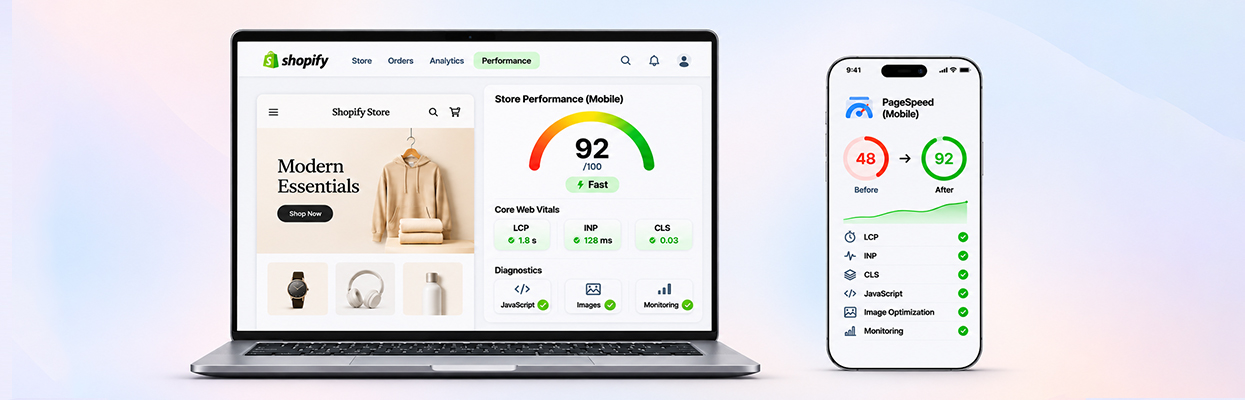
TL;DR: To improve your Shopify mobile PageSpeed score, identify the issues highlighted in Google PageSpeed Insights, prioritize high-impact Lighthouse diagnostics, and address problems affecting LCP, CLS, and other metrics. Retest your storefront after each change and monitor real-user performance to verify improvements.
Your Shopify store might load reasonably well on desktop but receive a much lower Performance score when tested on mobile using Google PageSpeed Insights. This difference can be confusing, especially when your storefront looks and functions normally.
The reason is that PageSpeed Insights evaluates performance under specific mobile testing conditions. It considers factors such as loading behavior, JavaScript execution, rendering delays, and visual stability. A store that performs well on a desktop computer may struggle under simulated mobile conditions.
Improving your Shopify mobile PageSpeed score requires more than making random changes to your theme. You need to understand what the score measures, interpret the diagnostics correctly, and identify which issues have the greatest impact on the results.
This guide explains how to analyze your Shopify mobile PageSpeed report, understand its recommendations, and measure whether your changes are actually improving performance.
Shopify Mobile PageSpeed: Key Fixes at a Glance
You can improve your Shopify mobile PageSpeed score by following a measurement-based optimization process:
- Run a mobile PageSpeed test: Analyze your homepage, product pages, and collection pages separately.
- Understand the Lighthouse score: Identify whether loading, responsiveness, or visual stability is affecting your results.
- Review performance diagnostics: Investigate render-blocking resources, unused JavaScript, excessive main-thread work, and delayed image loading.
- Prioritize important issues: Fix problems affecting the largest visible content and browser responsiveness first.
- Improve Core Web Vitals: Address LCP, INP, and CLS using the relevant diagnostics.
- Retest your storefront: Compare results under consistent conditions after implementing changes.
- Monitor field data: Use real-user Core Web Vitals to check whether improvements translate into a better visitor experience.
How Does Google PageSpeed Insights Calculate Shopify Mobile Scores?
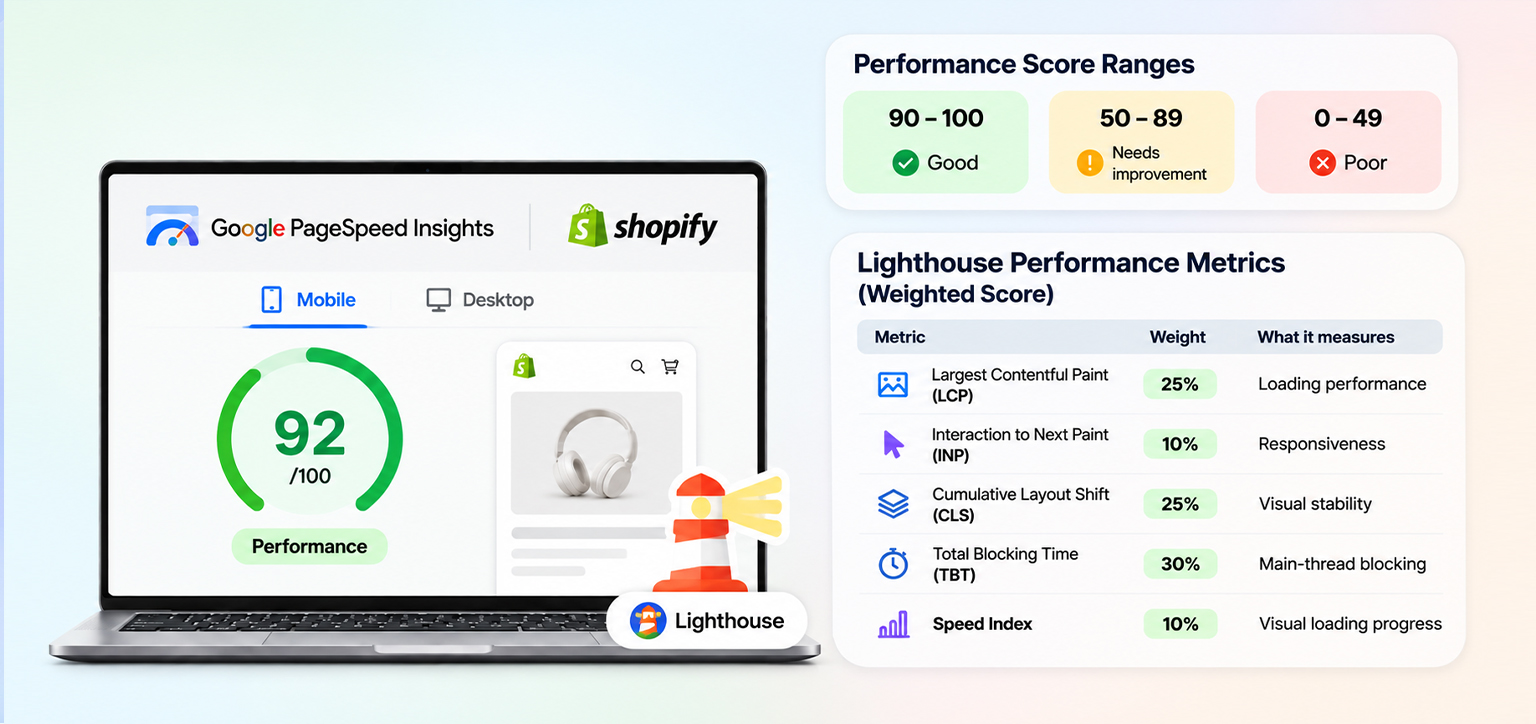
Google PageSpeed Insights uses Lighthouse to generate a simulated Performance score based on several loading and browser responsiveness metrics. The score ranges from 0 to 100, with higher scores indicating better lab performance.

Google classifies Performance scores into three categories:
| Performance score | Assessment |
|---|---|
| 90 – 100 | Good |
| 50 – 89 | Needs improvement |
| 0 – 49 | Poor |
The Lighthouse Performance score is a weighted calculation, not a simple average of all metrics. Its current scoring model uses the following metrics:
| Metric | Weight | What it measures |
|---|---|---|
| First Contentful Paint (FCP) | 10% | Initial rendering |
| Speed Index (SI) | 10% | Visual loading progress |
| Largest Contentful Paint (LCP) | 25% | Loading performance |
| Total Blocking Time (TBT) | 30% | Main-thread blocking |
| Cumulative Layout Shift (CLS) | 25% | Visual stability |
One important distinction: Lighthouse uses Total Blocking Time (TBT) as a lab metric to help assess responsiveness. Interaction to Next Paint (INP) is a separate Core Web Vital measured using real-user data. It is not included in the Lighthouse Performance score.
This matters because a Shopify store can have a reasonable loading score but still provide a poor interaction experience if JavaScript blocks the browser.
How to Check Your Shopify Store’s Mobile PageSpeed Score
You can check your Shopify mobile PageSpeed score by testing individual storefront URLs in Google PageSpeed Insights and reviewing the Mobile Performance report.
Follow these steps:
- Open Google PageSpeed Insights.
- Enter your Shopify homepage URL and select Analyze.
- Switch to the Mobile report.
- Note the Performance score and individual metric results.
- Review the Opportunities and Diagnostics sections.
- Repeat the process for your main product and collection pages.

Don’t rely on one test. Shopify recommends running Lighthouse tests multiple times under consistent conditions. Its theme performance testing guidance suggests using the median of at least three runs to reduce the effect of test-to-test variation.
Also, remember that PageSpeed Insights may display field data for an individual URL or your entire website origin. Check which one is being reported before drawing conclusions about a particular page.
What Do Shopify Mobile PageSpeed Diagnostics Mean?
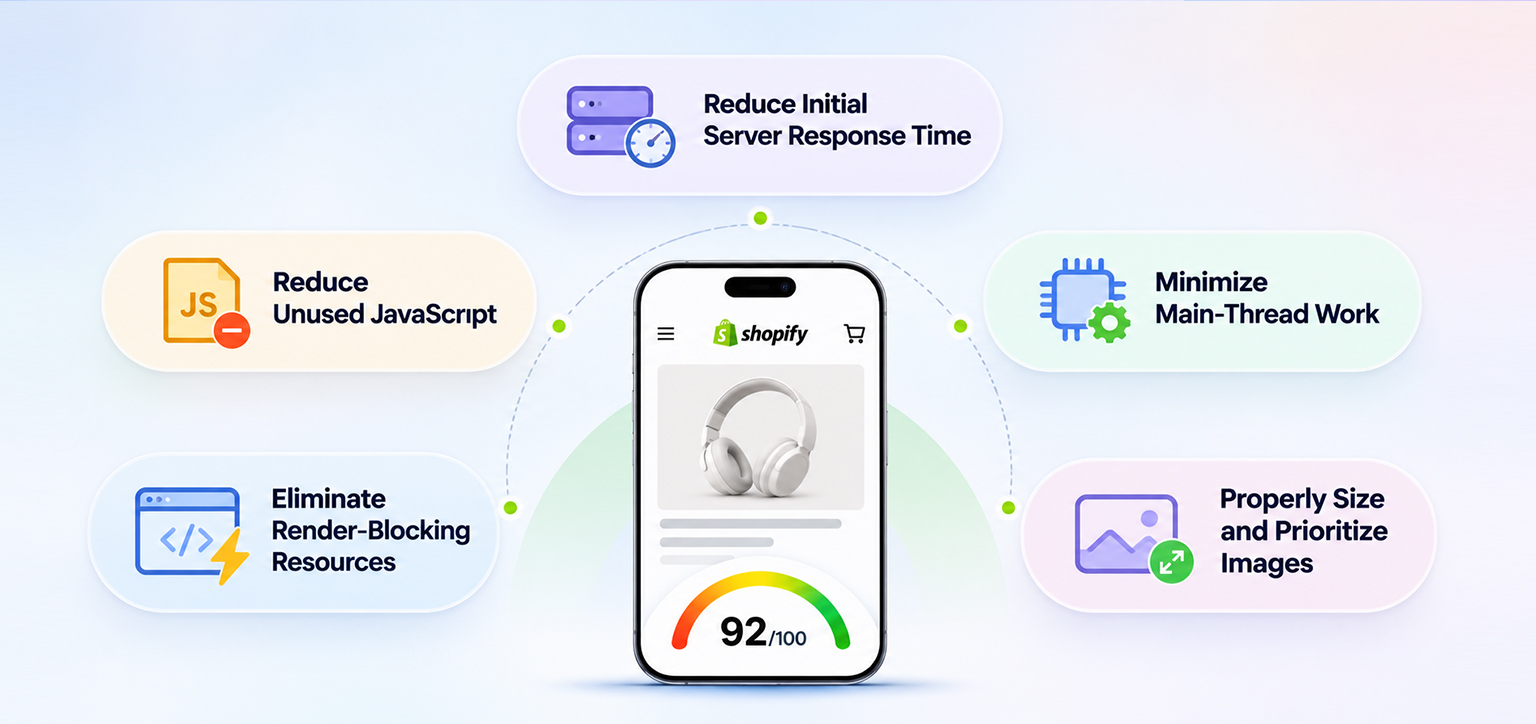
PageSpeed Insights diagnostics identify potential reasons behind a low Performance score. They help you move from a general score to specific resources or browser activities that need investigation. These are some of the important diagnostics to understand.
1. Eliminate Render-Blocking Resources
This diagnostic identifies CSS and JavaScript files that delay the browser from rendering visible content. Check whether non-critical stylesheets and scripts can be deferred or loaded later. Keep essential styles available for the initial viewport.
2. Reduce Unused JavaScript
Unused JavaScript refers to code downloaded by the browser but not needed for the current page or initial interaction. On Shopify, this can come from apps, tracking integrations, theme features, and third-party widgets.
Identify which scripts are unnecessary and whether they can be removed or loaded only when required. Avoid deleting scripts without checking their dependencies, as they may support important storefront functionality.
3. Reduce Initial Server Response Time
This diagnostic highlights delays before the browser receives the initial HTML response.
Investigate server response behavior and external requests, but remember that Shopify already provides CDN infrastructure and several built-in performance optimizations. A slow response should not automatically be attributed to Shopify hosting.
4. Minimize Main-Thread Work
The browser’s main thread handles JavaScript execution, layout calculations, and rendering. When it spends too much time processing scripts, the page may become less responsive.
Review long-running JavaScript tasks and unnecessary third-party integrations. This diagnostic is particularly relevant when Total Blocking Time is high.
5. Properly Size and Prioritize Images
PageSpeed Insights may flag images that are larger than their displayed dimensions or resources that delay the main content. Check whether images are unnecessarily large for their actual display size. Reducing image file sizes can also help limit the amount of data mobile browsers need to download.
Tools such as Image Optimizer Pro can help Shopify merchants compress images in bulk while maintaining visual quality. However, image compression and correct image loading priority address different performance issues, so both need attention.
Also, ensure that the main visible image is not delayed by lazy loading or incorrect loading priority. The LCP image should generally load early, while below-the-fold images can use lazy loading. These diagnostics are useful starting points, but evaluate each recommendation against your theme’s functionality.
How to Measure Shopify Mobile PageSpeed Improvements
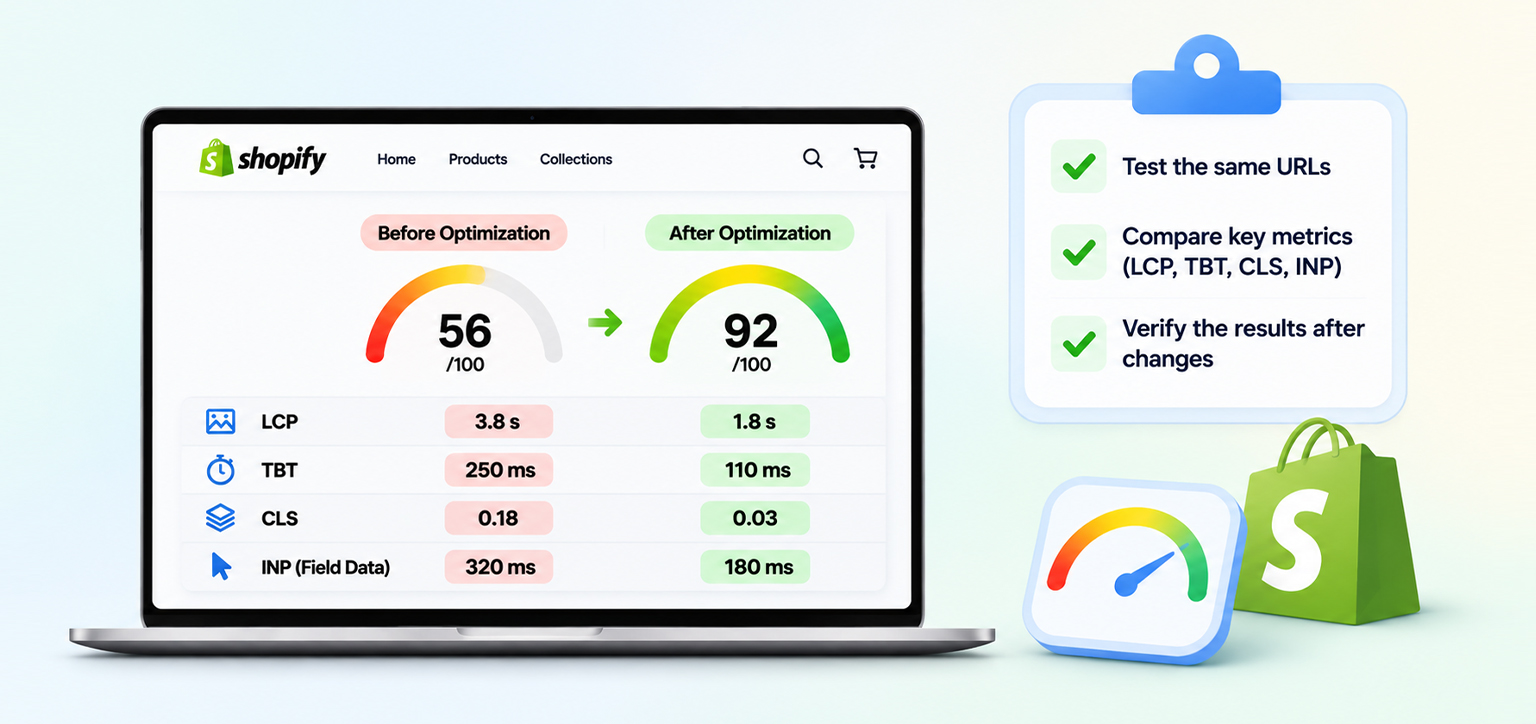
You can measure improvements by comparing the same URLs, metrics, and testing conditions before and after optimization.
For example, if your product page initially has a high LCP, record the result, identify the resource responsible, implement a relevant change, and run the same test again.
A useful comparison looks like this:
| Measurement | Before optimization | After optimization |
|---|---|---|
| Lighthouse Performance score | Record initial score | Compare new score |
| LCP | Record initial time | Check loading improvement |
| TBT | Record initial time | Check reduced blocking |
| CLS | Record initial value | Check layout stability |
| INP (field data) | Record real-user result | Monitor future results |
Keep in mind that a change in Lighthouse score does not automatically mean every real visitor experiences the same improvement.
A customer review can provide useful context here. In a Trustpilot review, a customer reported improvements in mobile performance after using Website Speedy. The reviewer specifically mentioned Total Blocking Time decreasing from 250 ms to 110 ms, while noting that further reductions would require changes to internal scripts.
This is an individual customer experience, not a guaranteed result. It also demonstrates why comparing individual performance metrics is more informative than looking at the overall score alone.
How to Monitor Shopify Mobile Performance Over Time
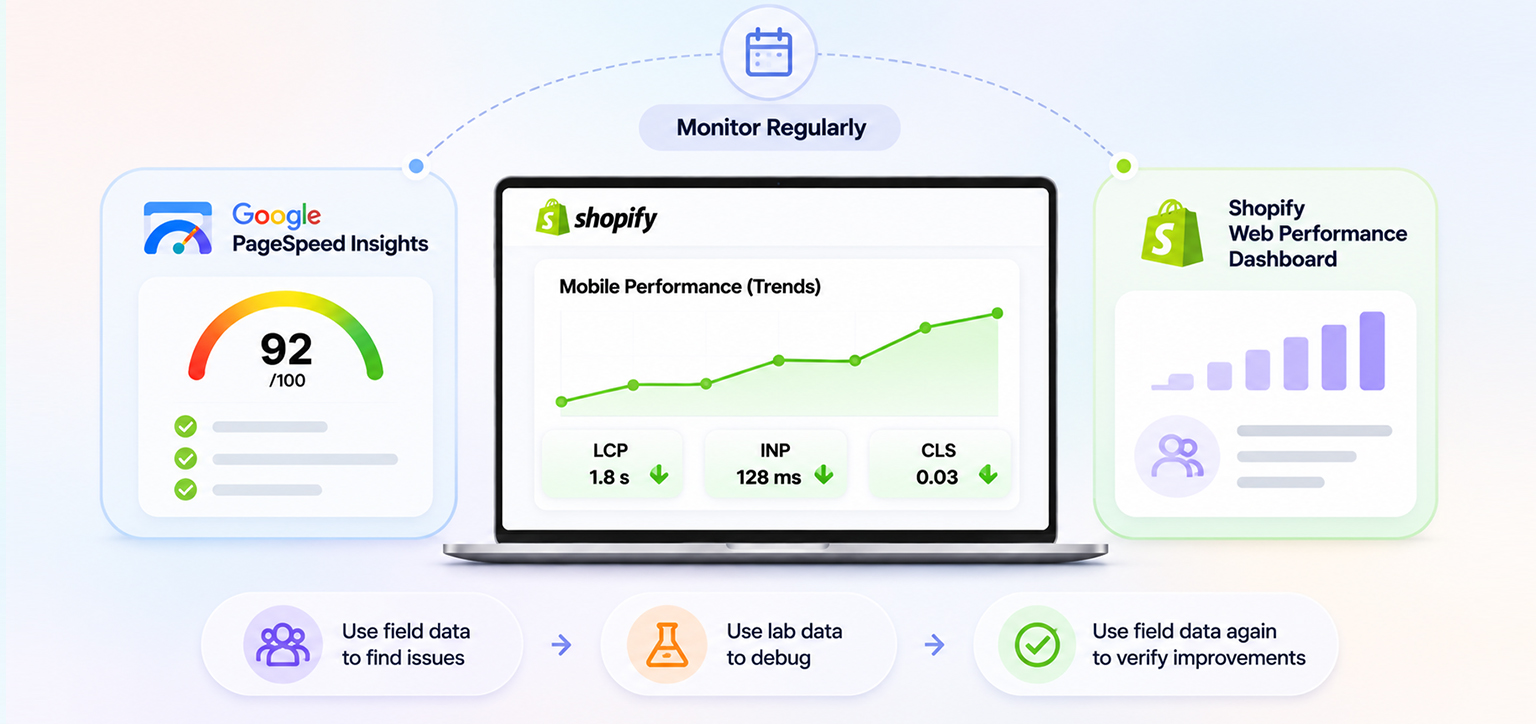
You should monitor your Shopify mobile performance regularly, especially after theme updates, app installations, or significant storefront changes. Use two sources for ongoing measurement:
- Google PageSpeed Insights: Use its Lighthouse diagnostics to investigate specific problems and compare controlled test results.
- Shopify Web Performance Dashboard: Use real-user measurements to understand how customers experience your storefront across different devices and page types.
Shopify recommends using field data to identify problems, lab data to debug them, and field data again to verify improvements.
A simple monitoring routine is to record your homepage, product page, and collection page results monthly. Repeat tests after significant changes and compare the same metrics rather than relying on a single overall score.
Conclusion
Improving your Shopify mobile PageSpeed score starts with understanding the data behind it. Instead of chasing a score of 100, use Lighthouse diagnostics to identify specific performance issues, prioritize the changes that matter, and verify their impact through repeated testing.
Most importantly, compare lab results with real-user Core Web Vitals. A strong mobile storefront should not only perform well in a simulated test but also load reliably, respond quickly, and remain visually stable for actual shoppers.
Frequently Asked Questions
1. Why is my Shopify mobile PageSpeed score so low?
2. What is a good mobile PageSpeed score for Shopify?
3. Why is my Shopify mobile PageSpeed score different from desktop?
4. How can I improve Shopify Core Web Vitals on mobile?
5. Does a Shopify PageSpeed score affect Google rankings?
6. How often should I test my Shopify mobile PageSpeed score?
About the Author