








TL;DR: To speed up a Squarespace website, start by optimizing images, reducing third-party scripts and embeds, limiting unnecessary fonts and page elements, and fixing resources that delay rendering. Then check PageSpeed Insights and Core Web Vitals to find what still needs attention.
A slow Squarespace website usually isn’t caused by one setting. Large images, third-party scripts, embedded content, custom code, fonts, and pages that load more resources than visitors need can all slow down a page.
Around 53% of mobile site visitors leave when a page takes longer than three seconds to load, showing how quickly slow performance can affect the visitor experience. Google pays close attention to how fast your site loads, which means speed is an important ranking factor. That’s where Squarespace speed optimization starts to matter more than most site owners realize.
Squarespace handles much of the technical infrastructure for your website, so you have less control over server-side optimization than you would with a self-hosted site. However, you can still improve page speed by reducing unnecessary resources and making sure important content loads efficiently.
This post will help you learn how to identify what is slowing down your Squarespace website, which fixes to prioritize, and how to check whether your changes actually improve performance.
Quick Check to Speed Up a Squarespace Website in 2026
The most effective way to speed up a Squarespace website is to reduce the amount of content and code the browser needs to load, process, and display. Start with large images, third-party scripts and embeds, unnecessary fonts, heavy page elements, and resources that delay rendering. Then use PageSpeed Insights and Core Web Vitals to identify the issues that need further attention.
| Squarespace speed issue | What to check |
|---|---|
| Large images | Compress images and use dimensions appropriate for their display size |
| Third-party scripts | Remove unnecessary analytics, widgets, chat tools, ads, and other external scripts |
| Embedded content | Review videos, social feeds, maps, reviews, and other external embeds |
| JavaScript and CSS | Identify resources that delay rendering or interaction |
| Fonts | Reduce unnecessary font families and weights |
| Page size | Remove content and elements that add weight without providing enough value |
| Redirects | Avoid unnecessary redirect chains |
| Mobile performance | Test the page on mobile, where resource constraints are more noticeable |
| Core Web Vitals | Check LCP, INP, and CLS after making changes |
You don’t need to change everything at once. Start with the issues that affect the initial page load, make one or two changes, and test the page again to see whether performance improves.
How to Check Your Squarespace Website Speed
Before changing your Squarespace website, run the page through a performance testing tool so you know which problems need attention. This gives you a baseline that you can compare against after making changes.
Start with Google PageSpeed Insights. Test important pages individually, especially your homepage, major landing pages, blog posts, and product or service pages.
Pay particular attention to:
- Largest Contentful Paint (LCP): How quickly the main content becomes visible.
- Interaction to Next Paint (INP): How quickly the page responds to user interactions.
- Cumulative Layout Shift (CLS): How much the page layout moves unexpectedly.
- Opportunities and diagnostics: These can help identify large resources, JavaScript work, render-blocking resources, image issues, and other performance problems.
You can also use tools such as GTmetrix or Pingdom for additional diagnostics. However, don’t focus only on the performance score. Look at the underlying issues and determine which changes are most relevant to your page.
After making an optimization, test the same URL again. This makes it easier to determine whether the change actually improved performance.
After checking your Squarespace website for speed issues, watch the video for a quick overview of the key steps you can take to improve your website’s performance.
What Usually Makes a Squarespace Website Slow?
Squarespace websites can become slow when a page loads more images, scripts, fonts, embeds, or other resources than the browser needs to display the page. The specific cause varies from page to page, so it’s better to identify the resource creating the delay than to apply every optimization at once.
Here are some of the most common areas to check:
| Potential issue | Why it can affect performance | What to check |
|---|---|---|
| Large images | Larger files require more data to download | Image dimensions, file size, and the image used for LCP |
| Third-party scripts | External code can add network requests and JavaScript work | Analytics, chat, reviews, advertising, and marketing tools |
| Embedded content | External content may require additional resources before it can be displayed | Videos, maps, social feeds, forms, and widgets |
| Custom code | Code added to a page can introduce additional scripts or styles | Code Injection, Code Blocks, and external scripts |
| Too many fonts | Multiple font files and weights add resources to the page | Font families and weights used across the page |
| Heavy pages | More content generally means more resources to download and process | Images, videos, galleries, animations, and other page elements |
| Redirects | Redirects can add additional requests before the final URL loads | Redirect chains and unnecessary redirects |
The best starting point is usually the page’s performance report. Once you know what is consuming the most resources or delaying the main content, you can prioritize the fixes that are most likely to help.
13 Simple Steps to Speed Up a Squarespace Website
Speeding up your Squarespace site doesn’t have to be complicated. These simple, practical steps can help improve performance without needing any technical expertise.
1. Optimize Large Images
Large or unnecessarily high-resolution images can add significant page weight, especially when several images appear on the same page. Before uploading an image to Squarespace, resize it to dimensions that make sense for how it will actually be displayed.
Squarespace automatically serves images in appropriate formats and sizes in many situations, but that does not mean every uploaded image is optimally sized for every page. Image optimization can help reduce unnecessary file weight while keeping images sharp and visually consistent.
To reduce unnecessary image weight:
- Resize very large images before uploading them.
- Avoid uploading an image at a much higher resolution than its display size requires.
- Compress images without introducing visible quality loss.
- Review the image that appears as the page’s largest visible element, since it can affect LCP.
- Avoid adding multiple large images above the fold unless they are necessary for the page.
After making changes, run the page through PageSpeed Insights again and check whether image-related recommendations or LCP issues have improved.
2. Use Lazy Loading for Below-the-Fold Content

Lazy loading can reduce the amount of content the browser needs to load immediately by delaying non-critical images and other resources until they are closer to the visitor’s viewport.
This is most useful on pages that contain many images or other media below the initial viewport. The goal is not to delay every image. Content that is immediately visible, especially the main content that contributes to LCP, should not be unnecessarily delayed.
Squarespace provides built-in image loading behavior, so first check how your page is loading its images before adding another optimization layer.
After making changes, test the page on mobile and check whether the initial content loads sooner without delaying important visible content.
3. Reduce Resources That Delay the Initial Page Load
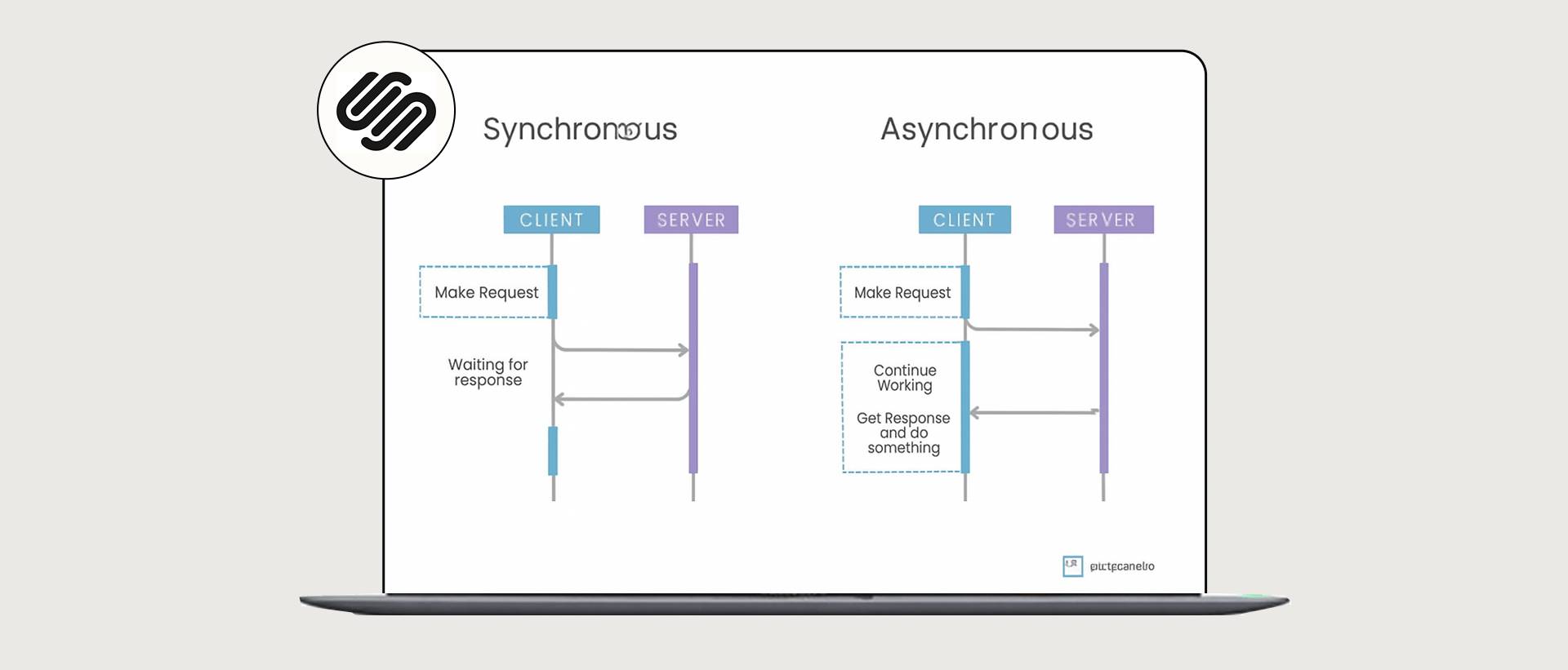
Not every resource needs to load before visitors can see or interact with the main content. JavaScript, third-party tools, embeds, and other non-critical resources can add work before the page becomes usable.
Review resources that load early and ask whether they are necessary for the first view of the page. Where possible, remove unnecessary resources or configure them so they do not compete with critical content during the initial load.
This is particularly important for pages that rely on multiple third-party services. A page can look simple to a visitor while still requiring the browser to download and process a large amount of external code.
Use PageSpeed Insights to identify resources that contribute to delays, then test the page again after removing or changing them.
4. Fix Render-Blocking Resources
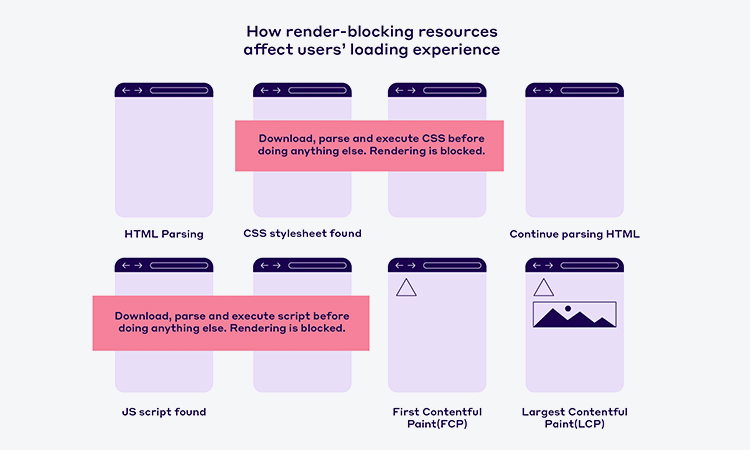
Render-blocking CSS and JavaScript can delay how quickly the browser displays the main content of a page. When PageSpeed Insights identifies render-blocking resources, look at which files are delaying the initial render rather than trying to remove every CSS or JavaScript resource.
On Squarespace, your control over platform-generated resources is limited. However, you can review custom code, third-party scripts, embeds, and other additions that may introduce unnecessary work during the initial load.
Prioritize removing resources that are not essential to the page. For resources that are required, consider whether they can load later without affecting the page’s functionality or visual presentation.
Always test the page after making changes because removing or delaying a script can affect functionality.
5. Reduce Unnecessary Custom Code and JavaScript
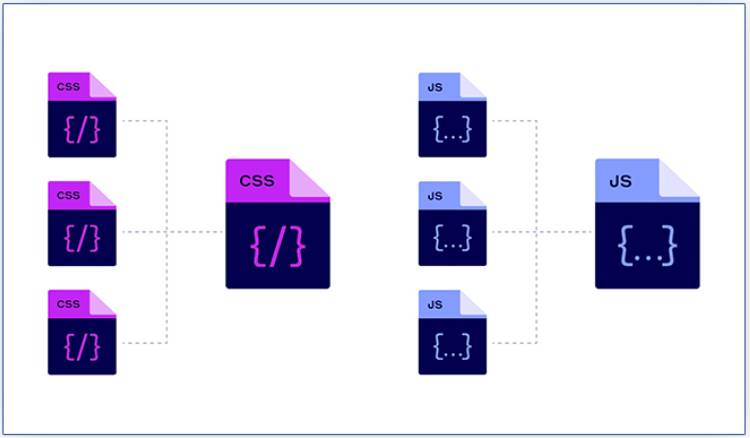
Custom code can add scripts, styles, network requests, and browser processing that affect page performance. This is especially worth checking if you’ve added code through Code Injection, Code Blocks, custom widgets, or third-party integrations.
Review the code and tools installed on important pages and remove anything that is no longer needed. Pay particular attention to scripts that load site-wide when they are only required on one page.
You don’t need to remove useful functionality simply to reduce the number of scripts. Instead, focus on resources that provide little value or load unnecessarily early.
After removing or changing custom code, test the affected pages to make sure forms, tracking, navigation, and other functionality still work correctly.
6. Keep Your Squarespace Page Size Under Control
Large pages take longer to load because the browser has more content to download and process. Squarespace recommends keeping individual pages to 5 MB or less, especially because pages with many images can load more slowly on mobile devices and slower connections.
To reduce your Squarespace page size:
- Compress large images before uploading them and use WebP where possible.
- Remove images, videos, GIFs, and animations that don’t add enough value to the page.
- Avoid putting too many images in a single gallery. Squarespace recommends limiting galleries to 50 images.
- Review long pages and remove sections that visitors don’t need to load immediately.
After making these changes, test the page again with PageSpeed Insights or another performance testing tool to see whether the reduced page size improves loading performance.
7. Use Squarespace’s Built-In Content Delivery Infrastructure
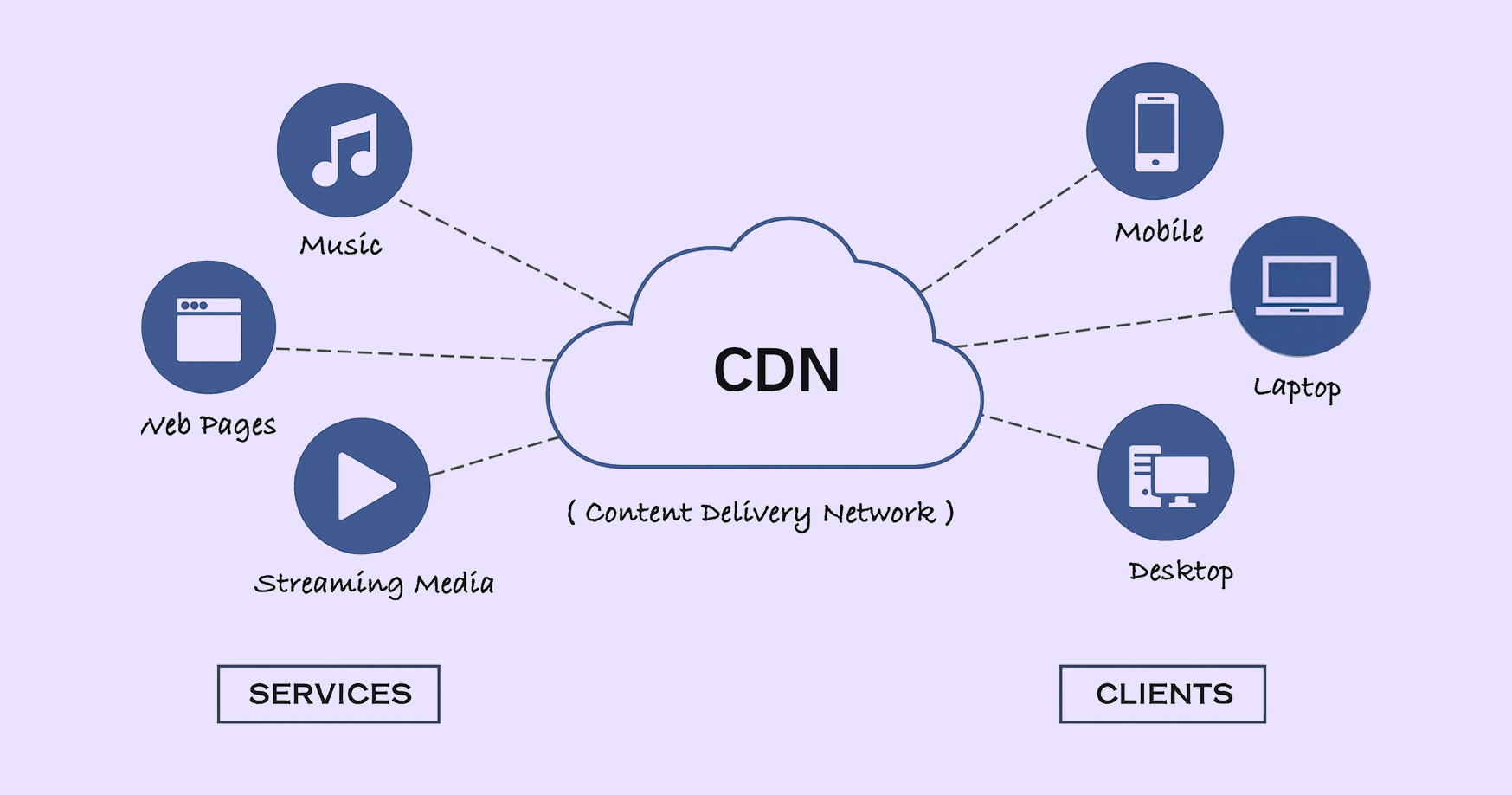
Squarespace handles CDN delivery for much of the static content on your website, so you generally don’t need to add a separate CDN just to serve ordinary Squarespace assets.
Instead, focus on the parts of the page you can control. Large images, third-party scripts, embeds, custom code, and unnecessarily heavy page content can still affect performance even when static assets are delivered through a CDN.
If your PageSpeed Insights report shows that a specific resource is taking a long time to load, investigate that resource rather than assuming that adding another CDN will solve the problem
8. Remove Unnecessary Redirects
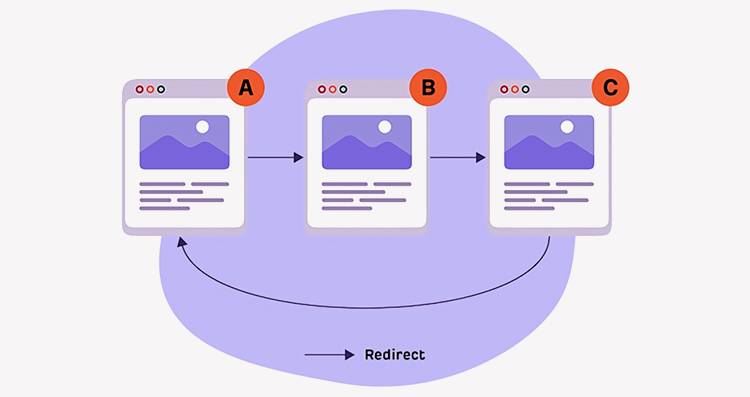
Redirects add an additional step before a browser reaches the final URL, so unnecessary redirect chains should be avoided.
Review important pages for situations where one URL redirects to another URL that then redirects again. Where possible, link directly to the final destination instead of sending visitors through multiple URLs.
Keep necessary 301 redirects when a page has permanently moved. The goal isn’t to eliminate useful redirects, but to avoid unnecessary chains that add another request before the final page can load.
After changing redirects, check both performance and whether the correct page remains accessible to visitors and search engines.
9. Consider Moving From Squarespace 7.0 to 7.1

Squarespace 7.1 is the current version of the platform, but moving from 7.0 should not be treated as a guaranteed speed fix. Your actual performance still depends on the content, scripts, images, fonts, and other resources loaded by each page.
If you’re still using 7.0, review the benefits and limitations of moving to 7.1 before making the change. Check your current site’s performance first, then compare the new version before publishing it.
Pay particular attention to:
- URL structure and redirects
- Custom code and integrations
- Page layouts and content
- Navigation
- SEO settings
- Features that may not have an exact equivalent in 7.1
Because the move can be permanent, don’t migrate solely because you expect an automatic performance improvement. Make the decision based on the broader needs of your website and test the new version carefully before publishing.
10. Reduce Unnecessary Page Weight
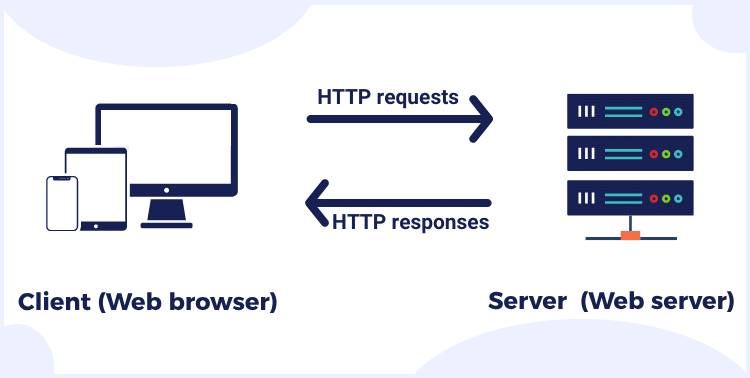
A page can become slower when it requires the browser to download and process more resources than necessary. Instead of focusing on a specific number of HTTP requests, identify which resources are contributing most to the page’s size and loading work.
On Squarespace, review:
- Large images and galleries
- Background videos
- Embedded videos and social feeds
- Third-party widgets
- Custom scripts
- Multiple font families and weights
- Page sections that add little value
Removing one unnecessary large resource can be more useful than trying to reduce a large number of small requests.
Use PageSpeed Insights to identify the resources contributing most to page weight, then retest after removing or optimizing them.
11. Reduce Unnecessary Fonts and Font Weights

Fonts can add additional resources to a page, particularly when a site uses several font families or multiple weights and styles.
Review the fonts used across your Squarespace site and remove variations that aren’t actually needed. If your design only requires regular and bold text, for example, loading several additional weights may add unnecessary resources.
Also check whether custom fonts or external font services are being loaded on every page. Keep the typography you need for the design, but avoid adding font variations simply because they are available.
After changing your fonts, test both page performance and the visual appearance of the site across desktop and mobile.
12. Reduce Unnecessary Third-Party Scripts and Embeds
Third-party scripts are one of the most important areas to review when diagnosing a slow Squarespace website. Analytics tools, chat widgets, review platforms, advertising scripts, social feeds, appointment tools, and other integrations can add network requests and JavaScript work to a page.
Make a list of the third-party tools used on your important pages and ask:
- Is this tool still necessary?
- Does it load on every page when it is only needed on one?
- Does it need to load immediately?
- Does the page still work without it?
Remove integrations that no longer provide enough value to justify their performance cost. For tools you need, check whether they can load later or only on the pages where they are actually required.
After making changes, test the page again to confirm that the integration still works as expected.
13. Check Mobile Performance Separately
A Squarespace page that performs well on desktop can still have performance problems on mobile. Mobile devices may have less processing power and slower network conditions, making large images, JavaScript, embeds, and heavy page layouts more noticeable.
Run important pages through PageSpeed Insights and review the mobile results separately. Check which resources affect LCP and INP, and look for unnecessary content that loads before the visitor needs it.
Pay particular attention to:
- Large images near the top of the page
- Background videos
- Third-party scripts
- Large galleries
- Multiple embeds
- Custom animations
- Heavy JavaScript
Don’t assume that a good desktop score means the mobile experience is equally fast.
Which Squarespace Speed Issues Should You Fix First?
If your Squarespace website is slow, don’t change everything at once. Start with the issue that has the biggest effect on the initial page load, then retest before moving to the next problem. A practical order is:
- Check the page’s largest visible element. If a large image or other element is affecting LCP, optimize it first.
- Reduce large images and heavy media. Resize and compress images and review background videos or large galleries.
- Remove unnecessary third-party scripts and embeds. These can add network requests and JavaScript work.
- Review custom code. Remove scripts and widgets that are no longer needed or don’t need to load site-wide.
- Check render-blocking resources. Review CSS and JavaScript that delay the initial rendering of the page.
- Reduce unnecessary fonts and page elements. Remove resources that add weight without providing enough value.
- Review redirects. Look for unnecessary redirect chains on important URLs.
- Test mobile performance. Make sure improvements are visible on the mobile version of the page.
- Retest Core Web Vitals. Compare the results after making the changes rather than relying on a single performance score.
This approach helps you identify which changes actually improve the page instead of applying multiple optimizations without knowing what made a difference.
How to Improve Core Web Vitals on Squarespace
Core Web Vitals help measure important aspects of real-world page experience: loading performance, responsiveness, and visual stability. The three current Core Web Vitals are Largest Contentful Paint (LCP), Interaction to Next Paint (INP), and Cumulative Layout Shift (CLS).
| Metric | Good target | What to focus on |
|---|---|---|
| LCP | 2.5 seconds or less | Optimize the largest visible content and reduce resources that delay its loading |
| INP | 200 milliseconds or less | Reduce unnecessary JavaScript and work that delays user interactions |
| CLS | 0.1 or less | Reserve space for images and other content so the layout does not shift unexpectedly |
Improving Core Web Vitals can contribute to a better page experience, but passing these metrics does not guarantee higher search rankings. Use them alongside other performance diagnostics rather than treating them as the only measure of website quality.
For Squarespace pages, start by identifying the specific metric that is failing and then work backward to the resources or page elements contributing to that problem.
How to Automate Speed Optimization and Monitoring on Squarespace
If you don’t want to manually identify and fix performance issues every time your Squarespace site changes, you can automate many parts of the optimization process. Website Speedy is one option for automating website performance improvements and ongoing monitoring, reducing the need to handle every optimization manually.
With automated performance optimization, you can:
- Improve resource loading: Optimize how resources are loaded so critical content can be displayed sooner.
- Reduce unnecessary resources: Limit resources that add page weight or delay important content.
- Optimize CSS and JavaScript: Reduce unnecessary processing that can affect loading and responsiveness.
- Monitor website performance: Track performance after changes and identify areas that may still need attention.
- Reduce ongoing manual work: Automate recurring performance tasks instead of repeating them whenever your site is updated.
For Squarespace sites with large catalogs, ongoing optimization can be difficult to manage manually. A Website Speedy customer, Rick Mantheiy, shared his experience after using the service:
“We have a large catalog and our desktop speed is verified at Google 1.57 seconds and Mobile 2.42 seconds since we began using Website Speedy.”
This is a real-world example of how automated optimization can support ongoing performance improvements without requiring site owners to manage every optimization manually. It can be particularly useful for Squarespace sites that frequently add new images, content, integrations, or other page elements.
Conclusion
Speeding up a Squarespace website starts with identifying what is actually slowing the page down. Large images, third-party scripts, embedded content, custom code, fonts, and heavy page elements are all worth checking before making broader changes.
Start by testing important pages with PageSpeed Insights, prioritize the issues affecting the initial load and Core Web Vitals, and retest after making each major change. You don’t need to apply every optimization to every page. The right fix depends on what the page is actually loading.
Regular performance checks are especially useful after adding new integrations, changing page layouts, or introducing new media. Keeping unnecessary resources under control can help maintain a faster and more consistent experience as the site grows.
Frequently Asked Questions
Why Is My Squarespace Website Slow?
A Squarespace website can become slow because of large images, third-party scripts, embedded content, custom code, multiple fonts, heavy page sections, or other resources that take time to download and process. Start by testing the affected page with PageSpeed Insights to identify the specific resources contributing to the delay.
How Can I Check the Speed of My Squarespace Website?
Google PageSpeed Insights is a good starting point for checking Squarespace website performance. Enter the URL of the page you want to test and review both the mobile and desktop results, including Core Web Vitals and the diagnostics that identify potential performance issues.
Does Squarespace Automatically Optimize Images?
Squarespace automatically handles several aspects of image delivery, but you should still upload appropriately sized and compressed images. Uploading unnecessarily large source files can add page weight, especially when a page contains many images.
Why Is My Squarespace Website Slow on Mobile but Fast on Desktop?
Mobile performance can be slower because mobile devices and networks may have fewer resources available for downloading and processing large images, JavaScript, embeds, and other page content. Test the mobile version separately and pay particular attention to LCP, INP, large resources, and third-party scripts.
Do Third-Party Scripts Slow Down Squarespace Websites?
They can. Analytics tools, chat widgets, review platforms, advertising scripts, social feeds, and other integrations can add network requests and JavaScript work. Review which tools load on each page and remove integrations that are no longer necessary.
Does Squarespace 7.1 Make a Website Faster?
Moving to Squarespace 7.1 should not be treated as a guaranteed speed improvement. It is the current Squarespace version, but actual page performance still depends on the content, scripts, images, fonts, and other resources loaded by the site. If you're considering the move, compare your existing site with the new version before publishing it.
How Can I Improve Core Web Vitals on Squarespace?
Start by identifying which Core Web Vital needs improvement. Optimize the largest visible content for LCP, reduce unnecessary JavaScript work for INP, and prevent unexpected layout movement for CLS. Use PageSpeed Insights to identify the specific resources and elements contributing to each issue.
Will a Faster Squarespace Website Improve SEO?
A faster website can contribute to a better page experience, but speed alone does not guarantee higher search rankings. Google considers many signals when ranking pages, including relevance, content quality, and page experience. Use performance improvements alongside strong, useful content and sound technical SEO.
About the Author