







TL;DR: Improve Shopify mobile speed by optimizing images, reducing unnecessary JavaScript and CSS, reviewing third-party apps, and prioritizing critical content. Use Google PageSpeed Insights to identify issues, then retest your store after making changes. Monitor Core Web Vitals to track real-world performance over time.
A slow mobile storefront can make it harder for shoppers to browse products, view images, and complete purchases. The impact can be significant as 53% of mobile visitors left a site if it took longer than three seconds to load, highlighting why mobile speed matters for Shopify stores.
Even when a Shopify store loads quickly on desktop, its mobile performance may suffer because of large images, JavaScript execution, third-party apps, or resources that delay the main content. The first step is to identify the cause using performance testing tools rather than applying every optimization technique at once.
This guide explains 10 ways to improve Shopify mobile speed, how to diagnose common performance problems, and which tools can help you monitor the results.
How Can I Improve Shopify Mobile Speed?
To improve Shopify mobile speed, optimize images, reduce unnecessary code, fix loading delays, and review your theme, apps, and redirects. Use performance testing tools to identify issues, apply targeted fixes, and monitor your store’s mobile performance regularly.
| Optimization | What to do |
|---|---|
| 1. Optimize images | Compress large images and use appropriately sized image files to reduce page weight. |
| 2. Reduce JavaScript and CSS | Remove unnecessary code and minimize scripts and stylesheets that add processing or loading delays. |
| 3. Fix render-blocking resources | Identify CSS and JavaScript that delay the initial page render and optimize how they load. |
| 4. Use a mobile-friendly theme | Choose a responsive, lightweight theme that works well across mobile screen sizes. |
| 5. Reduce unnecessary redirects | Remove avoidable redirect chains so visitors and browsers can reach the intended page more directly. |
| 6. Use a content delivery network (CDN) | Ensure static resources are delivered efficiently through Shopify’s CDN and avoid adding unnecessary external delivery layers. |
| 7. Implement lazy loading | Lazy-load below-the-fold images and other suitable media, while keeping important above-the-fold content readily available. |
| 8. Review Shopify apps | Remove unused apps and investigate third-party scripts that add requests or affect page performance. |
| 9. Reconsider AMP recommendations | Focus on improving your existing Shopify storefront’s mobile performance rather than adopting AMP as a default speed solution. |
| 10. Load non-critical scripts asynchronously | Use asynchronous or deferred loading where appropriate to reduce interference with page rendering, while preserving script dependencies. |
After making changes, test your homepage, product pages, and collection pages using Google PageSpeed Insights and Chrome DevTools. Compare results under similar conditions and verify that navigation, product variants, and cart functionality still work correctly.
Why Shopify Mobile Speed Matters
Shopify mobile speed affects how quickly shoppers can view products, interact with page elements, and navigate through the buying process. A slow page can create friction, but the cause needs to be identified before you can choose the right fix.
User Experience

A responsive mobile storefront helps shoppers browse product images, select variants, open menus, and use add-to-cart buttons without unnecessary delays. Large media files, long JavaScript tasks, and poorly timed pop-ups can interfere with these interactions.
Search Performance
Google uses Core Web Vitals to assess loading performance, responsiveness, and visual stability. Good Core Web Vitals can contribute to a better user experience, but they do not guarantee higher rankings. Focus on fixing real performance issues instead of optimizing for a score alone.
Conversions and Sales
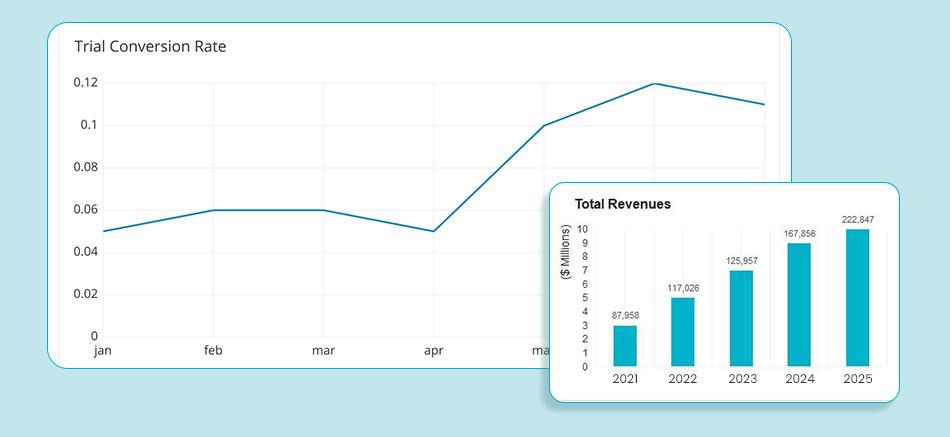
A slow mobile experience can make it harder for customers to browse and complete purchases smoothly. However, the effect varies by store, audience, and shopping experience. Compare your own mobile performance and conversion data before attributing a change in sales to site speed alone.
10 Shopify Mobile Speed Optimization Tips
The best way to improve Shopify mobile speed is to identify the resources delaying each page and address the most important issues first. The following methods cover common causes of slow mobile performance, from oversized images to unnecessary scripts and layout shifts.
Shopify recommends evaluating themes, installed apps, and third-party code when diagnosing storefront performance. Its official guide to improving online store performance explains which optimizations are already built into the platform and which issues merchants should investigate.
1. Optimize Shopify Images
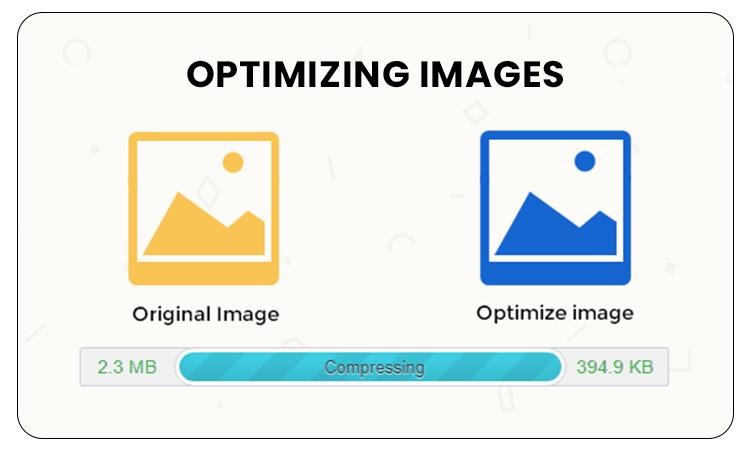
Large images can increase page weight and delay the main content from appearing, especially on mobile connections. Shopify automatically optimizes images delivered through its CDN, so focus on serving appropriately sized images and identifying files that still contribute to slow loading.
How to optimize images:
- Use appropriately sized images: Make sure product, collection, and banner images aren’t unnecessarily large for their display dimensions.
- Use responsive images: Ensure mobile devices can load suitable image sizes instead of downloading desktop-sized versions.
- Check image loading priority: Prioritize the main image visible when the page opens, especially if it’s the Largest Contentful Paint (LCP) element. Avoid lazy-loading this image.
- Prevent layout shifts: Set image dimensions so the browser can reserve space before images load.
- Compress images when needed: If testing identifies oversized source images, a tool such as Image Optimizer Pro can help Shopify merchants compress images in bulk and manage image optimization across their store.
Shopify’s built-in image optimization handles much of the delivery process, but checking image dimensions and loading behavior can help identify further opportunities to improve mobile performance.
2. Reduce Unnecessary JavaScript and CSS

JavaScript and CSS affect how a browser processes and displays a page. Large files, unused code, and scripts that perform too much work can delay rendering or make a page less responsive
How to reduce their impact:
- Identify large scripts and unused CSS with Chrome DevTools and PageSpeed Insights.
- Review scripts added by themes, apps, tracking tools, and embedded widgets.
- Remove code only after confirming that it is no longer required.
- Minify files where appropriate, but remember that minification alone may not resolve long JavaScript execution times.
- Test important store functions after changing scripts or stylesheets.
3. Fix Render-Blocking Resources

Some CSS and JavaScript resources can delay the browser from rendering important page content. The right fix depends on whether a resource is needed for the initial display or can safely load later.
How to identify and fix the issue:
- Run the affected URL through Google PageSpeed Insights.
- Review the render-blocking resources identified in the report.
- Keep critical styling available for the initial page display.
- Defer non-critical JavaScript when doing so will not break functionality.
- Avoid loading unnecessary scripts on pages that do not need them.
4. Improve Mobile Page Design

A mobile-friendly theme does not automatically guarantee fast performance. Large carousels, heavy animations, oversized banners, and unnecessary widgets can add work for the browser.
How to improve mobile page performance:
- Use appropriately sized images and banners for mobile screens.
- Keep important product information and shopping controls easy to find.
- Remove unnecessary animations and widgets.
- Reserve space for dynamically loaded elements to prevent layout shifts.
- Test navigation, product variants, filters, and add-to-cart functionality on a real mobile device.
The objective is to retain the features shoppers need while reducing unnecessary loading and processing.
5. Remove Unnecessary Redirects

Redirects are sometimes necessary, particularly when product URLs change or old pages are replaced. However, unnecessary redirect chains can delay access to the final destination.
How to review redirects:
- Check whether internal links point directly to the intended destination.
- Identify redirect chains and outdated URLs.
- Update internal links when a valid direct destination exists.
- Preserve necessary redirects for moved or deleted pages.
- Verify that product, collection, and campaign URLs continue to work correctly after changes.
Do not remove redirects simply to reduce their number. Make changes only when they preserve the intended destination and user experience.
6. Review Content Delivery and Server Response

Shopify already provides infrastructure for delivering storefront assets, including CDN-backed delivery. Adding another CDN is not automatically the right solution for a slow store.
First, determine whether the delay comes from server response, resource delivery, image size, or browser-side processing.
What to check:
- Review the initial server response time in PageSpeed Insights or a browser waterfall.
- Check whether large assets or third-party resources take an unusually long time to download.
- Avoid adding external delivery services unless they address a demonstrated problem.
- Review app and theme changes that may affect the number of requests or the time required to generate a page.
7. Apply Lazy Loading Correctly
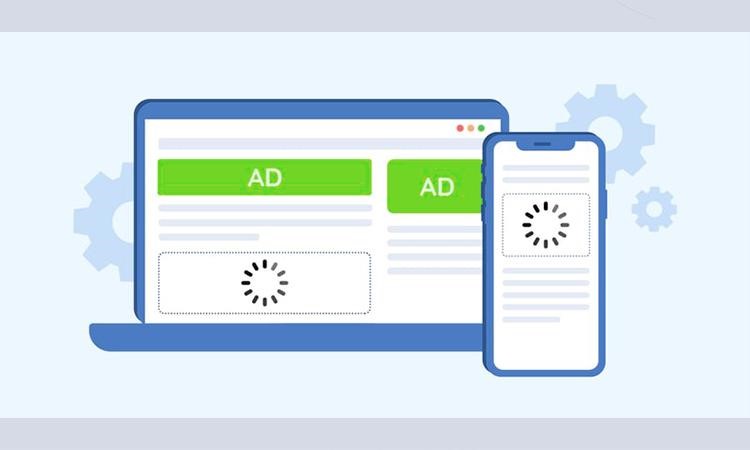
Lazy loading delays the loading of images or other resources until they are needed. It can reduce the amount of media competing for resources during the initial page load, particularly on long product and collection pages.
How to use lazy loading:
- Apply it to suitable images and media below the initial viewport.
- Avoid lazy-loading the main LCP image or another important above-the-fold image.
- Keep image dimensions defined to reduce unexpected layout shifts.
- Check that images load correctly as shoppers scroll through the page.
- Retest the page to verify whether the change improves loading performance.
Lazy loading is not a replacement for image compression or correct resource prioritization. It works best when used alongside those techniques.
8. Audit Shopify Apps and Third-Party Scripts

Shopify apps can add useful features, but some also introduce JavaScript, CSS, widgets, images, or external requests. Their performance impact depends on the app, how it is configured, and which pages load its resources.
How to audit your apps:
- List the apps and third-party services used on your storefront.
- Identify which pages load their scripts and widgets.
- Compare performance before and after a controlled change where possible.
- Remove apps you no longer need, following their removal instructions.
- Check for leftover theme code or scripts after uninstalling an app.
- Retest product pages, checkout-related flows, filters, and other important functions.
Do not assume that every app is slowing down your store. Confirm the impact before removing a feature your customers rely on.
9. Identify and Fix the Largest Contentful Paint Element
Largest Contentful Paint (LCP) measures how long it takes for the main content element in the visible page area to appear. On a Shopify store, that element may be a hero image, a product image, or a large text block.
How to investigate LCP:
- Run the page through PageSpeed Insights and identify the LCP element where available.
- Check whether the element is discovered promptly by the browser.
- If it is an image, review its dimensions, file size, loading priority, and delivery timing.
- If the element is delayed by CSS or JavaScript, investigate the rendering dependencies.
- Test changes on the exact page template where the problem occurs.
Do not assume that every slow LCP score is caused by an oversized image.The delay can occur because the browser discovers the main image too late, gives it insufficient loading priority, or must complete other work before rendering it. Identify the element and determine which part of its loading process is delayed.
The delay can occur because the browser discovers the main image too late, gives it insufficient loading priority, or must complete other work before rendering it. Google’s LCP optimization guide explains how to identify and address these delays.
10. Load Non-Critical Resources Appropriately
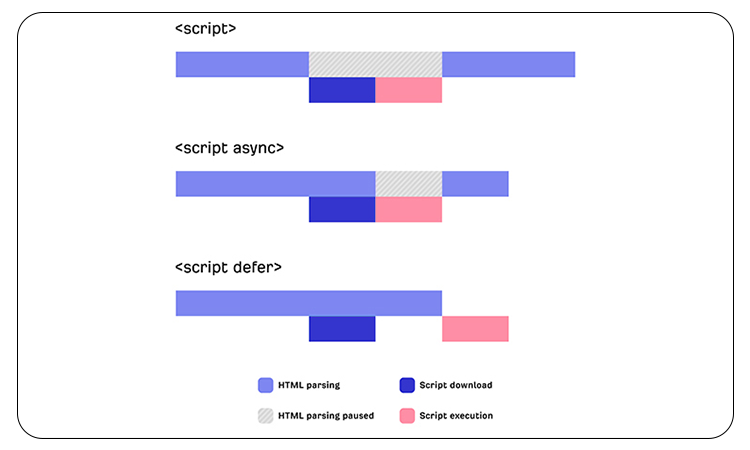
The async and defer attributes change how external JavaScript loads and executes. The appropriate choice depends on script dependencies and when the code needs to run.
How to manage resource loading:
- Use
deferfor scripts that should execute after HTML parsing and preserve their document order. - Use
asyncfor independent scripts that do not rely on a specific execution order. - Avoid changing script-loading behavior without checking dependencies.
- Delaying non-essential third-party functionality when doing so will not interfere with the shopping experience.
- Test navigation, product variants, cart interactions, analytics, and other essential functions after making changes.
Incorrect script loading changes can break storefront functionality. Apply changes selectively, then test both performance and behavior.
The most effective Shopify speed optimization strategy combines these methods selectively. Fix the issues identified by your performance tests, then measure the results instead of assuming that every technique will improve every page.
Why Is My Shopify Store Slow on Mobile but Fast on Desktop?
A Shopify store can load quickly on desktop but slowly on mobile because phones generally have less processing power, and mobile users may have slower or less consistent network connections. Large images, JavaScript execution, third-party apps, and resources that delay the main content can make these problems more noticeable on mobile devices.
The cause is not always the same across devices. A page may download quickly on a desktop computer but take longer to process JavaScript on a phone. An oversized hero image may also delay the main content, while app widgets and tracking scripts can increase the work required to render the page.
How to diagnose the difference
- Test the same URL on both devices. Use Google PageSpeed Insights to run a mobile test and a desktop test on the same homepage, product page, or collection page.
- Identify the main performance issue. Review LCP, INP, CLS, and the diagnostic recommendations. Look for large images, render-blocking resources, long JavaScript tasks, and layout shifts.
- Review mobile-specific content. Check whether banners, product images, carousels, or widgets are unnecessarily large or expensive to render on a phone.
- Investigate third-party scripts. Review apps, chat widgets, reviews, analytics, and other embedded services that may load on the affected page.
- Make one change at a time. Retest the same URL after each meaningful change so you can identify which adjustment helped.
A desktop performance score does not prove that the mobile experience is fast. Test the affected page and investigate the specific issues before changing your theme or removing apps.
If you need help identifying and addressing these issues, Website Speedy offers automated website speed optimization. You should still test your store after applying any optimization to confirm that it improves mobile performance without affecting important functionality.
For merchants who need custom development support alongside speed optimization theme rebuilds, migrations, or performance focused CRO ECORN is a Shopify focused agency working with scaling D2C brands on both one off projects and ongoing retainers.
How to Test and Monitor Shopify Mobile Speed
Use performance testing tools to identify problems on individual pages, then monitor real-user data to understand how your Shopify store performs over time. No single score tells you everything about loading speed, responsiveness, and layout stability.
Google PageSpeed Insights
Google PageSpeed Insights reports lab performance results and, when available, real-user field data from the Chrome User Experience Report. Its diagnostics can help identify issues involving images, JavaScript, CSS, resource loading, and rendering.
Use the mobile report to investigate a specific URL and review its Core Web Vitals. If field data is unavailable for that page, use the lab results to diagnose issues without treating them as a complete picture of real-user performance.
Shopify Web Performance Reports
Shopify’s Web Performance Reports help merchants understand storefront performance using real-user data and compare performance across page types. Use them to identify trends and investigate whether theme or app changes correspond with performance changes.
Shopify’s Web Performance Reports show mobile and desktop Core Web Vitals based on real-user experiences and help merchants assess how changes such as app installations and theme updates affect storefront performance.
Chrome DevTools and Lighthouse
Chrome DevTools provides tools for examining network requests, JavaScript execution, rendering, and layout shifts. Lighthouse can audit an individual page and highlight potential performance issues under a simulated test environment.
Use the Network panel to identify slow resources and the Performance panel to investigate long tasks and rendering delays.
GTmetrix
GTmetrix provides performance reports and waterfall charts that help you examine individual resource requests. It can be useful when you need to understand which images, scripts, stylesheets, or third-party services are taking time to load.
A practical testing process
- Test the same URL on mobile before making changes.
- Record the main findings and relevant metrics.
- Fix the most significant verified issue.
- Run the test again under comparable conditions.
- Check important storefront functions after optimization.
- Review real-user data over time to see whether the improvement is reflected in visitors’ experience.
For more consistent results, test the same page under comparable conditions. Lab results can vary between runs, so avoid attributing a small score change to an optimization without supporting evidence.
How to Automate Shopify Speed Optimization
Manually diagnosing and fixing every performance issue can take time, particularly when a Shopify store uses several apps, third-party scripts, and customized theme elements. Automated optimization tools can help apply certain performance improvements without requiring store owners to manage every technical change themselves.
Website Speedy offers automated website speed optimization for Shopify stores. It can help merchants address performance issues without manually editing every part of their theme.
Customer feedback can offer additional context about the experience. For example, one Shopify merchant, BitGuard, wrote in a Shopify App Store review that:
“My Shopify store used to load very slow. This app fixed it right away. Now my pages open super fast on phone and pc. It was very easy to setup.”
This review reflects one merchant’s experience, so it’s best to assess the results on your own store rather than expect the same outcome. Before choosing an automated solution, identify your store’s performance issues and check whether the tool addresses them.
After installation or configuration, retest your homepage, product pages, and collection pages. Confirm that performance improves without breaking product variants, navigation, cart interactions, or other essential features.
How to Evaluate Automated Optimization
- Record your store’s baseline performance before making changes.
- Check whether the tool’s optimizations address the issues you’ve identified.
- Test important page templates and shopping functionality after optimization.
- Compare results under similar testing conditions.
- Continue monitoring performance after theme updates, app changes, and new content additions.
Automation can reduce some manual work, but it does not eliminate the need to verify performance. The goal is to improve the actual shopping experience, not simply to achieve a higher test score.
Conclusion
Improving Shopify mobile speed starts with identifying the issues that delay your storefront, then applying targeted fixes. Optimize oversized images, reduce unnecessary JavaScript and CSS, review third-party apps, and prioritize the content shoppers need to see first.
Use Google PageSpeed Insights and browser diagnostics to investigate individual problems, and monitor Core Web Vitals to understand how your store performs over time. Retest after making changes and confirm that product browsing, navigation, and cart functionality still work correctly.
If you want help automating some performance improvements, tools such as Website Speedy is another option to evaluate. Regardless of the approach you choose, measure the results on your own store rather than assuming that every optimization will produce the same improvement.
FAQs
1. Why is my Shopify store slow on mobile but fast on desktop?
A Shopify store may be slower on mobile because phones have less processing power and mobile network conditions can be less consistent. Large images, JavaScript execution, render-blocking resources, and third-party apps can contribute to the problem. Test the same URL with PageSpeed Insights on mobile and desktop, then investigate the specific issues identified.
2. How can I check my Shopify store's mobile speed?
Enter your store's URL into Google PageSpeed Insights and run a mobile test. Review the performance diagnostics and Core Web Vitals field data when available. Test representative homepage, product, and collection URLs because different page templates may have different performance issues.
3. What are the most common causes of slow Shopify mobile performance?
Common causes include oversized images, unnecessary JavaScript and CSS, third-party app scripts, render-blocking resources, slow server responses, and layout shifts. The actual cause varies by store, so use a performance report and browser diagnostics to identify the issue before making changes.
4. Which Core Web Vitals should I monitor on Shopify?
Monitor Largest Contentful Paint (LCP), Interaction to Next Paint (INP), and Cumulative Layout Shift (CLS). Google's good-performance thresholds are LCP of 2.5 seconds or less, INP of 200 milliseconds or less, and CLS of 0.1 or less. These thresholds are assessed at the 75th percentile of real-user visits.
5. Can Shopify speed optimization apps improve mobile performance?
Some optimization apps can help reduce resource weight or implement performance changes, but their impact depends on the store's existing problems and the changes they apply. Measure performance before and after using an app, and check that essential storefront functions continue to work.
6. How often should I test Shopify mobile speed?
Test after significant theme, app, or storefront changes and review performance trends regularly. Use lab tests to investigate individual issues and real-user field data, where available, to understand how visitors experience your store over time.
About the Author