







TL;DR: If your Wix website is still slow after optimization, investigate the remaining causes instead of repeating basic speed fixes. Check third-party apps, custom scripts, large above-the-fold elements, mobile layouts, and Core Web Vitals. Use Wix Site Speed and Google PageSpeed Insights to identify issues, test changes individually, and monitor real-user performance.
Optimizing a Wix website does not always solve every speed problem. You may have compressed images, simplified your design, removed unnecessary elements, and followed standard Wix website speed optimization tips, yet your pages may still take too long to load.
This happens because website speed depends on more than visible page content. Third-party applications, tracking scripts, custom code, complex layouts, and browser rendering can continue affecting performance even after basic optimization.
If your Wix website is still slow after optimization, the next step is to identify what is causing the remaining delay and fix the specific problem.
Let’s look at how to diagnose these issues, which areas deserve attention, and how to improve Wix website loading speed without making unnecessary changes.
How to Fix a Wix Website That Is Still Slow
If your Wix website is still experiencing slow loading after optimization, follow these steps:
| Problem | What to investigate | Recommended action |
|---|---|---|
| Slow initial loading | Large hero images, videos, and banners | Simplify above-the-fold content |
| Delayed interactions | Third-party scripts and custom code | Review and remove unnecessary scripts |
| Slow individual pages | Heavy page layouts and widgets | Reduce unnecessary page elements |
| Poor mobile performance | Mobile layouts and animations | Simplify mobile-specific content |
| Low PageSpeed score | LCP, INP, and CLS issues | Fix the specific failing metrics |
| Inconsistent loading speed | Network, browser, and caching differences | Compare multiple tests and real-user data |
The most important step is to identify the actual cause before applying another optimization.
Why Is Your Wix Website Still Slow After Optimization?
A Wix website can remain slow after optimization because some performance problems are not addressed by basic improvements. Large visible elements, third-party applications, JavaScript execution, and complex page structures can continue delaying loading or user interactions.
Wix already provides several built-in performance features, including a global content delivery network (CDN), caching, and automatic image optimization. However, these features cannot eliminate every issue introduced by a particular website’s content, integrations, or custom code.
Here are some common reasons your Wix website may still be loading slowly.
1. Third-Party Apps May Still Be Affecting Performance
Third-party applications can introduce additional scripts, stylesheets, widgets, and external requests. Even if an application is not visually prominent, its code may still execute when someone visits your website.
For example, consider a Wix store that uses a live chat widget, a review application, a marketing popup, and multiple tracking integrations. Each tool may perform a useful function, but together they can increase browser workload.
To investigate:
- Review the applications installed on your Wix website.
- Identify tools that are no longer being used.
- Check whether multiple applications perform the same function.
- Temporarily disable nonessential applications and compare performance.
- Check whether an application loads on every page when it is only needed on one.
Wix also recommends limiting unnecessary third-party code because it can affect loading time and overall site performance.
Removing applications without testing is not advisable. An application may support an important business function, so evaluate its performance impact before deciding whether to remove it.
2. Custom JavaScript and Tracking Scripts May Be Delaying Loading
Your Wix website may look visually simple but still require considerable JavaScript processing before visitors can interact with it.
Custom scripts, advertising pixels, analytics tools, chat widgets, and marketing integrations can all contribute to browser workload. This is particularly important when your website loads reasonably quickly but buttons, menus, forms, or other interactive elements respond slowly.
Check the custom code added through your Wix dashboard. Review whether each script is still required, whether it is duplicated, and whether it needs to load on every page.
Where supported, nonessential third-party scripts can be configured to load using the defer or async attribute, depending on their dependencies and intended execution behavior. Avoid changing the loading behavior of scripts that are necessary for navigation, checkout, analytics accuracy, or other important functions without testing their functionality.
3. Heavy Page Elements Can Increase Browser Rendering Time
A page can remain slow even when its individual images and videos are optimized because the browser still has to process and display all the elements on that page.
For example, a Wix homepage containing multiple product sections, animated banners, sliders, testimonials, embedded videos, and interactive widgets may require more browser processing than a simpler page.
This can affect both loading speed and responsiveness, particularly on mobile devices with less processing power.
To improve performance, review your most content-heavy pages. Consider reducing unnecessary animations, removing duplicate sections, limiting the number of products displayed at once, and moving less important content further down the page.
If a page contains too many sections, consider splitting it into shorter, more focused pages rather than trying to display everything on one screen.
The goal is not to remove useful content. It is to ensure that visitors can access the most important information without waiting for unnecessary elements to load.
4. Mobile Performance May Still Be Poor
Your Wix website may perform reasonably well on desktop but continue to load slowly on mobile devices. This happens because mobile devices often have less processing power than desktop computers, and mobile visitors may also use slower or less consistent network connections.
A desktop speed test therefore cannot tell you whether your mobile experience is equally fast.
Check the following areas:
- Large hero banners and background images.
- Videos and animations appear immediately when the page opens.
- Long mobile pages containing multiple content sections.
- Interactive elements that take time to respond.
- Popups, chat widgets, and other external integrations.
Wix provides a separate mobile performance view in its Site Speed dashboard. Use it to identify whether your mobile visitors experience different loading or interaction problems.
5. Your Website’s Main Content May Still Be Loading Slowly
Sometimes, the problem is not the entire website but the main content visitors see immediately after opening a page.
For example, a large homepage banner, background video, or animated heading may delay the appearance of the primary content.
This directly affects Largest Contentful Paint (LCP), which measures how quickly the largest visible content element appears. Google recommends an LCP of 2.5 seconds or less for a good user experience, measured at the 75th percentile of page visits.
If your LCP is poor, inspect the largest visible element first. Reduce the dimensions and file size of oversized banners, avoid unnecessary video backgrounds, and prioritize important content over decorative effects.
You should also avoid lazy-loading the main image responsible for LCP. Non-critical images further down the page can be loaded later, but the main above-the-fold content should not be unnecessarily delayed.
This is one reason why repeating general image optimization steps may not improve your Wix website speed. The important question is whether the specific element delaying the first meaningful visual content has been addressed.
How Can I Identify What Is Slowing Down My Wix Website?
You can identify what is slowing down your Wix website by comparing real-user performance data with controlled speed tests and examining the specific resources responsible for delays.
Instead of changing several things simultaneously, use the following troubleshooting process.
1. Start With Wix Site Speed Dashboard
The Wix Site Speed dashboard provides information about your website’s real visitor experience and simulated Google PageSpeed performance.
Open your Wix dashboard and navigate to the Site Speed section. Review the mobile and desktop reports separately.
Pay attention to:
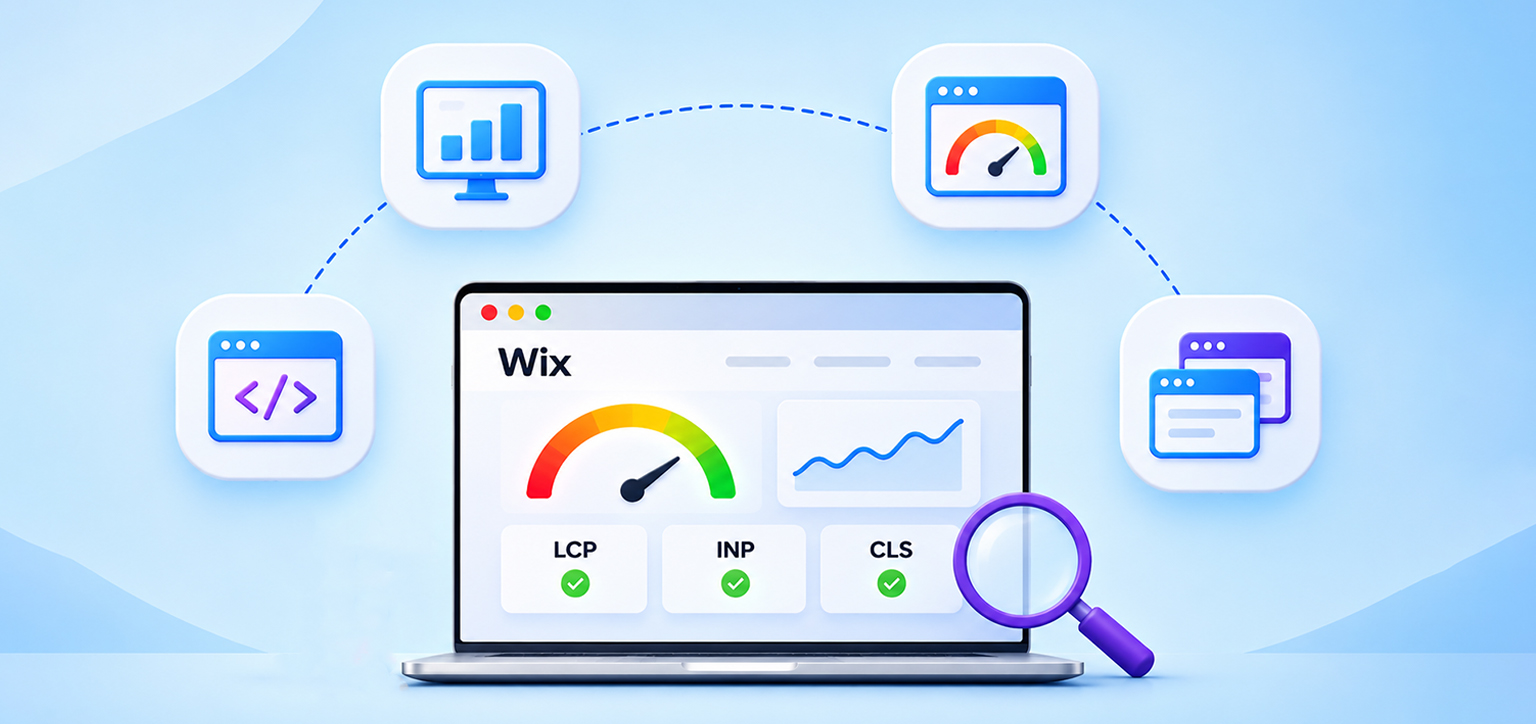
- Largest Contentful Paint (LCP): Whether the main visible content takes too long to appear.
- Interaction to Next Paint (INP): Whether buttons, menus, and other interactions respond slowly.
- Cumulative Layout Shift (CLS): Whether visible elements move unexpectedly while the page loads.
The dashboard also provides page-level performance information, helping you determine whether the issue affects your entire website or only certain pages.
One important detail: Wix’s real-visitor dashboard requires at least 10 site sessions within the previous seven days to display site speed data.
2. Test Your Pages With Google PageSpeed Insights
Google PageSpeed Insights helps you investigate performance issues on individual pages. Enter your Wix page URL and run separate mobile and desktop tests.
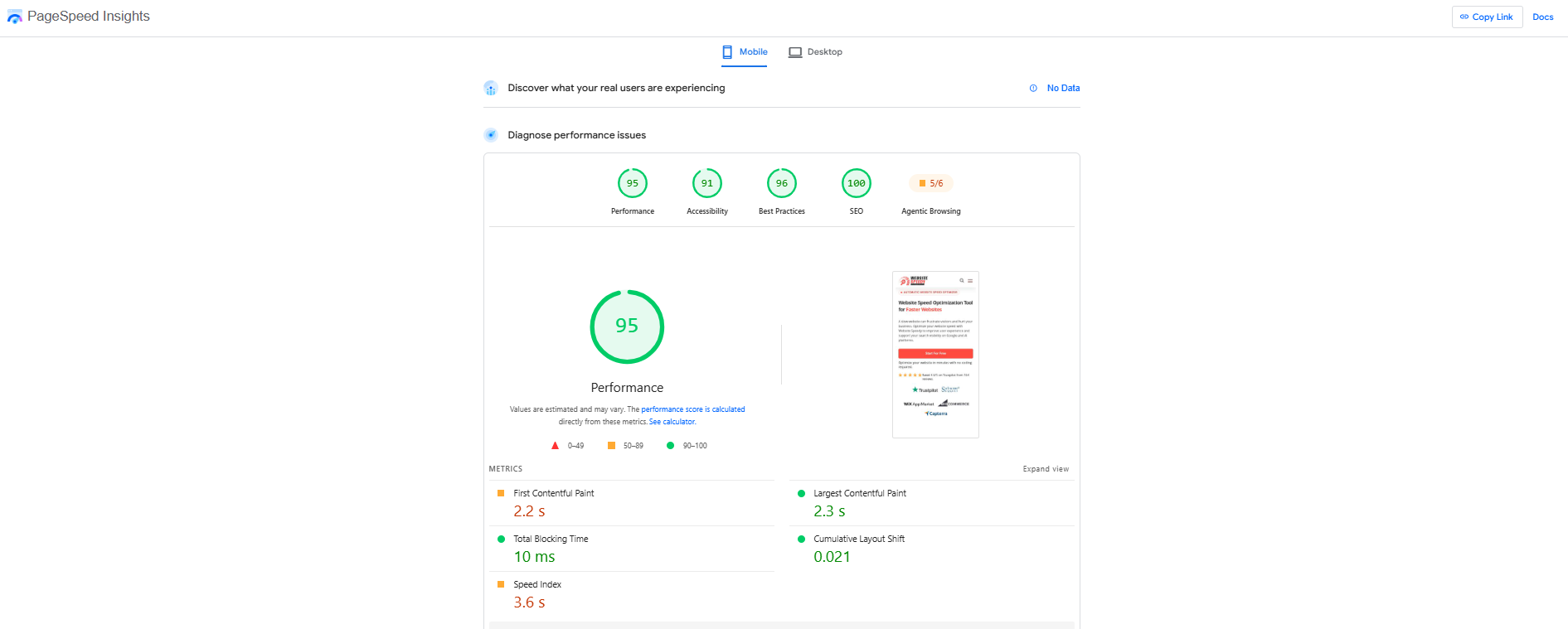
Do not focus only on the overall performance score. Look at the diagnostics and opportunities to understand what is affecting the page.
For example:
| PageSpeed finding | What it may indicate |
|---|---|
| Largest Contentful Paint is high | Main image, text, or other visible content is loading slowly |
| Reduce JavaScript execution time | Scripts are using too much browser processing time |
| Reduce unused JavaScript | Some downloaded JavaScript may not be required |
| Render-blocking resources | Certain CSS or JavaScript resources are delaying rendering |
| Avoid excessive DOM size | The page contains too many elements for efficient browser processing |
| Layout shifts | Images, banners, or other elements are changing position unexpectedly |
PageSpeed Insights combines Lighthouse lab testing with field data from the Chrome User Experience Report (CrUX), when available. Lab data helps investigate individual problems, while field data provides insight into actual visitor experiences over a rolling 28-day period.
This distinction is important when investigating why your Wix PageSpeed score is still low after optimization. A single test may show an improvement before the real-user data reflects that change.
3. Inspect Third-Party Resources and Custom Code
If PageSpeed Insights indicates excessive JavaScript execution or third-party resource delays, investigate the scripts and integrations you control.
Chrome DevTools can help you inspect network requests, loading timelines, and JavaScript activity. Open your Wix website in Chrome, right-click the page, select Inspect, and open the Network tab.
Reload the page and examine:
- Which resources take the longest to load.
- Whether external domains are introducing delays.
- Whether scripts are downloaded repeatedly.
- Whether large files are being requested unnecessarily.
You can also use the Performance tab to inspect main-thread activity and identify long tasks that may affect responsiveness.
Remember that Wix controls much of its underlying platform code. Not every resource shown in a diagnostic report can be modified by a website owner. Concentrate on custom code, applications, and integrations that you can actually control.
4. Compare Multiple Pages Instead of Testing Only Your Homepage
Your homepage may not represent the performance of your entire Wix website. A product page, blog article, category page, or contact page may have different applications, images, embedded content, and scripts.
For example, if your homepage loads in three seconds but your product pages take six seconds, investigate the elements specific to those product pages rather than changing your entire website design.
Test your most important URLs individually and record their performance results. This makes it easier to identify whether the problem is site-wide or limited to a particular page template.
How to Make Your Wix Website Faster After Identifying the Problems
Once you identify the remaining performance issues, apply fixes based on the affected resources and metrics. Avoid making several unrelated changes at once because it becomes difficult to determine which improvement actually worked.
Here are practical ways to improve Wix website loading speed.
1. Remove Unnecessary Apps and Integrations
Remove applications that no longer serve a purpose and review whether essential apps need to load across every page.
For example, a customer support widget may only be necessary on product and contact pages. If it is loading on every page, check whether its settings allow you to limit where it runs.
Before removing an app, test your website with and without it. Check that essential functionality, such as forms, payment processing, and tracking, continues to work.
2. Simplify Above-the-Fold Content
Prioritize the content visitors see when they first open your website. Replace unnecessarily large video backgrounds with lightweight static visuals where appropriate. Reduce excessive animations and avoid displaying multiple competing banners.
For example, an ecommerce homepage does not need to load several promotional sliders before visitors can see its main heading and product categories.
A simpler first screen can help important content appear sooner.
3. Reduce Unnecessary JavaScript Processing
Review custom scripts, tracking codes, and third-party widgets to identify unnecessary browser work. Remove duplicated tracking integrations and disable scripts that are no longer required. Where possible, use asynchronous or deferred loading for nonessential scripts.
However, do not blindly defer every JavaScript file. Some scripts are necessary for the website to function correctly, and changing their execution order can create errors.
4. Improve Mobile Layouts Separately
Do not assume that a desktop optimization automatically improves mobile performance.
Open your Wix mobile editor and review how the page appears on smaller screens. Remove unnecessary decorative elements, reduce excessive animations, and simplify sections that make mobile pages unnecessarily long.
Pay particular attention to the first screen, where visitors should be able to see the main heading, primary message, and important navigation without waiting for multiple visual elements.
5. Fix the Core Web Vitals That Are Actually Failing
Core Web Vitals help you understand whether the remaining problem involves loading, responsiveness, or visual stability. The current Google-recommended good thresholds are:
| Metric | What it measures | Good score |
|---|---|---|
| LCP | Loading performance | 2.5 seconds or less |
| INP | Interaction responsiveness | Less than 200 milliseconds |
| CLS | Visual stability | 0.1 or less |
Source: Official Google Core Web Vitals Threshold
- If LCP is poor, investigate the largest visible element and its loading priority.
- If INP is poor, inspect JavaScript execution, long-running tasks, and third-party integrations.
- If CLS is poor, check whether images, banners, fonts, or embedded elements are causing unexpected layout changes.
You do not need to optimize every metric simultaneously. Start with the metric that is performing poorly and address the underlying issue.
6. Avoid Changing Wix Infrastructure Settings You Cannot Control
Some PageSpeed recommendations may refer to platform-managed resources, server behavior, or files that Wix controls.
For example, Wix already uses its own CDN and provides automatic image optimization and caching. Adding another CDN or repeatedly changing caching settings will not necessarily solve a problem caused by an external script or a complex page layout.
Focus on changes you can make within your website, such as simplifying content, reviewing custom code, and managing third-party applications.
If the problem persists despite addressing website-level issues, contact Wix support for further investigation.
How Does a Wix Speed Optimization Tool Help When Your Website Is Still Slow?
A Wix speed optimization tool can help automate certain technical improvements, but it should not be treated as a replacement for diagnosing the original performance problem.
When a Wix website remains slow after manual optimization, it is useful to understand which technical improvements can be automated and which issues still require individual investigation.
For example, Website Speedy works on technical performance improvements such as resource loading, render-blocking resource optimization, JavaScript handling, and code-level optimization. Its features include lazy loading, prefetching and preloading, asynchronous script handling, and code optimization.
These improvements can help reduce unnecessary loading delays, but they do not automatically identify and remove every problematic Wix app, third-party integration, or custom script.
The distinction matters. If a particular review widget is responsible for excessive JavaScript execution, you may still need to investigate that widget directly rather than expecting a general optimization tool to remove its underlying code.
A Wix App Market reviewer shared their experience:
“Website Speedy instantly improved tape2usb.com’s response time”
The reviewer also mentioned that it was their first time using Website Speedy and that they were impressed with the experience. This is an individual customer report, not a guarantee that every Wix website will experience the same result.
When evaluating any optimization tool, compare the actual performance metrics before and after applying changes. Also check whether essential website functionality continues to work.
The objective is to improve measurable loading and responsiveness, not simply to achieve a higher score in one testing tool.
How Do You Test Wix Website Speed After Optimization?
You should test Wix website speed after every meaningful change and compare the results against your original performance measurements.
A single test is not enough to establish whether an optimization has worked because testing conditions can vary.
Use this process:
- Record your starting performance: Test your homepage and important landing pages using Google PageSpeed Insights.
- Save mobile and desktop results: Keep separate records for each device type.
- Make one change at a time: For example, temporarily disable one nonessential app or simplify one heavy page section.
- Run the same test again: Use the same URL and comparable testing conditions.
- Compare individual metrics: Check LCP, INP, CLS, loading behavior, and relevant diagnostic findings.
- Test website functionality: Make sure navigation, forms, shopping features, and tracking still work.
- Monitor real-user performance: Check the Wix Site Speed dashboard and Google Search Console over time.
One important consideration is that improvements in lab tests and real-user reports may not appear simultaneously.
Wix recommends allowing approximately three weeks for meaningful performance metrics to reflect changes. Its Site Speed dashboard uses a 30-day collection period, while PageSpeed Insights field data uses a 28-day collection period.
This means you should use repeatable lab tests to evaluate immediate changes and real-user data to understand whether visitors are experiencing sustained improvements.
Conclusion
If your Wix website is still slow after optimization, repeating basic speed improvements is unlikely to solve every remaining problem. You need to identify whether the slowdown comes from third-party apps, custom scripts, complex page layouts, mobile performance, or delayed loading of important content.
Start with Wix Site Speed and Google PageSpeed Insights, investigate the specific issues affecting your pages, and make targeted changes. Test each improvement separately and monitor real-user performance over time.
A faster Wix website is not necessarily one with the highest PageSpeed score. It is one that loads important content quickly, responds smoothly to interactions, and provides a consistent experience across devices.
Frequently Asked Questions
1. Why is my Wix website still slow after optimization?
2. How can I identify what is slowing down my Wix website?
3. Why is my Wix website loading slowly despite optimization?
4. Why is my Wix PageSpeed score still low after optimization?
5. Can too many Wix apps affect website speed?
6. How long does it take to see improvements after Wix website optimization?
About the Author