







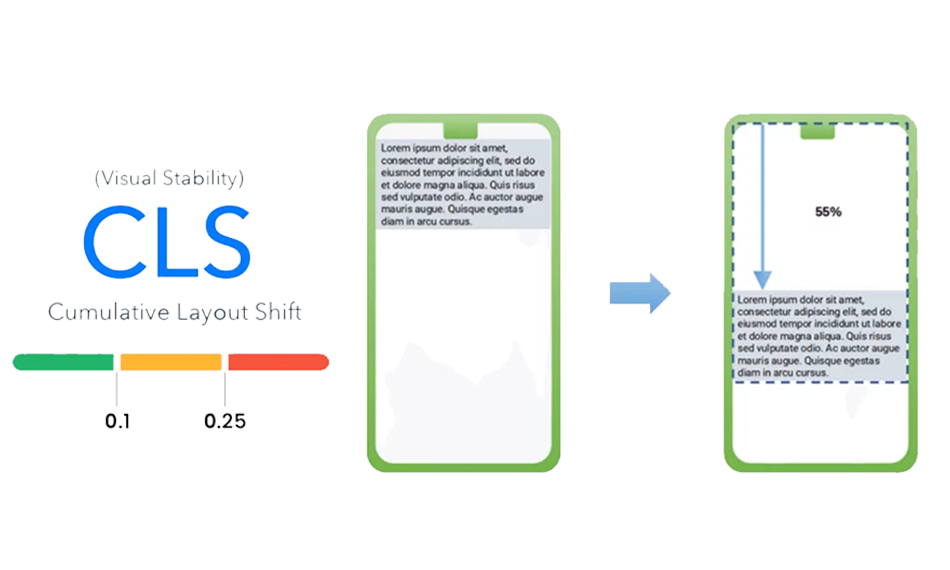
TL;DR: Cumulative Layout Shift (CLS) is a Core Web Vitals metric that measures visual instability. This guide explains how CLS is measured, what the ideal CLS score should be, how to test it (lab vs field), and step-by-step fixes you can implement today.
Cumulative Layout Shift (CLS) is one of the most frustrating issues users experience on a website. When buttons, images, or text move unexpectedly while a page loads, it leads to misclicks, poor usability, and lost trust, often causing visitors to leave the site.
Cumulative Layout Shift is a Core Web Vitals metric that measures visual stability by tracking how much visible content shifts during page load or user interaction. Since Google uses CLS as part of its page experience evaluation, poor CLS scores can negatively affect both user experience and search performance.
In this guide, you’ll learn how to identify CLS problems on your pages, understand what’s triggering layout shifts, and apply practical fixes to improve visual stability and overall site performance.
What Is Cumulative Layout Shift (CLS)?
Cumulative Layout Shift (CLS) is a Core Web Vitals metric that measures the stability of a webpage as it is loaded. It counts layout shifts that happen while the page is loading, which can annoy users and cause them to click on things they didn’t mean to. A layout shift occurs when any visible site element changes its position from one rendered frame to next as the page loads.
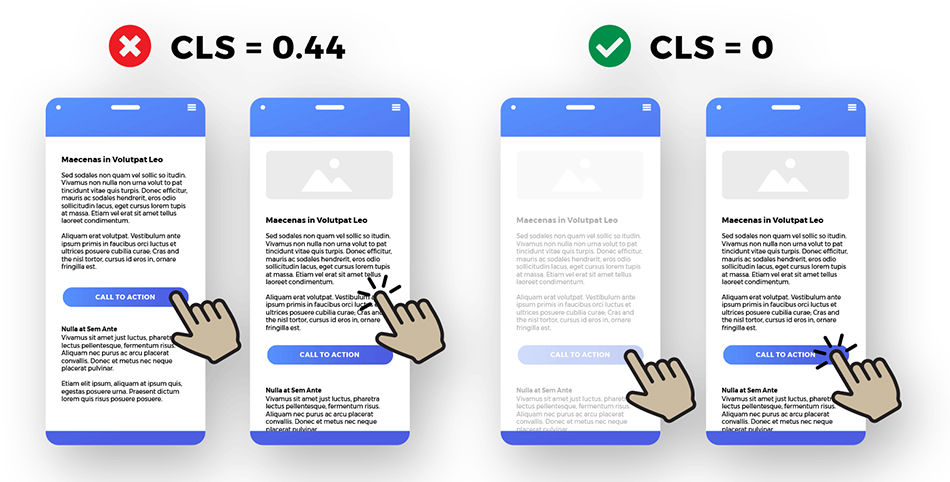
For instance, you’re reading an article when an image suddenly appears above the text, pushing the text down. Or you want to buy something, but the page jumps, and you accidentally click on an ad instead. These are real-life instances of Cumulative Layout Shift that show why it’s so important for a smooth browsing experience.
Google introduced CLS as part of the webpage performance indicators to see how steady your website seems as it loads. A high CLS score suggests that the parts of your site are not stable, while a low score means that the rendering is smooth.
Why Cumulative Layout Shift Matters for User Experience & SEO?
Cumulative Layout Shift directly impacts user experience by causing unexpected movement of content, leading to misclicks, frustration, and loss of trust. Since CLS is part of Google’s Core Web Vitals, consistently poor scores can also affect search visibility and organic performance. Here’s why it matters:
Improves User Experience (UX):
A low CLS score ensures that users can read, scroll, and click without interruptions. Stable layouts prevent accidental clicks and reduce frustration.
Impacts SEO Rankings:
CLS is a part of Google Core Web Vitals, which are official ranking signals. Pages with poor CLS scores may struggle to rank higher in search results compared to more stable competitors.
Increases Conversions:
When buttons, forms, or CTAs move unexpectedly, users often abandon the page. A stable layout helps guide users smoothly toward conversions.
Reduces Bounce Rate:
Visitors are more likely to leave websites that feel broken or jumpy. Lower CLS keeps users engaged for longer.
Builds Trust and Credibility:
A visually stable website feels more professional and reliable, especially for e-commerce and business websites.
In short, CLS is not just a technical metric; it’s a user experience and revenue factor. Optimizing CLS helps your website perform better in search, retain users, and convert visitors into customers.
What is a Good CLS Score?
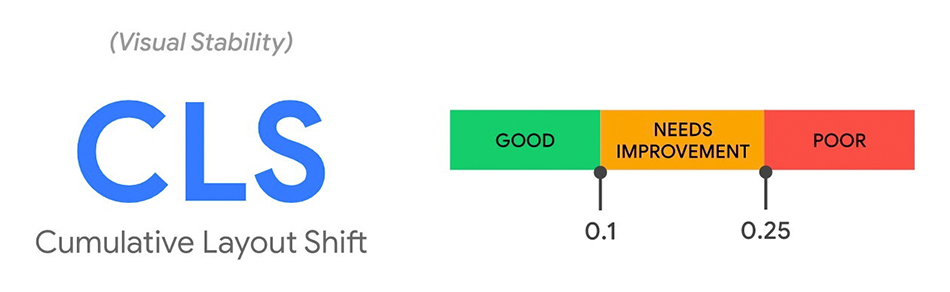
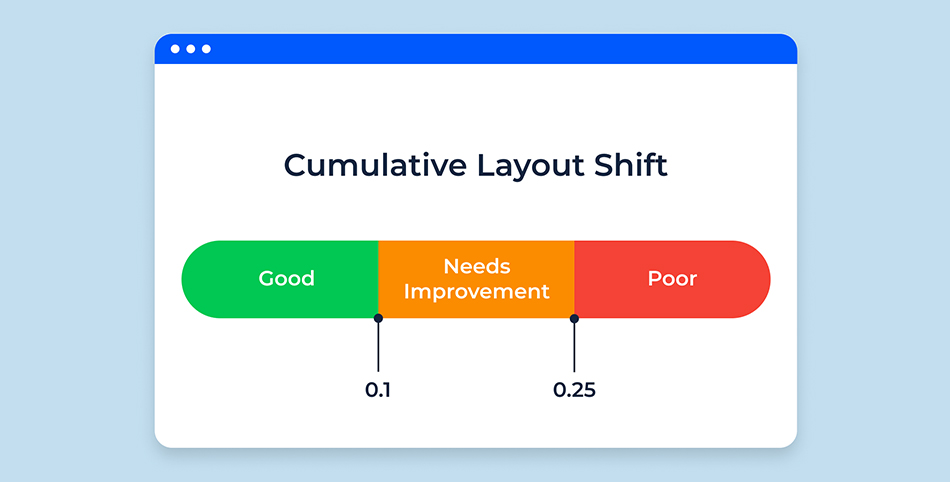
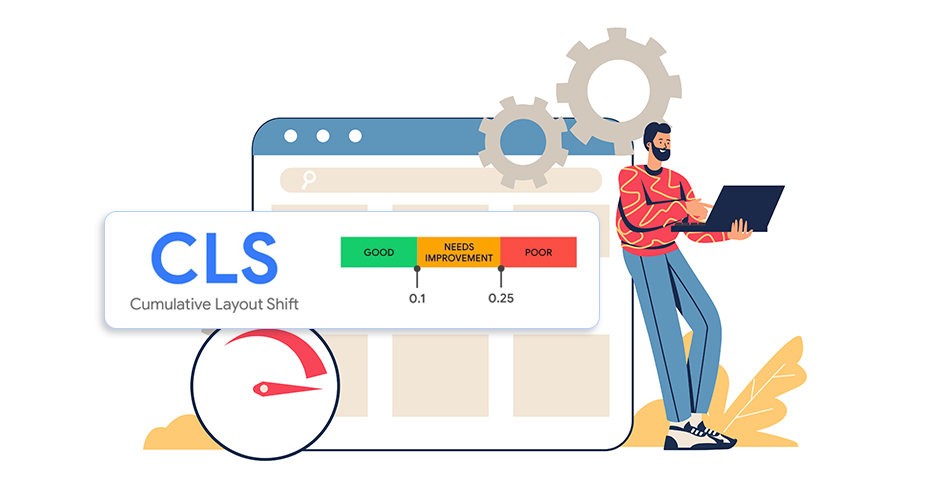
Google divides CLS scores into three levels to assist website owners in checking their site performance:
Good (≤ 0.1): Scoring 0.1 or less in CLS means your website is very stable. Most people won’t notice any shifts.
Needs Improvement (0.1- 0.25): This is the moderate score, which means your site’s layout is taking shifts that are clear and need to be fixed.
Poor (≥ 0.25): Indicates that your site is very unstable, which makes it hard for users to browse and could harm your rankings and user experience.
CLS is an important factor for website optimization. Your goal should be to achieve a CLS score of 0.1 or under to make sure your SEO and user experience are good enough for conversions.
How CLS Is Measured (Formula + Worked example)
CLS is calculated by multiplying the impact fraction (how much of the viewport is affected) by the distance fraction (how far the element moves).
For example, if an element covering 50% of the viewport shifts by 25% of the screen height, the CLS score would be 0.5 × 0.25 = 0.125, which falls into the “needs improvement” range.
1. Impact Fraction:
The amount of space the unstable element takes up on the screen. It is basically the proportion of the layout shift area and the viewport, before and after the shifting.
Formula: Impact Fraction = Total area of viewport / Total area of layout shifts
2. Distance Fraction:
It is the distance of the element moved in the viewport between two rendered frames. Basically, it is the major horizontal or vertical distance at which any element has taken a shift.
Formula: Fractional Distance = Fraction × Total Distance travelled by the element
For instance:
The CLS score = Impact Fraction × Distance Fraction, summed up for all layout shifts on the page.
If a picture fills up half of the screen and moves 25%, the score would be 0.125 (0.5 × 0.25). Google keeps track of these scores all the time as people use your site to figure out the total CLS.
Lab Data vs Field Data: Why CLS Scores Differ in Lighthouse & GSC
Cumulative Layout Shift scores often differ between lab tools like Lighthouse or PageSpeed Insights and field data reported in Google Search Console. This difference is expected and does not always indicate a problem with your CLS fixes.
Lab data simulates a single page load under controlled conditions, measuring layout shifts that occur during the initial load. Field data, on the other hand, is collected from real users through the Chrome User Experience Report (CrUX) and reflects actual interactions across different devices, screen sizes, and network conditions.
Google uses field data to evaluate Core Web Vitals for ranking purposes. This means CLS improvements may not appear immediately in Search Console, as field data is aggregated over a 28-day rolling window. A page may show CLS issues in Lighthouse while still passing Core Web Vitals in real-world data, or vice versa.
To accurately evaluate CLS, always use lab tools for debugging and field data for performance validation.
Tools to Measure Cumulative Layout Shift
To measure CLS and check out your site speed to see if it is providing a good user experience. You can use various tools to assist you in calculating these Core Web Vitals metrics.
Google PageSpeed Insights
This tool gives you CLS ratings and tips on how to make your pages load faster. Google PageSpeed Insight provides you with warnings regarding layout shifts in the “Opportunities” and “Diagnostics” sections. It is one of the best tools to measure Core Web Vitals (FCP, LCP, CLS, INP).
Lighthouse (Chrome DevTools)
It shows how the layout changes on certain pages. And its animation tool shows the exact part that is taking a shift while the page loads. As this is a Google tool, it is more reliable and efficient to calculate your Core Web Vitals score, including First Contentful Paint (FCP), Largest Contentful Paint, Cumulative Layout Shift, and more.
Google Search Console
Shows sitewide CLS problems that affect more than one URL. Google Search Console uses real-world data from Chrome users to show how visitors actually feel when visiting your site. This approach makes Search Console Core Web Vitals reports more accurate.
WebPageTest & GTmetrix
Third-party tools that visualize layout shifts for deeper insights. These tools use browser data to calculate CLS scores, helping analyze the issues and fixes.
You can make sure your site stays optimized for both visitors and search engines by checking the site’s Cumulative Shift regularly.
Common Causes of Cumulative Layout Shift
Cumulative Layout Shift usually happens when page elements load without reserved space or change size after rendering. Most Cumulative Layout Shift issues are caused by predictable implementation mistakes mentioned here. Below are the most common causes of high CLS scores:
1. Images and Videos Without Dimensions
When images or videos don’t have a defined width and height, the browser can’t allocate space in advance. As media loads, it pushes content down, causing layout shifts.
2. Ads, Embeds, and Iframes Loading Late
Dynamic ads and third-party embeds often load after the main content, shifting surrounding elements if space isn’t reserved beforehand.
3. Web Fonts Causing Text Shifts (FOUT / FOIT)
Slow-loading fonts can trigger Flash of Unstyled Text (FOUT) or Flash of Invisible Text (FOIT), causing text to reflow and shift when the font loads.
4. Content Injected Above Existing Elements
Pop-ups, banners, cookie notices, or promotional bars added at the top of the page after loading can push everything down, creating a noticeable layout shift.
5. Animations That Affect Layout
Animations that change element size, height, or position, especially without CSS transforms, can trigger unexpected layout movement.
6. Poorly Optimized Themes or Page Builders
Some themes, plugins, or page builders don’t prioritize layout stability, leading to shifts during loading on CMS platforms like WordPress, Shopify, or Squarespace.
Understanding these causes makes it easier to diagnose CLS issues and apply the right fixes, ensuring a smoother and more stable page experience.
How to Fix Cumulative Layout Shift (CLS)?
To fix Cumulative Layout Shift (CLS) optimization issues, you need to address the elements that cause unexpected layout movement during page load and user interaction. Below are proven best practices that help maintain visual stability and improve Core Web Vitals performance.
1. Always Add Size Attributes to Images and Videos
One of the most common causes of layout shifts is media loading without defined dimensions. When images or videos don’t have fixed width and height attributes, the browser cannot reserve space in advance. By explicitly setting size attributes or using responsive image techniques, the browser allocates the correct space before the media loads, preventing sudden content jumps.
2. Reserve Space for Ads and Third-Party Embeds
Ads, iframes, and third-party embeds often load asynchronously, which can disrupt the layout once they appear. Always define fixed dimensions or aspect ratios for ad containers and embeds so the browser reserves space early. This ensures surrounding content stays in place even if the ad loads late or fails to load.
3. Use CSS Aspect Ratio Boxes
Modern CSS provides the aspect-ratio property, allowing you to define consistent dimensions for images, videos, and embeds. This technique ensures elements maintain their intended proportions while loading, preventing layout shifts and keeping nearby content stable.
4. Preload Fonts to Avoid Flash of Unstyled Text (FOUT)
Web fonts that load slowly can cause text to re-render, leading to visible layout shifts. Preloading critical fonts ensures text appears correctly on the first render, minimizing content movement caused by font swaps or delays.
5. Avoid Placing Content Above Existing Elements
Injecting banners, cookie notices, or promotional bars above already loaded content pushes everything downward, resulting in high CLS. If new content is required, reserve space in advance or load it below the fold unless the user explicitly triggers the action.
6. Optimize for Core Web Vitals Using Modern Frameworks
Popular platforms like WordPress, Shopify, and Squarespace now offer themes and plugins designed to improve Core Web Vitals. Choose lightweight themes, avoid unnecessary scripts, and use performance-focused plugins to ensure layout stability along with fast load times.
7. Monitor CLS with Real User Monitoring (RUM)
Lab tests are helpful, but real-world data provides the most accurate insight into layout stability. Use tools like Google Analytics, Chrome User Experience Report, or performance monitoring platforms to track CLS, LCP, and INP based on actual user behavior.
8. Handle Dynamic Content and Ads Carefully
Dynamic content such as ads, banners, pop-ups, and personalized sections is a major contributor to layout shifts. Always reserve space by setting a min-height or fixed dimensions for dynamic elements before they load. Avoid injecting new content above existing elements unless the user initiates the action, as this is one of the biggest causes of poor CLS scores.
9. Use Layout-Safe Animations
Animations can trigger layout shifts when they change properties like top, left, width, or height. Instead, animate elements using CSS transform properties such as translate, scale, or opacity. These animations run on the compositor thread and do not affect layout, ensuring smooth motion without disrupting surrounding content.
10. Load Critical CSS and Avoid Layout-Blocking JavaScript
Ensure your critical CSS is loaded synchronously in the <head> so above-the-fold content renders correctly from the start. Delayed CSS or heavy synchronous JavaScript can cause late layout recalculations, resulting in visible shifts. Minimize render-blocking scripts, defer non-critical JavaScript, and prioritize critical styles to maintain layout stability during initial page load.
By applying these CLS fixes consistently, you can significantly reduce unexpected layout shifts, improve Core Web Vitals scores, enhance user experience, and strengthen your website’s SEO performance.
Why CLS Doesn’t Improve Even After Fixes?
Even after implementing recommended fixes, Cumulative Layout Shift scores may remain unchanged or improve slowly. This usually happens due to hidden or overlooked sources of layout instability.
Common reasons include lazy-loading the Largest Contentful Paint (LCP) element, third-party scripts injecting banners or widgets after page load, web fonts causing late text reflows, or CSS files loading asynchronously and modifying layout styles. Mobile viewport resizing and orientation changes can also introduce layout shifts that are difficult to detect in lab tests.
To diagnose persistent CLS issues, use Chrome DevTools’ Layout Shift Regions, record real-user sessions, and monitor field data in Google Search Console. Addressing CLS often requires multiple iterations, especially on pages with ads, embeds, or dynamic content.
Conclusion
Cumulative Layout Shift (CLS) is a critical metric in Core Web Vitals that checks the visual stability of a website. You should focus on achieving a good CLS score that is less than 0.1. Having a good CLS score means that the user can browse and scroll on your website without frustration, improving conversions and enhancing user experience as well.
Things to Remember for Ranking Higher:
- Aim for a CLS score of 0.1 or less.
- Measure CLS with tools like PageSpeed Insights, Lighthouse, and Search Console.
- Fix issues by reserving space for images, ads, and embeds, preloading fonts, and avoiding sudden content injections.
By taking these steps, you can reduce layout shifts, improve your page speed optimization, boost SEO, and deliver a smoother, more reliable user experience.
FAQs
Q1. What causes a high CLS score?
A high CLS score is mainly due to images and videos loading without dimensions, slow loading of fonts, and content being inserted above the already loaded elements.
Q2. What is a good CLS score?
A CLS score of 0.1 or less is good. Scores between 0.1 and 0.25 fall under the improvement area, and scores above 0.25 are bad.
Q3. How can I check my website's CLS score?
You can use Google PageSpeed Insights, Lighthouse in Chrome DevTools, Google Search Console's Core Web Vitals report, WebPageTest, or GTmetrix to check your CLS.
Q4: What can I do to fix problems with cumulative layout shifts?
To lower CLS, set the sizes of images and videos, leave space for advertisements, preload fonts, utilize CSS aspect ratio boxes, and don't add material above existing elements.
Q5. What does CLS have to do with SEO?
Core Web Vitals is a set of official ranking factors that includes CLS. A low CLS score can make it harder for people to find you in search results and make the experience worse for users.
Q6. Does CLS affect sales and conversions?
Yes. High CLS annoys consumers, which causes them to click by mistake, increases bounce rates, and lowers conversion rates. This has a direct effect on sales and revenue.

Ishan Makkar
He is a web performance specialist with hands-on experience optimizing websites for speed, media efficiency, and user engagement. As the founder of Website Speedy and Image Optimizer Pro, he has helped businesses across multiple industries improve load times, strengthen SEO, and reduce bounce rates. His work focuses on creating reliable, data-driven optimization solutions that deliver measurable results and build long-term digital trust.