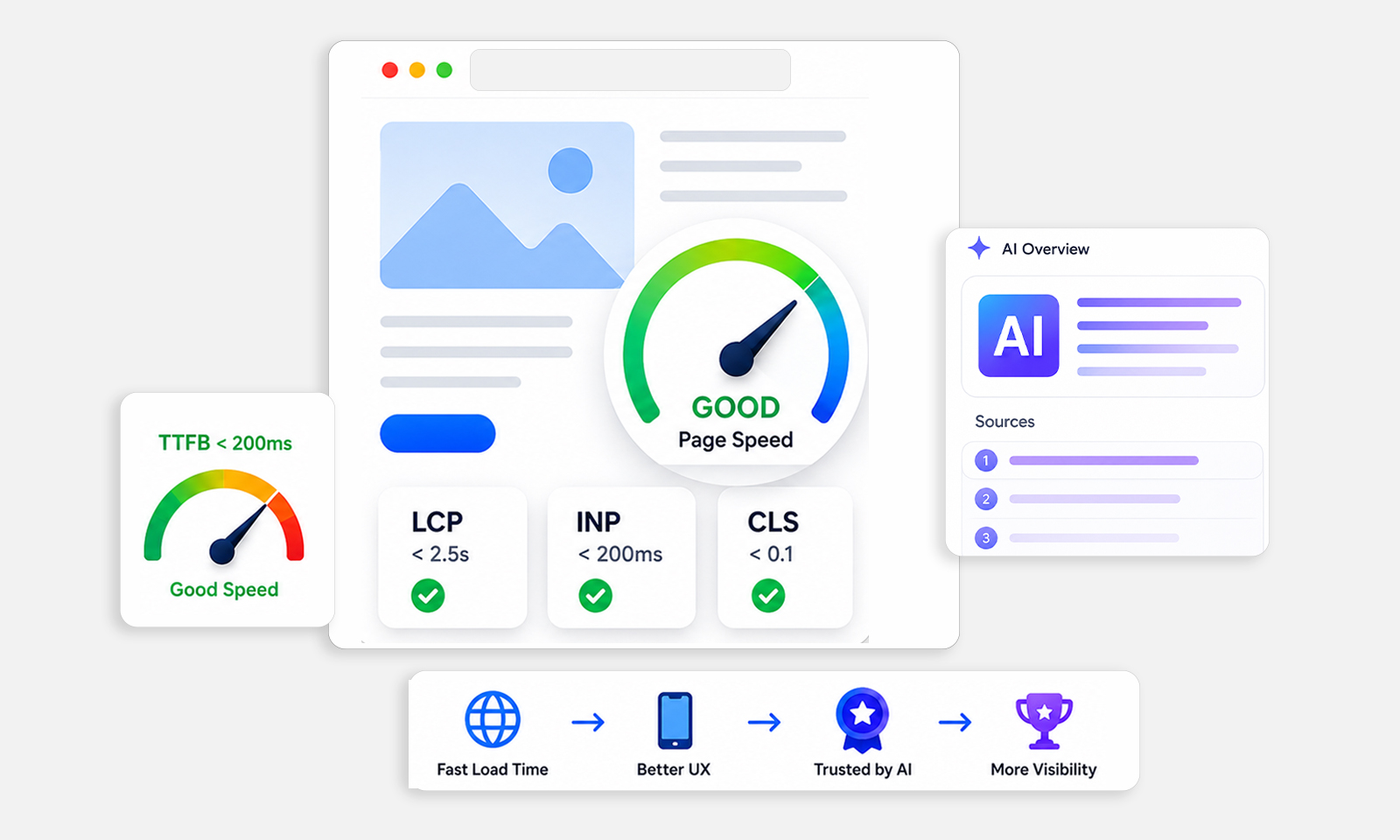







TL;DR: If your Squarespace website takes too long to load, visitors may leave before seeing your content. Identify slow-loading elements, simplify page layouts, reduce unnecessary third-party scripts, improve resource loading, and test mobile performance. Monitor Core Web Vitals to measure whether your changes improve the visitor experience.
Key Takeaways
- Common Squarespace speed issues include large page elements, excessive animations, third-party scripts, and render-blocking resources.
- Slow loading can increase bounce rates, but content relevance, navigation, and visitor expectations also influence visitor behavior.
- Use Google PageSpeed Insights and Chrome DevTools to identify loading delays, large resources, and Core Web Vitals issues.
- Simplify page layouts, remove unnecessary scripts and animations, reduce excessive fonts, and improve mobile performance.
- Optimize CSS and JavaScript loading and monitor LCP, INP, and CLS to identify performance issues.
- Compare performance before and after optimization using PageSpeed Insights, Google Search Console, and Squarespace Analytics.
A visitor clicks your website, waits for the page to load, and leaves before seeing what you offer. This is a common problem for website owners dealing with slow-loading pages. Even when a Squarespace website looks attractive, slow loading can make visitors frustrated and reduce the chances of them exploring other pages.
If your Squarespace website is loading slowly, the problem may come from large page elements, third-party scripts, animations, embedded content, or resources that delay the first visible part of the page.
The solution is not necessarily to redesign your entire website. You need to identify what is delaying the page, fix the most significant performance issues, and check whether the improvements make the website easier to use.
How to Fix a Slow Squarespace Website and Reduce Bounce Rate
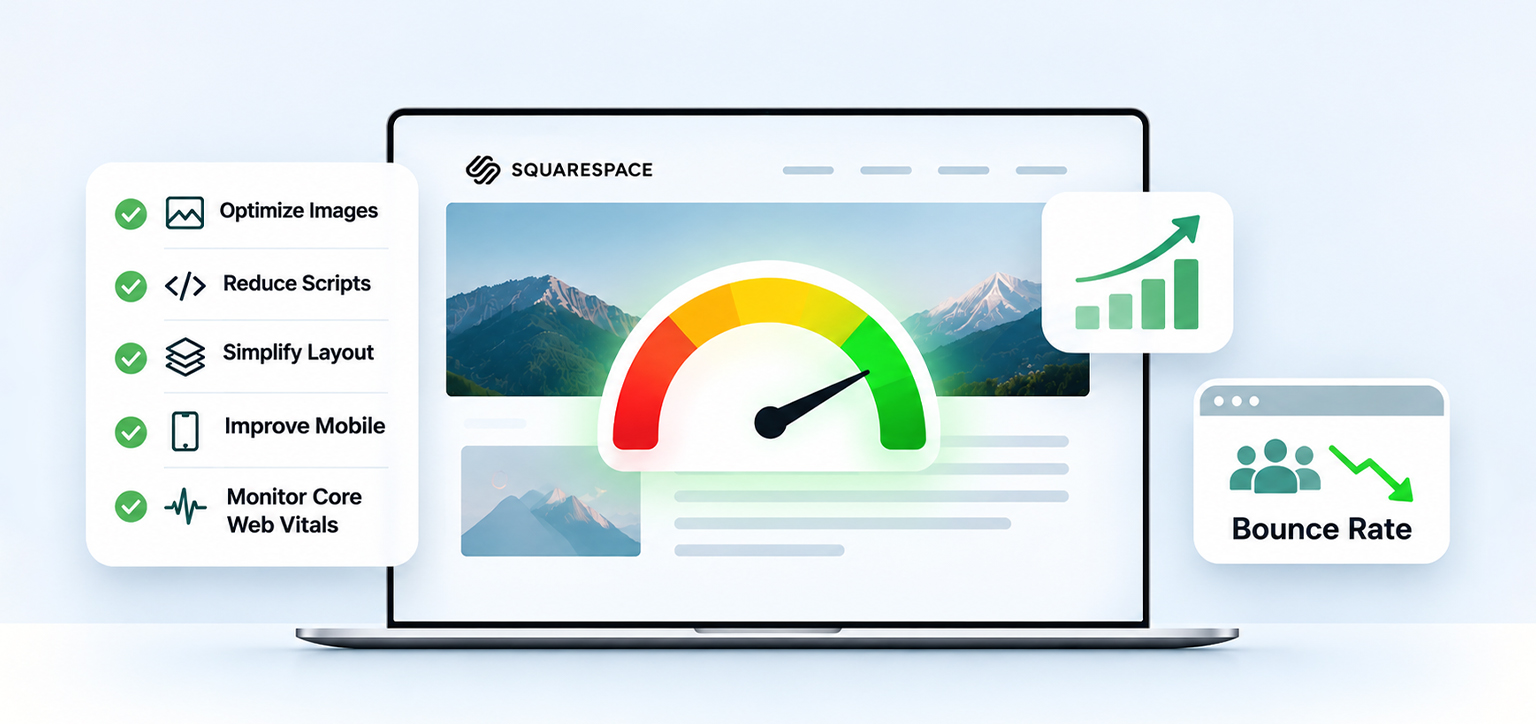
A slow Squarespace website can cause visitors to leave before the main content loads. To reduce loading delays and improve visitor experience, identify heavy page elements, remove unnecessary scripts, simplify layouts, improve mobile performance, and monitor Core Web Vitals.
| Problem | What to do |
|---|---|
| Large page elements | Review large visual assets and simplify heavy sections |
| Too many animations | Remove unnecessary motion and complex effects |
| Third-party scripts | Audit chat widgets, tracking codes, and external integrations |
| Slow mobile loading | Test mobile performance and prioritize visible content |
| Render-blocking resources | Identify CSS and JavaScript delaying page rendering |
| Poor Core Web Vitals | Measure LCP, INP, and CLS and address the weakest metric |
| High bounce rate | Improve loading speed, content relevance, and navigation |
The first step is to test your website, identify the resources causing delays, and fix the biggest problems before making smaller design changes.
Why Is Your Squarespace Website Taking So Long to Load?
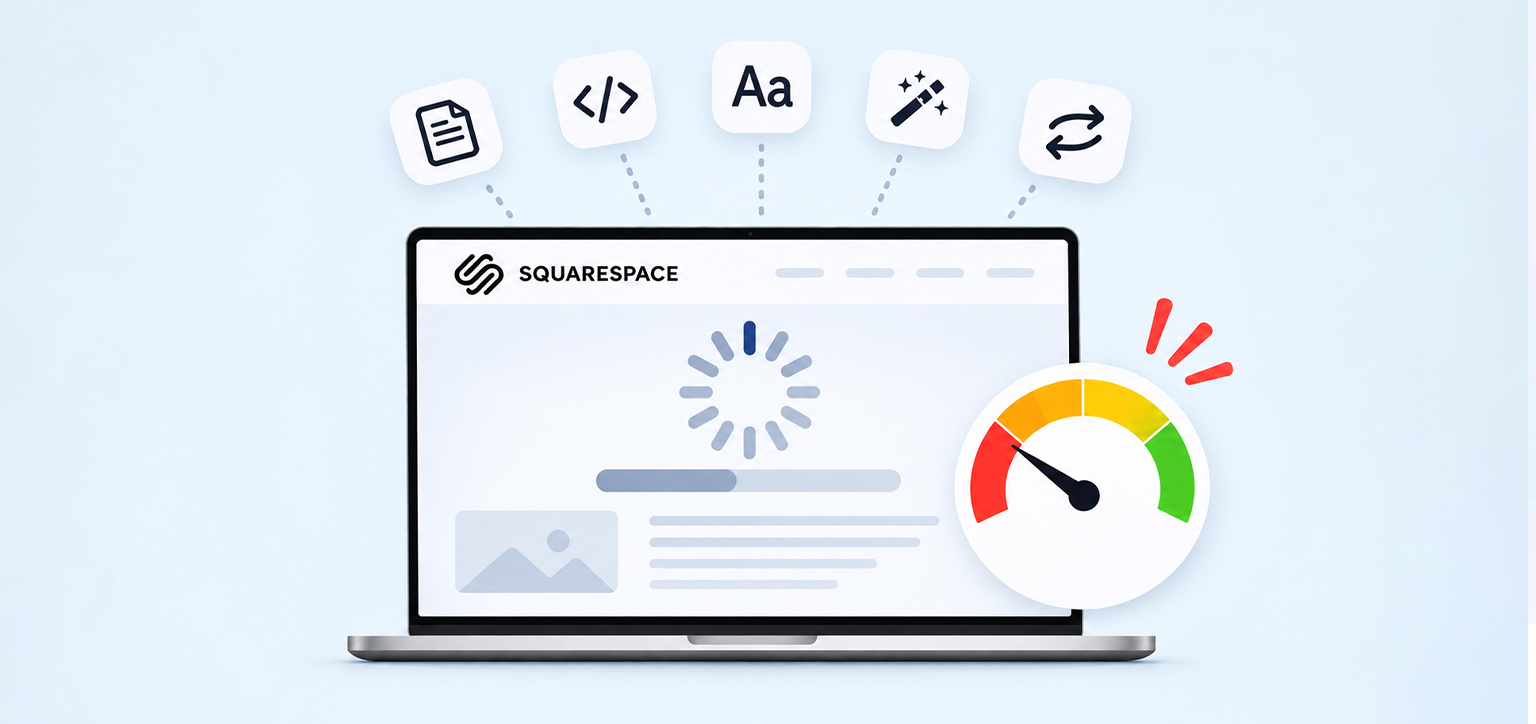
A Squarespace website usually becomes slow because its pages contain too many resources for the browser to load efficiently. Large page sections, multiple embedded videos, custom code, external scripts, and excessive fonts can all contribute to longer loading times.
According to Squarespace’s own troubleshooting guidance, website owners should pay particular attention to page size, custom code, external scripts, fonts, and redirects when investigating slow loading.
Here are five common causes of Squarespace website performance issues.
1. Too Much Content on Individual Pages
Pages with too many sections, content blocks, galleries, and embedded elements require the browser to process and download more resources.
For example, a Squarespace homepage might contain a large hero section, several image galleries, testimonials, embedded videos, animations, and multiple content sections. Even if each element looks reasonable individually, their combined resource requirements can make the page slow.
Squarespace recommends keeping individual pages at 5 MB or less where possible. Its guidance also recommends limiting the number of blocks and spreading large amounts of content across multiple pages.
If your homepage is particularly long, review whether every section needs to appear immediately. Move less important information to dedicated pages and keep the first screen focused on your main message.
2. Third-Party Scripts and Embedded Widgets
Third-party scripts are another common reason a Squarespace website takes too long to load.
Website owners often add external tools for analytics, live chat, appointment scheduling, advertising tracking, pop-ups, and social media integrations. Each integration may require additional requests to external servers and JavaScript execution in the visitor’s browser.
The problem is not necessarily one particular integration. Several individually small scripts can collectively increase loading time and delay interaction.
To identify the problem, review your custom code injections, Code Blocks, and connected integrations. Temporarily disable nonessential scripts one at a time and compare the page’s performance after each change.
This is particularly important when investigating third-party scripts and website performance.
3. Too Many Fonts, Animations, and Visual Effects
Custom fonts and animations can make a Squarespace website visually appealing, but using too many can increase the resources required to display a page.
For example, a website using four or five font families with multiple font weights may require additional font downloads. Similarly, animated backgrounds, GIFs, scrolling effects, and interactive elements can increase page complexity.
Squarespace recommends using no more than two fonts as a general design guideline. Review your site’s typography and remove unnecessary animation effects. Keep the design consistent without making every section visually complicated.
4. Render-Blocking CSS and JavaScript
Some resources must be downloaded and processed before the browser can display important parts of a webpage. These are commonly referred to as render-blocking resources.
For example, a JavaScript file that must execute before rendering continues can delay the appearance of the main page content. Similarly, CSS files can delay rendering when the browser needs them to determine how visible elements should appear.
This can affect Largest Contentful Paint (LCP), especially when the main content is already waiting for other resources to finish loading. The solution involves identifying which resources are delaying rendering and determining whether they can be deferred, loaded asynchronously, or prioritized differently.
5. Too Many Redirects and External Requests
A browser may need to follow multiple redirects before reaching the final destination of a requested resource. Each additional step can introduce delay.
Similarly, pages that depend on several external services may need to establish multiple connections before all their content becomes available.
Check your Squarespace URL mappings for unnecessary redirect chains and review external resources that are no longer needed. Squarespace also identifies excessive redirects and external scripts as potential causes of loading problems.
How Does Slow Website Loading Affect Bounce Rate?
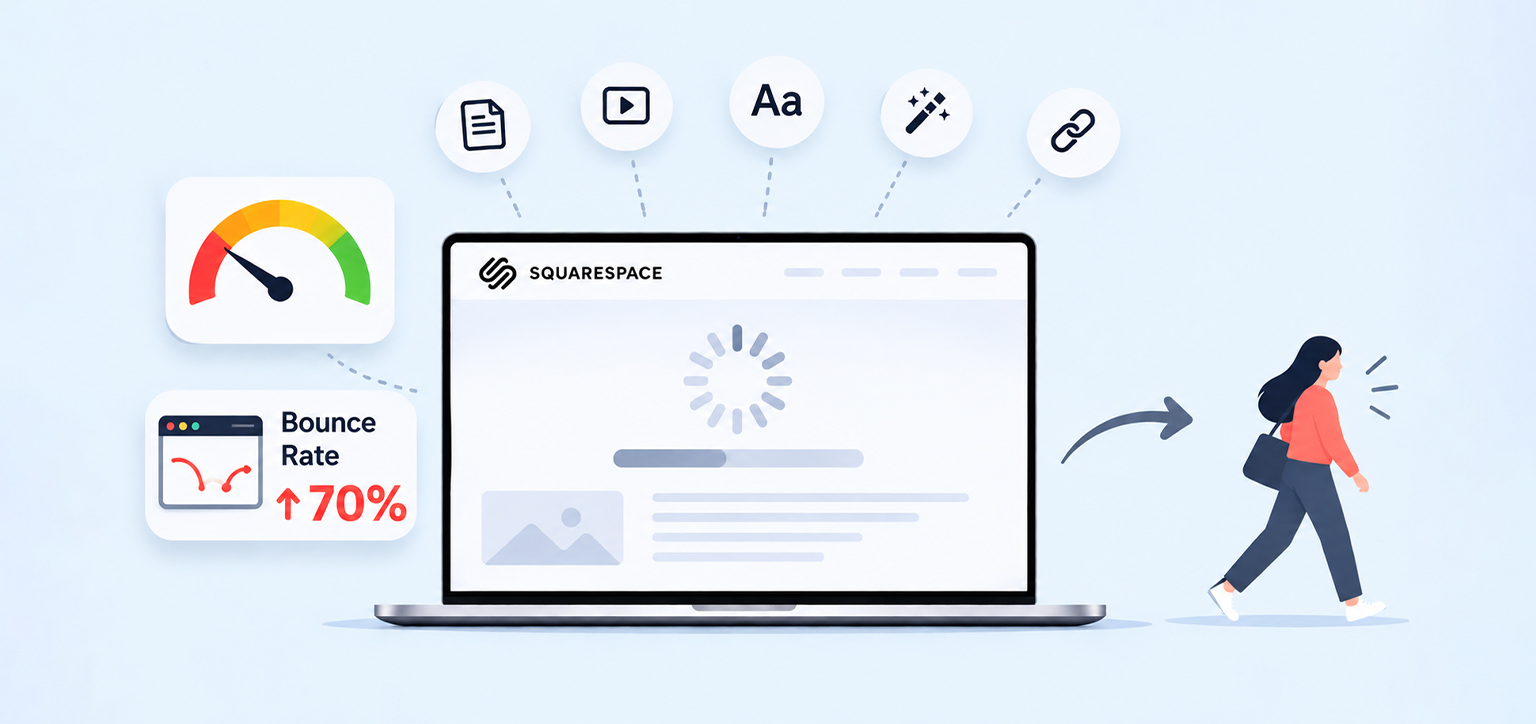
Slow website loading can increase visitor abandonment because people may leave before the main content appears or before they can interact with the page.
Imagine someone clicking an advertisement for a service. They expect to see the service details, pricing, or a contact option. If the page remains blank or displays a loading animation for several seconds, they may return to the search results or social media feed. This creates a poor first impression, particularly for visitors arriving from paid campaigns or mobile devices.
However, website loading speed is not the only reason for a high bounce rate. Content relevance, navigation, page design, traffic quality, and visitor expectations also influence whether someone continues browsing.
Why do visitors leave your Squarespace website immediately?
There are several possible reasons:
- The main heading or hero content takes too long to appear.
- Visitors cannot interact with buttons or navigation immediately.
- The page looks incomplete while its resources are loading.
- The content does not match the advertisement or search result that brought them there.
- The mobile layout is difficult to navigate.
It is also important to interpret bounce rate correctly. Squarespace’s Site Content analytics defines bounce rate in terms of visitors who enter on a page and leave without visiting another page. A high bounce rate does not automatically mean the visitor had a bad experience. Someone who finds the information they need on a single-page article may leave satisfied.
Therefore, evaluate bounce rate alongside loading performance, time on page, conversions, and user behavior.
For example, a high bounce rate on a lead-generation landing page may deserve investigation, while the same result on an article that fully answers a visitor’s question may be perfectly reasonable.
How to Make a Squarespace Website Faster: 7 Practical Fixes
The best approach to Squarespace website speed optimization is to identify the biggest performance problems first, then make targeted changes rather than removing design elements randomly.
1. Test Your Squarespace Website Loading Speed
Start by testing the pages visitors use most frequently. Your homepage, service pages, landing pages, and product pages are good places to begin.
Use Google PageSpeed Insights to test both mobile and desktop performance. The report provides performance metrics, diagnostics, and suggestions for improving individual pages. However, Squarespace notes that some testing tools may produce inaccurate results for CMS-based websites, so investigate the underlying issues before making changes based on a single report.
Pay particular attention to:
- Largest Contentful Paint (LCP), which measures how quickly the largest visible content element loads.
- Interaction to Next Paint (INP), which measures how quickly the page responds to user interactions.
- Cumulative Layout Shift (CLS), which measures unexpected movement of page elements.
Do not focus only on the overall performance score. Review the individual diagnostics to understand what is actually delaying the page. You can also use website performance metrics to understand what different measurements reveal about your site’s performance.
2. Reduce Unnecessary Content and Heavy Page Sections
Review your homepage and other slow-loading pages to identify elements that do not contribute much to the visitor experience. Remove outdated announcements, duplicate sections, unnecessary galleries, and decorative elements that add little value.
For image-heavy portfolio pages, divide large galleries into smaller collections. For blog landing pages, use excerpts instead of displaying complete articles on one page.
Also, resize and compress oversized images before uploading them. Squarespace recommends keeping individual images below 500 KB where possible and using WebP images to help reduce page size.
Also, review page size using Chrome DevTools:
- Open your Squarespace page in Google Chrome.
- Open Developer Tools and select the Network tab.
- Refresh the page.
- Check the transferred data size displayed at the bottom.
- Sort resources by size to identify the largest files.
This helps you understand which resources contribute most to the page’s total weight. Squarespace recommends keeping individual pages at 5 MB or less wherever possible, although smaller pages can provide a better experience, particularly for visitors using cellular connections.
3. Review Custom Code and Remove Unnecessary Scripts
Audit the custom code added to your Squarespace website, including tracking scripts, chat widgets, pop-ups, and external integrations. Ask whether each integration is necessary and whether it needs to load on every page.
For example, if a booking widget is only required on your appointment page, check whether it can be restricted to that page rather than loading throughout the website.
Before removing custom code, save a backup. Then disable one integration at a time and retest the affected page. This makes it easier to identify which script is contributing to the delay without accidentally breaking important website functionality.
4. Improve Mobile Loading Performance
A Squarespace website can perform reasonably well on desktop but still have slow mobile loading speed.
This can happen because mobile visitors may have slower network connections and less processing power. Large page sections, complex animations, and multiple external scripts can make the difference more noticeable.
To improve Squarespace mobile performance, check your website on an actual smartphone as well as through PageSpeed Insights.
Pay attention to whether the main heading, navigation, and primary call-to-action appear promptly. Reduce unnecessary animations, simplify mobile layouts, and avoid loading content that visitors do not need immediately.
A useful starting point is to review Squarespace website speed issues on pages with minimal content. A simple-looking page can still be slow if external resources or scripts are delaying rendering.
5. Reduce Render-Blocking Resources and Improve Resource Loading
Identify CSS and JavaScript files that delay the appearance of important page content.
For Squarespace websites, focus first on third-party scripts and custom code that you control. Depending on how these resources are used, you may be able to defer nonessential JavaScript, load certain scripts asynchronously, or prioritize resources needed for the initial viewport.
For example, a third-party tracking script that is not essential for displaying the first screen should not unnecessarily delay the main content. Avoid attempting to modify Squarespace-managed CSS and JavaScript files directly.
These changes require care because modifying scripts can affect functionality. Test the page after each change, especially forms, navigation, checkout elements, and other interactive components.
You can also explore reducing JavaScript execution time to understand how unnecessary JavaScript processing affects responsiveness.
6. Check Your Squarespace Core Web Vitals
Squarespace Core Web Vitals help you understand whether visitors experience slow loading, delayed interactions, or unexpected layout changes.
Google recommends the following thresholds for a good user experience. These thresholds are evaluated at the 75th percentile of real-user page loads, separately for mobile and desktop:
| Metric | What it measures | Good threshold |
|---|---|---|
| LCP | Loading performance | 2.5 seconds or less |
| INP | Interaction responsiveness | 200 milliseconds or less |
| CLS | Visual stability | 0.1 or less |
If your LCP is poor, investigate the main content element and resources delaying its appearance. If INP is poor, examine JavaScript execution and third-party scripts. If CLS is high, check whether fonts, embedded content, or dynamically loaded elements cause unexpected movement.
Use the Google Search Console Core Web Vitals report to review real-user performance data when sufficient data is available.
Remember that a good PageSpeed score does not automatically guarantee better rankings or conversions. The purpose of these metrics is to identify and improve actual user experience problems.
7. Use a Website Speed Optimization Tool to Monitor Improvements
When manual troubleshooting becomes difficult, a website speed optimization tool can help automate certain technical improvements and reduce repetitive work.
For example, Website Speedy works on Squarespace websites by automating selected performance improvements involving resource loading and code-level optimization. Its capabilities include handling render-blocking resources, JavaScript loading, resource prioritization, and other technical performance tasks.
However, automated optimization is not a replacement for identifying the original cause of every slowdown. If a particular third-party integration is responsible for a delay, you may still need to investigate that integration separately.
This distinction matters because improving resource loading does not necessarily remove a problematic external script or fix an unnecessarily complicated page design.
A customer experience also illustrates why it is important to measure actual results. In a Trustpilot review, a customer described using Website Speedy on a website with a large catalog. The reviewer reported desktop loading at 1.57 seconds and mobile loading at 2.42 seconds after beginning to use the service.
This is an individual customer-reported result, not a guarantee of similar performance for every Squarespace website or proof that speed alone improved conversions.
How to Monitor Squarespace Website Performance After Optimization
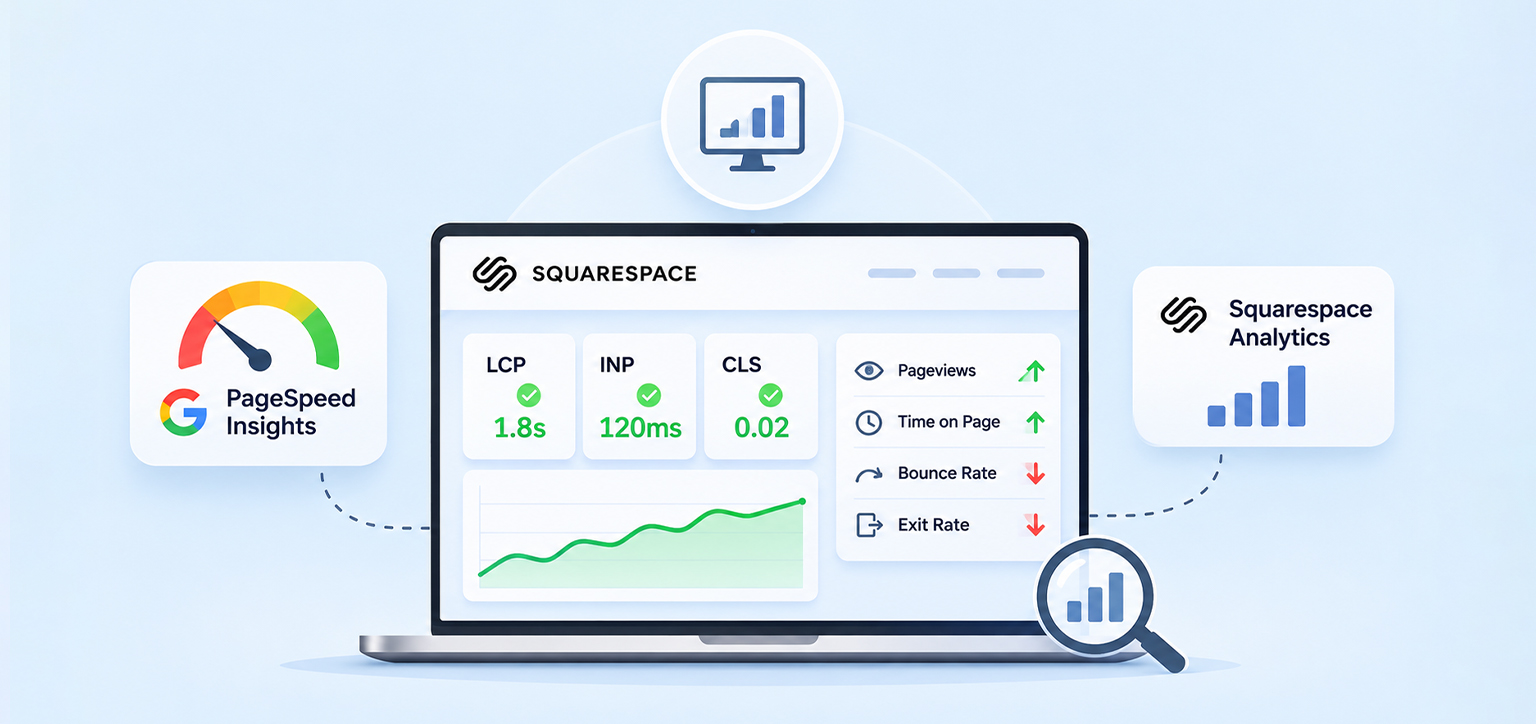
Improving website speed is not a one-time task. You should monitor performance after making changes to confirm that pages load faster and visitors can interact with them without unnecessary delays.
Start by recording your original PageSpeed Insights results before making changes. After optimization, run the same tests under comparable conditions and compare LCP, INP, CLS, and loading diagnostics.
You should also monitor visitor behavior through Squarespace Analytics. Its Site Content report provides pageviews, time on page, bounce rate, and exit rate. These measurements help identify whether particular pages continue to lose visitors.
For example, if a landing page loads faster but still has a high bounce rate, investigate whether its headline, offer, content, and call-to-action match visitor expectations.
The objective of Squarespace website optimization is not simply to achieve a higher speed score. It is to create pages that load reliably, display important information quickly, and make it easy for visitors to take the next step.
Conclusion
A Squarespace website loading slowly can affect the first impression visitors have of your business and make it harder for them to explore your content.
Start by identifying the biggest causes of delay, such as oversized pages, unnecessary scripts, excessive animations, and render-blocking resources. Improve mobile performance, monitor Core Web Vitals, and compare results after every significant change.
Most importantly, do not treat a high bounce rate as a speed problem alone. Combine technical performance improvements with relevant content, clear navigation, and a useful visitor experience to make your Squarespace website more effective.
Editorial note: Internal links above use the previously established Website Speedy article URLs. The customer review is an individual experience, not a general performance guarantee.
Frequently Asked Questions
1. Why is my Squarespace website taking so long to load?
2. Can a slow Squarespace website increase bounce rate?
3. How can I make my Squarespace website load faster without coding?
4. Why is my Squarespace website slow on mobile but fast on desktop?
5. Does Squarespace website speed affect SEO?
6. How do I check whether my Squarespace website speed has improved?
About the Author