






TL;DR: To improve BigCommerce checkout loading speed, audit third-party scripts, reduce unnecessary JavaScript, review custom checkout integrations, and prioritize essential resources. Test checkout performance on mobile and desktop, use BigCommerce’s supported checkout features, and monitor loading times regularly without compromising payment or checkout functionality.
A slow checkout can interrupt the buying process even when product and cart pages load quickly. BigCommerce checkout loading speed can be affected by third-party scripts, custom checkout code, payment integrations, JavaScript execution, and browser or network conditions.
Improving checkout performance starts with identifying where the delay occurs. Store owners can review unnecessary scripts, check checkout customizations, use BigCommerce’s supported checkout features, and test the complete purchase journey on desktop and mobile.
The important point is to optimize the resources you control without interfering with payment processing, shipping calculations, customer information, or other essential checkout functions.
BigCommerce Checkout Speed Optimization Checklist
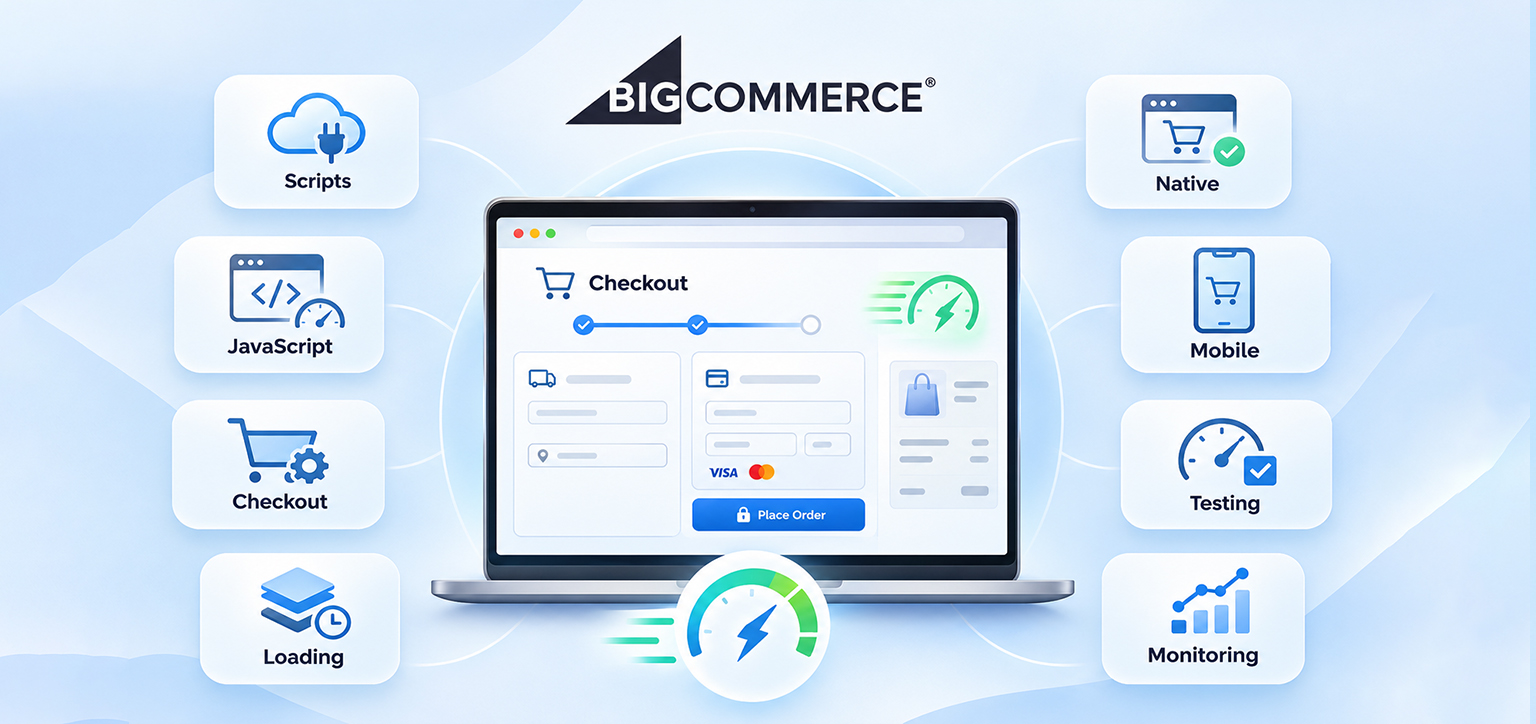
You can improve BigCommerce checkout loading speed by identifying unnecessary scripts, reviewing custom checkout elements, and testing the checkout process under different device and network conditions.
| Optimization area | What to do |
|---|---|
| Third-party scripts | Audit tracking, marketing, and other external scripts |
| JavaScript execution | Reduce unnecessary code and long-running tasks |
| Checkout customization | Review custom elements and checkout integrations |
| Resource loading | Defer nonessential scripts where safe |
| Native checkout | Review BigCommerce’s Optimized One-Page Checkout |
| Mobile performance | Test checkout on real mobile devices |
| Performance testing | Use browser developer tools and PageSpeed Insights |
| Ongoing monitoring | Retest after app, theme, or checkout changes |
Why Is My BigCommerce Checkout So Slow?
A BigCommerce checkout can load slowly when the browser has to process too many scripts, wait for external services, or execute custom code before shoppers can interact with the page.
However, not every checkout delay comes from the same source. Some problems originate in the storefront before checkout begins, while others occur after the shopper reaches the checkout page.
Common causes include:
- Third-party scripts: Tracking pixels, marketing integrations, and other external scripts can introduce additional network requests and JavaScript execution.
- Custom checkout code: Custom functionality may add scripts, API requests, or processing tasks that delay the checkout interface.
- Payment integrations: Payment methods may require external resources or additional communication with payment providers.
- Shipping and tax calculations: Checkout may need to retrieve shipping rates, validate addresses, or calculate taxes before displaying updated information.
- JavaScript execution: Large or inefficient scripts can occupy the browser’s main thread and delay user interactions.
- Mobile network conditions: Slower connections and less powerful devices can make script-heavy checkout experiences feel less responsive.
It is also important to distinguish between checkout loading and checkout processing. If the checkout page appears quickly but takes several seconds to retrieve shipping rates or process a payment, the problem may involve an external service or backend response rather than page rendering.
Identifying the exact delay helps avoid making unnecessary changes to checkout functionality.
Best Practices to Improve BigCommerce Checkout Loading Speed
Improving BigCommerce checkout performance requires identifying what delays page loading and shopper interactions. The following best practices focus on optimizing scripts, reviewing customizations, prioritizing essential resources, and maintaining a fast, reliable checkout experience.
1. Audit Third-Party Scripts Running During Checkout
Removing unnecessary third-party scripts is one of the first steps to speed up your BigCommerce checkout. Scripts that are not essential to completing an order should not compete with resources needed to display checkout fields and process customer interactions.
Many ecommerce stores use multiple integrations for analytics, advertising, customer support, reviews, personalization, and marketing automation. Each integration can introduce additional network requests or JavaScript execution.
For example, a store might load:
- Google Analytics and advertising tracking scripts.
- Meta Pixel and other advertising tags.
- Live chat and customer support widgets.
- Marketing automation and email subscription scripts.
- Promotional pop-ups and personalization tools.
These integrations are not automatically problematic. The issue arises when unnecessary scripts load during checkout or perform work that delays important interactions.
How to audit these scripts:
- Open your BigCommerce control panel and review the scripts and integrations added through Script Manager.
- Identify which scripts need to run on checkout pages and which are only necessary on storefront pages.
- Check whether multiple tools are performing the same tracking or marketing function.
- Temporarily disable nonessential scripts in a controlled testing environment.
- Compare checkout loading and functionality before and after each change.
BigCommerce provides script contexts for different page types, including checkout and order confirmation. Its developer documentation also recommends using the footer scripts object for checkout-related contexts where supported.
The goal is not to remove every external integration. Keep the scripts required for payment, security, consent, and essential checkout functionality.
2. Reduce Unnecessary JavaScript Execution
Reducing unnecessary JavaScript execution can make checkout controls respond faster, even when the page’s initial visual loading time appears acceptable.
JavaScript handles many checkout interactions, including form validation, address entry, shipping selections, payment options, and dynamic updates. When too much JavaScript runs simultaneously, it can keep the browser’s main thread busy.
This can delay actions such as opening a shipping dropdown, entering an address, selecting a payment method, or clicking the Continue button. To improve JavaScript performance, review custom scripts and integrations for unnecessary processing.
For example, a marketing script might repeatedly check page elements or run tracking functions even when the shopper is entering payment information. If this work is not required during checkout, a developer can investigate whether it can be delayed or restricted to the pages where it is needed.
Some practical improvements include:
- Remove unused JavaScript libraries and duplicated functions.
- Reduce unnecessary event listeners and repeated DOM operations.
- Break up long-running JavaScript tasks.
- Avoid loading large scripts before they are needed.
- Review scripts that repeatedly make external API requests.
Google’s guidance on optimizing Interaction to Next Paint (INP) explains how long JavaScript tasks can delay browser responses to user interactions.
3. Review Custom Checkout Scripts and Integrations
Custom checkout scripts can affect BigCommerce checkout speed when they introduce additional processing, external requests, or changes to the checkout interface.
Some merchants customize checkout to add additional fields, promotional messages, customer information, shipping options, or other functionality. These additions may be useful, but they should be reviewed for their performance impact.
For example, a custom checkout script that waits for an external service to return customer information before displaying a section can delay that part of the checkout experience.
Similarly, a script that repeatedly monitors changes to checkout elements may create unnecessary browser activity. Before modifying custom checkout functionality, identify which elements are genuinely necessary.
Ask your developer to review:
- Whether custom scripts are loading on every checkout step unnecessarily.
- Whether external API requests are delaying important checkout elements.
- Whether scripts are repeatedly modifying checkout components.
- Whether custom features can be simplified without affecting functionality.
- Whether the current checkout implementation supports BigCommerce’s latest updates.
BigCommerce supports its Optimized One-Page Checkout as well as custom checkout implementations using its Checkout SDK. However, custom checkout development requires additional technical responsibility.
According to BigCommerce’s documentation, custom checkouts may not receive the automatic updates available to the default checkout and can introduce additional PCI-DSS responsibilities. Therefore, switching to a custom checkout purely to improve loading speed is not automatically a good solution.
For most merchants, reviewing existing customizations before considering a complete checkout replacement is a more practical starting point.
4. Use Async and Defer Loading for Nonessential Scripts
Asynchronous and deferred JavaScript loading can reduce the impact of nonessential scripts on page rendering, provided the scripts do not need to run immediately.
Normally, a browser may pause HTML parsing when it encounters a synchronous JavaScript file. This can delay the display of important content.
The async and defer attributes allow browsers to download scripts without blocking HTML parsing in the same way.
For example:
<script src="/assets/analytics.js" defer></script>With defer, the browser downloads the script while parsing the document and executes it after HTML parsing finishes, while preserving the order of deferred scripts.
By comparison:
<script src="/assets/tracking.js" async></script>With async, the script executes as soon as it finishes downloading, so execution order is not guaranteed.
BigCommerce’s Scripts API supports default, async, and defer loading methods for eligible scripts. Developers can use these options to control how scripts load, provided the selected method does not interfere with checkout initialization, payment integrations, or script dependencies.
Do not blindly apply async or defer to payment integrations, checkout initialization code, or scripts that depend on a specific execution order. Doing so can cause functionality to fail.
Google’s guide to efficiently loading third-party JavaScript explains how to reduce the rendering impact of external scripts.
5. Review BigCommerce’s Optimized One-Page Checkout
BigCommerce’s Optimized One-Page Checkout provides a native checkout experience designed to make the purchase process easier and reduce unnecessary friction.
Before investing in custom checkout development, check whether your store is using the latest available native checkout experience and whether its supported settings are configured correctly.
BigCommerce introduced its enhanced checkout experience in October 2026. It includes a shorter checkout flow, updated layouts, smoother loading states, and improved interactions. The experience is available for stores using Optimized One-Page Checkout. Existing eligible stores can enable it through their checkout settings, while newly created stores have it enabled by default.
You can review the setting in your BigCommerce control panel under Settings → Checkout and select Enable enhanced checkout experience when appropriate. Test the change before making it available to all shoppers.
Another useful feature is checkout pre-rendering.
BigCommerce supports pre-rendering for eligible Stencil-based storefronts using an uncustomized checkout page. This allows supported browsers to begin loading the checkout page in the background before the shopper navigates to it, potentially reducing the perceived transition time from cart to checkout.
However, there are limitations:
- Pre-rendering currently works with Chrome- and Edge-based browsers, but not iOS.
- Custom checkout pages, including Checkout SDK implementations, do not support this feature.
- Updating the cart before navigating to checkout can prevent pre-rendering.
This feature can reduce the perceived delay between clicking the checkout button and seeing the checkout page, although it does not guarantee that every checkout interaction will become faster.
For stores using the native checkout, checking these platform-supported improvements is often more practical than rebuilding checkout from scratch.
6. Improve BigCommerce Checkout Performance on Mobile
Improving mobile checkout performance requires testing the actual purchase journey on smartphones, not just checking whether the checkout layout fits a smaller screen.
Mobile devices may have slower network connections and less processing power than desktop computers. As a result, JavaScript-heavy checkout pages and external integrations can take longer to load or respond.
For example, a payment selection dropdown that responds immediately on a desktop may feel delayed on an older smartphone when several scripts are running simultaneously.
To improve BigCommerce checkout mobile performance, focus on the following:
- Remove unnecessary scripts that run during mobile checkout.
- Check that form fields and dropdowns respond quickly.
- Avoid adding heavy promotional elements to the checkout interface.
- Ensure buttons remain accessible and responsive.
- Test address entry, shipping selection, and payment steps on real devices.
- Check whether the checkout layout shifts while content loads.
Do not focus only on the initial page display. Test how quickly shoppers can interact with each checkout step. It is also worth checking the storefront pages leading into checkout. If the cart page is slow, shoppers may experience a delay before checkout even begins.
7. Prioritize Critical Resources and Reduce Rendering Delays
Prioritizing critical resources helps the browser display important checkout content without waiting unnecessarily for secondary elements.
Checkout pages contain several types of resources, including stylesheets, JavaScript files, fonts, images, and external integrations. Not every resource needs to load at the same time.
Developers should identify which resources are required to display and operate the checkout interface and which can safely load later.
For example, checkout styling and essential interface scripts need to be available when the checkout page is rendered. A nonessential promotional widget may not need to load before the customer can enter their shipping information.
Useful techniques include:
- Loading critical styles early.
- Avoiding unnecessary external font requests.
- Preloading genuinely critical resources where appropriate.
- Deferring nonessential scripts.
- Reducing unnecessary resource requests.
- Avoiding duplicate libraries and assets.
However, resource prioritization should be applied carefully. Preloading too many files can compete with more important resources rather than improving performance. The browser resource prioritization guide explains how browsers decide which resources to download first.
Also, remember that some checkout resources are controlled by BigCommerce or payment providers. Merchants cannot directly optimize every platform-managed file.
8. Test BigCommerce Checkout Loading Speed
Testing the checkout process helps identify whether delays occur when opening the checkout page, loading its content, or interacting with individual checkout elements.
A general homepage speed test is not enough to diagnose checkout-specific performance issues.
Start by testing the complete customer journey:
- Open a product page.
- Add a product to the cart.
- Navigate to the cart page.
- Click the checkout button.
- Wait for the checkout interface to become usable.
- Enter test customer and shipping information.
- Check shipping and payment selection.
- Verify that the order review and confirmation steps work correctly.
Use a test order or an appropriate sandbox payment environment when testing payment functionality. Do not submit unnecessary real transactions.
Which tools can help test BigCommerce checkout performance?
| Tool | What to investigate |
|---|---|
| Chrome DevTools | Network requests, script execution, loading delays |
| Lighthouse | Rendering issues and JavaScript-related diagnostics |
| PageSpeed Insights | Available lab data and real-user performance data |
| WebPageTest | Request waterfall and third-party resource loading |
Chrome DevTools is particularly useful because its Network panel shows which resources take the longest to load. Its Performance panel helps identify long JavaScript tasks and delays in browser interactions.
PageSpeed Insights can help assess storefront performance, but checkout URLs may require a session or specific customer state. A protected checkout page may not be accessible to automated testing tools.
In those situations, use browser-based testing with a real checkout session rather than assuming that a homepage or product-page score represents checkout performance.
9. Monitor Checkout Performance After Optimization
Monitoring checkout performance after making changes helps you identify regressions before they affect more shoppers.
A checkout that performs well today may become slower after installing a new app, updating a theme, changing payment integrations, or adding custom functionality.
Create a simple testing routine that includes:
- Testing the cart-to-checkout transition after major storefront changes.
- Checking checkout loading on both mobile and desktop.
- Reviewing third-party requests and JavaScript execution.
- Checking payment, shipping, and address validation functionality.
- Comparing performance results against your original baseline.
Track three important aspects of performance:
| Measurement | What it tells you |
|---|---|
| Loading time | How long shoppers wait before checkout becomes usable |
| Interaction responsiveness | How quickly checkout responds to clicks, selections, and form entries |
| Layout stability | Whether checkout elements unexpectedly move while loading |
Core Web Vitals can provide additional context for the storefront experience. Google’s recommended good thresholds are LCP of 2.5 seconds or less, INP of 200 milliseconds or less, and CLS of 0.1 or less at the 75th percentile of real-user visits. However, these metrics should not be treated as a complete checkout performance score.
Website Speedy provides website performance comparisons and optimization reporting that can help merchants monitor storefront loading performance. Its general storefront optimizations should not be confused with direct control over BigCommerce’s hosted checkout application. Always verify whether a particular optimization applies to your checkout implementation before relying on it.
For example, one BigCommerce App Marketplace customer described the experience this way:
“Have seen instant results in our web shop site speed and at the same time increased shoppers and time spent shopping on our BigCommerce web shop.”
This is an individual customer’s experience with overall store speed, not a measured checkout-specific result or a guarantee of similar improvements.
The practical approach is to keep measuring the same pages and customer journey after every significant change. That makes it easier to identify which updates actually improve performance.
What to Check Before Making Checkout Speed Changes
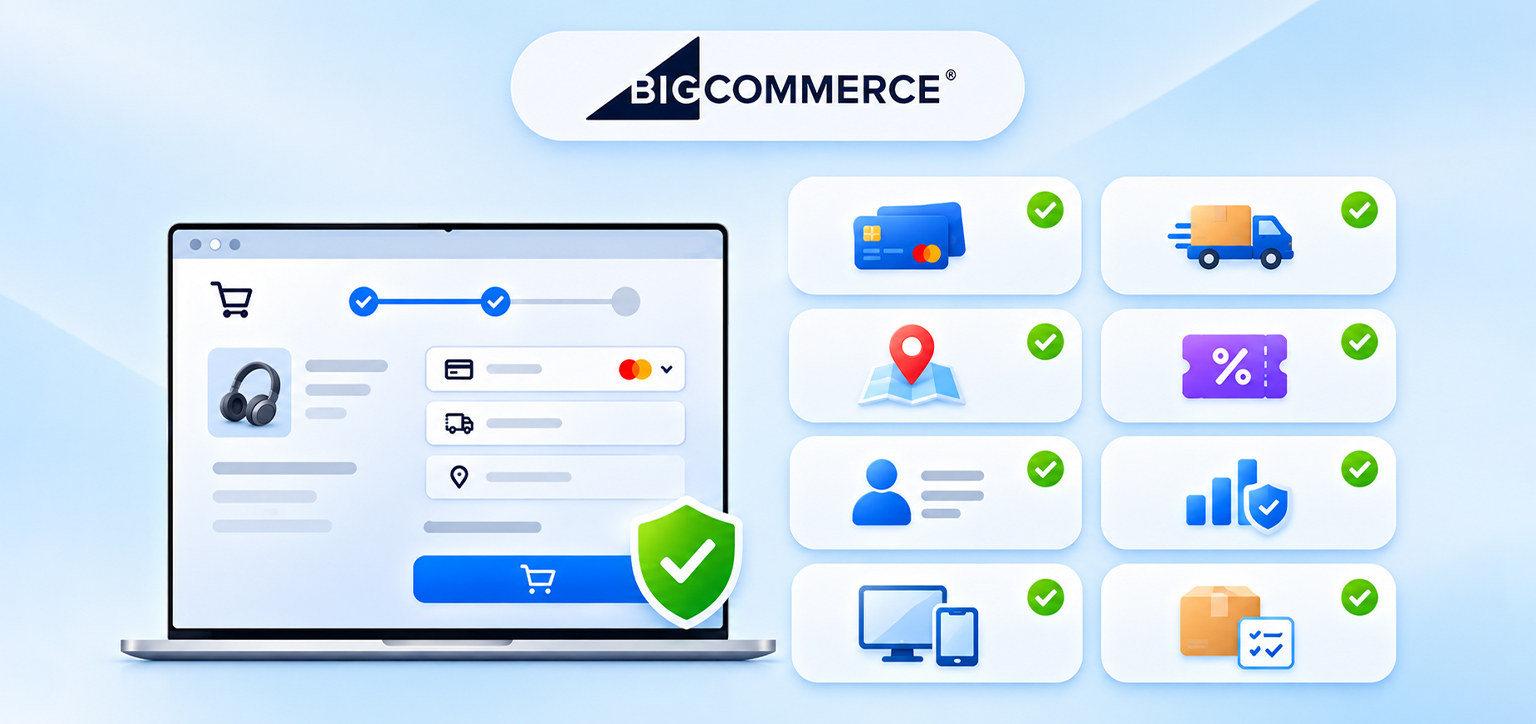
Before deploying checkout optimizations, verify that the changes do not interfere with essential purchasing functionality.
Use this checklist:
- Payment methods load and process transactions correctly.
- Shipping rates and delivery options update correctly.
- Address validation works as expected.
- Discount codes and promotions are applied correctly.
- Customer information is retained when moving between checkout steps.
- Required analytics and consent scripts continue to function.
- Checkout works on mobile and desktop.
- Order confirmation and tracking events work correctly.
A checkout page that loads faster but breaks payment processing is not an improvement. Always prioritize reliability alongside speed.
Conclusion
Improving BigCommerce checkout loading speed requires more than reducing the number of files on a page. It involves understanding how scripts, customizations, external services, and browser processing affect the actual purchase journey.
Start by identifying where shoppers experience delays, review unnecessary scripts, and optimize custom functionality where possible. Use BigCommerce’s supported checkout features, test on real mobile devices, and monitor performance after every significant change.
Most importantly, make sure every speed improvement preserves the reliability and functionality customers need to complete their orders.
Frequently Asked Questions
1. Why is my BigCommerce checkout so slow?
2. Do third-party scripts slow down BigCommerce checkout?
3. Can custom checkout scripts affect BigCommerce checkout speed?
4. How can I improve BigCommerce checkout speed on mobile?
5. How do I test BigCommerce checkout loading speed?
6. How can I monitor BigCommerce checkout performance after optimization?
About the Author