






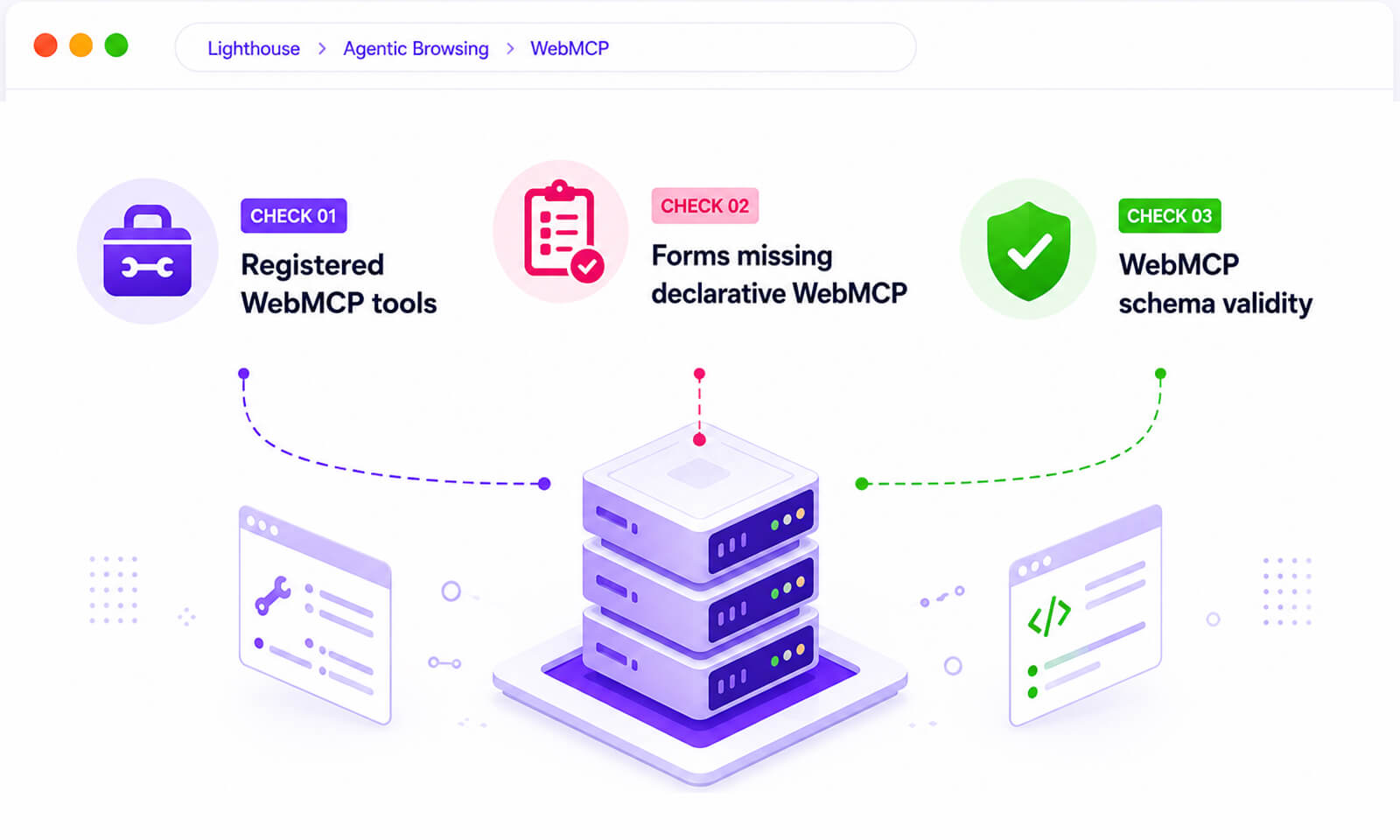
TL;DR: Lighthouse’s Agentic Browsing category includes three WebMCP audits: registered tools, forms missing declarative WebMCP, and schema validity. The first two are informational, while schema validity can produce a failure.
If you’re exploring the latest Lighthouse features, you may notice a new category called Agentic Browsing. Below Performance, Accessibility, and SEO sits a section called Agentic Browsing, and three of the checks inside it make up the WebMCP audit. There’s no familiar 0-100 number, some checks return “Not Applicable” instead of a pass or fail, and nothing explains what to do about it.
Here’s why this matters. AI agents are increasingly being designed to fill out forms, search products, make bookings, and complete other tasks on websites. These audits give developers an early way to check whether their pages are ready for that kind of interaction.

What Is the WebMCP Audit in Lighthouse?
The WebMCP audit is a group of checks inside Lighthouse’s agentic browsing category that look at whether your site exposes structured tools to AI agents. It behaves differently from every other category. Google confirms there’s no weighted 0-100 score, you get a fractional pass ratio instead, showing how many agentic readiness checks your page clears. Chrome’s agent-ready developer toolkit post describes it as informational and unbenchmarked at this stage.
Two practical notes. Testing requires Chrome 150 or later, and the WebMCP audits require registering for the WebMCP origin trial. You also won’t find this category in the standard PageSpeed Insights report, it lives in the Lighthouse panel in DevTools and in the CLI.
One clarification: despite the name, WebMCP doesn’t run on a separate server. Tools are exposed by the webpage and made available to a WebMCP-aware agent through the browser.
The Three WebMCP Validation Checks Explained
The three WebMCP audits focus on whether your page exposes usable tools, properly connects forms to those tools, and follows the required schema structure. Here’s what each check looks for and what to do if Lighthouse flags an issue.
| Audit | What it checks | Can it fail? |
|---|---|---|
| Registered WebMCP tools | Inventory of every tool your page exposes | No, informational |
| Forms missing declarative WebMCP | Forms without both toolname and tooldescription | No, informational for now |
| WebMCP schema validity | Attribute symmetry and input naming | Yes |
Registered WebMCP tools
This one is an inventory, not a test. The registered WebMCP tools audit lists every tool detected on the page, whether you declared it in HTML with toolname and tooldescription attributes or registered it in JavaScript through the modelContext API. If no tools are registered, the list comes back empty.
Treat it as a verification step: if you registered five tools and Lighthouse detects only three, check the registration method, page state, and when those tools became available.
Forms missing declarative WebMCP
This checks flags <form> elements that don’t carry both a toolname and a tooldescription. Google notes that agents can often infer how a form works on their own, but declarative metadata makes the interaction more reliable.
For now, the form coverage audit is informational and produces no warnings, though it’s the likeliest of the three to tighten as the standard matures.
3. WebMCP Schema Validity: The Only Audit That Can Fail
This is the one that matters. Chrome’s documentation on WebMCP schema validity lists three failure conditions:
- A form has a
tooldescriptionbut is missing thetoolnameattribute - A form has a
toolnamebut is missing thetooldescriptionattribute - A required form field is missing a
nameattribute
Lighthouse also issues a warning, not a failure, when an optional field has a name but is missing a toolparamdescription or an associated <label>.
What this means is that a partially declared tool gives the agent less useful information than a complete tool definition. If a form has a toolname but no tooldescription, the schema-validity audit can flag it, and the agent has less context about what that tool is meant to do.
One distinction is worth making here, because the naming causes confusion. WebMCP schema validity has nothing to do with schema.org structured data. This audit validates the attributes on your tool forms, not your JSON-LD markup. The two sit on different layers of the same problem: JSON-LD structured data helps machines understand what a page means, while WebMCP describes what a page can do.
They solve different problems, but they can work alongside each other: Schema.org helps describe what a page contains, while WebMCP helps agents interact with what the page can do.
Why Do the WebMCP Audits Show “Not Applicable”?
Usually, it means Lighthouse did not detect any WebMCP tools on the page. When Lighthouse detects no registered tools, it marks all three WebMCP audits as Not Applicable and excludes them from your pass ratio. Your score isn’t being penalized, those checks simply aren’t counted.

One exception is worth knowing. If you register tools with JavaScript, when that registration happens can affect what Lighthouse detects. If your audit says Not Applicable even though your page has WebMCP tools, check when the tools become available during the audit.
How Do You Pass All Three WebMCP Checks?
Start with these three fixes to address the WebMCP checks that matter most.
1. Keep tool attributes symmetric: Every form acting as a tool needs both a toolname and a tooldescription. Never one without the other. Use action-oriented names like book_appointment rather than vague labels.
2. Give form inputs clear name attributes: A required field without a name attribute can cause the schema-validity audit to fail.
3. Add parameter context: Use toolparamdescription or an associated <label> to give the agent more context about what an input expects, such as a date, city, or order number.
Start with your highest-intent forms rather than every form on the site. Quote requests, search, signup, and checkout are where agent interaction actually produces revenue, usually three or four templates, not fifty.
What Else Does Lighthouse Check for Agentic Browsing?
Here’s the important distinction. WebMCP audits focus specifically on WebMCP implementation, while other Agentic Browsing audits look at things such as the accessibility tree and layout stability. Those checks can apply even when you haven’t implemented WebMCP.
CLS matters here because unexpected movement can make an interface harder for an agent to interact with reliably. Ads, unsized images, and dynamically injected content can move elements after they have been identified. Reducing cumulative layout shift improves the experience for people and makes the page more stable for agent interaction.
Final Takeaways
The WebMCP schema-validity audit is one of the three WebMCP checks that can produce a failure. “Not Applicable” means Lighthouse did not detect the conditions needed to run those WebMCP checks. The broader Agentic Browsing category also looks at accessibility and layout stability.
Start with the forms and workflows where agent interaction would be most useful, then use Lighthouse to check how the page handles WebMCP, accessibility, and layout stability. If you’re also working on site speed, run a speed audit to see where your Core Web Vitals stand.
Frequently Asked Questions
Do WebMCP audits hurt your Lighthouse score if you haven't adopted WebMCP?
Does the WebMCP audit affect Google rankings?
Does WebMCP work in browsers other than Chrome?
About the Author