






TL;DR: If your website becomes slow after adding tracking scripts, the cause is usually the combined impact of analytics, pixels, and other third-party tags loading and running in the browser. This article explains why tracking scripts slow websites down, which tools have the biggest impact, and how to reduce performance issues without losing valuable tracking data.
You optimize your website, improve hosting, and achieve strong performance scores. Then you add Google Analytics, Facebook Pixel, Google Tag Manager, or other tracking tools, and suddenly the website feels slower, interactions become less responsive, and Core Web Vitals start slipping.
If your website becomes slow after adding tracking scripts, the cause is often the combined impact of multiple third-party tags loading resources, executing JavaScript, and competing for browser resources.
This article explains why tracking scripts affect website performance, which tools have the biggest impact, and how to reduce slowdowns without sacrificing valuable tracking data.
Why Adding Tracking Scripts Makes Your Website Slow
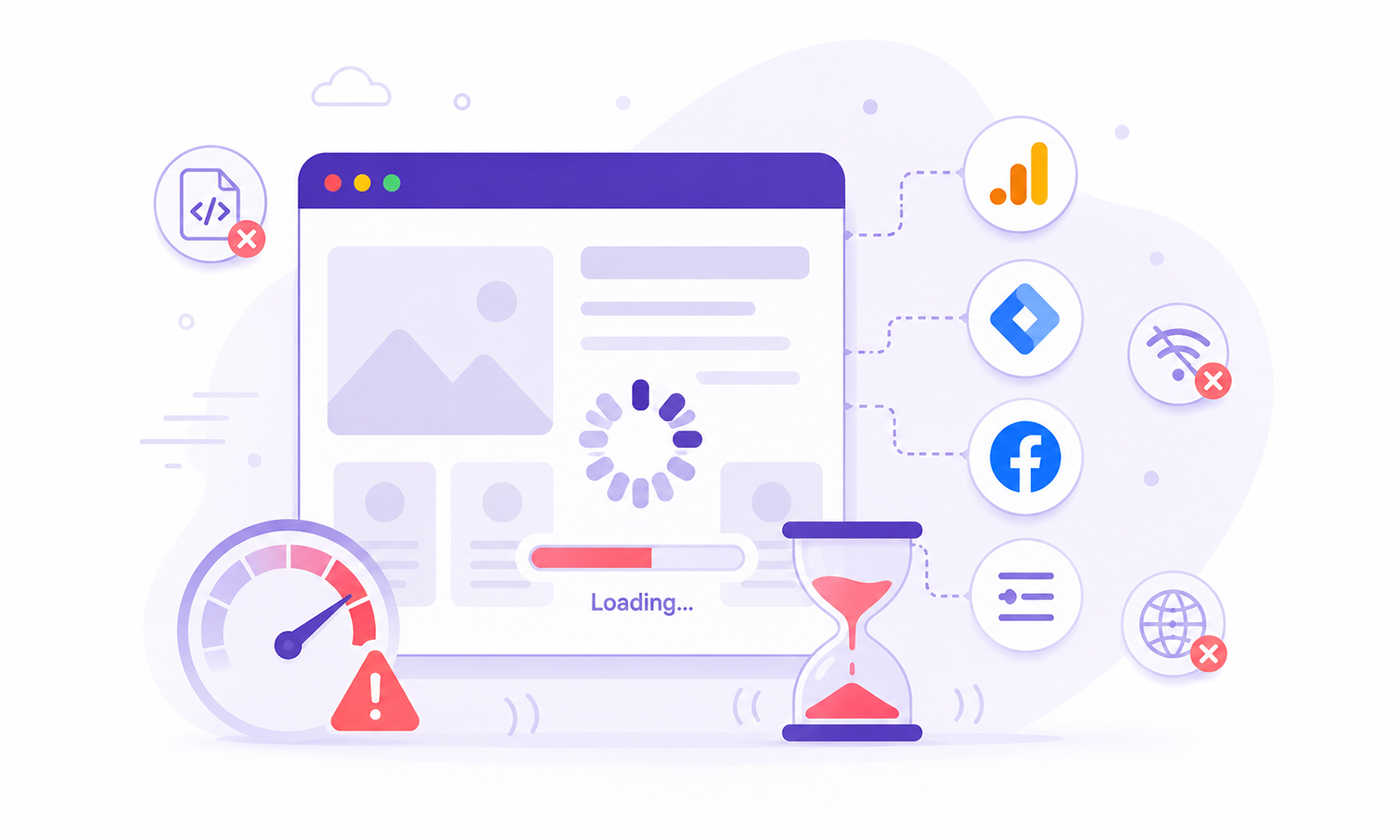
When a website becomes slow after adding tracking scripts, the most common reason is that multiple analytics, advertising, and marketing tags add extra work for the browser. They must load external resources, execute JavaScript, and process tracking data, which can affect page speed and responsiveness.
Common causes include:
- More HTTP requests to third-party servers.
- Additional JavaScript execution and processing.
- Delays from external tracking platforms.
- Multiple tags are competing for browser resources.
- Main thread blocking that delays user interactions.
- Background activities such as heatmaps, session recordings, and conversion tracking.
In short, the slowdown is usually caused by the combined impact of multiple tracking scripts rather than a single tool like Google Analytics or Facebook Pixel.
Tracking Scripts and Website Performance at a Glance
The table below provides a quick overview of how common tracking tools typically affect website performance. While the actual impact varies by implementation, it helps identify which scripts deserve the closest attention.
| Question | Short Answer |
|---|---|
| Can tracking scripts slow down a website? | Yes. Every script adds network requests and JavaScript processing. |
| Is Google Analytics usually the main culprit? | Rarely. The combined effect of multiple scripts is often the real issue. |
| Does Facebook Pixel affect speed? | It can add network activity and JavaScript execution time. |
| Is Google Tag Manager bad for performance? | GTM itself is lightweight; the tags inside it usually create performance issues. |
| Can third-party scripts affect Core Web Vitals? | Yes. They can increase loading time and reduce responsiveness. |
What Are Tracking Scripts?
Tracking scripts are snippets of code added to a website to collect user behavior data. They help businesses understand traffic sources, measure conversions, run advertising campaigns, and improve user experience.
Common examples include:
- Google Analytics
- Google Tag Manager
- Facebook Pixel
- LinkedIn Insight Tag
- Microsoft Clarity
- Hotjar
- TikTok Pixel
- Conversion tracking tags
Most of these tools rely on external servers, making third-party scripts a key factor in website performance when diagnosing speed problems.
According to Google, third-party JavaScript often introduces additional network requests, rendering delays, and execution overhead that can negatively impact performance.
Major Causes of Slow Website Speed After Adding Tracking Scripts
Tracking scripts help collect valuable data, but every script added to a page introduces additional work for the browser. As more tracking tools accumulate, their cumulative effect can affect loading speed, responsiveness, and overall user experience.
1. Additional HTTP Requests Increase Loading Work
Every tracking script requires the browser to connect to external servers, download resources, and establish secure connections. While a single analytics tool may only add a few requests, multiple marketing and advertising platforms can generate dozens of additional HTTP requests before a page becomes fully interactive.
What to do:
Audit third-party tags regularly and remove any scripts that no longer serve a clear business purpose.
2. Third-Party Servers Become Part of Your Performance Budget
When you install a tracking tool, part of your website’s performance depends on the provider’s infrastructure. Even if your hosting is fast, delays from a third-party server can slow down resource loading and affect the user experience.
What to do:
Limit reliance on unnecessary third-party services and prioritize tools with a proven performance record.
3. JavaScript Execution Consumes Browser Resources
Tracking scripts don’t just download, they must also be parsed, compiled, and executed by the browser. Excessive JavaScript can delay rendering and increase the time it takes for users to interact with the page.
What to do:
Minimize custom tracking code and defer non-essential scripts whenever possible.
4. Multiple Tags Create a Compound Effect
Many website owners assume a single tool is responsible for performance issues. In reality, the problem is often the combined impact of analytics platforms, advertising pixels, chat widgets, heatmaps, and conversion tracking tags running simultaneously.
What to do:
Consolidate overlapping tools and regularly review whether each tracking script is still necessary.
5. Main Thread Blocking
Some tracking scripts continue running after the page loads, processing events and monitoring user activity in the background. This can keep the browser’s main thread busy, resulting in delayed clicks, scrolling, and slower interactions.
What to do:
Prioritize critical website functionality and delay non-essential tracking tasks until after the main content has loaded.
Which Tracking Scripts Usually Have the Largest Impact?
Not all tracking tools affect performance equally. The number of scripts matters, but the type of script matters even more. A single session-recording tool can have a greater impact than several lightweight analytics tags.
| Tracking Tool Type | Typical Impact |
|---|---|
| Google Analytics | Low |
| Google Tag Manager | Low to Medium |
| Facebook Pixel | Medium |
| LinkedIn Insight Tag | Medium |
| Heatmap Tools | Medium to High |
| Session Recording Tools | High |
| Live Chat Widgets | High |
| Advertising Networks | High |
Is Google Analytics Slowing Your Website?
Google Analytics is often blamed when a site’s performance declines. In reality, modern GA4 implementations are generally optimized to load asynchronously. On most websites, the impact is minimal when Analytics is the only tracking solution installed.
Problems typically appear when Analytics is combined with numerous other marketing and advertising tags. In these situations, Analytics becomes part of a larger collection of scripts competing for browser resources rather than the primary cause of the slowdown.
Does Facebook Pixel Affect Website Speed?
The relationship between Facebook Pixel and website speed is more noticeable than many website owners expect.
Facebook Pixel tracks user actions, conversions, and remarketing events. To accomplish this, it loads JavaScript, sends requests to Meta’s servers, and processes event data.
Individually, the impact may be moderate. However, when combined with other marketing technologies, Facebook Pixel can contribute to slower page responsiveness and increased network activity.
Is Google Tag Manager Causing Your Website to Slow Down?
Discussions around Google Tag Manager performance often miss an important detail. Google Tag Manager itself is not usually the problem.
GTM acts as a container that loads other tags. An empty container has minimal performance impact. The real issue is often the number and quality of tags loaded through it.
Google itself emphasizes managing container size, removing unused tags, and minimizing custom code for better efficiency. In many audits, a website with GTM contains:
- Duplicate analytics tags
- Outdated marketing scripts
- Unused advertising pixels
- Excessive custom JavaScript
These hidden additions are often responsible for a slow website after adding tags.
Signs That Tracking Scripts Are Hurting Performance
You may be dealing with tracking code website speed issues if you notice:
- Increased JavaScript execution time
- Higher Total Blocking Time (TBT)
- Poor INP scores
- Lower Lighthouse scores
- Increased network requests
- Delayed page interactivity
- Slower mobile performance
Interestingly, many websites still achieve high lab scores while users report sluggish experiences because third-party scripts often impact real-world interactions more than synthetic tests.
How to Identify Which Tracking Script Is Causing the Slowdown
If your website becomes slow after adding tracking scripts, identifying the responsible tag can help prevent unnecessary performance issues.
Step 1: Compare Performance Before and After Installation
Check page speed metrics before and after adding a new tracking script. A noticeable drop may indicate the new tag is contributing to the slowdown.
Step 2: Review Chrome DevTools
Use the Network tab in Chrome DevTools to identify third-party scripts that take a long time to load or generate excessive requests.
Step 3: Check Lighthouse Reports
Lighthouse can highlight third-party JavaScript, excessive execution time, and other issues affecting website performance.
Step 4: Audit Installed Tags
Review all analytics, advertising, chat, and heatmap tools currently running on the site. Unused or duplicate tags are common causes of unnecessary overhead.
Step 5: Monitor Core Web Vitals
Track performance metrics like LCP and INP after adding new scripts. Changes in these metrics can reveal whether a tracking tool is affecting user experience.
How to Reduce the Impact of Tracking Scripts on Website Speed
Tracking data is valuable, but collecting it shouldn’t come at the expense of user experience. Effective website speed optimization focuses on balancing accurate tracking with fast page performance.
-
Remove Unused Tags
Many websites continue loading old analytics tools, abandoned marketing pixels, or duplicate tracking scripts. Removing unnecessary tags is often the quickest website speed optimization win.
-
Delay Non-Essential Scripts
Not every tracking tool needs to load immediately. Delaying non-critical scripts until after key page content loads can improve perceived performance and responsiveness.
-
Load Scripts Asynchronously
Asynchronous loading allows the browser to continue rendering page content while tracking scripts downloaded in the background, reducing the likelihood of delays.
-
Limit Marketing and Retargeting Pixels
Each advertising pixel adds network requests and JavaScript processing. Limiting tracking to the platforms that provide meaningful business value helps control performance costs.
-
Consolidate Tracking Tools
Using multiple tools that collect similar data can create unnecessary overhead. Consolidating analytics and marketing platforms can improve tracking code website speed without sacrificing visibility.
-
Audit Google Tag Manager Regularly
Google Tag Manager performance depends largely on the tags inside the container. Regular audits help remove outdated scripts, duplicate tags, and unnecessary custom JavaScript.
-
Use Server-Side Tracking When Appropriate
Server-side tagging can reduce the amount of JavaScript executed in the browser for some tracking implementations while still capturing important analytics and conversion data.
-
Monitor Performance After Every New Tag
Every new tracking implementation should be treated as a performance change. Testing after deployment helps identify issues before they affect a large number of users.
Best Practices for Balancing Tracking and Performance
Website owners often face a trade-off between collecting more data and maintaining a fast user experience. The most effective approach is finding a balance that supports both business goals and performance.
- Track only the data that supports meaningful business decisions.
- Avoid duplicate analytics implementations across multiple platforms.
- Review third-party scripts regularly and remove anything no longer needed.
- Prioritize Core Web Vitals alongside marketing and reporting requirements.
- Evaluate whether the value of a tracking tool justifies its performance cost.
A fast website and accurate analytics are not mutually exclusive. By carefully managing tracking technologies, businesses can maintain visibility into user behavior while preserving the speed and responsiveness visitors expect.
Conclusion
If your website becomes slow after adding tracking scripts, the cause is usually the combined impact of multiple analytics, advertising, and marketing tags rather than a single tool. These scripts add extra requests, JavaScript processing, and third-party dependencies that can affect page speed and user experience.
The good news is that you don’t have to choose between tracking and performance. By auditing tags regularly, removing unnecessary scripts, and optimizing how they load, you can collect valuable data while maintaining a fast, responsive website.
Frequently Asked Questions
Why is my website slow after adding tracking scripts?
Can Google Analytics slow down a website?
Does Facebook Pixel affect page speed?
Is Google Tag Manager bad for website speed?
How many tracking scripts are too many?
What is the biggest cause of tracking scripts slowing down website performance?
About the Author