






TL;DR: LCP request discovery issues happen when the browser finds the main content too late, delaying how quickly it appears, even if the asset is optimized. The fix is to keep the LCP element in the initial HTML, preload it early, and give it high priority so it loads immediately. Once discovery happens on time, LCP improves without major changes.
If your PageSpeed Insights report is flagging LCP request discovery, it’s usually a sign that something fundamental is off in how your page loads.
Site owners assume speed issues are always about heavy images or slow hosting, but in reality, resource discovery timing plays an equally important role. If the browser doesn’t find your largest content early, even a perfectly optimized image can end up loading too late.
What makes this issue tricky is that everything might look fine on the surface. Your page may feel “okay,” your images may be compressed, and your scripts may be minified. But behind the scenes, the browser is following a strict sequence, and if your key content enters that sequence too late, your LCP score suffers. In this guide, we’ll break that down clearly and show you how to fix LCP request discovery with real examples so you can apply changes confidently.
What LCP Measures
Largest Contentful Paint (LCP) measures the time it takes for the largest visible element on your page to fully render. This is typically the hero image, banner section, or a large heading that users immediately notice when they land on your site. It’s not about when the page technically starts loading, it’s about when users feel like the page has loaded.
Tools like PageSpeed Insights and Chrome DevTools track LCP because it reflects real user experience. A site can start loading quickly, but if the main content takes too long to appear, users still perceive it as slow.
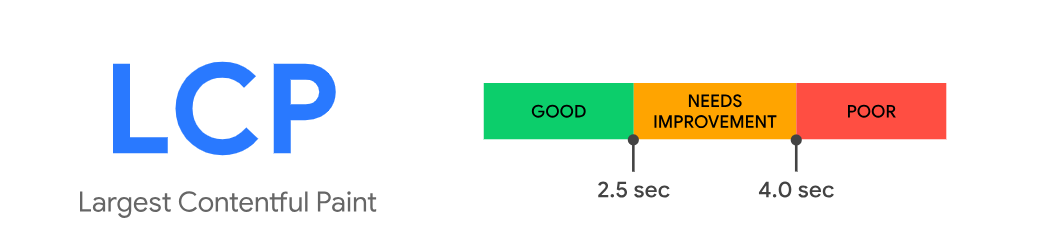
Google recommends keeping LCP under 2.5 seconds because that’s the threshold where users feel the page is responsive. Once it crosses that line, engagement drops, bounce rates increase, and over time, rankings can be affected. That’s why optimizing LCP is directly tied to how users interact with your site.
What “LCP Request Discovery” Actually Means
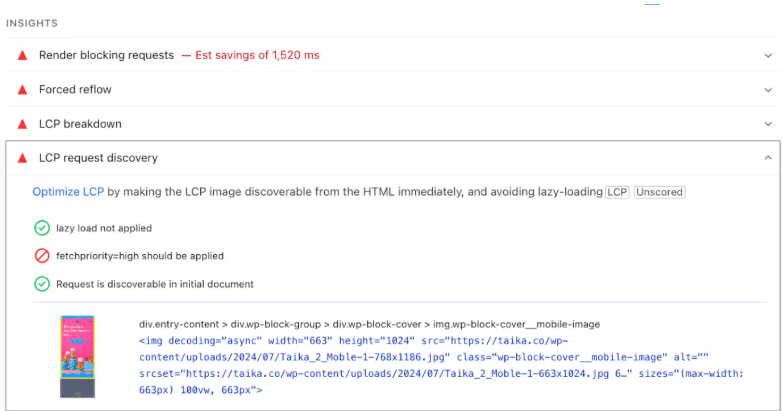
When you see LCP request discovery in diagnostics, it’s specifically pointing to a delay in how quickly the browser identifies the resource responsible for your LCP. In simple terms, the browser doesn’t know early enough which element it should prioritize.
When a page loads, the browser parses the HTML and looks for resources like images, stylesheets, and scripts. If your LCP element is clearly visible in that initial HTML, the browser can immediately start fetching it. But if that element is hidden inside JavaScript, CSS, or delayed logic, the browser has to wait before it even realizes that the resource exists.
That delay is what this issue highlights. It’s about late discovery. And once discovery is delayed, everything else shifts further down the timeline, increasing your overall LCP.
Why This Issue Happens
For websites, this issue often comes from how modern layouts are built. Many developers rely on JavaScript frameworks, sliders, or dynamic content rendering. While these approaches offer flexibility and interactivity, they often delay when key elements appear in the loading process.
For instance, if your hero section is generated using JavaScript, the browser must first download and execute that script before it can even see the image. This creates a chain reaction where discovery is pushed back, even if the image itself is lightweight and optimized.
Similarly, using CSS background images might seem like a clean design choice, but it hides the image from the browser’s initial scan. The browser only discovers it after downloading and parsing CSS, which introduces unnecessary delay.
Lazy loading is another example where a good optimization technique is misapplied. It’s designed to improve performance by delaying offscreen images, but when used on above-the-fold content, it prevents the browser from loading the most important element immediately.
Even in cases where everything seems correct, the browser may still prioritize other resources like CSS or fonts unless explicitly told otherwise. Without clear signals, it doesn’t always understand which element is critical.
How to Fix LCP Request Discovery
Fixing this issue is about making sure your most important content is visible, prioritized, and loaded as early as possible. Each fix works together, and understanding why they work will help you apply them more effectively.
1. Make Sure the LCP Image Is in HTML (Not Injected Later)
Problem Example (Bad Practice):
// Image added after page load using JavaScript
const img = document.createElement("img");
img.src = "hero.webp";
document.body.appendChild(img);
In this case, the browser doesn’t see the image during the initial page load. It has to wait until the JavaScript file is downloaded and executed. Only after that does the image get added to the page, which delays both discovery and loading.
Correct Approach (Good Practice):
<img src="hero.webp" alt="Hero Banner">Here, the image is part of the initial HTML. As soon as the browser starts parsing the page, it immediately detects the image and begins loading it. This eliminates unnecessary delay and ensures the LCP process starts as early as possible.
2. Preload the LCP Image (Tell Browser Early)
Example:
<link rel="preload" as="image" href="/hero.webp" fetchpriority="high">
This line is placed inside the section of your page. It acts as an early signal to the browser, telling it to fetch the image right away instead of waiting to discover it naturally.
What makes preload powerful is that it accelerates the normal discovery process. Even before the browser fully parses the body content, it already knows that this image is important and starts downloading it.
3. Add fetchpriority=”high” (Reinforce Importance)
Example:
<img src="/hero.webp" fetchpriority="high" alt="Hero Banner">This attribute helps the browser understand which resources should take priority when multiple assets are loading simultaneously. Without this, the browser might allocate bandwidth to scripts or styles instead of your main image.
By setting a high fetch priority, you’re ensuring that the browser keeps your LCP element at the top of its loading queue.
4. Remove Lazy Loading from LCP Image
Problem Example:
<img src="hero.webp" loading="lazy" alt="Hero">Lazy loading delays the image until the browser determines it’s needed. While this is useful for images further down the page, it creates unnecessary delay for content that should appear immediately.
Correct Version:
<img src="hero.webp" alt="Hero">Removing lazy loading ensures that the browser treats the image as essential and loads it right away, which is exactly what you want for LCP.
5. Fix CSS Background Image Issue
Problem Example:
.hero {
background-image: url("hero.webp");
}
When images are defined in CSS, the browser cannot detect them during the initial HTML parsing phase. It first needs to download and process the CSS file, which delays discovery.
Better Approach:
<p><img src="hero.webp" alt="Hero Banner"></p>By placing the image in HTML, you allow the browser to discover it immediately.
Alternative Fix (If CSS Must Be Used):
<link rel="preload" as="image" href="/hero.webp">This ensures the image is still loaded early, even if it remains in CSS.
6. Reduce Render Blocking
Problem Example:
<head>
  <script src="main.js"></script>
</head>
This script blocks the browser from rendering the page until it is fully loaded and executed. Even if your image has already been downloaded, it won’t appear on screen until the script finishes.
Better Approach:
<script src="main.js" defer></script>Using defer allows the browser to continue parsing and rendering the page while the script loads in the background. This ensures that your LCP element can appear as soon as it’s ready.
Understanding the Bigger Picture
To truly fix LCP request discovery, you need to think about how the browser processes your page from start to finish. It begins by downloading the HTML, then scans for resources, prioritizes them, and finally renders the content.
If your most important element is not visible early in this process, everything else gets delayed. That’s why small structural changes like moving an image into HTML or adding a preload can have such a large impact.
FAQ
1. What is LCP request discovery in simple terms?
2. How do I fix LCP request discovery issues?
3. Does preload always improve LCP?
4. Can JavaScript delay LCP discovery?
About the Author